How to use the Summize built-in Word for the Web
Summize has integrated with Microsoft Word Online to make reviewing and negotiating contracts more seamless. This update allows users to easily 'check-out' a contract to make changes via Word for the Web without having to download the document or leave the Summize platform.
This update performs native version control, helping users to avoid having a folder full of different versions without knowing which one is which. Enjoy access to a clear and central review process, with conversations, tasks and more!
How to edit contracts with the built-in Word for the Web
- Log into Summize and click on "Requests" on the left side panel of the screen.
- Click on a contract that has been sent into Summize for review.
Note: if the document is a PDF, Summize will convert that to a DOCX file to be compatible with Word for the Web. Converting can sometimes cause minor formatting issues depending on the content of the file. We recommend checking formatting is okay before you save your changes.
.png?width=688&height=300&name=Screenshot%20(252).png)
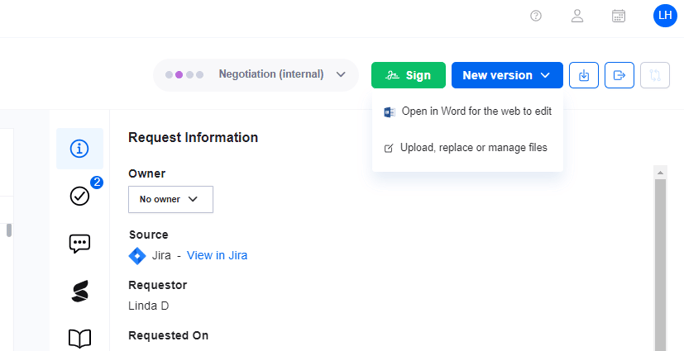
Once the contract is opened, click on the blue "New Version" button on the top right corner, and click "Open in Word for the web to edit".
Select the version that you would like to edit:
-png.png)
It will open up Word for the Web in a new tab for seamless amendment of your contracts. Your changes are automatically saved - you don't need to click save or manually upload. 
Once you're done editing your contract, close the Word for the Web tab and return to Summize. You will be presented with three buttons in the top banner:

- Save new version: If you've finished making changes (for now!) and you're ready to upload as a new version, click this button an updated version will be automatically added to Summize (as seen in the image below).
-png.png?width=650&height=306&name=Screenshot%20(254)-png.png)
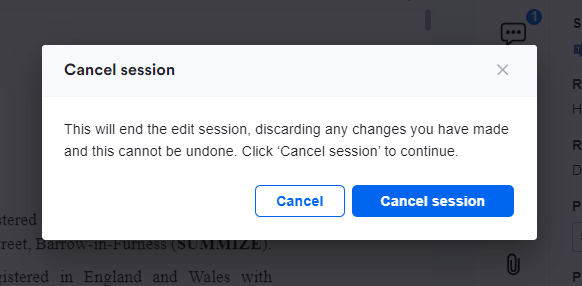
- Cancel session: If you want to abandon the changes that you've just made, click this button.
- Open in Word for the web: this will allow you to pick up your changes where you left off, and continue making edits.
Collaborating with other users
Only one user can edit a contract at a time.
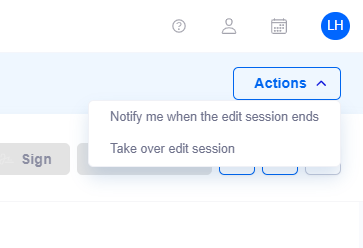
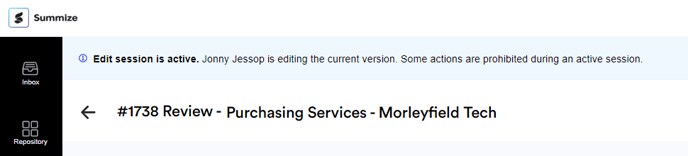
If someone hasn't either saved a new version or cancelled their edit session, any other users will be able to see that there is an edit session currently active:
From here, you have two options within Summize. You can receive a notification when that edit session has finished, or you can take over the edit session (we advise checking with that user first, though!)