
What is the Summize Assistant in Slack?
Skip to:
Overview
How to install the assistant bot in Slack
How to log into the Slack Assistant
Creating a contract using the Assistant
Submitting a contract for review using the Assistant
Submitting an Ask Legal request using the Assistant Bot
Overview
Our Assistant Bot for Slack allows business users to self-serve in creating contracts from pre-determined templates and sending contracts in for review, putting that Legal Front Door between the Legal team and the rest of the business.
The Summize Assistant in Slack is your automated communication between legal and commercial users. Contract creation and review cycles are faster, more consistent, and more efficient.
Enable contract creation in less than 2 minutes, with first pass reviews achievable in under 5 minutes.
How to authorise the Summize Assistant for your Workspace
Click the button below to begin the process of adding the Summize Assistant to your Slack workspace (this needs to be done by your organisation's Slack admin). Note: if you're not sure which to select, check the URL you use to access Summize:
| Summize URL | Slack Add-in Name | Slack URL |
| app.summize.com | Summize Assistant |  |
| app-us.summize.com | Summize Assistant (US) | |
| app-aus.summize.com | Summize Assistant (AUS) | |
| app-ch.summize.com | Summize Assistant (CH) | |
(or feel free to check with your Summize contact!)
How to install the Assistant Bot in Slack:
To install the Assistant Bot in Slack, follow these simple steps:
- Open Slack
- Click on ‘Add Apps’ in the toolbar on the bottom left-hand side of your screen
- A small box with a search bar will appear
- Type ‘Summize Assistant’ into this search bar and select the appropriate add-in for your organisation (refer to the table above if you are unsure)
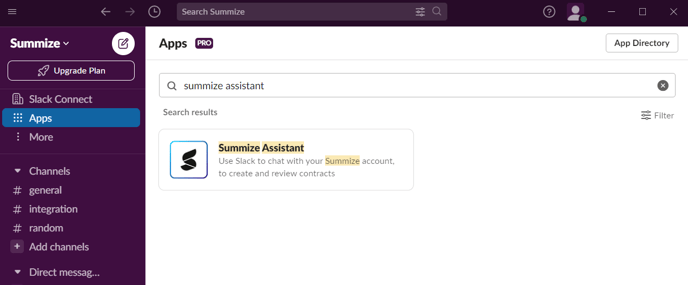
How to log into the Assistant Bot in Slack:
To log into the Assistant Bot in Slack, follow these simple steps:
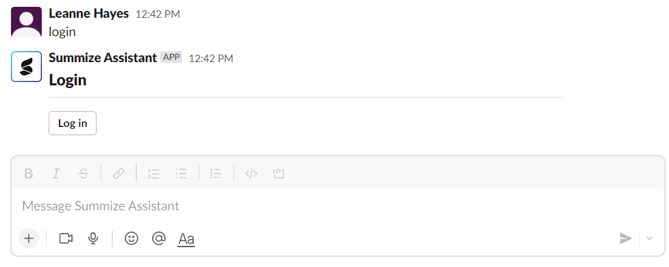
- Once installed, the first thing you need to do is log in.
- To do this, type ‘log in’ into the text box and hit enter.
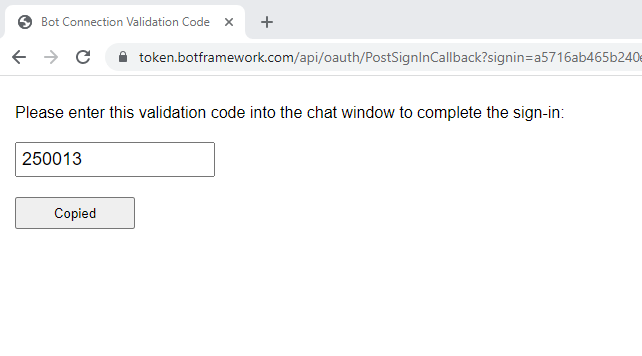
- Click on the ‘Log In’ button and you will be redirected to your browser to fill out your login credentials.
- You’ll then be given a 6 digit code to copy and paste into the Slack Assistant. This will verify your credentials and log you in.
Note: If you need to log out at any point, type ‘log out’ and hit enter. - Now, you’re ready to either create a contract (type ‘create’ and hit enter) or subject a contract to review (type ‘review’).
What is Summize Create in Slack?
Summize Create in Slack is used to create contracts such as NDAs using a native chat experience which is set up and controlled by the Legal team. Enhance speed and compliance on your pre-signature contracts by empowering business users to self-serve via an intuitive Q&A style experience within Slack.
How to Create a Contract in Slack
- Start by selecting the Create button, or typing ‘create’ and hit enter.
- Select the correct template that you need.
- The Summize Assistant will provide some initial guidance on the template if the legal team has pre-set this. Click Create.
- Answer the questions asked by the Summize Assistant e.g. what is the company name?
- You’ll get a chance to double-check the answers after all have been answered. If they are correct, click Yes.
Further Instructions
If the Legal team do not need to approve the template, then you will receive the populated template in Slack and also by email.
If the Legal team do need to approve the template, then the contract will be automatically sent to the Summize web app for approval. They will check the template and if approved, you will receive the populated template in Slack and also by email.
If they have not approved the template, they will deny the contract or make the necessary changes and reupload the contract. If denied, create the contract again with the necessary changes. If Legal have edited the template and reuploaded it, you will then receive the populated template in Slack and also by email.
What is Summize Review in Slack?
Summize Review in Slack is used to submit a contract to the Legal team for review. Legal and business users can collaborate in familiar tools, with first pass contract reviews executed in less than 5 minutes. As the Legal Front Door, Summize makes contract reviews faster and consistent via Slack.
How to Review a contract in Slack
- Start by selecting the Review button, or typing ‘review’ and hit enter.
- Attach the contract that you would like to review in the text bar and send the message
- If the Legal team have set up questions, please answer the pre-set questions. These go to the Legal team to give them some background information so be as detailed as possible!
- Once you have completed the questions, your contract will be sent to the Legal Team for review.
What is Ask Legal in Slack?
As well as pre-signature requests, legal teams can now track, triage, and manage the other type of requests they deal with on a day-to-day basis with the ‘Ask Legal’ feature from Summize.
With Ask Legal, business users across the organisation can now request help for legal matters such as disputes, litigation, data privacy and general questions or enquiries.
The Ask Legal feature extends the capabilities of Summize’s Legal Front Door which can be uniquely accessed via our Slack integration.
The expanded capabilities allow legal teams to facilitate smarter, faster responses to queries from the rest of the business, with huge time savings and efficiency benefits.
How to use Ask Legal in Slack
- Start by selecting the Ask Legal button, or typing ‘ask legal’ and hit enter.
- Select the correct template that you need
- The Summize Assistant will provide some initial guidance on the template if the legal team has pre-set this.
- Once you have completed the questions, you can upload any attachments to the attachment prompt
- Enter the request name
- Click submit and your request will be sent to the Legal Team for review.