How to understand and configure users and permissions in Summize
User management only available to users with Admin access
Skip to:
Overview
Understanding the different User Permission levels and licences
Add, edit or delete Users
Add, edit or delete Groups
Configuring folder visibility
Overview
On the User & Permissions page you can see the number of licenses available:
- View/Add users
- View/Add groups
Users and permissions are used within Summize to administer your Summize account. You are able to add/remove users, place them into user groups and control visibility on this basis. In addition to this you are able to change the licence type of individual users through the Summize web application.
Understanding the different User Permission levels and licences
To understand the different User Permissions and Licenses, follow this simple outline:
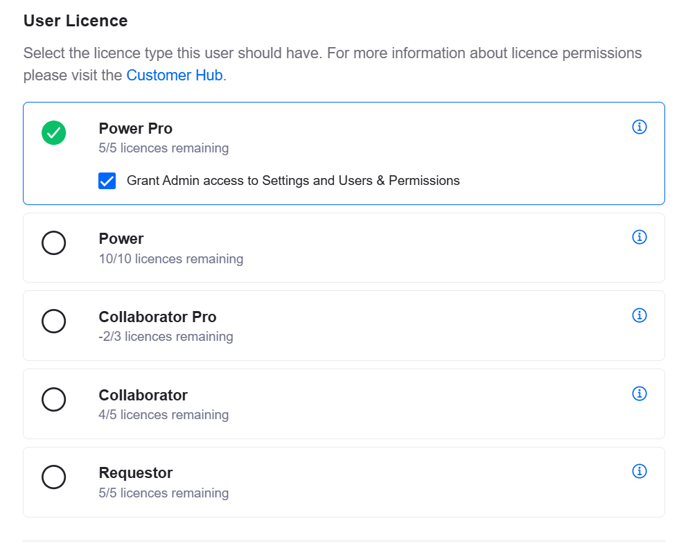
Power Pro - Users with a Power Pro licence have full access to all core product features and all Pro features by default, except for Settings and Users & Permissions which can be granted per user.
Power - Users with a Power licence have full access to all core product features by default, except for Settings and Users & Permissions which can be granted per user. They do not have access to any Pro features.
Collaborator Pro - Users with a Collaborator Pro licence have access to all relevant Pro features and limited access to Requests and Repository.
Collaborator - Users with a Collaborator licence have limited access to Requests and Repository. They do not have access to any Pro features.
Requestor - Users with a Requestor licence have limited access to Requests only.
Admin Access
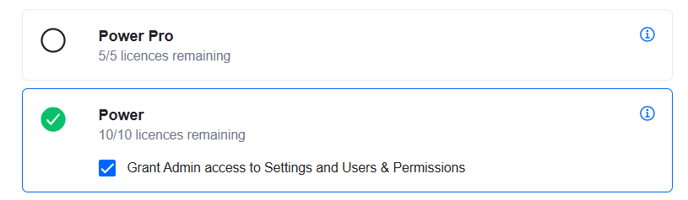
Both Power and Power Pro users can be granted Admin access on a per user basis. This grants access to the Settings and Users & Permissions areas of Summize, to setup integrations, external notifications, manage users, etc. To grant admin access, tick the box when assigning a user s Power/Power Pro licence:
Note: To see a full breakdown of functionality per user type, see this article.
Add, edit or delete users
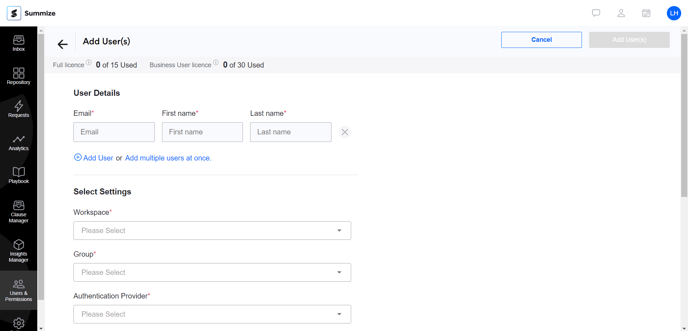
To add, edit or delete a user, you will need to have admin access. Follow these simple steps:
- Click on “Users & Permissions” on the left hand task bar.
- Click “Add User” in the top right corner to add a new user.
- Fill in the relevant information and licence type on this page then click add user in the top right hand corner to add. To add multiple users click the “add multiple users” button below the email box and insert multiple emails of users, then place a comma after the final email address and these will separate out.
- To edit a user, click on their name and then edit the information as needed. Click save in the top right hand corner to save all changes.
- To delete a user, tick the box next to their name and click on the rubbish bin to the left of the “add user” button in the top right corner.

Add, edit or delete groups
To Add, edit or delete groups , you will need admin access. Follow these simple steps:
- Click on "Users & Permissions" on the left hand task bar.
- Click on "Group" directly to the right of the "User" tab.
- To add a group click “Add Group” on the top right corner of the screen.
- Name the group and select general workspace settings.
- If the group needs bespoke folder visibility please configure.
- Finally, click “Add group” in the top right corner.
- To delete a group, click the tick box directly to the left of the relevant group name,.
- Then click the “rubbish bin” icon directly to the left of the “Add Group” button in the top right corner of the screen.
- To edit a group, click on to the relevant group name that you want to amend.
- Add new users to this group by clicking "See all Users". This reveals a list of all users in the group. You can then add users by clicking the "Add User" button on the top right corner of the screen.
- Edit the visibility of that group from the edit group page and configuring visibility in the normal way.
- Remember to save any changes you have made by clicking “Save”.


Configuring folder visibility
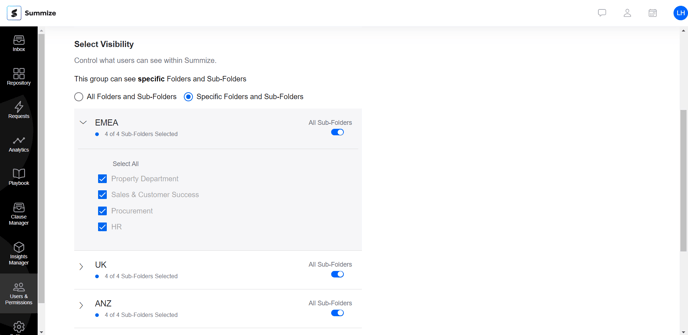
User visibility can be configured on a grop level. To configure group folder visibility, follow these simple steps:
- Select the relevant group on the “Group” tab of the Users & Permissions screen.
- Edit visibility by pressing “Specific Folders and Sub-Folders” by toggling relevant folders and sub folders.
- Remember to press “Save” in the top right hand corner to save changes.