
Post template launch, we understand that draft agreements can evolve over time. Use this guide to understand how to update your Create templates for easy management
Setup available to Power and Power Pro users
Skip to:
Cloning Templates
Updating and Replacing Templates
Deleting Templates
Best Practice
Cloning Templates
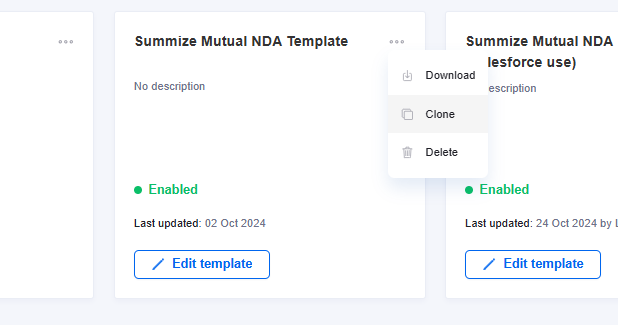
To clone an existing template, click the three dots against the template's tile in the menu view, and click 'Clone'.
The below pop-up will appear which allows you to name the cloned template. By default, it takes the original template's name and appends it with '_CLONE'. Cloned templates are disabled by default.
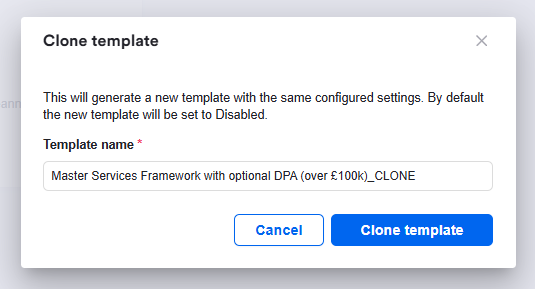
Click 'Clone template' and within a few seconds, your new, cloned template will appear in the menu.
Updating and Replacing Templates
If all you need to do on your template is amend the question wording of questions that already exist, you can do that easily in the web app. Simply find the question you want to update, click into the text field, make your edits and click Save.
If the edits you want to make involve adding or deleting questions, amending options to multi-select questions, or amending content of the Word document, you will need to go through the replace process outlined below.
Downloading template document:
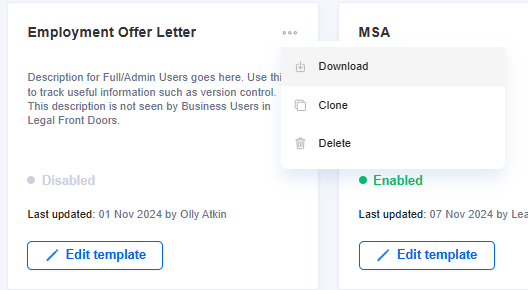
Navigate to the contract you want to replace, and either download on the menu tile, or click into the template and click download in the top right corner:
Make any necessary changes in Word using the Summize Word add-in.
Replacing template document:
Once ready, navigate to the template you want to update, and click 'Replace File':

Drag & drop or find the updated Word document:
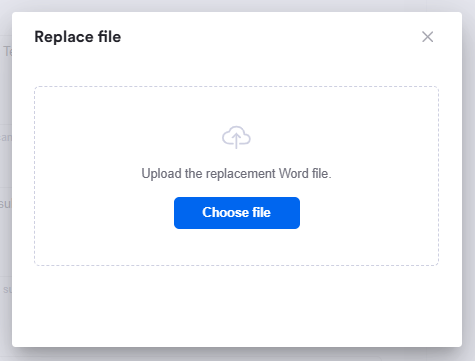
Once uploaded, a pop-up will appear which highlights the recognised changes:
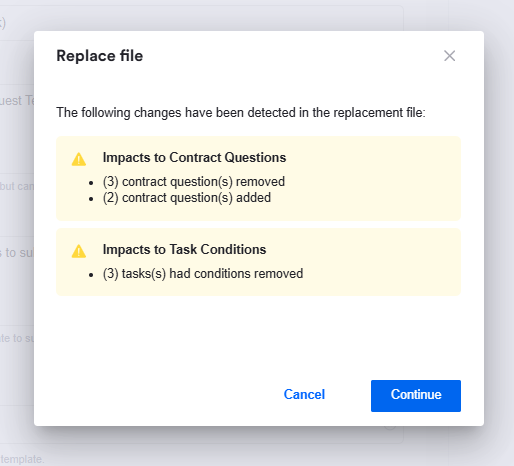
Summize will recognise if questions have been added or removed, or if questions have been removed which impact conditional tasks.
Click 'Continue' if you are happy to proceed.
Reviewing and configuring updates:
The updated Word doc is now uploaded to the template. Those highlighted changes above can be accessed again using the link at the top of the page:

Any new contract questions will be added to the end of the list of questions, and can now be re-ordered if required. Any removed questions will no longer appear.
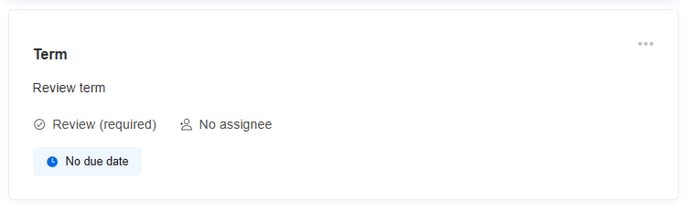
Any tasks that had a condition that was linked to a now-removed question will still exist, but without a condition applied. You can now re-add a condition or delete the task if appropriate. For example:
Conditional task prior to replacing file:

Conditional task after replacing file, with the question impacting the condition now removed:
All other settings (i.e. general settings, template questions, ordering of non-impacted contract questions, user permissions, non-impacted tasks) will be intact.
Saving the template:
Users will not have access to the replaced file until the template is saved, so ensure to click 'Replace & Save' in the top-right once ready:

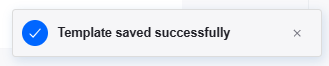
You will see the notification in the bottom right once the template is successfully updated:
For best practice guidance on replacing already launched templates, see the Best Practice section below.
Deleting Templates
To delete a template, click the three dots against the template's tile in the menu view, and click 'Delete'.
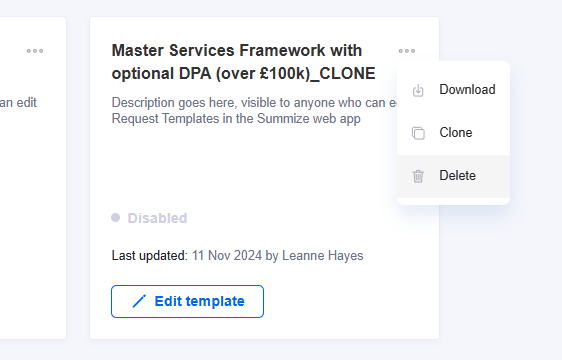
You will be asked to confirm before the template is deleted:
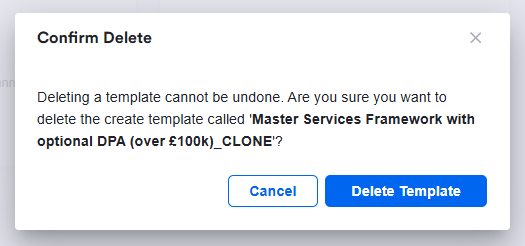
Once confirmed, the template will be removed from your account.
Best Practice
When needing to update a template, we recommend the following process:
- Clone the existing 'live' template, which will be disabled by default. The cloned version is now your 'test' template. This ensures that business users can still use the existing template whilst you are in the process of making updates.
- On the cloned version, download the file to make edits in Word.
- Once you have finished making edits in Word, go to the cloned template and follow the replace process.
- Name the cloned version something obvious to ensure end users will know it's work in progress. Enable this template for testing to ensure you are happy with the changes you have made. You can use access permissions to ensure this is only accessible by certain user groups.
- Once you are happy with the test template, use the same document to replace to live version. Once replaced, disable or delete your test template.
Step 5 of the above process - replacing the live version - ensures your request analytics remain consistent as you will not have multiple versions of the launched, live template. If you would rather track different versions of the template to see the impact your changes have had on SLAs and average time to close, then instead disable the existing 'live' template, and launch the 'test' template by removing access restrictions and enabling for the appropriate users.