Having trouble with the Summize Word Add-In? Don’t worry, we’ve got you covered. Whether you're unable to login or it's behaving unexpectedly, this guide will help you resolve the issue quickly so you can get back to reviewing contracts like a pro.
Skip to:
Refreshing the Word add-in
Unable to Login
Unable to Install the Add-in
Still having issues? Submit a Support Ticket
Refreshing the Word add-in
Most issues can be resolved with a quick refresh. Depending on your operating system and whether you're using Desktop or Web, this is done in slightly different ways.
Windows Desktop:
Right click anywhere on the add-in and click 'Refresh'.
Mac Desktop:
In the top right corner of the add-in, click the 'i' icon and click 'Reload'. You can also select 'Clear web cache' if issues persist.
Word for the Web:
If on Windows, hold Ctrl+F5 to reload the web page. If on Mac, hold Cmd+Shift+R to reload the web page.
The add-in should re-open automatically once the page as loaded as shown in the recording below. If it doesn't, simply select the Summize add-in by clicking the Summize logo in the Word ribbon.
Unable to Login
There may be a couple of reasons why you're unable to login to the Word add-in:
Wrong add-in
You've downloaded the wrong add-in. Each Summize datacentre has its own Word add-in. The add-in you need to use depends on the URL you use to access the Summize web-app (and therefore which datacentre your account is using). If you're unsure, check the table below:
| URL | Add-In |
| app.summize.com |
Summize |
| app-us.summize.com |
Summize (US) |
| app-aus.summize.com |
Summize (Aus) |
| app-ch.summize.com |
Summize (Swiss) |
| app-uae.summize.com |
Summize (UAE) |
Incorrect email address
Double-check the email address that you're using. Is this the same email address that is linked to your Summize account? If you usually login via SSO, double-check that the email you're using is the same email that you use for SSO logins elsewhere.
Local settings
There may be settings on your local machine that are preventing you from logging into the add-in, such as using a remote desktop or VPN. If you think this is the case, and you're able to successfully log into the Summize webapp (therefore indicating that there isn't an issue with your credentials) get in touch with your IT team to help troubleshoot.
Unable to Install the Add-in
You may not have the permissions to install the add-in, depending on the permissions imposed in your organisation. If this is the case, get in touch with your Microsoft Admin to ask for help or to ask if they can deploy the add-in to your organisation via Office 365.
Still having issues? Submit a Support Ticket
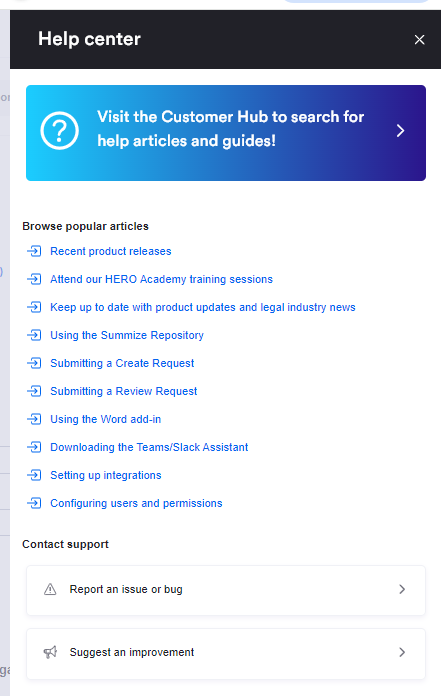
If you're not able to solve your issue using the information above, submit a support ticket either by emailing support@summize.com, or by submitting a ticket via the form in the web app's help centre:
You may be asked to send a HAR file to help the Support Team investigate the issue further. Follow the steps below to open the 'Inspect' dev tools window on the Word add-in:
Windows Desktop:
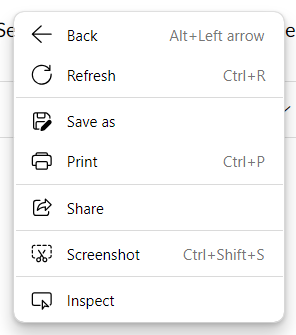
Right click on the add-in, and click 'Inspect':
Mac Desktop:
Office add-ins on Mac do not have the Inspect option available by default. Follow guidance on this article for how to enable this (you may need to ask an IT colleague for help!). Once enabled, right click anywhere on the add-in and select 'Inspect'.
Word for the Web:
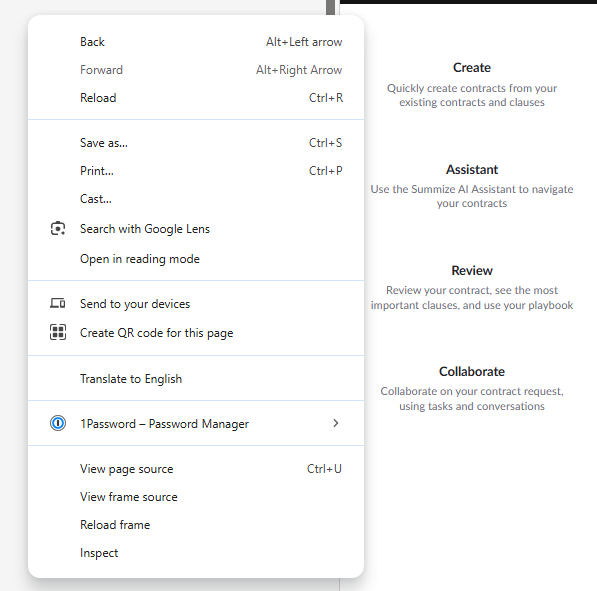
Right click anywhere on the add-in and select 'Inspect'.
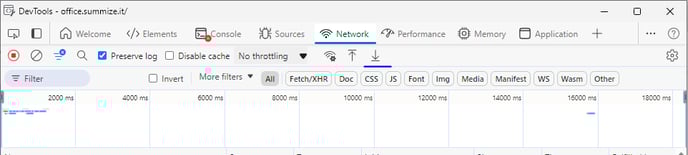
Once your Inspect dev tools window is open on either operating system, ensure the 'Preserve log' checkbox is ticked, re-trace your steps that caused the issue, go to the Network tab, and click the download (down arrow) button. This will download a HAR file to your local device, which you can then email to the Support Team.