
How to use Tasks when managing your contracts
Skip to:
Overview
Task settings
Add a task
Repeat tasks
Edit a task
Adding a note
Complete a task
Delete a task
Overview
Tasks for Repository contracts allow legal teams or contract owners delegate work for things like renewals, payments, renegotiations or other post-signature obligations and milestones.
Track pending, overdue and completed tasks to enable your organisation to manage their contract-related activities more efficiently, and get notified when tasks are assigned to reduce the risk of missed deadlines and associated penalties.
Task settings
Below is a breakdown of the task settings when used for repository contracts.
Type
The type setting is mandatory and is used to indicate what a task is. There are different ‘types’ of tasks in Summize such as Approval, Review and General, but tasks for Repository contracts are limited to ‘General’ only.
Title
The title setting is mandatory, and is used to specify a short title for each task.
Description
The description setting is optional, but can be used to enter task descriptions that outline what is required in order to complete the task.
Due date
The due date settings is optional, but can be used to specify task deadlines.
Repeat
This setting will appear once a due date is set. More on this below!
Assign to
The Assign to setting is optional, but can be used to assign a task to specific users, groups, or a combination of both. Tasks can only be assigned to and completed by users who can view the contract as defined by Folder Visibility.
Add a task
To add a task, follow these simple steps:
- Navigate to the Repository Table.
- Locate the contract you want to add a task for and click to go to the contract view.
- Navigate to the ‘Tasks’ section of the tool panel.
- Click the ‘Add Task’ button’ in the top-right section of the panel.
- The task settings panel will open.
- The task type will be auto-selected to General.
- Enter a title for the tasks into the field called ‘Title’.
- Enter a description for the task in the field called ‘Description’.
- Select a due date from the dropdown field called ‘Due date’ using the calendar, or leave this field empty if you do not wish to specify a due date for your task.
- If applicable, configure your repeat settings (see below section)
- Select who you want to assign the task to from the last dropdown called ‘Assign to’ or leave this empty if you do not wish to assign this task.
- Click the ‘Add Task’ button in the footer of the panel (bottom-left).
In the video below you will see the steps described above.
Repeat Tasks
To set Repository tasks to repeat, for example if you have recurring contract obligations to manage such as renewals, monthly reports, etc, follow these simple steps:
- After setting a due date for the task, a field called 'Repeat' will appear, with various options:
- Does not repeat - a standard, one-off task
- Weekly - a task that repeats weekly
- Monthly - a task that repeats monthly
- Yearly - a task that repeats yearly
- Custom - a repeating task with a custom schedule
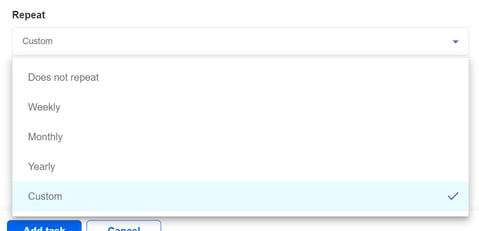
- Select the appropriate option for your task. For weekly, monthly or yearly schedules, the task will repeat on the same day of the week/month/year, until the end date. For custom schedules, you can select the frequency in which the task will repeat, using the number field and the dropdown (e.g. 'Repeat every 3 months')
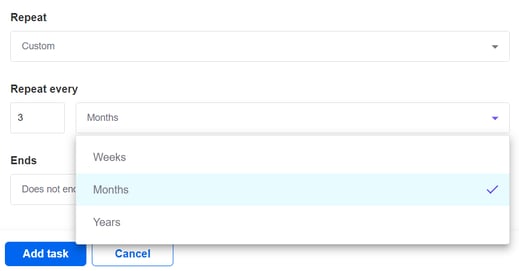
- Select when you'd like your repeat schedule to end, if at all. If you select 'Ends of specific date', a date picker will appear:
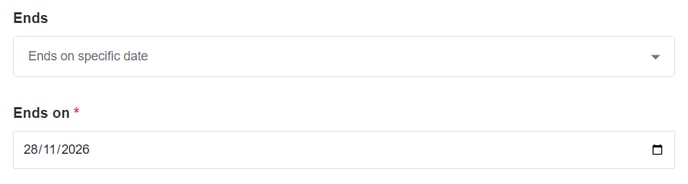
In the video below you will see the steps described above.
Once the task is marked as complete, the next task in the schedule will appear. If the task becomes overdue, the next task in the queue will appear.
Edit a task
To edit a task, follow these simple steps:
- Navigate to the task you want to edit.
- Click the ellipsis icon in the top-right corner of the task card.
- A menu will appear with some options.
- Click ‘Edit task’.
- The task settings panel will open.
- From here you can edit the task settings including; Due date, Title, Description or Assigned to.
- After editing the settings click ‘Update’ to complete the action.
- The new settings will be applied.
In the video below you will see the steps described above.
Note: Power and Power Pro users can edit any task. Collaborator users can only edit tasks that they created. Requestor users cannot edit tasks.
Adding a note
To add a note to a task, for example if the task is not yet complete but you want to add a note to update on progress, follow these simple steps:
- Navigate to the task you want to add a note to.
- Click the ellipsis icon in the top-right corner of the task card.
- A menu will appear with some options.
- Click ‘Add note’.
- Type your note and click the arrow icon to submit.
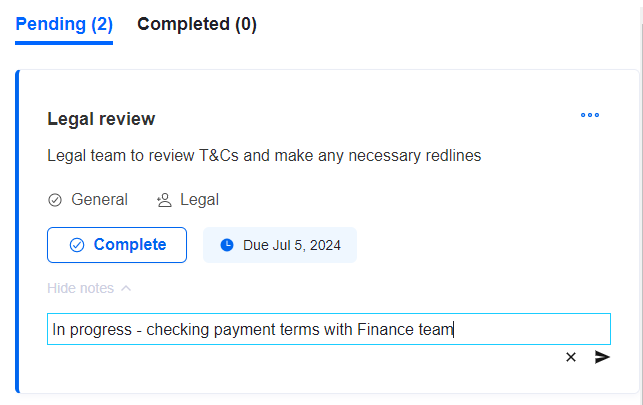
- To edit/delete a note, hover over the note and click the pen icon or trash can icon.
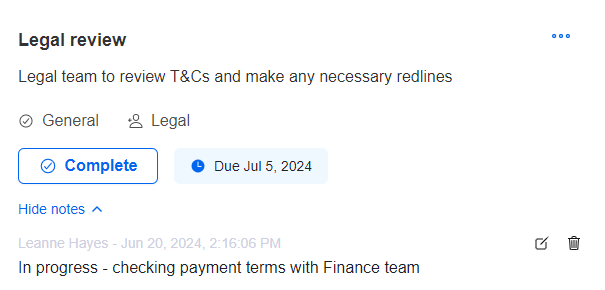
Note: Only the user who created the note can edit or delete the note.
Complete a task
Completing a task can be done by any user assigned to the task as well as any user with Power permissions level with visibility of the contract.
To complete a task, follow these simple steps:
- Navigate to the task you want to complete.
- Click the ‘Complete Task’ button.
- A confirmation modal will appear, where you can also add a completion note if appropriate.
- Click the ‘Complete task’ button to confirm the action.
- The modal will disappear and the task you have completed will move from the
Pending tab to the Completed tab, alongside any completion notes that were added.
In the video below you will see the steps described above.
Note: Power and Power Pro can complete any task. Collaborator and Requestor users can only complete tasks that they are assigned to.
Delete a task
To delete a task, follow these simple steps:
- Navigate to the task you want to delete.
- Click the ellipsis icon in the top-right corner of the task card.
- A menu will appear with some options.
- Click ‘Delete task’.
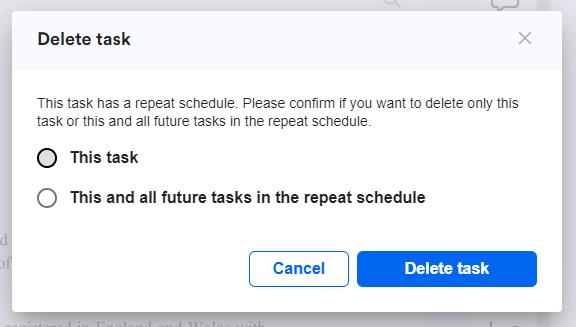
- A confirmation modal will appear.
- If the task has a repeat schedule, you'll be asked whether you want to delete this specific task, or the whole schedule:
- Click the ‘Delete task’ button to confirm the action.
- The modal will disappear and the task will be deleted.
In the video below you will see the steps described above.
Note: Power and Power Pro can delete any task. Collaborator users can only delete tasks that they created. Requestor users cannot delete tasks.