
Sync data from signed contracts in your Repository back to HubSpot objects to keep track of key information and obligations
The Summize HubSpot integration can sync data back to HubSpot objects (like Deals, Contacts, or Companies). It does this in three main steps:
Default Fields: It takes basic information from the Summize document (who requested it, who it's assigned to, and who created it) and updates the corresponding properties in HubSpot.
Custom Fields: It looks at any custom fields that have been set up in Summize and tries to find matching fields in HubSpot. If it finds a match, it updates the HubSpot property with the Summize value.
Clauses: It takes information about clauses from the Summize document and updates corresponding properties in HubSpot if they exist.
Property naming
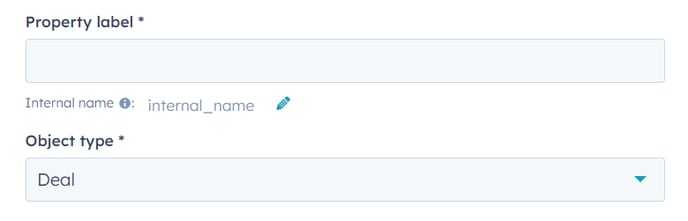
First, create a new property in HubSpot against the appropriate object:
For further guidance on this, visit this page on HubSpot's knowledge base.
To create the sync between the Summize value and the HubSpot property, ensure the 'internal name' of the property matches this format:
smz_[field name with spaces replaced with _]
For example, a custom field called Project Code in Summize will need a HubSpot property with an internal name of:
smz_project_code
A clause called Termination Date in Summize will need a HubSpot property with an internal name of:
smz_termination_date
To map the default fields, create a HubSpot property with the internal names:
smz_requestor to sync the Requestor's name
smz_assignedto to sync the Request/Repository contract Owner
smz_createdby to sync the Repository contract's creator name
Linking a Repository contract to a HubSpot object
Contracts in Summize can be linked to a HubSpot object in two ways:
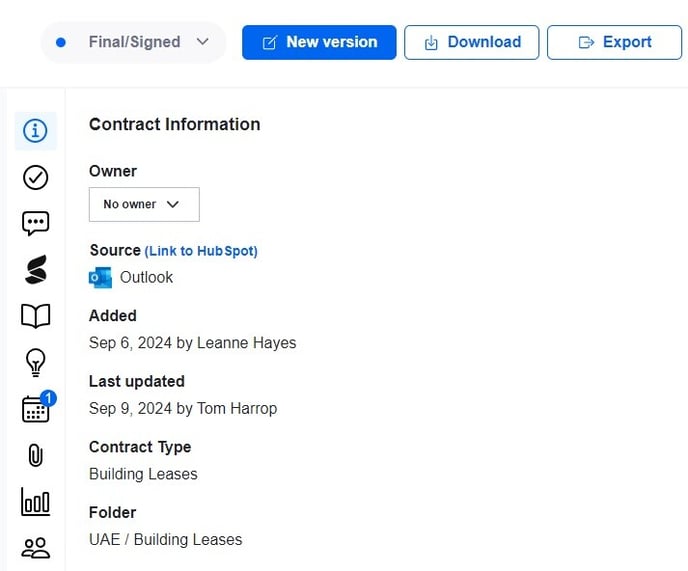
- Manually via the webapp using the ‘Link to HubSpot’ option shown below. Navigate to the Repository contract, click on the 'i' Icon in the panel, and click 'Link to HubSpot'.
- Automatically, when a Request which is already associated with an HubSpot Deal is sent for signature using Summize, and that document, once signed, is sent to the Repository.
Sync Testing
Here is some guidance to test that your new properties are syncing correctly:
Default Field sync: Create a new Request in Hubspot. This will trigger a sync. Check that a corresponding object in HubSpot has been updated with the correct information.
Custom Field Sync: Set up a custom field in Summize (e.g., "Project Priority") or choose an existing custom field. Create a matching property in HubSpot. Add a value to that custom field against a Repository contract. Link that Repository contract to the Hubspot object and check that the property's value is updated.
Clause Sync: Set up a clause in Summize (e.g., “Payment Terms") or choose an existing clause. Create a matching property in HubSpot. Find a Repository contract that has that clause present. Link that Repository contract to the Hubspot object and check that the property's value is updated.
Note: if syncing to a dropdown field in HubSpot, all possible options in dropdown lists must match in both Summize and HubSpot. Usage of a mismatched option will prevent all data from syncing.