
How to setup the Salesforce integration on Summize
Setup available to Admin Users only
Latest Package Version: 2.3
Package last updated: 27 May 2025 (This latest version includes additional logging to help with diagnosing issues)
Click here for instructions on updating your package
Skip to:
Introduction
Get Callback URL
Create External Client App
Add a Remote Site Setting
Add Summize as a Trusted URL
Get Consumer Key & Secret
Get your Salesforce Domain URL
Install Package
Establish connection with Summize
Point Salesforce to your Summize account (Custom Settings)
Configuring Summize on your Salesforce Pages
Notes & Attachments Behaviour
Updating the Summize Package
Introduction
The Summize Salesforce integration app package contains a combination of Lightning Web Components (LWC) and Apex Controllers. In order to integrate successfully, you must first undertake a series of configuration steps before installing the app. Installing the app before this basic configuration has been done can result in challenges later.
To set up the integration, you will need System Administrator profile access in Salesforce, and admin credentials for Summize.
Throughout this guide, you will be directed at different stages to the Settings > Integrations page on the Summize web app. At the top of that page, you should see a section for Salesforce. If you cannot see the Salesforce section, it will need to be enabled on our side. Contact us to enable it.
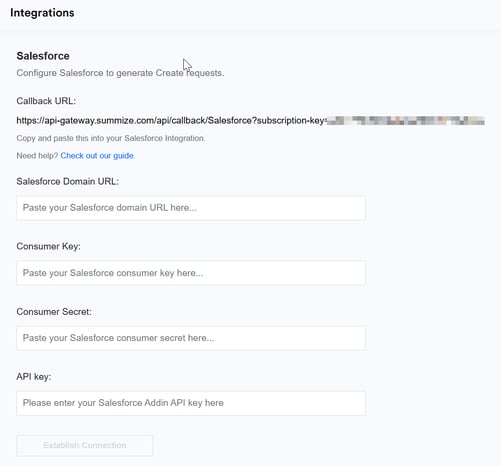
1) Get Callback URL
- Log into Summize
- Go to Settings > Integrations
- Scroll to the 'Salesforce' section
- Copy the 'Callback URL' to your clipboard.
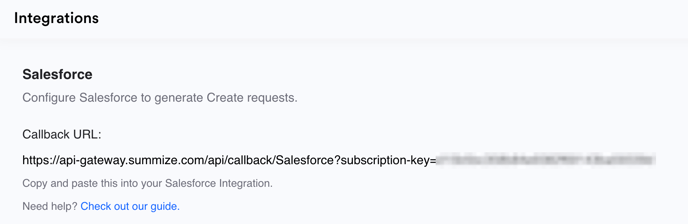
2) Create External Client App
To allow Summize to access the Salesforce APIs and security protocols, we need to create an External Client App in Salesforce.
- Go to Setup > Apps > External Client Apps > External Client App Manager
- Click 'New External Client App'
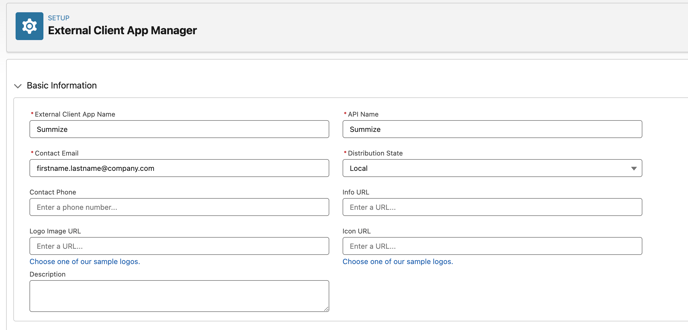
- In the 'Basic Information' section, enter the following field values:
- External Client App Name: Summize
- API Name: Summize
- Contact Email: Your valid Summize email address. This is needed to verify your Salesforce app later and must match your Summize credentials.
Tip: Summize assume your valid Summize email address and your Salesforce username will be the same. If they are different, you need to configure an alias email address in Summize. In the Summize web app, go to Users & Permissions. Click on your user, and enter your Salesforce username in the 'Connect alias email' field. The value in this field should match what you specify in the 'Contact Email' field in the External Client App Manager.
- Distribution State: Leave as ‘Local’
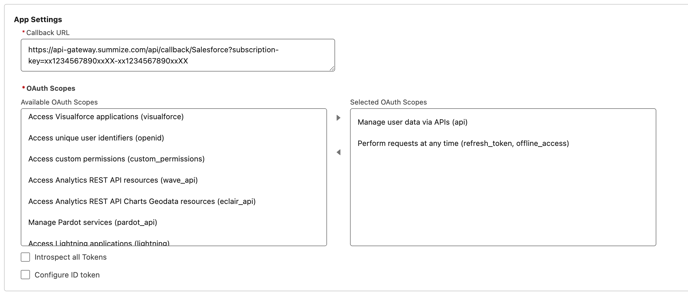
- In the 'API (Enable OAuth Settings)' section, tick ‘Enabled OAuth’ and enter the following information:
- Paste the Callback URL from the Summize app (Step 1) into the 'Callback URL' field.
- Select the following options in the 'OAuth Scopes' multi-select picklist by moving them from the left to the right panel:
- Manage user data via APIs (api)
- Perform requests at any time (refresh_token, offline_access)
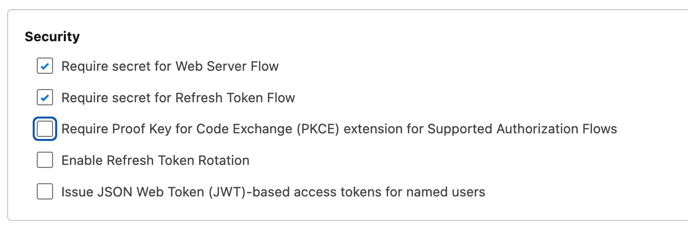
- In the 'Security' sub-section, untick 'Require Proof Key for Code Exchange (PKCE) extension for Supported Authorization Flows'
- Click 'Create'.
-
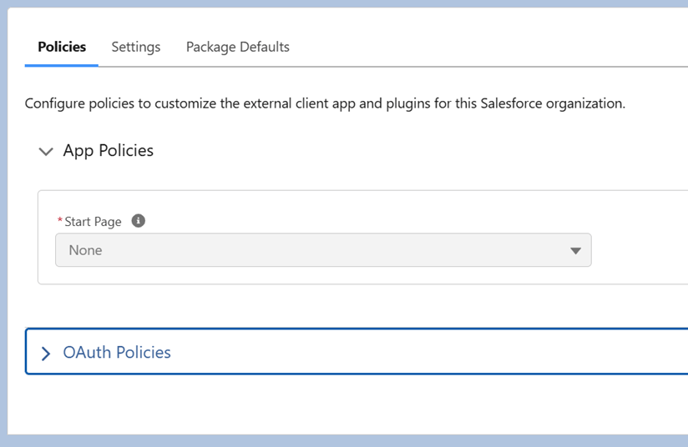
Once created, click ‘Edit’ in the Policies tab, expand OAuth Policies:
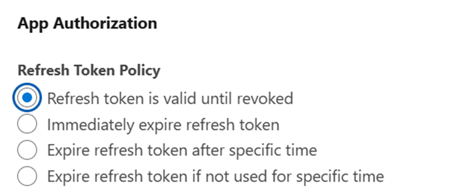
Scroll down to ‘App Authorization’ and select ‘Refresh token is valid until revoked’:
- Click 'Save'.
3) Add a Remote Site Setting
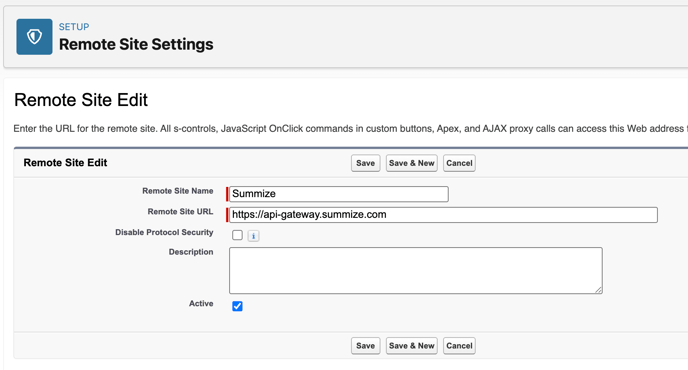
- Go to Setup > Security > Remote Site Settings.
- Click 'New Remote Site'
- Complete the fields as follows:
- Remote Site Name: Summize
- Remote Site URL: Go to Settings > Integations on the Summize web app, navigate to Salesforce and click 'Check out our guide'. Scroll to the bottom of the pop-up and copy the value next to 'Summize API Endpoint - note, there is no trailing slash. For reference , the values for each of the datacentres are below:
- UK Datacentre: https://api-gateway.summize.com
- US Datacentre: https://api-gateway-us.summize.com
- Swiss Datacentre: https://api-gateway-ch.summize.com
- UAE Datacentre: https://api-gateway-uae.summize.com
- Australia Datacentre: https://api-gateway-aus.summize.com
- Active: true
- Click 'Save'.
4) Add Summize as a Trusted URL
- Go to Setup > Security > Trusted URLs.
- Click 'New Trusted URL'
- Complete the fields as follows:
- API Name: Summize
- URL: https://*.summize.com
- Active: true
- CSP Context: All
- CSP Directives: Select all checkboxes
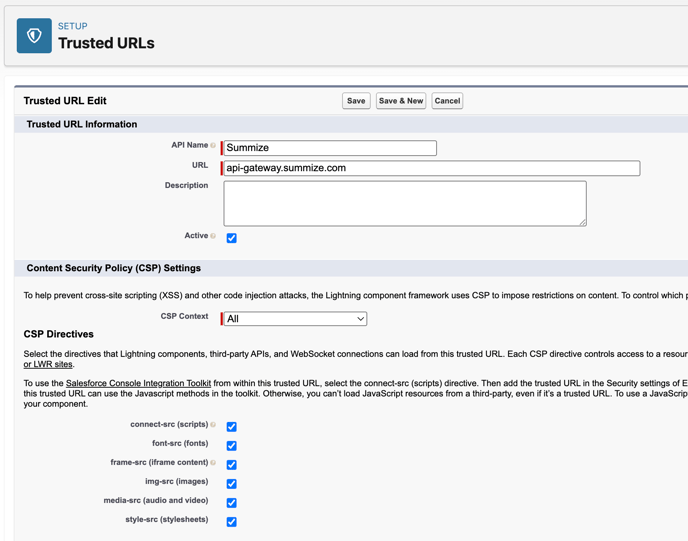
- Click 'Save'.
5) Get Consumer Key & Secret
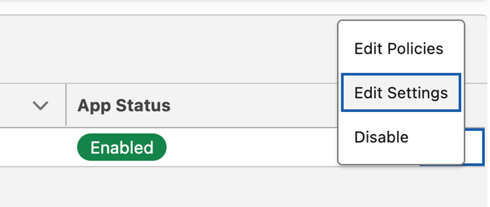
- Navigate back to the External Client App created in Step 2. From the table row action dropdown, select 'Edit Settings'.
- In the 'Settings' subtab, open the 'OAuth settings' section, and click the 'Consumer Key & Secret' button.
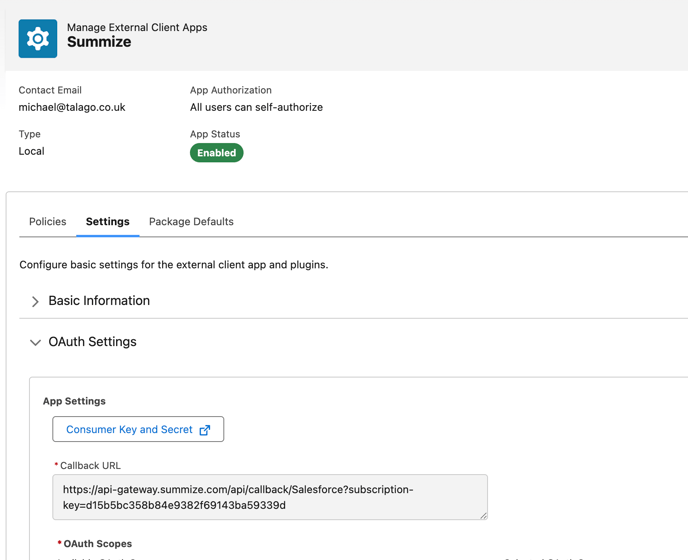
- You will be prompted to verify your identity via a two-factor authentication code, which will be sent to you by email. Enter the code and click 'Verify'. You will be taken a page in Salesforce Classic displaying the Consumer Key and Consumer Secret. Keep this tab open as you will use these in the next step.
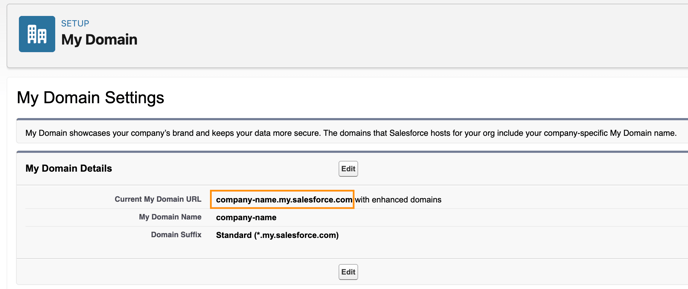
6) Get your Salesforce Domain URL
- Go to Setup > Company Settings > My Domain.
- Copy the 'Current Domain URL' value exactly as it appears.
7) Install package
Navigate to the latest version using the link at the top of the page and following the prompts to install the app.
Choose which install option is most appropriate for your instance, tick the acknowledgement and click 'Install'.
8) Establish connection with Summize
In the Summize web app, go to Settings > Integrations. Click the “Salesforce” section and paste in the following values:
- Salesforce Domain URL: Enter https:// followed by the Domain URL from Salesforce (Step 6). eg: 'https://company-name.my.salesforce.com'. Tip: there should be no following slash on the end of the URL. Also ensure there is no trailing space.
- Consumer Key: The Consumer Key from Step 5.
- Consumer Secret: The Consumer Secret from Step 5.
- API Key: Leave blank for now.
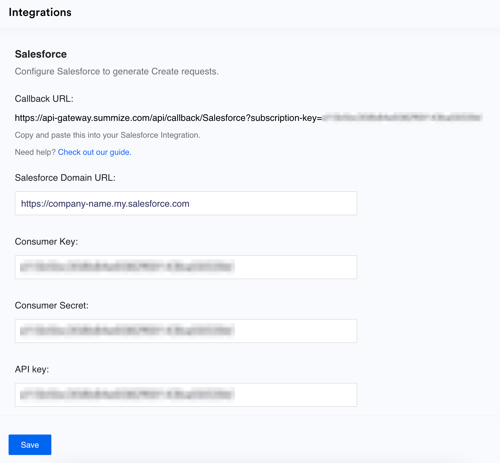
- Click 'Save'.
- Click 'Establish Connection'
- You will be directed to log into your Salesforce account in a new tab. Once logged in, and if connection was successful, you’ll be redirected back to Summize Settings, where the buttons should now show 'Disable to edit' and 'Delete' instead of 'Establish Connection'.
- Once successfully established, click the 'Regenerate' button next to the API Key.
9) Point Salesforce to your Summize account (Custom Settings)
- In Salesforce, go to Setup > Custom Code > Custom Settings.
- Click 'Manage' link next to 'Summize Settings'.
- Click the 'New' button at the top of the screen (shown below) to create a Default Organization Level Value.
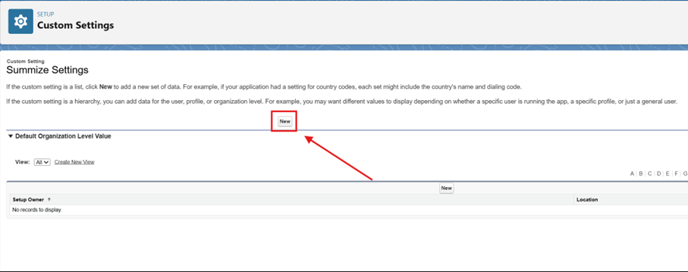
- In another tab, open the Summize web app and navigate to Settings > Integrations > Salesforce.
- Check that the API Key field has populated (you cannot view the key at this stage). If the field is black, click the 'Regenerate' button.
- Click the link 'Check out our guide' below the Callback URL.
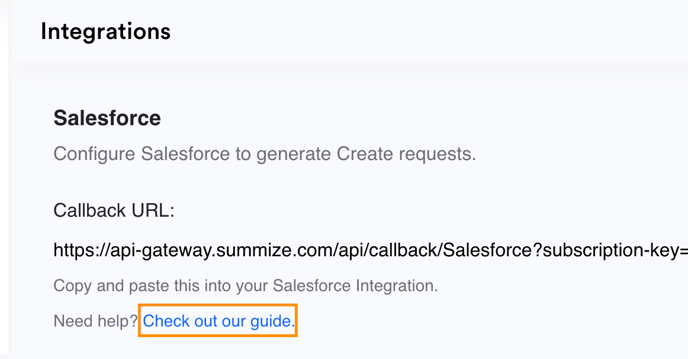
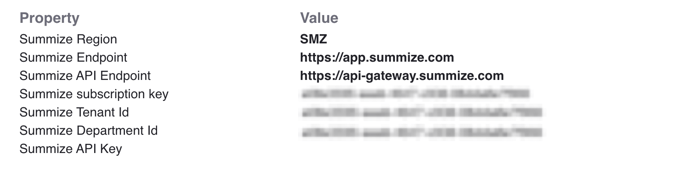
- Copy and paste the values in the popup window to the following fields in the Custom Setting in Salesforce:
- API Key: Summize API Key
- App URL: Summize Endpoint
- Endpoint URL: Summize API Endpoint
- Subscription Key: Summize Subscription Key
- Tenant ID: Summize Tenant Id
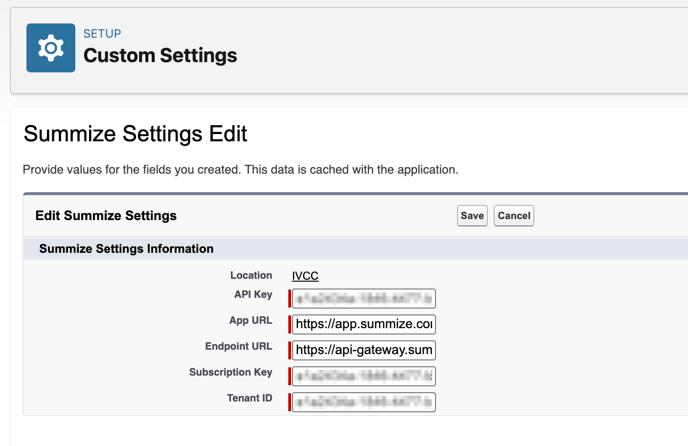
- Click 'Save'.
Tip: If the 'Summize API Key' value is not displayed, you must click the 'Regenerate' button next to the 'API Key' field on the main page before opening the popout.
10) Configuring Summize on your Salesforce Pages
The Salesforce integration is now successfully installed.
To start using Summize in Salesforce, navigate to a Lightning Record Page for an object that requires the app (Accounts and/or Opportunities), click 'Edit Page', and drag the required Summize widgets from the Custom section at the bottom of the left hand panel.
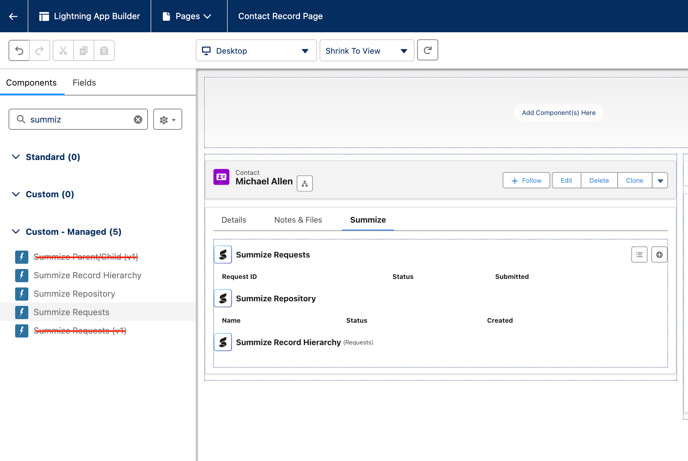
Tip: This installation guide is designed to work with all v2 components. However, the package contains v1 components for clients on our old solution. The following v1 components are not covered by this integration guide and should not be added to Lightning Pages:
- Summize Parent/Child (v1)
- Summize Requests (v1)
Notes & Attachments Behaviour
When you submit a Create request via the Salesforce Summize integration, generated documents are, by default, automatically uploaded to the 'Notes & Attachments' section of the relevant Opportunity or Account upon completion (once all required tasks are marked as complete). This ensures that anyone with access to that Salesforce record can view the associated file. If you prefer to restrict this behaviour, you can disable it within the integration settings using the option below:

This will prevent any Create documents from being uploaded, and instead the user can get the generated file from email notifications, from navigating to the request via the Summize Request widget on the Opportunity/Account, or from the web application.
Updating the Summize Package
The Summize package may need to be updated from time to time to improvements or product releases. You will need to be a Salesforce Admin to update the package.
Click the link at the top of this page to access the latest version of the Summize package.
You should then be able to click 'Upgrade' as shown in the screenshot below:
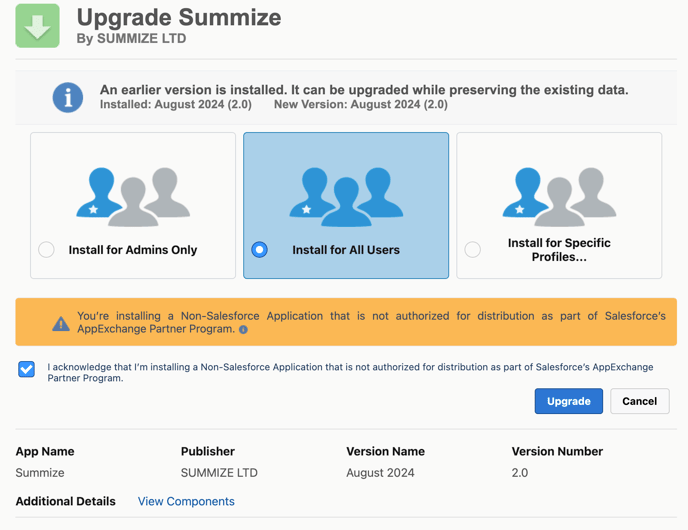
This will upgrade your installed package to the latest version.