
How to setup the Jira integration on Summize
Setup available to Admin users only
This integration uses a CustomUI app, meaning the Summize Legal Front Door can open within an iFrame within Jira, which gives users the ability to submit requests without leaving Jira.
This guide is provided as a summary of the configuration steps involved in setting up the Summize x Jira integration.
To setup the integration, you will need admin credentials for both Jira and Summize.
In summary, the process for setting up the environment is simple and consists of:
- Enable a private listing on Jira
- Install the Summize integration
- Configure the app in Jira
- Configure the app in Summize
Install the App
To be able to install the Summize integration, you must first enable private listings. This can be done clicking the cog icon in the top right then going to Apps > Manage Apps and click the Settings link.
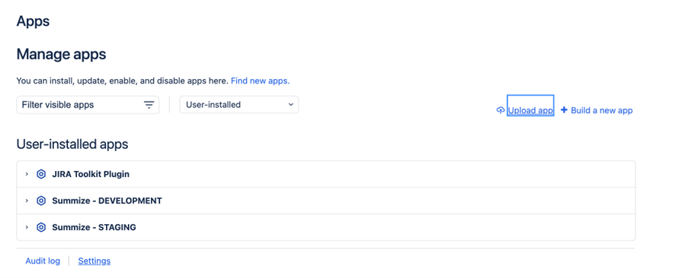
Once there the following settings should be set:
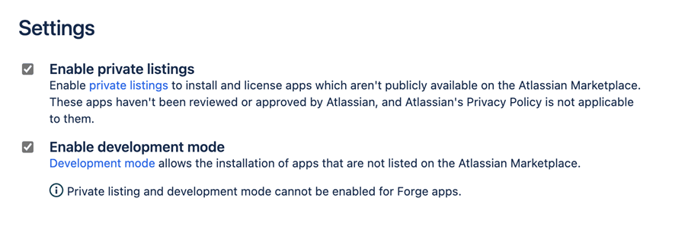
Once that is done, you may need to refresh the page to enable the ‘Upload App’ option. If this is visible, then everything is setup correctly.
The next step is to navigate to integration page on the Atlassian developer site, which can be found here, and should look like the following:
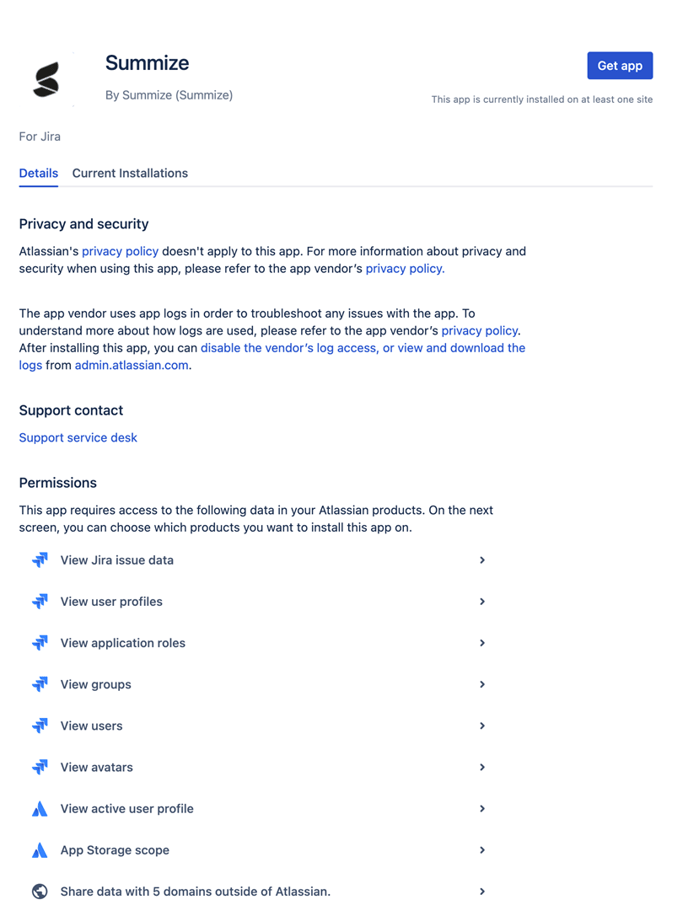
Press the Get app button and follow the instructions. Once this is complete the Summize button will be available on the issue screens.
Configure the App: Jira
The initial user will be prompted to configure Jira for the other users. Press the Configure button and you will be prompted to enter some values split across two tabs: System and Visibility.
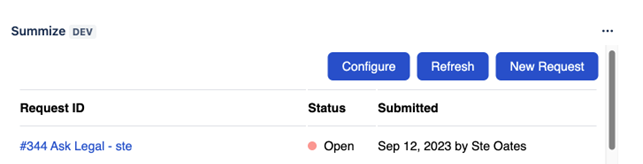
System Tab:
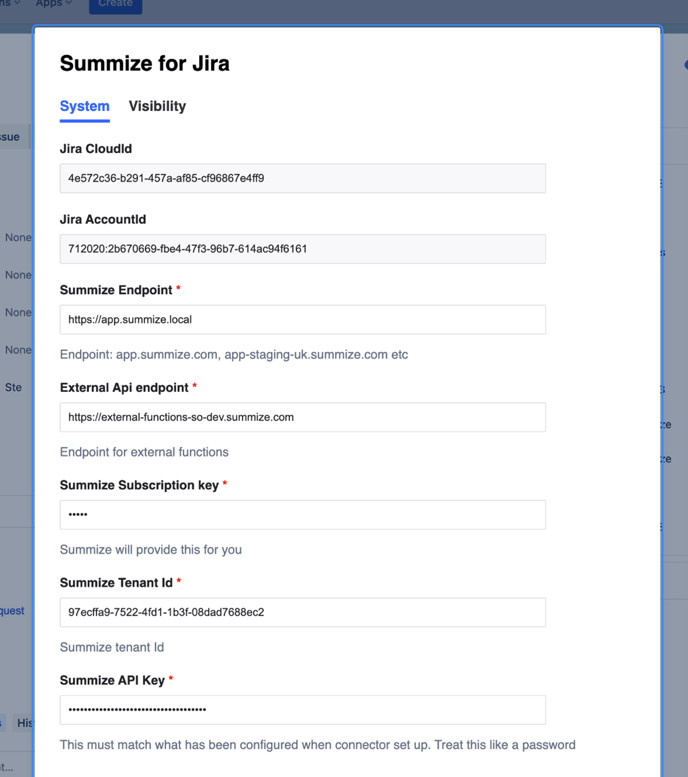
In a separate tab, go to the Summize Web App > Settings > Jira Integration, where you will find the Summize values listed at the top of the page that are needed for the System tab:
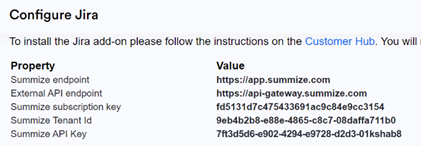
Visibility Tab:
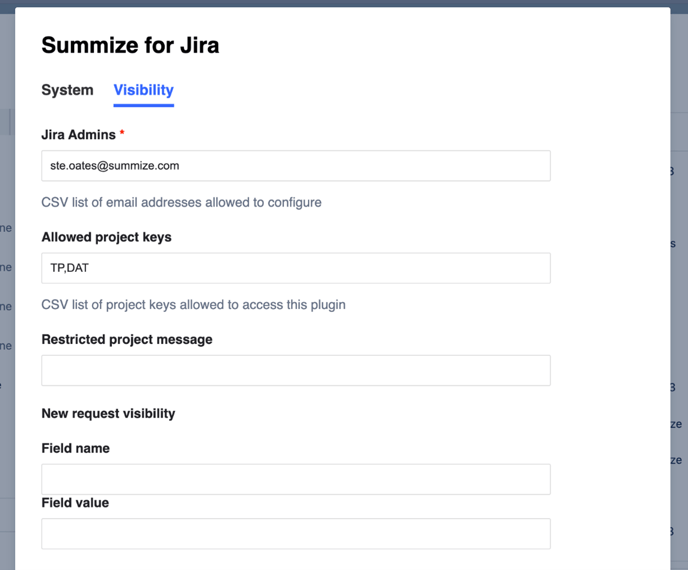
See the below table for a description of the values needed:
Value |
Description |
|
Jira Admins |
Rather than show the configuration button to all users and exposing the potentially sensitive information, this is a comma separated list of email addresses who have access to the configuration button. |
|
Allowed project keys |
(Not required) If you only want the Summize app to appear on specific project types, enter a comma separated list of project keys here |
|
Restricted project message |
(Not required) If Summize is only enabled on specific project keys, enter a message that will appear if a user tries to access Summize on a project where the app isn’t enabled, e.g. “This app is not available on this project” |
|
New request visibility: Field name |
(Not required) If you only want the Summize app to appear when a ticket reaches a certain stage, enter Stage here |
|
New request visibility: Field value |
(Not required) If you only want the Summize app to appear when a ticket reaches a certain stage, enter the specific name of the stage here |
Click ‘Apply Configuration’ once you have populated all of the fields.
Configure the App: Summize
Return to the Summize Web App > Settings > Jira Integration, and populate the following fields:

Value |
Description |
|
Cloud ID |
Use the value from the Jira CloudId field from the Systems tab in the Jira App |
|
Account ID |
Use the value from the Jira AccountId field from the Systems tab in the Jira App |
|
API Key |
The Summize API key found in Settings on the Summize Web App |
|
Jira URL |
Your Jira domain – the URL you see in your browser’s address bar up to .net, e.g. https://acme.atlassian.net |
|
API email address |
This should be an admin account, this combined with the Jira API email token below will be used within the Summize API to sync clauses and other fields. |
|
API email token |
This needs to be generated within JIRA by the account set in Jira API email, this can be created here. |
Click ‘Save’.