
Follow this simple guide to setup the HubSpot integration on your Summize account
Setup available to Admin users only
The Summize Admin must have Super Admin or App Marketplace Access on HubSpot to connect apps to their HubSpot account:

See HubSpot Knowledge Base article here
Connect your HubSpot Account to Summize
On HubSpot, navigate to the menu in the top right hand corner and find your Portal ID underneath your Account name. It can also be found in any HubSpot URL - it is the first numerical value you can see.
Copy this value and navigate to the Summize web app. Go to Settings > HubSpot Integration and paste the value in the Portal ID field.
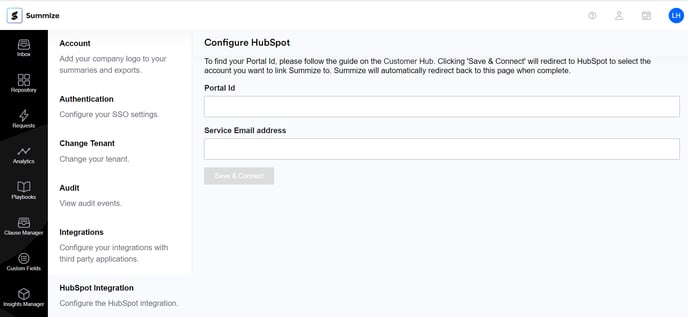
Enter an email address into the Service Email address field. This is the email address we will use to look up a user from your HubSpot account to attach files to objects (i.e. Companies or Deals). The user for this email address will show on the notes that get automatically generated by HubSpot when adding attachments. This can be any valid user in your HubSpot account.
Click 'Save & Connect'. The web app will redirect you to HubSpot and will ask you to select an account and approve the permissions that Summize requires to work.
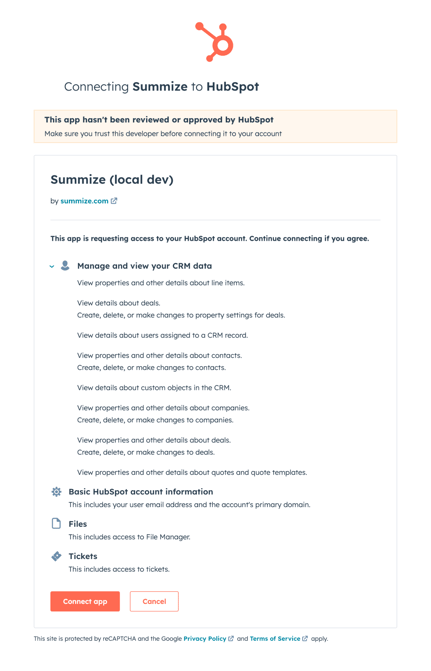
Click 'Connect app' and once approved, HubSpot will redirect you back to Summize.
In HubSpot, navigate to Sales > Documents, and create a new folder called 'Summize'.

This is where all synced files will be located.
Configuring your HubSpot objects
The Summize HubSpot integration contains three available cards:
Summize Requests – Requests attached to this entity. Available on Contacts, Companies and Deals. This allows a user to generate a new Request, or view existing Requests that were generated against the entity.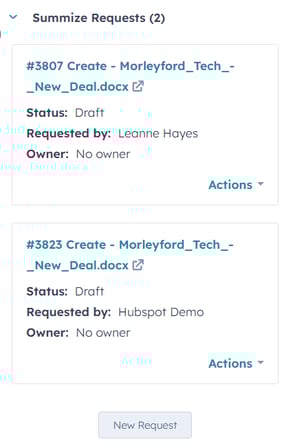
Summize Repository – Repository items attached to this entity, or items attached to a Request that has completed the signature workflow. Available on Contacts, Companies and Deals. This allows users to view any signed contracts related to the entity. 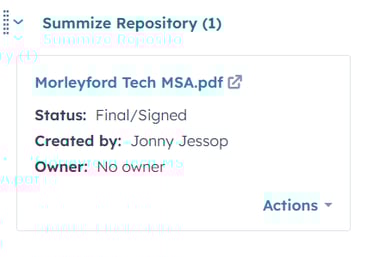
Summize Requests (Deals) – Shows all Deal requests related to the Company being viewed. Available for Companies only. This allows users to see any Requests generated against a Deal that is related to the Company.
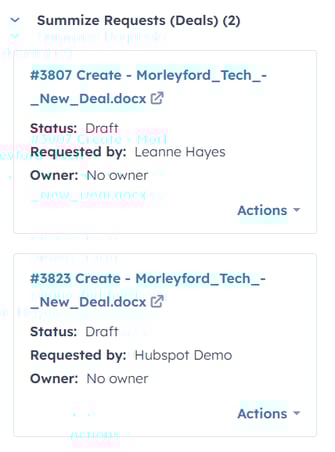
Adding cards to the entity
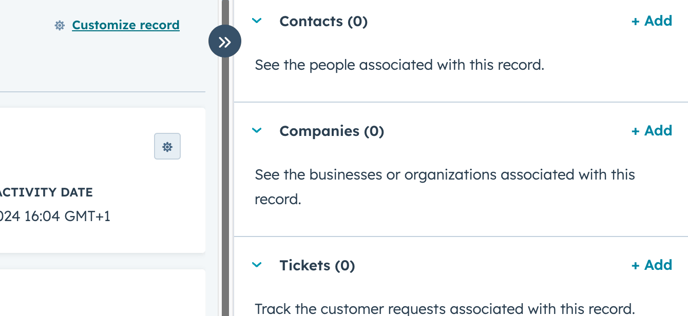
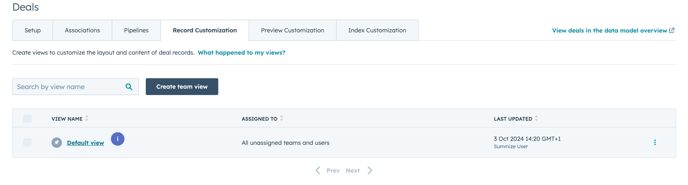
Either navigate to the entity in HubSpot (Deal, Company or Contact) and click 'Customize record' at the top of the screen, or go to Settings > Data Management > Deal/Company/Contact > Record Customization.
Once clicked, pick the record customization you want to change. Most environments will just have a default view. If so, use that one or use any view of your choice.
Once here, click “Add cards” which is at the top of the right column
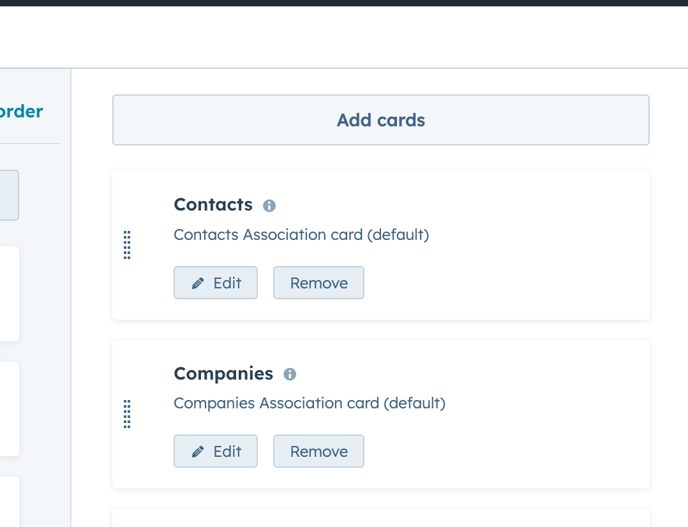
Click Apps on the left tab and select which CRM card you would like to use from those listed.
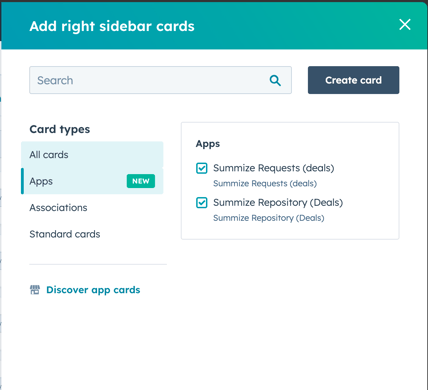
Now close the sidebar and position them where you'd like on the object. By default they will appear at the very bottom so will need dragging up if you would like them to be more visible to the end user.
Note, these steps are the same for any entity and the available CRM cards will be different depending on the entity that triggers it.
🚀 Your Summize HubSpot integration is now ready to use! 🚀