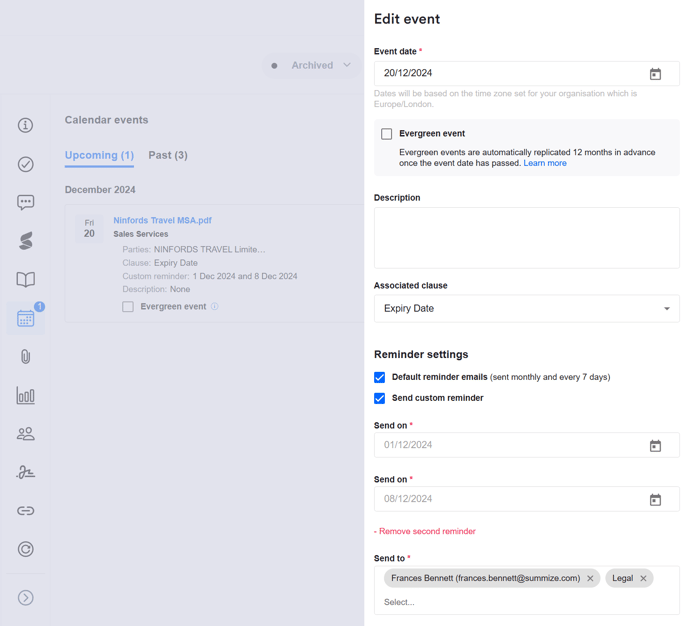
Use this feature to set consistent reminders per clause across automatically extracted calendar events
Clause Manager is available to Power and Power Pro users only
When you want a custom reminder for a calendar event, it's possible to set this up at a clause level, so that any extracted dates relating to that clause will automatically have the same custom reminders applied. This prevents the need to configure a custom reminder manually for each relevant event post-extraction. For example, automatically apply 30-day and 60-day reminders for all auto-renewal dates in a specific contract type.
To set up a custom reminder at a clause level, you first need a clause that uses the 'All Dates' pill in Step 1:
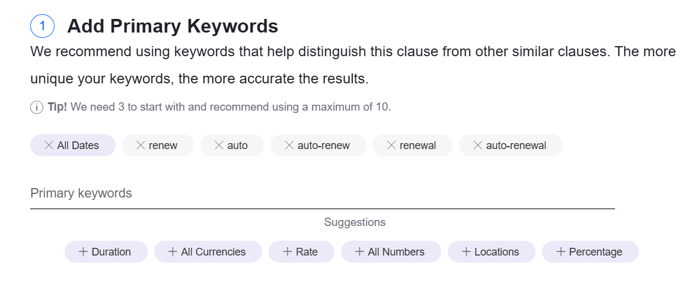
Using the 'All Dates' pill will allow clause manager to detect any dates that are in paragraphs relating to the key words used, and will also give you options in Step 2 relating to dates.
In Step 2, you will now see the following setting at the bottom of the page:
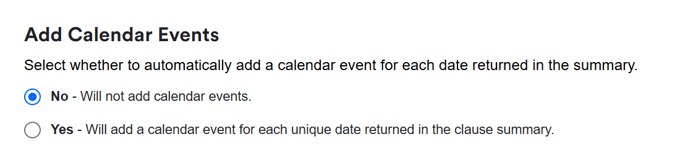
When you select 'Yes', any date found in the summary will be added to the calendar. You will also see an additional option for custom reminders:
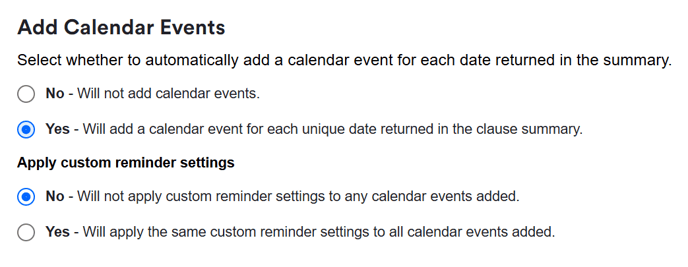
When you select 'Yes', you will be able to configure those reminders. The reminder settings will be applied to every date extracted against that clause in that contract type.
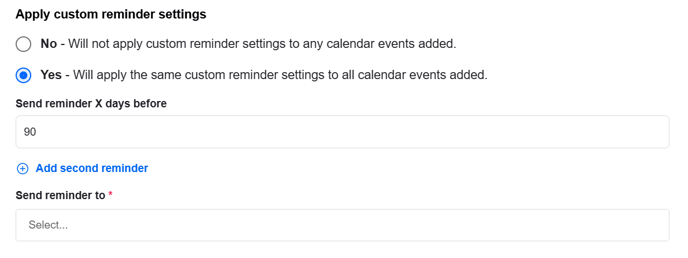
It's possible to set up to two reminders per date (e.g. 30 day and 60 day).
In the 'Send reminder to' dropdown, select the individual or group that you would like to receive the reminder (or Teams/Slack channel if you have set this up prior).
Note: If an individual does not have access to the contract (due to folder visibility settings) at the time the dates are extracted and they are the sole target in the 'send reminder to' dropdown, the reminder will not be set against that calendar event. If there are multiple target users in the 'send reminder to' dropdown, only those with access to the contract will remain in the target field when the date is extracted.
Post-date extraction, you can navigate to a contract's calendar events, click 'edit' and see those custom reminders that have been automatically generated: