
Use this guide to understand how to upload your tagged agreement and configure settings, ready for launching to the business
Setup available to Power and Power Pro users
Skip to:
Introduction
Tagging your Template Agreements
Uploading your Template
General Settings
Contract Questions
Question Ordering
Contract Question Settings
Question Grouping
Template Questions
Tasks
User Permissions
Enabling, Disabling & Saving Templates
Testing Templates
Introduction
Use Create Requests to quickly generate contracts on your organisation’s standard terms. Setup templates for your draft agreements, allowing teams to self-serve and produce documents that save valuable time for the Legal team and minimise risks from unauthorised edits. Simple, low risk agreements can be sent back to the user immediately, whereas tasks and approval steps can be setup to control more complex and higher risk documents.
Tagging your Template Agreements
Follow this guide here first to tag your template in Microsoft Word, ready to upload to Summize.
Uploading your Template
- Navigate to Requests.
- Click the ‘Templates’ button located in the page header (top-right). You will be taken to the section for Templates, this is where you can view and manage all of your Summize templates

- Click the ‘New template’ button located in the page header (top-right) and select 'Create'
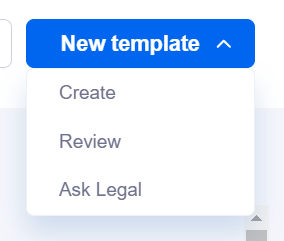
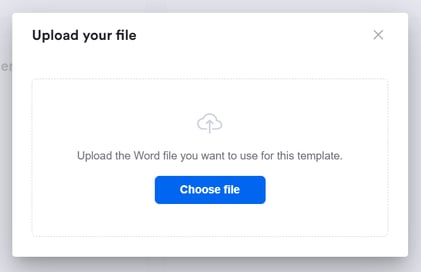
- A pop-up will appear asking you to select a template to upload. Upload your pre-built Word document template.
- Once uploaded, by default, the file name of the document will appear in the Template Name field. This can be edited before uploading. Click 'Continue'.
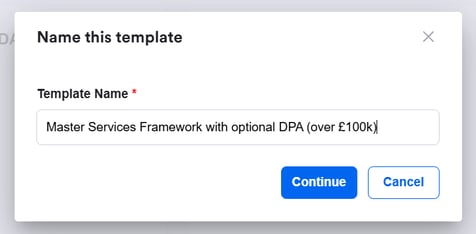
Note: The name of this template will appear to your end users when they are asked to select an available template during a new request submission.
General Settings
Once uploaded, you will be taken to the template configuration interface, starting with the General Settings page. Editable settings will appear to the left, and a preview of the template will appear to the right with each variable highlighted in yellow.
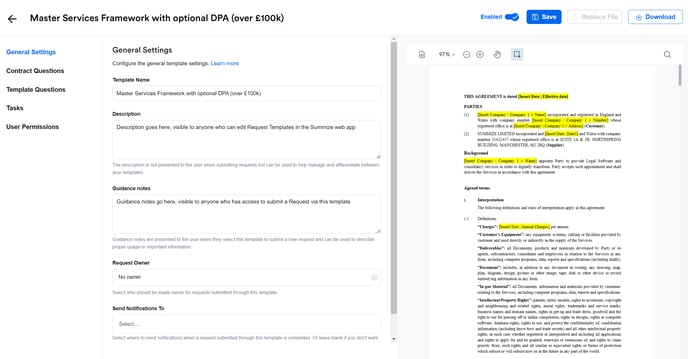
- You can change the template name from the upload step if you'd like to amend the template's display name
- You can add a description. This is visible in the tile navigation view (when you first click Requests > Templates) and can be used to make notes of anything relevant that you do not want the end user to see, e.g. version control notes. This is only viewed when navigating templates in the web app, and not seen by the end user when submitting a Request.
- You can add guidance notes. Guidance notes will appear to end users during a new request submission and can be used to inform the requestor of any key information they need to know before continuing to submit their request.
- You can set a request owner. This will automatically assign that user as owner when the request is submitted. This is useful if you tend to have the same people in the team reviewing the same types of contracts. This can be left as 'No Owner' if not applicable.
- You can set who to send notifications to. When a new request is submitted using this template you can configure notifications to be sent to users, groups, teams channels, slack channels and/or integrated email addresses. Use the dropdown to select where to send notification - or leave the selection empty if you don’t want to send notifications.
Contract Questions
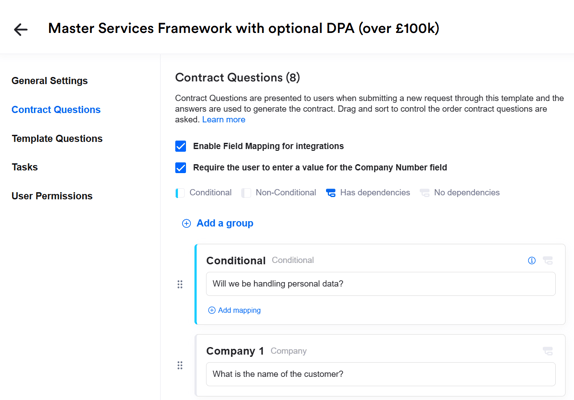
Contract Questions are automatically added from the questions that were configured when tagging the Word template document. Here you can edit the wording for each question and change the order in which the questions appear.
Question Ordering
By default, conditional questions appear first, in the order they appear in the document, then non-conditionals in the order they appear in the document.
The question type is indicated by the colour to the left of the question (conditional = blue, non-conditional = grey).
If you would like to re-order the questions, you can do so by clicking and dragging them up and down the list:
Note: You can re-order the list of questions to suit your desired order, but a dependent question will always be asked after the conditional question it is linked to.
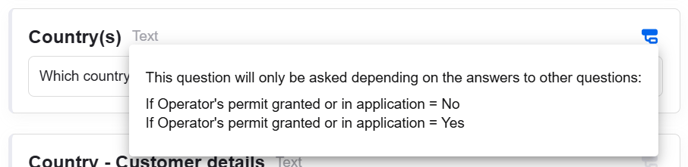
Questions with dependencies are marked via a blue icon in the top right of the question:

When you hover over this icon, you can see the details of the dependency:
Contract Question Settings
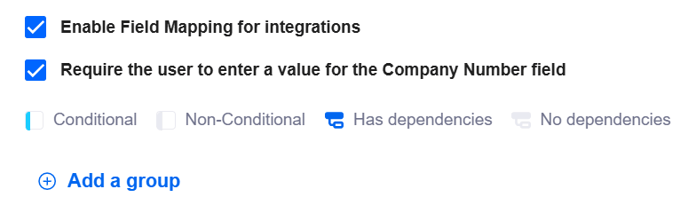
There are two options that appear at the top of the Contract Questions page:

Enable field mapping - this setting allows you to automatically populate question answers for requests submitted from Salesforce, HubSpot or Jira. This setting will be disabled unless you have an integration configured for either Salesforce, HubSpot or Jira and at least x1 of the following contract question types are present: Conditional, Conditional (multi-select), Text, Option, Date or Number. Contract question types that do not support field mapping are: Company, Playbook and Guidance Note. You can find integration guides for Salesforce here and HubSpot here.
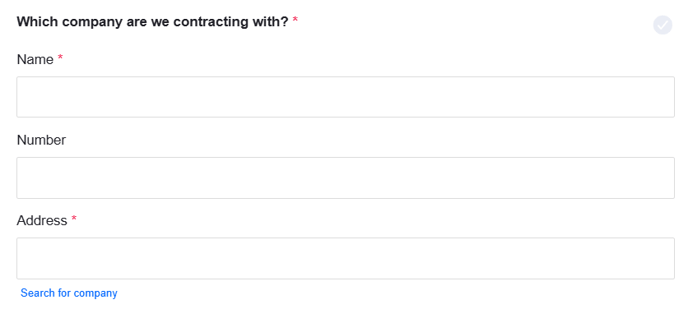
Require user to enter value for Company Number - useful if you are using the pre-configured 'company' question type in your templates, but aren't needing company number as a value to be inserted in your contract document. If the user chooses to enter the company details manually, instead of searching the database, the user will be presented with three fields - Name, Number and Address.
- If checkbox is selected: The Company Number question is mandatory and requires a value
- If checkbox is not selected: Users can manually input company details without needing to fill in the company number. When submitting requests via Teams or Slack, the company number question is skipped. When using the web app or any other legal front door integration, the company number is marked as non-mandatory:
This is particularly useful for our US customers, where company number is not typically used.
Question Grouping
It is possible to group sets of questions together, to aid the end user in submitting a request. This feature is especially handy for populating tables and related question sets.
To create a group, click 'Add a group' at the top of the Contract Questions page:
You can now give the group a heading and subheading:
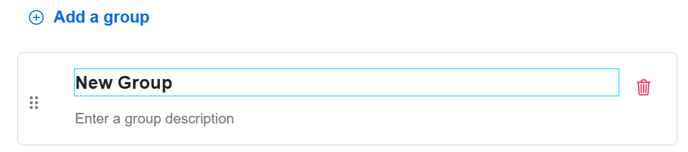
For example:

Now you can click and drag relevant questions inside this group. See video below:
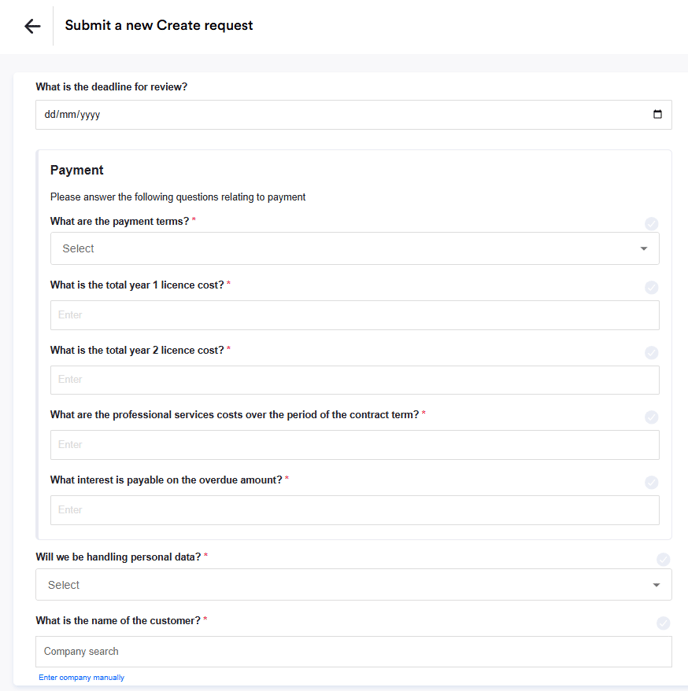
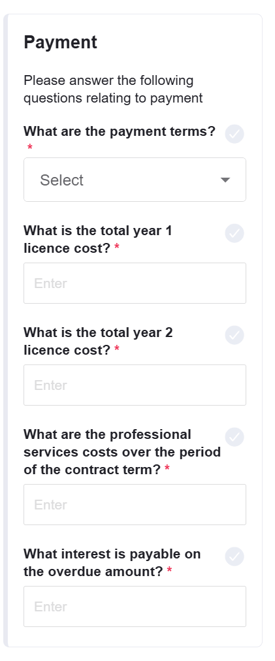
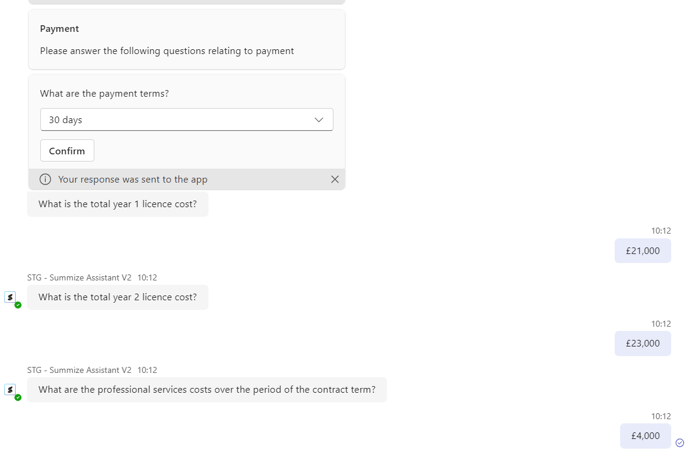
Grouped questions are then visually grouped together for the end user when submitting a request via a form in the web app, in Outlook/Gmail or in an integrated legal front door (e.g. Salesforce, HubSpot, Jira). See examples below:
Web app:
Outlook:
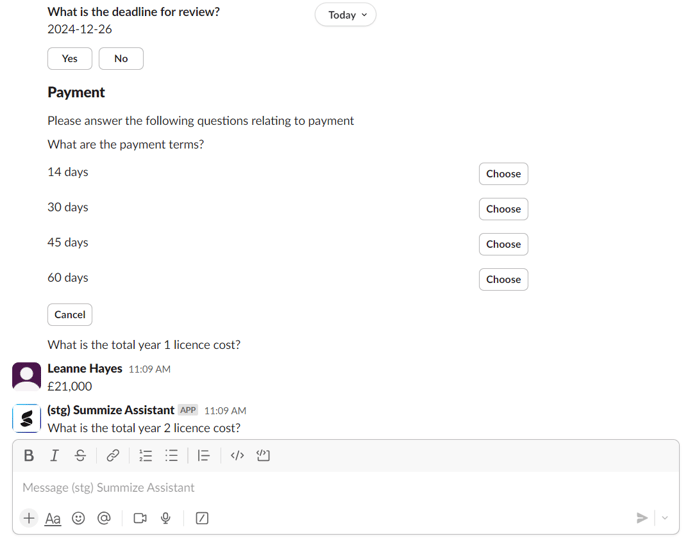
On Teams and Slack, the group title and subtitle is shown before the grouped questions. See example below:
Teams:
Slack:
Template Questions
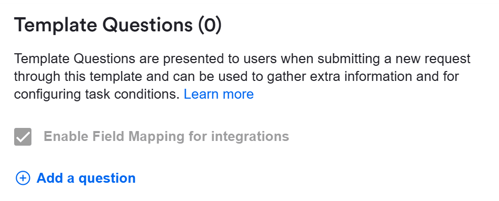
Template questions are optional, additional questions that you can ask users during intake to collect additional information. Unlike Contract Questions, Template Questions do not populate the contract itself, so are great if you want to gain any additional context from the user to help your approval process.
- Click 'Add a Question'
- In the right hand pop-out, enter the question text and question description (optional)
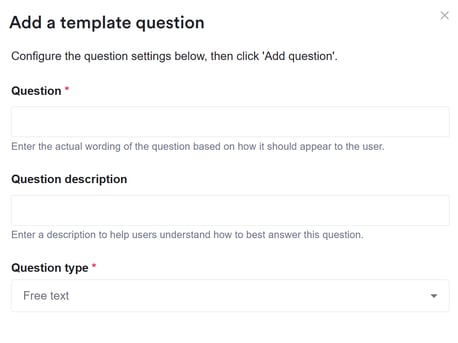
- Select the question type, either:
- Drop down
- Drop down (multi-select)
- Free text
- Numeric
- Date picker
- If selecting drop down, enter the possible answers
- When finished, click 'Add question'

- Repeat the above until you have added all the Template Questions required for this request template.
- Question re-ordering and field mapping works in the same way as Contract Questions, outlined in the section above
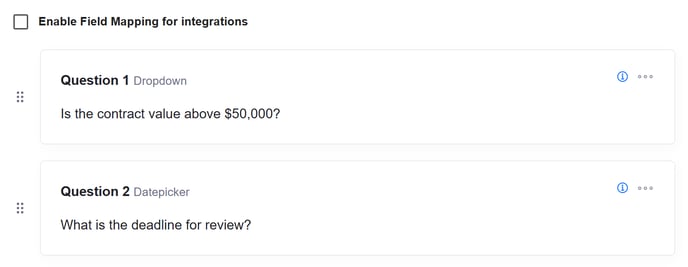
Note: Template Questions are presented to the end user first in the request submission workflow, before Contract Questions.
Tasks
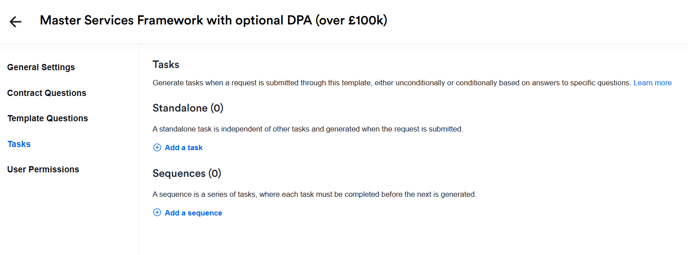
When tasks are added to a template, they are automatically generated when a template is submitted (as opposed to manually created tasks, which are covered in this article here).
Tasks can be used to build out your approval process, for example if an Order Form always needs to be reviewed by x user and/or y team before being sent to the counterparty, this can be configured on the template.
Tasks can either be always generated, or only generated when task conditions are met (e.g. if answer to 'Is the contract value above $50,000?' is Yes, create task for Finance approval).
Tasks can either be optional or required. If required, the Create Request will remain locked in 'Draft' status until those tasks are completed. If tasks are not required, the Request will move to Completed status and the end user will be able to download the generated document.
Tasks can either be 'Standalone' tasks or task 'Sequences'.
Standalone Tasks
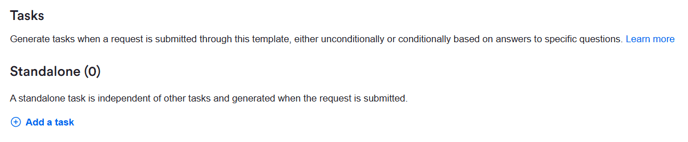
Standalone tasks are all generated simultaneously when a request is submitted (if the tasks have conditions, then they will only be generated if the condition(s) are met).
Standalone tasks are best suited for situations where the task can be performed independently at any stage of the approval process, without relying on the completion of other tasks.
- Under the Tasks > Standalone section, click the ‘+ Add a task’ button
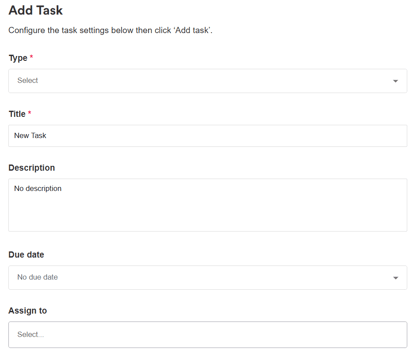
- Select the task type and give the task a title and description (optional)
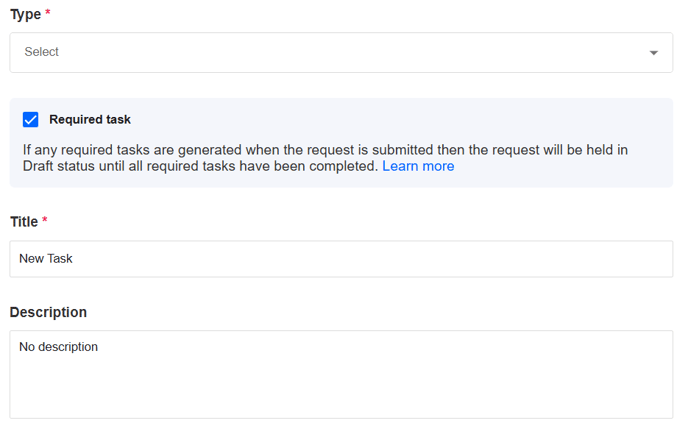
- Required: Select whether the task should be required or not by checking/unchecking the box:

If mandatory required tasks such as approval or review tasks are added to a Create template, these will be auto-generated each time a new request is submitted through this template and the request status will be set to ‘Draft’. Once each of the required tasks are completed, the request status will automatically update to ‘Completed’.
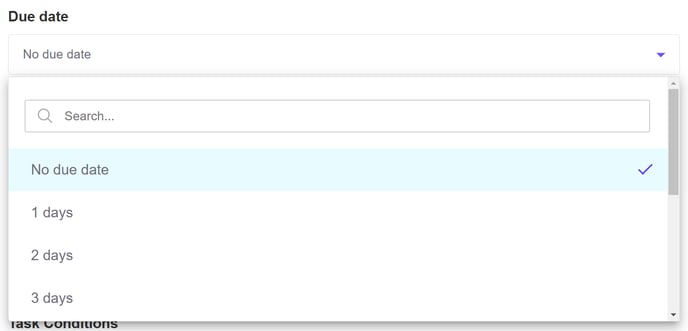
If no mandatory tasks are added to a Create templates, when a new request is submitted through the template its status will automatically be set to ‘Completed’ and the user will receive their generated contract. - Due date: The task can either have no due date, or can have a due date between 1-9 days after the request is submitted.
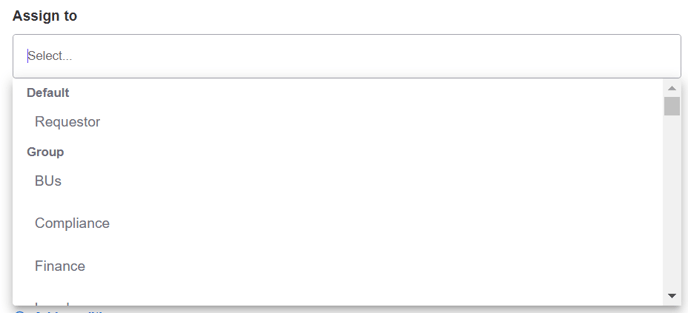
- Assign to: The task can either be unassigned by default, or can be assigned back to the requestor who submitted the request, to an individual user or a user group
- Task conditions: Task conditions can be based on Contract Questions or Template Questions. To learn how to create conditions for your tasks, so they are only generated based on pre-determined conditions, read this article.
Note: Template questions must be saved before can be used as task conditions.
Task Sequences (Coming soon!)
Task sequences allow you to configure a structured, step-by-step approval process. Upon submission of a Create request, the first task in the sequence is generated. Following this, each subsequent task in the sequence will be generated only after the previous task has been completed.
Therefore, task sequences are ideal if you have a linear approval process, whereby certain tasks are only relevant if the request has passed other stages of the process first (for example, the Finance team need to approve the payment terms before the Head of Sales approves the agreement term length, before Legal complete their review).
To add a task sequence:
- Go to Tasks > Sequences and click '+ Add a sequence'
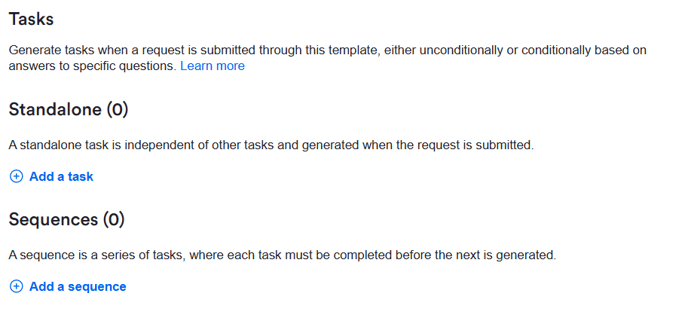
- Name the sequence. This is only shown in the template settings page:
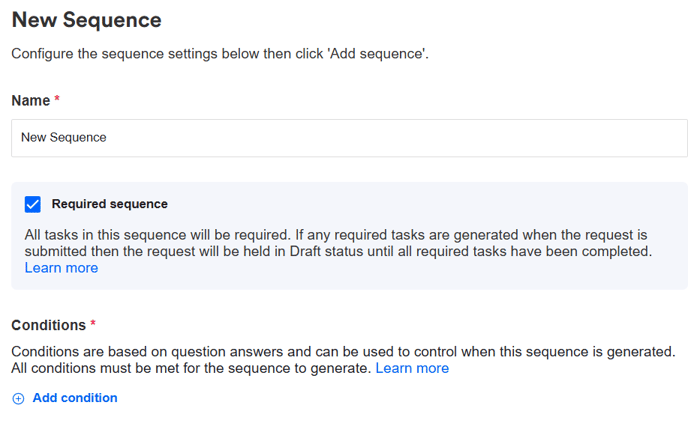
- Determine whether the sequence is 'required'. Required task sequences are used to hold a Create request in ‘Draft’ status and prevent non-Power level Users from accessing the contract until they are complete. Once all tasks (individual tasks in the sequence cannot have their own requirement settings) in a required sequence are completed (along with any required standalone tasks), the request status will automatically change from ‘Draft’ to ‘Completed’ and the generated contract will be sent to the user who submitted the request.
- Determine whether the sequence requires conditionality. If the conditions are met, the sequence is generated (individual tasks in the sequence cannot have their own conditions). If conditions are required, click '+Add condition' and configure the relevant settings (you can find out more information about task conditions in this article)
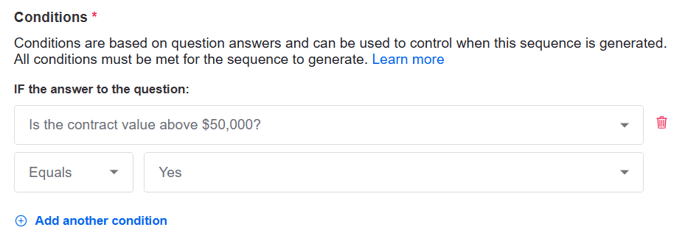
- Once ready, click 'Add sequence':

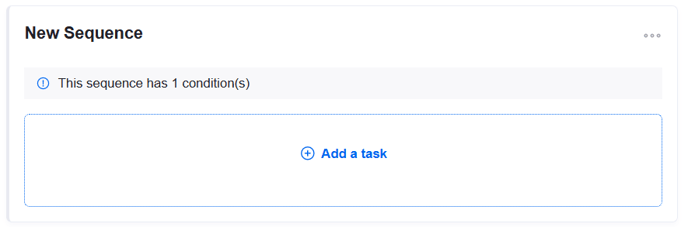
- You can now begin adding tasks to the sequence by clicking '+ Add a task' and following the same process as standalone tasks outlined in the section above:
Note: The due date for each task is based on when that specific task is generated, and not when the request or the overall sequence is created. For example, if a task midway through a sequence has a due date of "2 days," it will be due two days from the moment that task is generated, not two days from the original request submission. - Continue this process until you have added all the relevant tasks to the sequence.
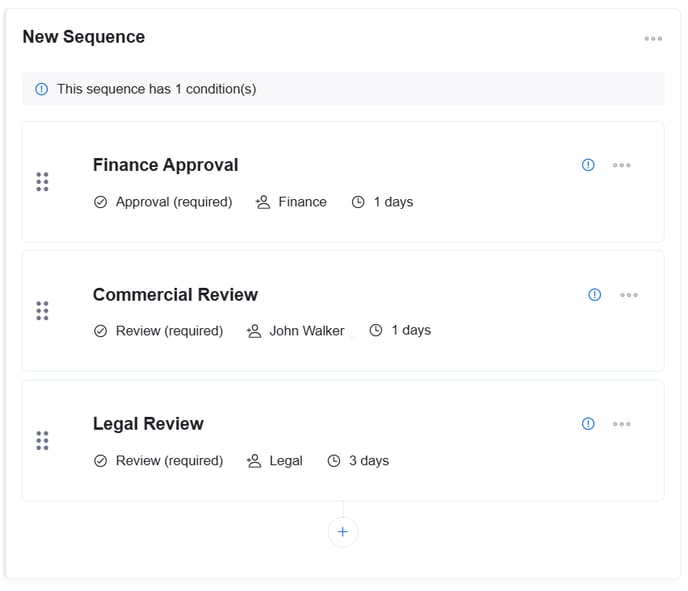
Things to note:
- Tasks within a sequence can be reordered by clicking on the icon on the left of the task's card and dragging up or down.
- You can edit or delete individual tasks by clicking on the ellipses icon on the right of the task's card.
- You can edit (rename or amend conditions) or delete full sequences by clicking on the ellipses icon to the right of the sequence's title.
- There is no limit to the number of sequences, or tasks within a sequence.
- If the configuration of a task sequence is updated, the changes will not affect requests that have already been submitted and have sequences in progress.
- Once the task sequence has been generated on a request, if a user tries to delete a task that is part of a sequence, they will be asked if they want to delete that one task, or all remaining tasks in the sequence. If they choose to delete that one task, the next task in the sequence is generated.
User Permissions
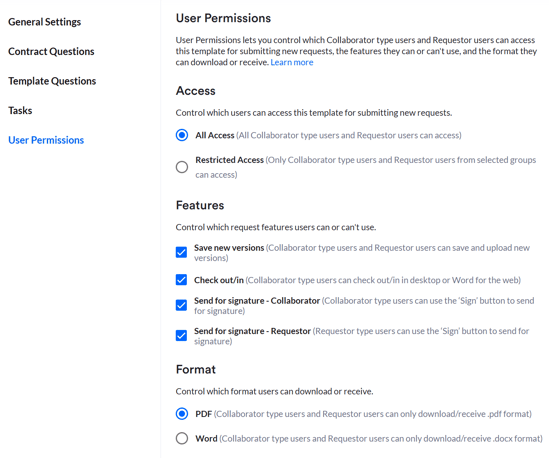
This section allows you to configure who can see and use the template, who has access to which features, and the format of the created document.
Access
Selecting 'All Access' means every Summize user will be able to submit requests using this template.
Selecting 'Restricted Access' allows you to select specific user groups from a drop down. When selected, only Collaborator and Requestor users from those groups will be able to use the template.
Note: Power Users can see all templates
Features
Use the checkboxes to determine which additional features Collaborator Users and Requestor Users can access:- Save new versions - check this box if you would like Collaborator level/Requestor Users to be able to upload a new version manually (i.e. uploading a file)
- Check out/in - check this box if you would like Collaborator level Users to be able to use Word for the Web to edit the document and upload as a new version.
- Send for signature - Collaborator - check this box if you would like Collaborator level Users to be able to send a document to your chosen E-Signature tool.
- Send for signature - Requestor - check this box if you would like Requestor Users to be able to send a document to your chosen E-Signature tool.
Note: Word for the Web settings are not relevant for Requestor Users, who do not have access to this feature.
Format
Under the ‘Format’ section, use radio buttons to select the format Collaborator level Users and Requestor Users will receive their generated contract in.
Note: Power Users will always receive a .docx.
Enabling, Disabling & Saving Templates
When new templates are added, they are disabled by default to ensure end users can't see them before all settings have been applied.
Use the toggle located in the page header (top-right) to either enable/disable the template, and then click 'Save'. Before saving, all required fields must be populated.
If making edits to a template, ensure to click 'Save' before leaving.
Your new template will be saved and the settings configured will be applied.
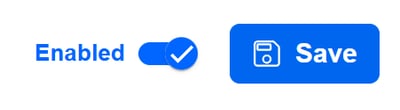
Note: Once enabled a template will be accessible to all Power users, as well as any Collaborator/Requestor users depending on the configuration of the ‘Access Control’ section.
Testing Templates
Before launching a new template, we recommend submitting a test request to ensure you're happy with the format of the final generated document and the applied settings.
To test a template, we recommend applying access control settings to ensure it is not accessible by any Collaborator/Requestor users whilst it is work in progress. It could also be worth using a template name, description and/or guidance note to make this very clear to ensure there is no confusion.