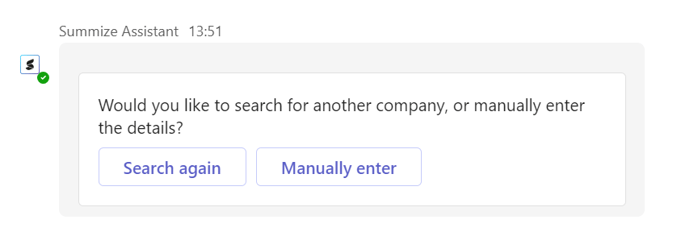
It is possible to change the default company look-up to direct to your Microsoft Dynamics environment instead, so only approved companies can be selected during the Create workflow
Note: This feature needs to be enabled by Summize before you can start the setup process. If you would like to enable this feature, please speak to your Summize contact or email support@summize.com
Setup available to Admin users only
To set up the Microsoft Dynamics 365 integration for Create, first access the Integrations page on your Summize account, where you will see the following section:
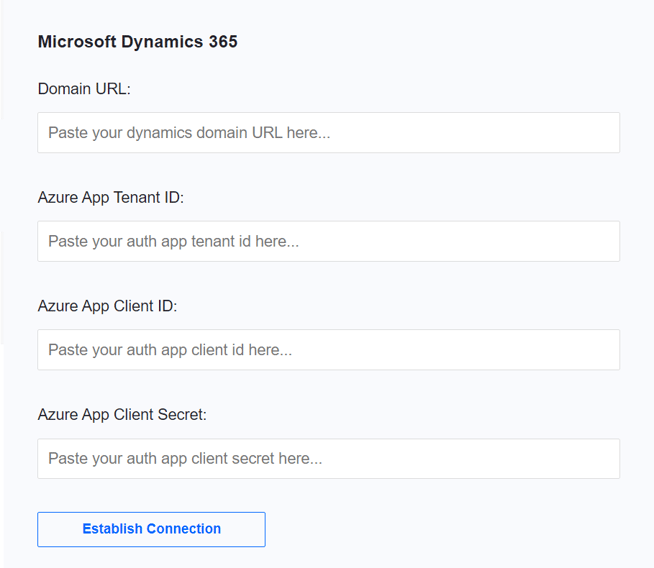
Fill in the following fields:
“Domain URL”:Access your Environment through the Power Platform Admin Centre and copy the “Environment URL” value. Then, paste this value into the Domain URL field in Summize.
“Azure App Tenant ID” and the “Azure App Client ID”:Navigate to your application within the Microsoft Azure portal. On the Overview page, retrieve the “Directory (tenant) ID” and the “Application (client) ID” values. Then, paste them into Azure App Tenant ID and Azure App Client ID in Summize.
“Azure App Client Secret”:Open your application within the Microsoft Azure portal. On the Certificates & Secrets page, retrieve the “Client Secret” value.
Once the fields have been completed in Summize, initiate the connection by clicking the "Establish Connection" button. If the connection is successful, you will be able to view and edit the following fields:
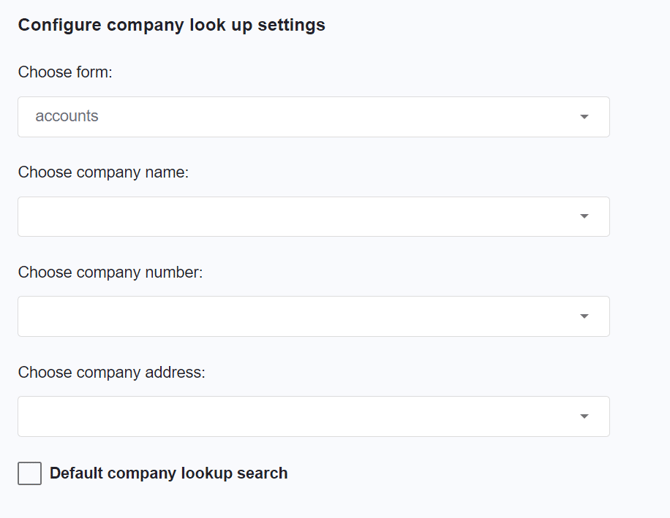
This will allow you to extract company lookup data from the designed form and specify fields for company name, company number, and company address.
Note: when this feature is enabled, company fields in all Create templates will search for company values in Dynamics, it cannot be enabled or disabled per template.
There is an option to either enable or disable manual entry for company data, which will give the user the ability to enter company details that aren't held in Dynamics. Please confirm with Summize which option you would prefer.