
Optimize your legal workflow with tailored dashboards and in-depth data on your contract portfolio and user engagement
Available to Power and Power Pro users only
Skip to:
Overview
How to create a dashboard
How to create multiple dashboards
How to change your default dashboard
How to rename and delete dashboards
How to filter charts
How to download chart data
Overview
Request Analytics empowers you and your team to build custom dashboards that suit your business’ requirements and goals. Uncover essential insights into usage, engagement, and workload metrics!
Whether it's monitoring team workload, understanding engagement or analysing different contracts types, the Request Analytics feature helps you create custom dashboards for many different purposes. Mix and match charts and filters to create tailored insights and get in-depth data about your contract portfolio and users.
How to create a dashboard
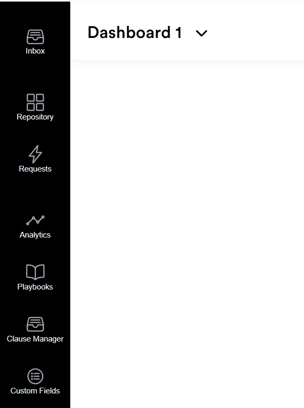
Navigate to Request Analytics by clicking 'Analytics' in the left hand menu:
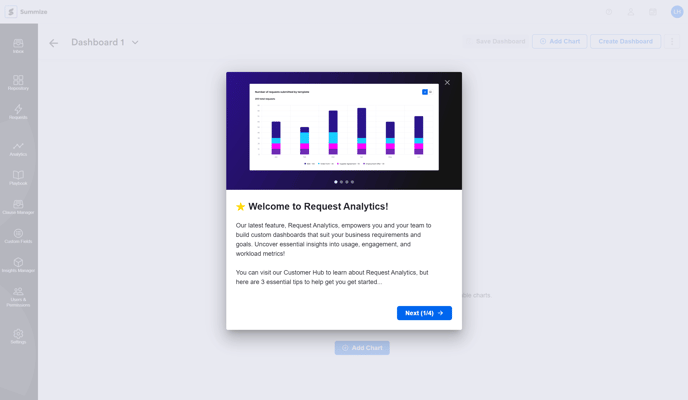
You'll see a short walk-through when you first navigate to the feature:
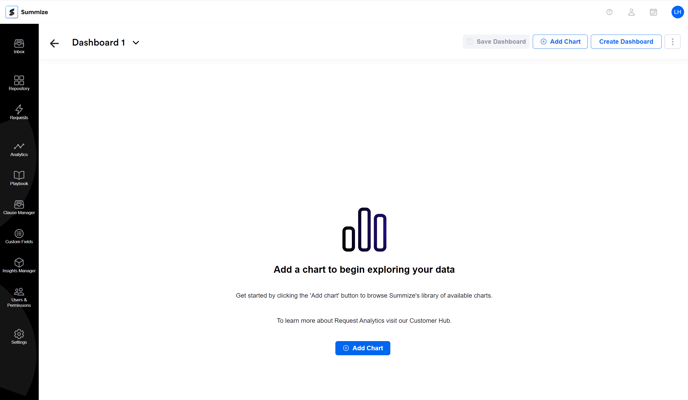
You'll also be given a default 'Dashboard 1' to start adding graphs to. Click 'Add Chart':
Here, you will see a library of all available charts:
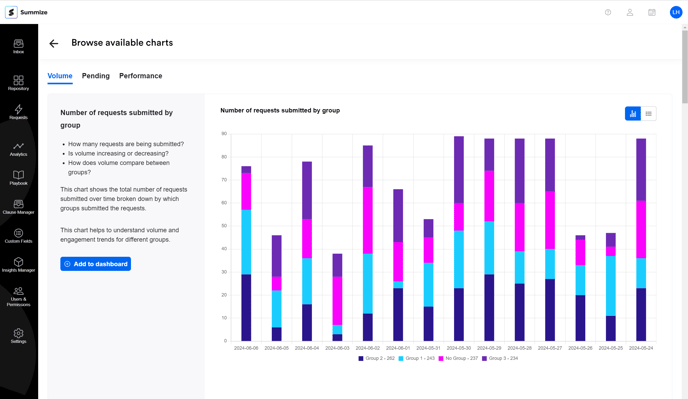
The charts are split into three categories:
Volume: These charts measure the number of requests and tasks across various sources, templates, and users, along with overall user activity. Use these charts to visualize usage and engagement trends.
Pending: These charts track tasks and requests that are still in progress, providing a clear view of the current team workload.
Performance: (More charts coming soon!) These charts will help you evaluate service levels and average completion times for different activities, aiding in business reporting and identifying areas for efficiency improvements.
Select a chart that you'd like to include in your dashboard, and click 'Add to dashboard':
Repeat this process until you've added all the the charts that you'd like to appear on this Dashboard. Once ready, click 'Save Dashboard' at the top of the screen. This will publish the dashboard for all other Power users to access:
How to create multiple dashboards
If you'd like to create multiple dashboards, either with different charts, or with the same charts showing different filtered data, click 'Create dashboard' in the top right:

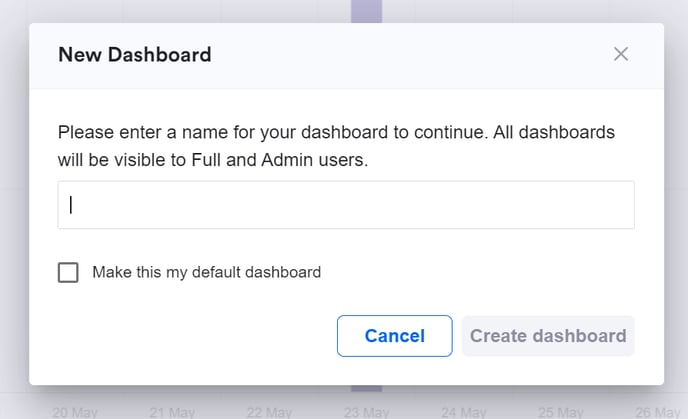
Give your new dashboard a title and select whether you'd like to make the dashboard your default:
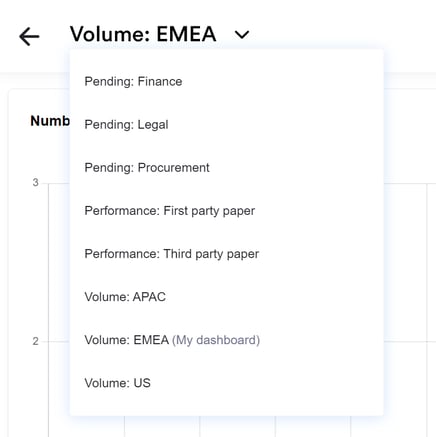
You can navigate around you different dashboards by clicking the title in the top left of the screen, and selecting dashboards from the drop down:
Changing your default dashboard
To change your default dashboard, or to delete a dashboard, navigate to that specific dashboard and go to the ellipsis menu in the top right, and select the applicable option:
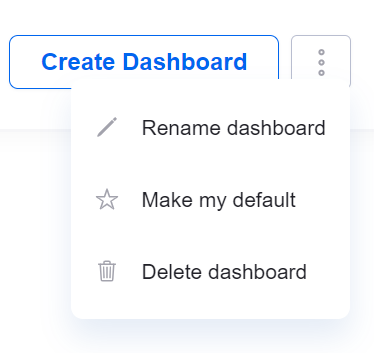
Note: default dashboards are specific to individual users
How to renaming and delete dashboards
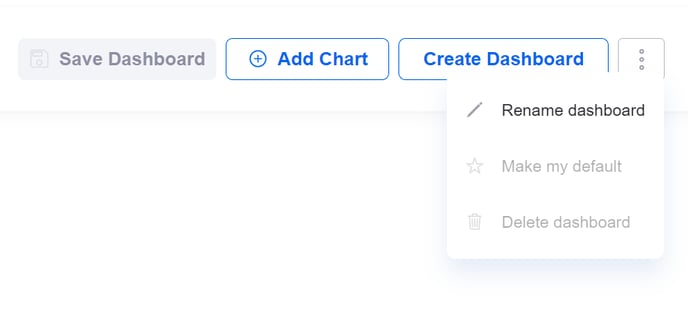
You can rename the default dashboard by clicking the ellipses in the top right, and clicking 'Rename dashboard':
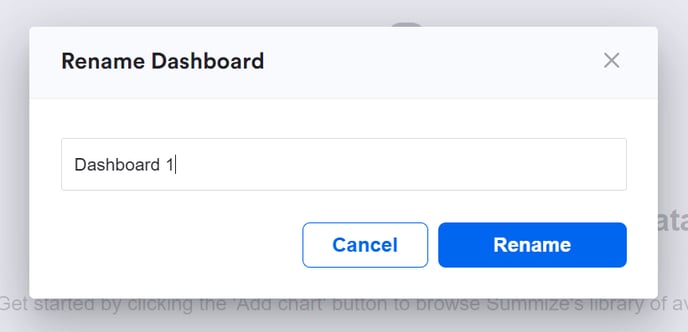
Type the new dashboard title and click 'Rename':
You can delete a dashboard by clicking the ellipses in the top right, and clicking 'Delete dashboard':
Note: renaming and deleting dashboards applies to all users
How to filter charts
Each chart on the dashboard can have a unique set of filters applied, to ensure you're viewing data that's useful to the metrics you want to track.
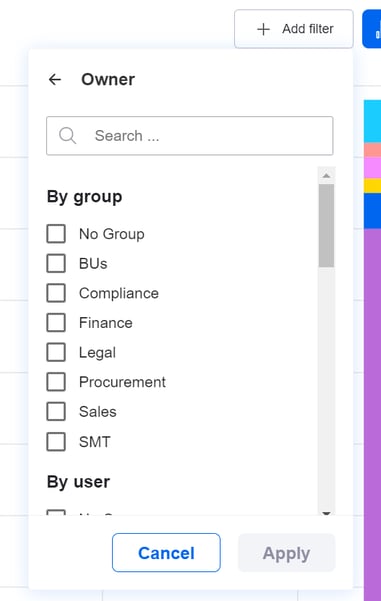
Each chart has a default set of filters applied. To amend those filters, navigate to the chart you want to amend, and click 'Add filter':
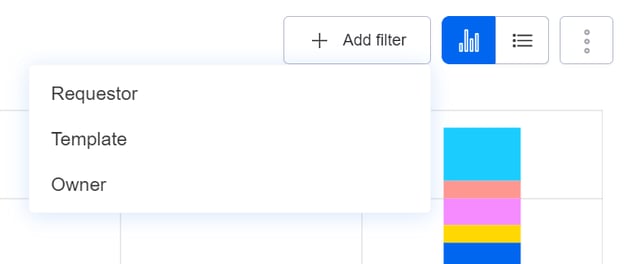
Click the option you'd like to amend, and you will be presented with further options. Once you have selected your chosen filters, click 'Apply':
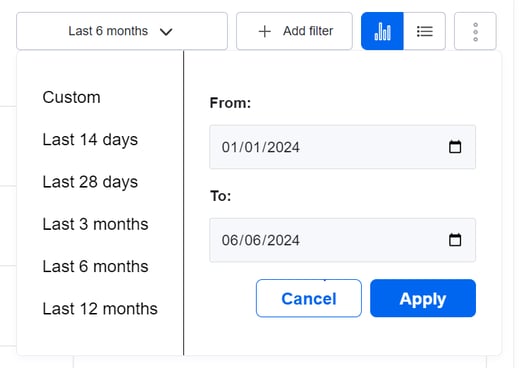
Some charts will also have a date range filter. You can either select one of the pre-set options, or create a custom date range. Once you have selected your chosen range, click apply:
Once you have applied your filter settings to your chart(s), click 'Save' at the top of the screen:
Note: saving the dashboard will apply those settings to all users. If you do not click Save, your changes will be lost when you navigate away from Request Analytics
Note: Charts only display data from current active users. If you have users who have been deleted from your account, their request data is not included in the analytics.
How to download chart data
Each chart on your dashboard(s) can be exported and downloaded as a CSV file. This is useful if you'd like to interrogate the data further, or share the data with colleagues who do not have access to Analytics in Summize.
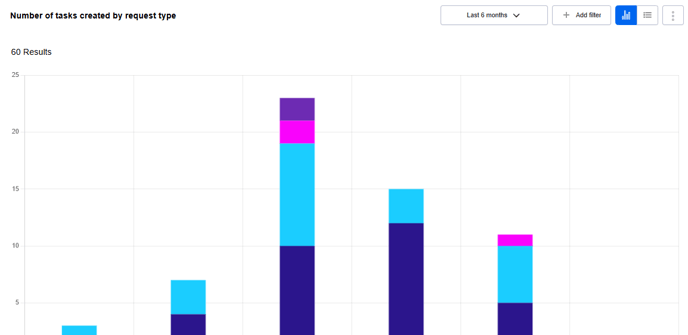
To download the CSV, navigate to a chart you want to export, and click the ellipses menu in the top right:
Click 'Export as .csv':
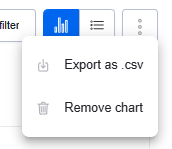
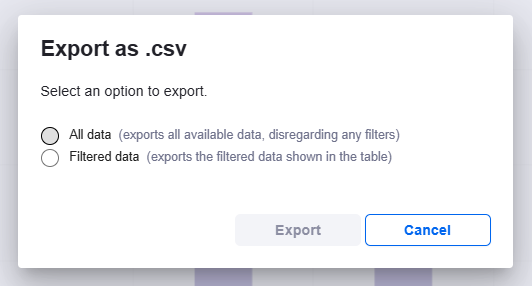
You will then be given the option to export all data associated with that chart, or only the data visible, taking into account any filtering you have applied. Select the appropriate radio button and click 'Export':
The CSV will then download onto your device. The columns in the CSV will depend on the chart data you have exported, for example...
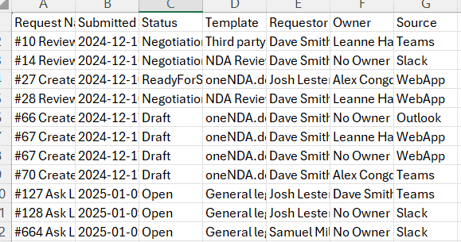
Number of tasks created by request type:
