
Use this section to setup webhook notifications with Teams, Slack, email and other tools
Skip to:
Microsoft Teams outbound integration
Slack outbound integration
Generic inbound integration
Generic outbound integration
Email outbound integration
Setting up webhooks
Webhook data
Microsoft Teams outbound integration
Adding a webhook allows Summize to "talk" to third party applications, like Teams. Adding a webhook will notify a Teams Channel when events happen.
To create a Webhook in Microsoft Teams, follow these simple steps:
- Go to the Teams Channel you want to send the notifications to
- Click ellipsis '...'
- Click Workflows
- In the modal, search for Webhook and select 'Post to a channel when a webhook request is received' and select the option
- Give the Webhook a name e.g. 'Summize Notifications'
- Click 'Next' and 'Add Workflow'
- Copy and make note of the URL i.e. 'https://company.webhook.office.com/...'
- Log in to the Summize web application
- On the Settings > Integrations page, click + Add Teams Integration
- Paste the Teams webhook URL from earlier into the Teams webhook URL field
- Give the integration a friendly name. This will be displayed through the rest of Summize
- Click Save on the top bar
- You can now use this integration by selecting it in the Notifications sections of Summize
Slack outbound integration
Adding a webhook allows Summize to "talk" to third party applications, like Slack. By adding a webhook, we will be able to notify a Slack Channel when events happen.
Note: You may need your Slack workspace administrator to configure the Slack webhook.
To create a Webhook in Slack, follow these simple steps:
- Go to the https://api.slack.com/apps/new in the Slack workspace you want to send messages and Create a new Slack app
- On the Features > Incoming Webhooks page toggle the Activate incoming webhooks on
- Click Add new webhook to workspace
- Pick a channel that you want to send Summize notifications to, then click Authorise
- Copy and make a note of the webhook URL
- Add the webhook to Summize
- Log in to the Summize web application
- On the Settings > Integrations page, click + Add Slack Integration
- Paste the Slack webhook URL from earlier into the Slack webhook URL field
- Give the integration a friendly name. This will be displayed through the rest of Summize
- Click Save on the top bar
- You can now use this integration by selecting it in the Notifications sections of Summize
Generic inbound integration
A generic webhook requires a POST request with the form content type multipart / form-data Properties
To configure a generic inbound integration, follow this simple checklist:
- The POST request must have the following properties
- CreatedByName: Friendly name.
- CreatedByEmail: Email address to associate the inbox record with.
- Files: Add as many files as required to the POST request with unique names, the first one within the payload is always treated as the master document.
Generic outbound integration
Add outbound integrations to receive an information payload into your system (i.e. Salesforce, Hubspot, etc).
To configure a generic outbound integration, follow this simple checklist:
Click ‘Add outbound integration’: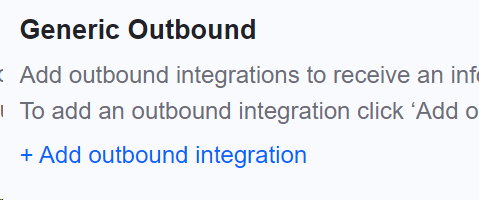
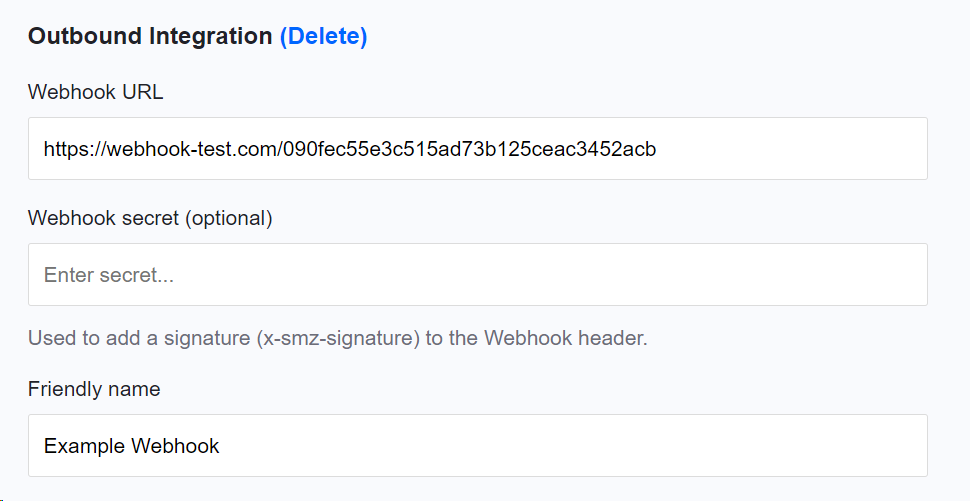
Enter the webhook URL, webhook secret (optional) and a friendly name.
Email outbound integration
To configure a generic outbound email integration, follow this simple checklist:
- Add emails to use to send notifications to.
- Enter the emails within the integration page under ‘Email Outbound’, separated by commas
Setting up Webhooks
Summize allows you to send contract data/notifications for specific events automatically via webhooks, for integration into your own business systems.
Once you have setup any of the outbound integrations above, you need to choose which type of notifications you will be sending via webhook from Summize. To add notifications, navigate to the Notifications menu on the left-hand side of the page. There are several types of notification here, including:
-1.png?width=688&height=324&name=Screenshot%20(261)-1.png)
- Inbox Notifications: For notifying you when a contract has arrived in your Summize inbox and is ready to be sorted.
- Create Notifications: For notifications related to create/drafting requests.
- Review Notifications: For notifications of new review requests, the documents and context given.
- Repository Notifications: For contracts post signature entering the repository, or their summaries/statuses being changed in the repository.
- User Notifications: For notifications of user changes in the platform.
Webhook data
Below are some examples of webhook data with field labelling:
Create Notification:.png?width=688&height=342&name=Screenshot%20(255).png)
Review Notification:
.png?width=688&height=429&name=Screenshot%20(256).png)
Repository Notification:
.png?width=688&height=462&name=Screenshot%20(257).png)
For additional support on setting up webhooks, please contact your dedicated Customer Success or Implementation Manager.