By adding this integration, a contract that is signed in DocuSign will automatically push into the Summize Inbox.
Setup available to Admin users only
Note: The instructions in this section were updated 25.07.24 to update the guidance for 'Event Settings' in DocuSign
Note: Only envelopes created via your DocuSign account will be sent to the inbox using this integration. If an envelope is sent via a third party, the document will not be captured.
Create a secret connect key and add it to Summize Integrations:
A connect key allows Summize to validate that any incoming data is from your DocuSign account and nowhere else. We require one secret key to be setup and added to Summize.
- Log in to your DocuSign admin account
- Go to 'Settings > Integrations > Connect'
- Click on the 'Connect Keys' tab
- Click on the 'Add Secret Key' button
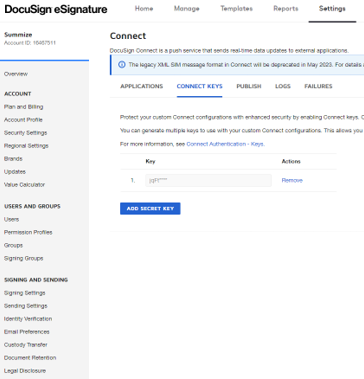
- Copy the key. Note that you will not be able to see this once you have navigated away. Keep a copy of this key until all steps have been followed
- Log in to the Summize web application
- Go to 'Settings > Integrations'
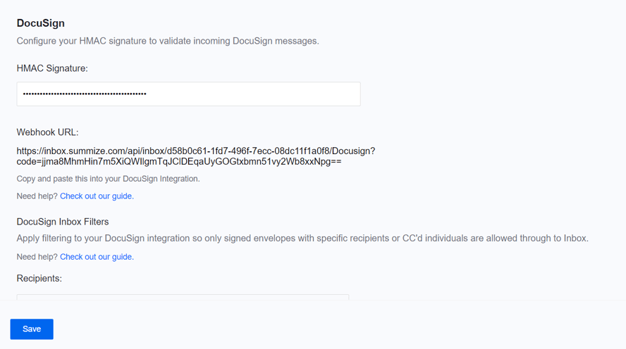
- Paste the secret key from DocuSign into the HMAC signature field, and click the 'Save' button
Add a DocuSign application configuration:
Note: The instructions in this section were updated 25.07.24 to update the guidance for 'Event Settings' in DocuSign
The application you configure in DocuSign will allow Summize to receive DocuSign envelopes that have been signed by all parties.
- Log in to your DocuSign admin account
- Go to 'Settings > Integrations > Connect'
- Under the 'Configurations' heading, click 'Add Configuration > Custom'
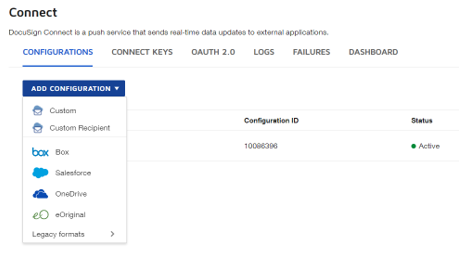
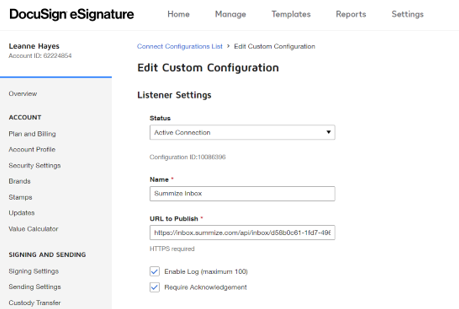
- Give the configuration a name such as 'Summize Inbox'
- In another browser tab, log in to Summize
- Go to 'Settings > Integrations'
- Under the DocuSign section, copy the Webhook URL
- Back on the DocuSign browser tab, paste the URL into the 'URL to Publish' field
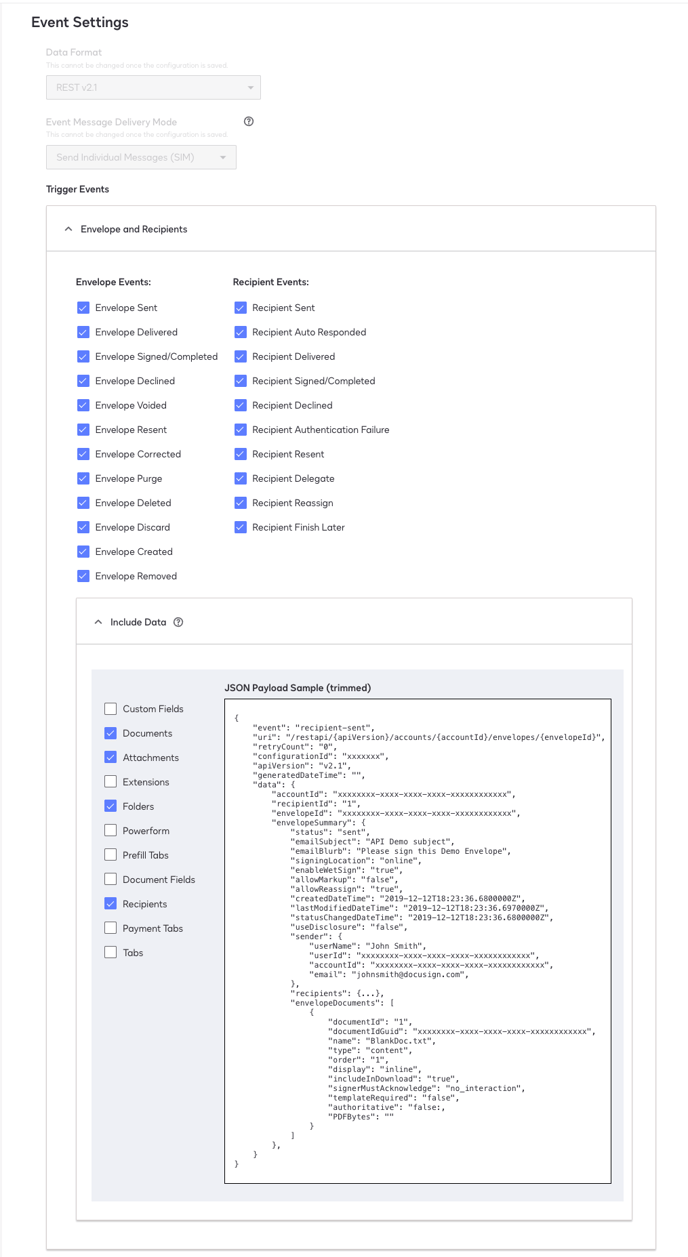
- Under 'Event Settings' set the 'Event Message Delivery Mode' to 'Send Individual Messages (SIM)'
- Under 'Event Settings > Trigger Events', expand 'Envelope and Recipients'
- Tick all options under 'Envelope Events' and 'Recipient Events'
- Expand the 'Include Data' field
- Tick the box next to the following:
- 'Documents'
- 'Attachments'
- 'Folders'
- 'Recipients'
- Under 'Integration and Security Settings' tick the box to 'Include HMAC Signature (Recommended)'. You should see the first few characters of the secret key you just created, in one of the text boxes that appear.
- Click the 'Add Configuration' button at the bottom of the page
Configure Inbox Filters
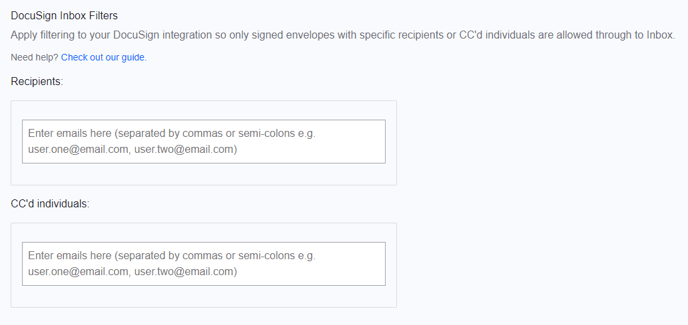
Once you have enabled DocuSign integration with Summize, all signed envelopes will be sent directly to the Summize Inbox. If you only want to receive signed envelopes with specific recipients or CC'd individuals, you can apply DocuSign inbox filtering.
- On the Summize web app, navigate back to Settings > Integrations > Docusign, and scroll to 'Docusign Inbox Filters'
- To allow the Inbox to receive all signed envelopes from DocuSign, leave the Recipients and CC'd individuals fields blank - no action needed!
- To only allow the Inbox to receive signed envelopes with specific recipients or CC'd individuals, enter those emails into the relevant fields in Summize, separated by commas or semi-colons (e.g. user.one@email.com, user.two@email.com)
- Please note that both Recipient and CC'd fields work independently. For example, if you want to receive signed envelopes where user.one@email.com is either a recipient OR a CC'd individual, then you must enter the email address into both fields.