
Configuring a Oneflow integration allows Summize to send documents to Oneflow to be signed, and store documents in the Repository once they are signed
Note: Admin access required to enable integration
To configure a Oneflow integration, follow these simple steps:
Add Webhook:
- To add a webhook to Oneflow you will need to click on the settings icon within the Oneflow portal (this is the cog shaped icon above your user icon).
- Select the Extensions menu option and scroll down the list of the available extensions until you find the 'Webhooks' extension. Change this slider to be enabled.
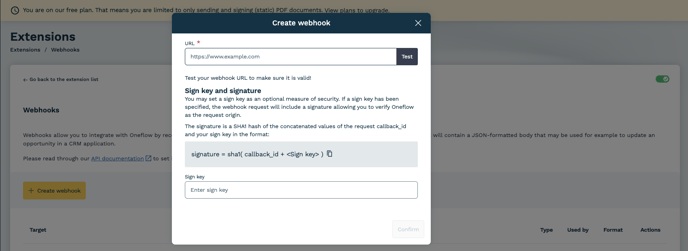
- Click on the button 'Create webhook'.
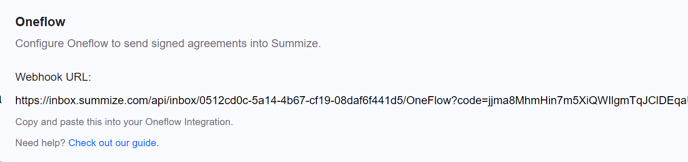
- Open a new tab in your browser and go to the Summize web app, and navigate to Settings > Integrations > One Flow. Copy the webhook URL from this section. Paste this URL into the URL input box in Oneflow.
- Enter a sign key in the input box. When added, the webhook request will include a signature allowing you to verify Oneflow as the request origin.
-
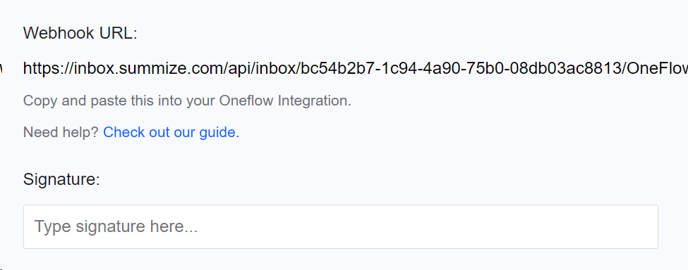
Once added in Oneflow, return to the Summize web app and paste the sign key into the 'Signature' field below and click 'Save' at the bottom of the screen:
- In Oneflow, click 'Test' against the webhook URL to ensure everything is setup correctly.
- Click the 'Confirm' button to create the webhook.
Add API Token:
To allow Summize to collect the required information when a document has been signed, a secure connection between Summize and Oneflow needs to be created.
To do this an API token is required, this has to be created in Oneflow and added to the Summize Integration.- Click on the settings icon within the Oneflow portal (this is the cog shaped icon above your user icon).
- Enable the 'API Tokens' extension.
- Click on the 'API Tokens' link and on the API Tokens page, click on the 'Generate a new token' button.
- Enter a name for your token (we suggest 'Summize API Token') and click the 'Confirm' button.
- A token is generated and you can copy this token using the copy icon.
- Go to the Summize web app tab in your browser and paste the token into the Oneflow API Token field shown below:
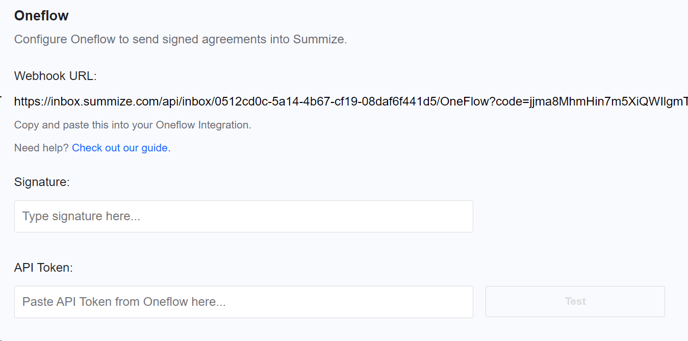
- Click 'Test' to test the API token, you should get a message confirming that the test has been successful. If it hasn't, please try to copy and paste the key again.
- When this has been completed successfully, don't forget to save the changes you've made by clicking 'Save' at the bottom of the screen.
Inbox Filters:
If you'd like to apply filtering, so only documents from specified workspaces are sent to Summize, then enter the names of those workspaces in the below field, separated by commas or semi-colons:
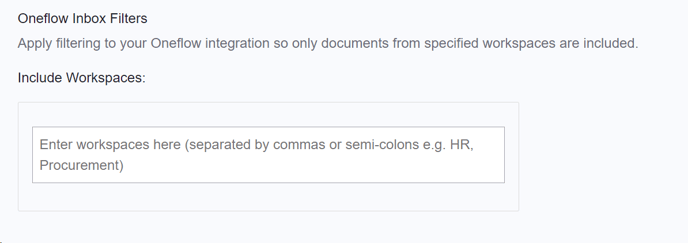
Once entered, click 'Save' at the bottom of the screen.