
This integration ensures that you can send contracts from Summize to DocuSign for eSignature and that signed contracts are automatically sent back from DocuSign into your Summize Inbox or Repository
Note: Admin access required to enable integration
Summize integrates with your DocuSign account to ensure that you can keep using the other tools you love across the contract life.
Note, we also have a purely inbound DocuSign integration, to link your DocuSign account with your Summize Inbox. If you'd like to set that up instead of the outbound + inbound integration detailed below, you can follow the instructions here.
Enabling individual DocuSign account linking through Summize
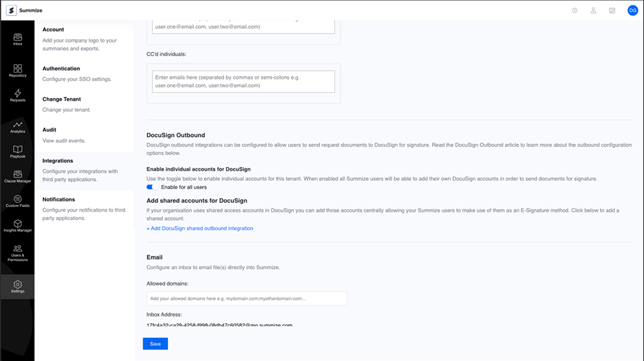
You can enable colleagues to use their own DocuSign accounts via Summize by going to the integrations page, and choosing “Enable for all users” under “DocuSign Outbound”. Click “Save” to make the changes.
When a user wants to create a draft envelope in DocuSign, they will first have to authenticate and authorise Summize to act on their behalf with DocuSign.
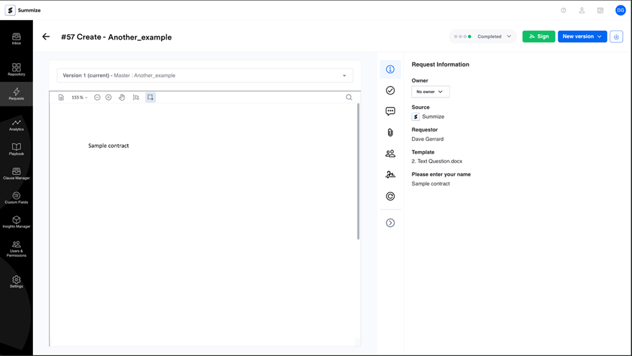
When viewing a “Create” or “Review” request, they click the “Sign” button in the top right.
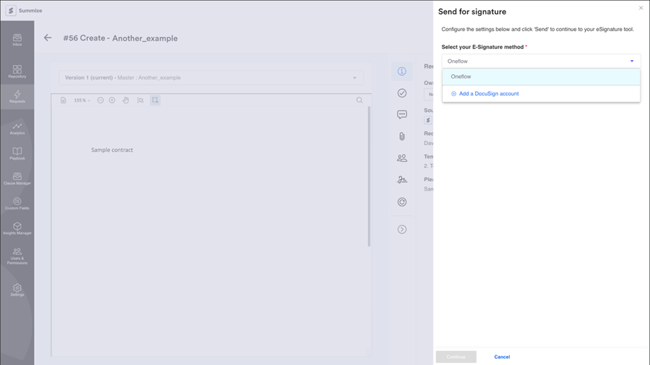
The user then clicks “Add a DocuSign account”.
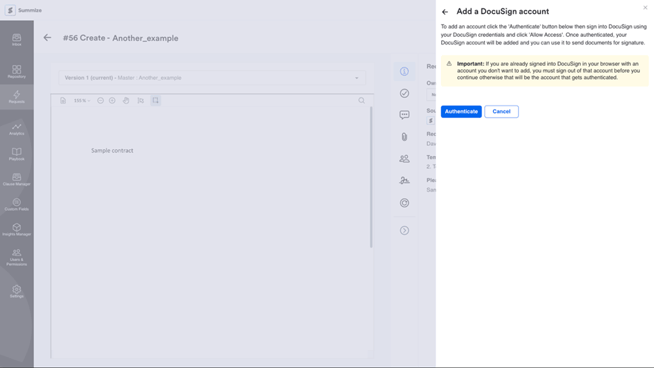
The user will see a warning message informing them to log out of any DocuSign account that they do not want to link. If a user is already logged in to DocuSign, it is that account that will be asked for consent to link to Summize. When ready, the user clicks “Authenticate” to be redirected to DocuSign to log in.
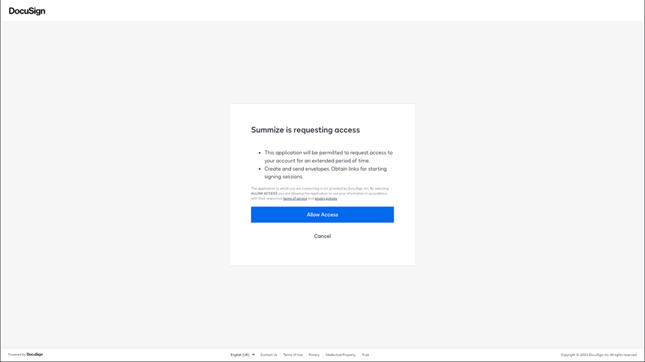
Once logged in, the user is asked to allow Summize access to their DocuSign account. They must click “Allow Access” in order to link and use their DocuSign account in Summize. Once they click this button, they are redirected to Summize.
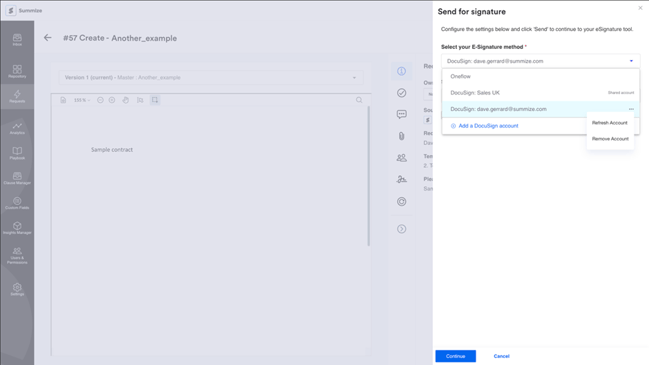
Note: A user can remove their account from Summize at any time, via the ellipses in the Sign panel, or revoke access in the DocuSign application.
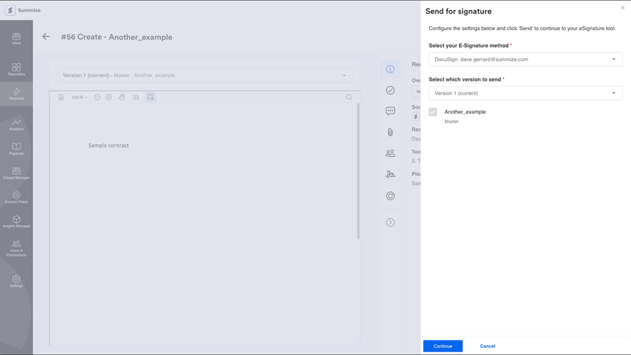
Once access has been allowed, the user is redirected to the request they were viewing in Summize, and the sign panel is launched and pre-populated with the DocuSign account just linked. The user can then continue using the Sign panel to create a draft envelope in DocuSign.
How to enable a shared DocuSign account linking through Summize
You can link a shared DocuSign account through Summize. This is used when you create envelopes on behalf of a user, for example ‘sales@summize.com’. The user with the credentials for this account must be the person that sets this up.
On the integration settings page, under “DocuSign Outbound” click the link button “Add DocuSign shared outbound integration”.
Provide a friendly name that users will understand e.g. “Sales UK” and click “Authenticate”.
You will be redirected to DocuSign to log in as that account, and consent access.
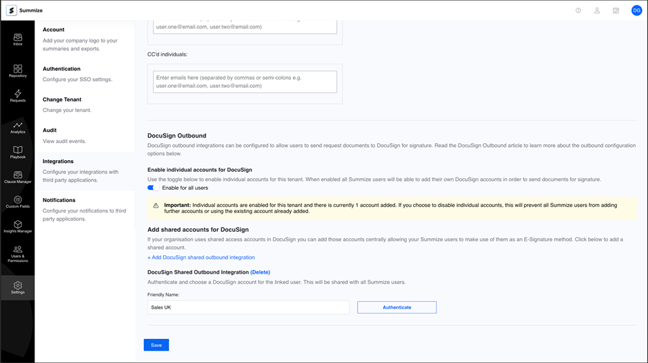
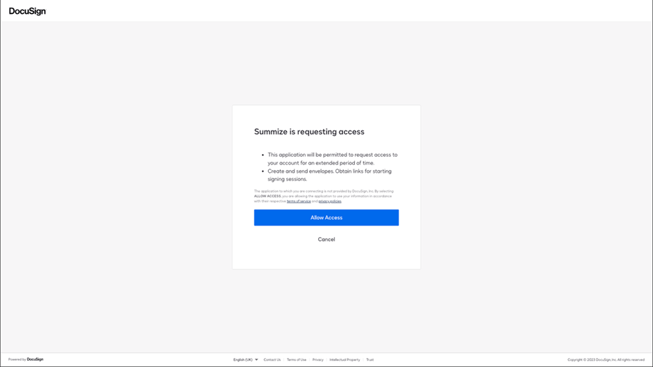
Once logged in, the user is asked to allow Summize access to the DocuSign account. They must click “Allow Access” in order link and use their DocuSign account in Summize. Once they click this button, they are redirected to Summize.
Note: A user can remove the shared account from Summize at any time by clicking “(Delete)” next to the integration, then “Save”. Access can also be revoked in the DocuSign application.
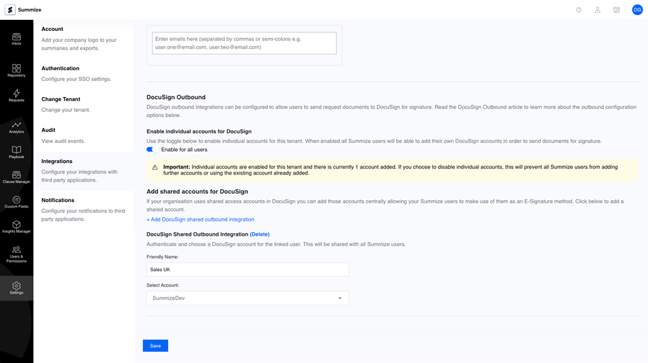
Once access has been granted, the user is redirected back to the integration settings page, and a “Select Account” field shows available DocuSign accounts to link to Summize. Choose one and click “Save”.
Users can now create envelopes in draft status on behalf of this user.
Note: Users will need their own credentials to follow the contracts through to DocuSign to send out for signature.
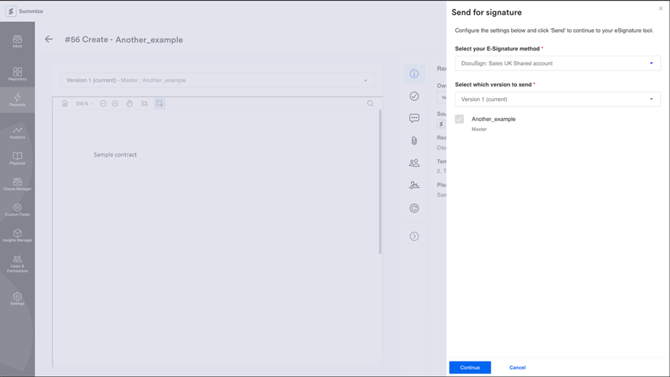
When viewing a “Create” or “Review” request, users can now click “Sign” and select the shared account (see above). The user can then complete the “Sign” process in Summize, to create the draft envelope in DocuSign.
Receiving status updates for envelopes from DocuSign in Summize
During the signing process in DocuSign, Summize will automatically check and update the current signature status in the E-Signatures panel.
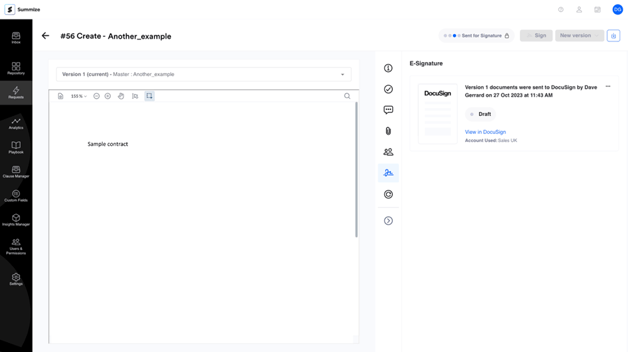
Initial status for the request is that the envelope is in “Draft” status. As the envelope goes through its lifecycle, this panel is updated.
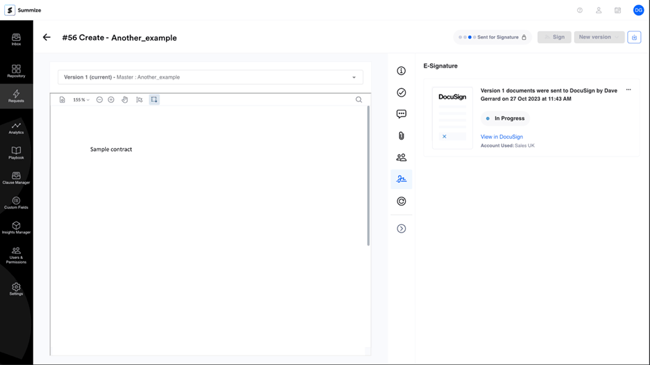
Above shows “In Progress” when the envelope has been sent from DocuSign to the recipients for signing.
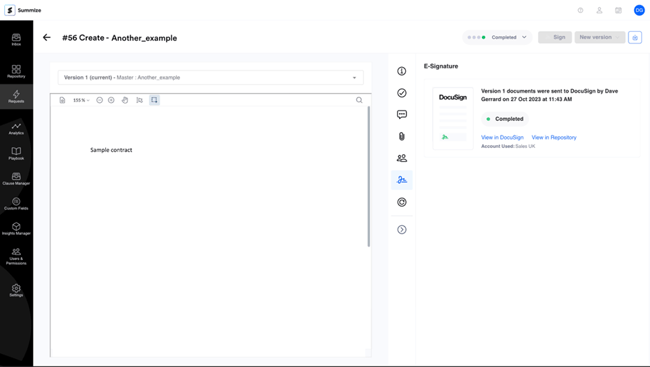
Above shows “Completed” when all recipients have signed the envelope. A new link button becomes visible - “View in Repository”. Clicking this will take the user to the repository, where the signed contract is stored. It is stored in the location chosen via the “Sign” panel earlier.
Note: If an envelope is voided or deleted in DocuSign, the status above will update, and the user will be able to make another attempt at eSignature.
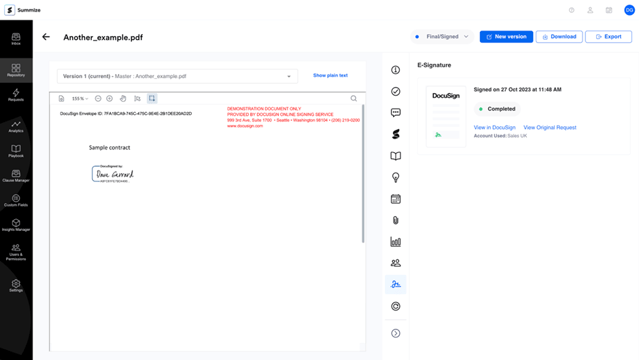
Above shows the repository view, where the signed contract is stored. Users will also be able to see the when the contract was signed and be able to go to the original request, using the E-Signature panel.
Watch the video below for how to send contracts from Summize to DocuSign