
This integration ensures that you can send contracts from Summize to Adobe Sign for eSignature and that signed contracts are automatically sent back from Adobe Sign into your Summize Inbox or Repository
Summize integrates with your Adobe Sign account to ensure that you can keep using the other tools you love across the contract lifecycle.
If you would like to use this integration, please get in touch with your CSM or with the Support Team (support@summize.com) and they can enable it for your account.
Note, we also have a purely inbound Adobe Sign integration, to link your Adobe Sign account with your Summize Inbox. If you'd like to set that up instead of the outbound + inbound integration detailed below, you can follow the instructions here.
Note: We recommend setting up the inbound Adobe Sign integration before following the steps below, as it will allow for real time updates of signing status via webhooks.
Note: Individuals that want to send documents to signature via Adobe Sign will need to go through this setup process
Note: Summize supports Adobe Acrobat Sign (also known as Adobe Sign), as opposed to the e-signature add-on for Adobe Acrobat Pro
Authorising your Adobe Sign Account
Firstly, ensure you are either logged into the Adobe Sign account you want to give access to, or logged out of all Adobe Sign accounts.
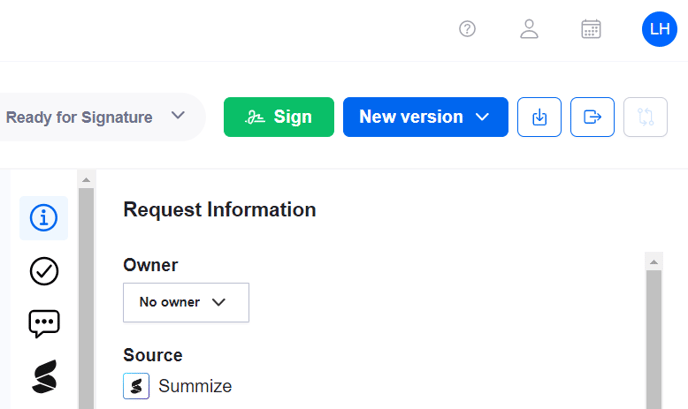
Navigate to a request in the request table that you'd like to send for signature, and click on the 'Sign' button in the top right (note that documents can only be sent for signature once all required tasks are complete):
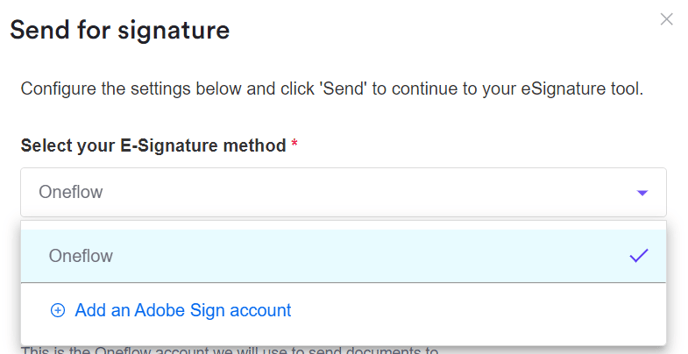
From the Send for signature panel, select 'Add an Adobe Sign account' from the dropdown:
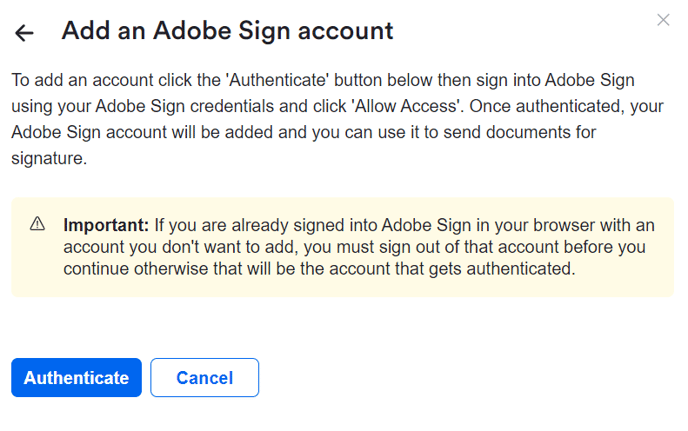
Click 'Authenticate':
Your browser will redirect you to Adobe Sign to login and authenticate your account:

Sending for Signature
Once authorised, the Send for signature panel will be populated with the below options. Complete the options and click 'Continue' at the bottom of the panel:
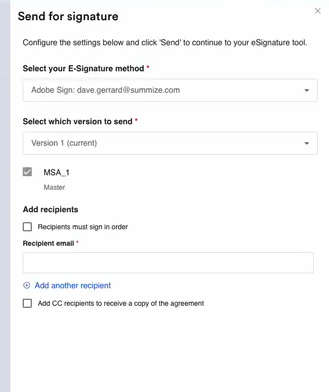
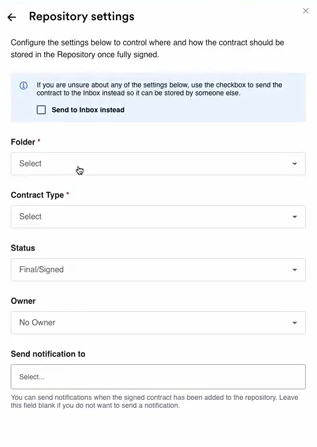
Before sending for signature, you have the option to send the the contract, once signed, to either the Inbox or a specific folder within the Repository. Once ready, click 'Send to Adobe Sign' at the bottom of the panel:
Adobe Sign will then open in a new tab in your browser, where the document will appear ready to be configured for signing and sent for signature.
- Click Edit Agreement and then Next.
- Customise the signature fields for your request, and once finished, click Send.
- The request will be delivered to the recipient for Signature. They should receive an email notification and the document would also appear in their AdobeSign instance.
Once the recipients have signed the document, the completed contract will appear in either the Inbox or the pre-selected Repository folder, depending on the options chosen prior to sending.