
This article explains how to use the Summize Repository Agent to query and extract insights from your pre-signature requests
Skip to:
Introduction
How to Access the Repository Agent
How to ask a question
Information available to the Repository Agent
Understanding the response
Providing feedback
Introduction
The Request Agent specialises in answering questions about pre-signature requests, so you can retrieve information and updates in seconds. Questions can be asked about one request at a time.
Here are some examples Ask SIA can help with:
- "What’s the status of my request with [Customer]?"
- "Are there any outstanding tasks for request #100?”
- "Has [Customer] signed the NDA yet?"
How to Access the Request Agent
Ask SIA can be accessed via:
- The Summize web application
- Outlook & Gmail integrations
- Teams & Slack integrations
Summize web application:
Click the Ask SIA button in the top right of the screen:

Outlook & Gmail:
Click the Ask SIA button in the top of the add-in:
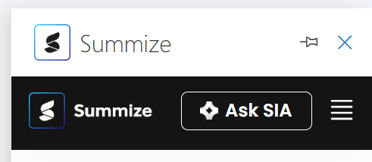
Teams & Slack:
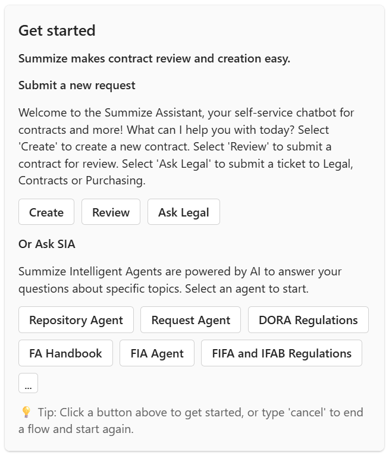
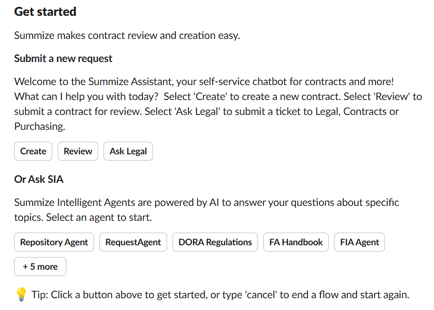
When opening the Teams or Slack chat bots, you will see a section for Ask SIA at the bottom of the 'Get started' message.
In Teams:
In Slack:
How to ask a question
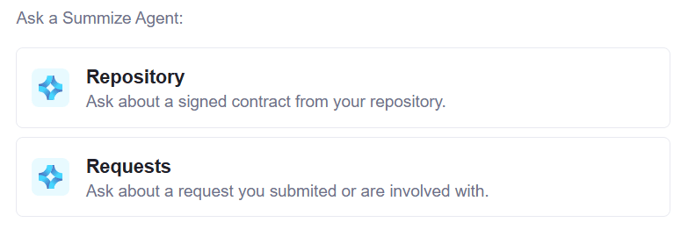
Once you have accessed Ask SIA, select 'Request Agent':
Type your question:

The Request Agent can answer questions about a single request at a time, such as "What's still outstanding on the [counterparty] request". The Request Agent cannot answer questions about multiple requests at a time, for example "Show me all the requests assigned to me"
Based on your question, the Agent will scan all the requests you have access to in the Request table to find a match.
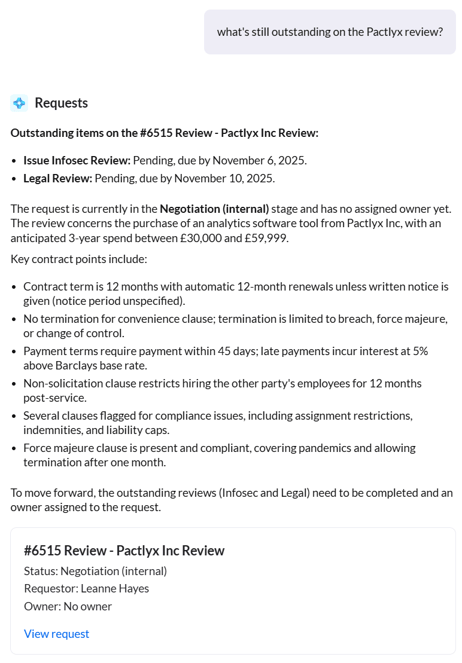
If it finds one match, the Agent will respond to your question straight away:
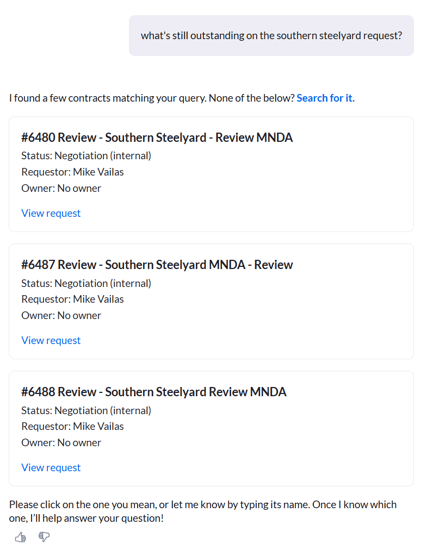
If it finds multiple matching requests and isn't sure exactly which one you're referring to, it will present some options first:
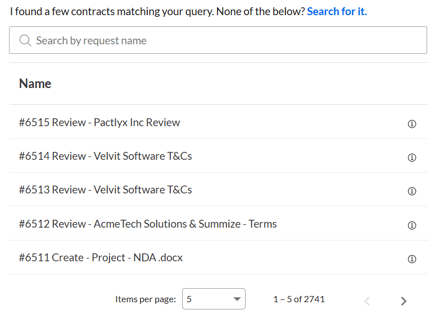
If you can't see the exact request you had in mind within these options, click 'Search for it' instead, and you will be presented with a mini table view to search for the appropriate request first:
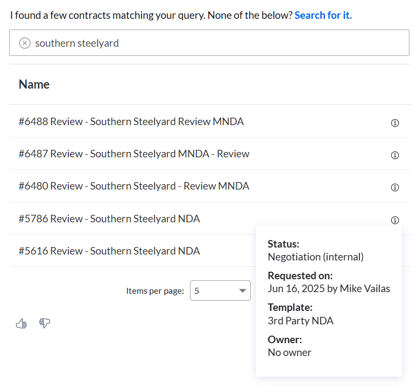
Use the search bar to find the request, and you can click the (i) icon on the right hand side to verify you've selected the correct one:
The Agent will now answer your original question:
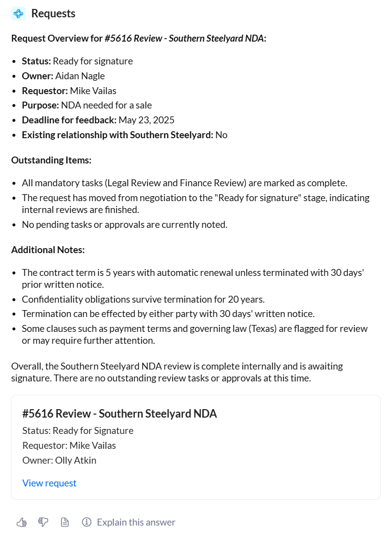
You can continue asking questions about the current request in this thread, or switch to a different request at any time. To start a conversation about another request, either enter your new question within the same chat window or click the "New chat" button at the top of the page.

Note: Starting a new chat will remove the previous conversation history.
Information available to the Request Agent
The Request Agent has access to the following data to help locate the right request:
- Request ID number
- Request name
The Request Agent has access to the following data to help answer your question:
- The full OCR-extracted contract text, including text from linked documents (Review requests only)
- The clause summary (Review requests only)
- Request information: parties (Review requests only), the owner, the requestor, date submitted, template question responses
- Request status
- E-signature status
- Tasks
- Conversations
- Attachment information (filename and date added - not their contents)
Understanding the response
Beneath each response the Request Agent provides, you will see a card which states the request name, status, requestor and owner.
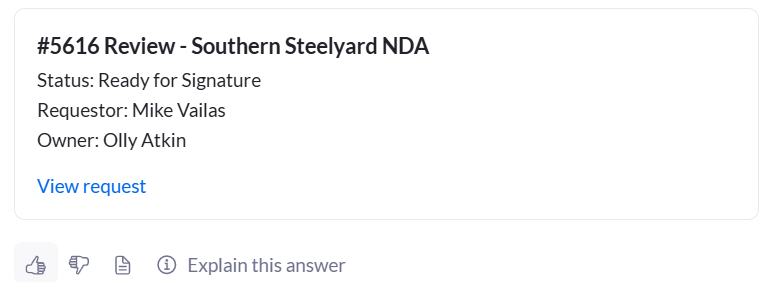
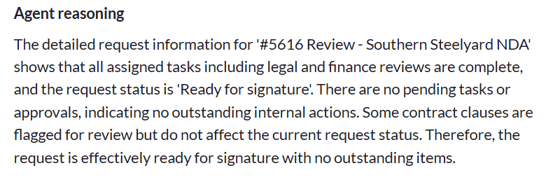
To understand why the Request Agent provided a certain response, click 'Explain this answer' beneath the request card. This will open a panel which outlines the Agent's reasoning. Here, the Agent will outline where it found the answer and why it came to that conclusion:
If you would like to verify any of the information yourself, the request card also includes a link to view the request. Clicking this will open the request in a new browser tab.
Providing feedback
Beneath the request card, you will also see thumbs up/down icons:

Clicking either option will present an open text box where you can provide more context:
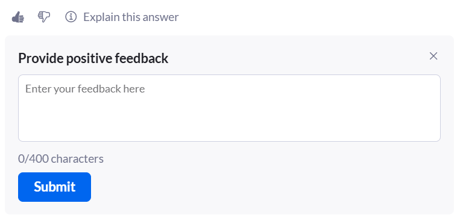
This feedback can be viewed by both your account's Power users, to help understand how useful the wider business are finding the responses, and by Summize, so we can use your feedback to assess and continually improve the Agent's reasoning.
Note: Your data is never used to train or retrain the Agent or any underlying AI models. Summize may review feedback trends (e.g., frequency of thumbs up versus down) to identify areas for improvement, but all analysis is done within our secure environment and does not involve sharing or reusing your contract data outside your tenant.