
The Request Table helps you manage all your contract requests in one place, giving you visibility over active, completed, and abandoned requests. This guide explains how to navigate, filter, and manage your requests efficiently.
Navigation
Requests that are generated in Summize are all listed in the request table.
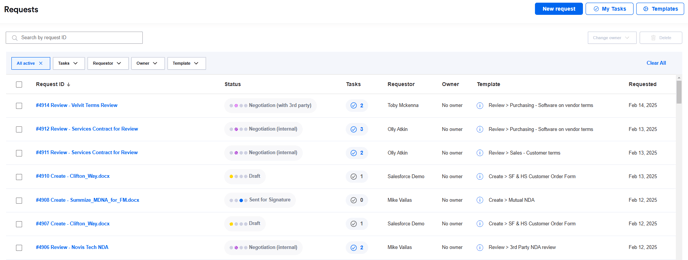
In the top right of the screen, you can see three buttons:
- New request - use this to submit a new request via the web app
- My tasks - use this to see all pre-signature tasks assigned to you
- Templates (available to Power user types only) - use this to manage your request templates
Above the table, there is a search bar to search for requests using the Request ID (assigned name and number).
Below the search bar you will find the available filters. See section below for more guidance on filtering.
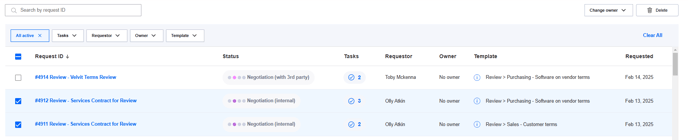
When a request or multiple requests are selected using the check boxes, you can use the buttons to the top right of the table to change owner or delete requests.
Columns
The default view shows all active requests. From the table view you can see:
- The request name and number
- The status
- The number of pending tasks. This is colour coded to indicate deadline:
- Grey = no deadline date
- Blue = due after 48 hours
- Orange = due within 48 hours
- Red = overdue
- The user who submitted the request
- The user who is assigned as owner
- The template used
- The date the request was submitted
Filtering

The request table can be filtered in the following ways, to help you find the request you are looking for:
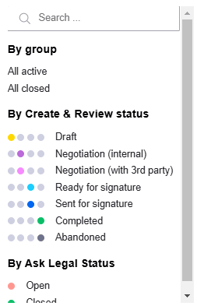
Status: By default, this is set to show all active requests. You can remove this to show all requests, or change to show either all closed requests or to filter by a specific status.
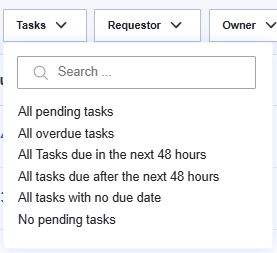
Tasks: Requests can be filtered by the number of tasks that are pending, due soon or overdue. This helps to focus on requests that have the highest level of urgency.
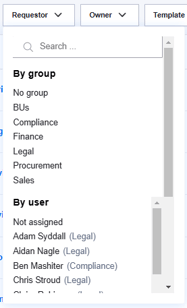
Requestor: You can filter requests by the user group or individual user that submitted them.
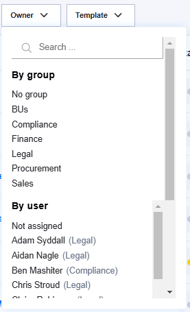
Owner: Similar to Requestor, you can filter requests by the user group or individual user that is assigned as owner. This helps you identify the requests that you are managing.
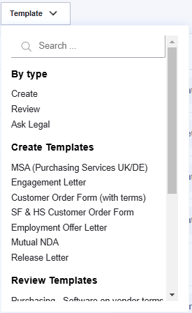
Template: And finally, requests can be filtered by the template that was used to submit them - either by type (Create, Review or Ask Legal) or specific template (e.g. NDA).
The Request Table makes it easy to track and manage Legal workload. Use search, filtering, and table actions to stay on top of your tasks efficiently.