How to use the Outlook add-in to create and update requests, and store and send contracts
Note: the below instructions refer to the latest version of Outlook. If you are using an older version of Outlook, the position of some of the buttons may vary.
Skip to:
Overview
How to launch the Outlook Assistant
How to login to the Outlook Assistant
How to submit a new Request
Create Request
Review Request
Ask Legal Request
How to update a Request
How to store a contract in the Repository
How to get files from Requests and Repository
Overview
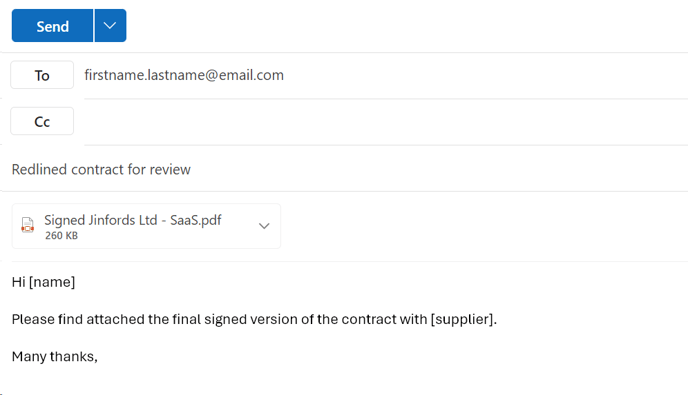
With our Outlook Assistant, Summize users have the convenience of effortlessly creating contracts through pre-defined templates and sending red-lined contracts for Legal review directly from the counterparty's email response. Additionally, users can securely store signed contracts without the need to save files locally first and easily access files from Summize to attach to an email without exiting Outlook.
See Outlook in action using the guided tour below!
How to launch the Outlook Assistant
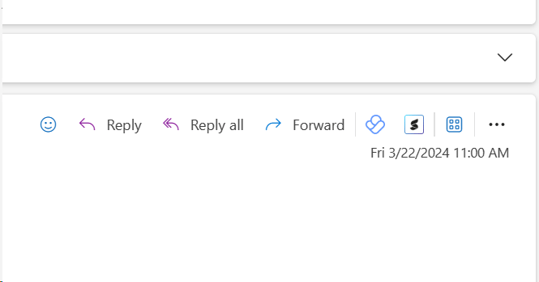
To launch the Assistant from your inbox, navigate to an email and either click the Summize icon (if it is visible to you):
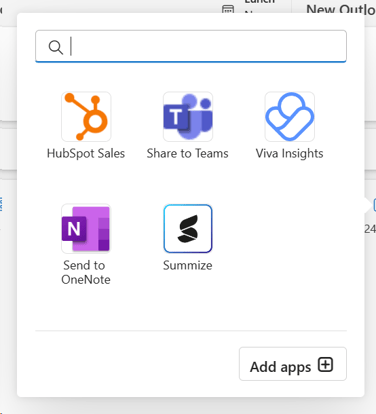
Or, click the apps icon and select Summize:
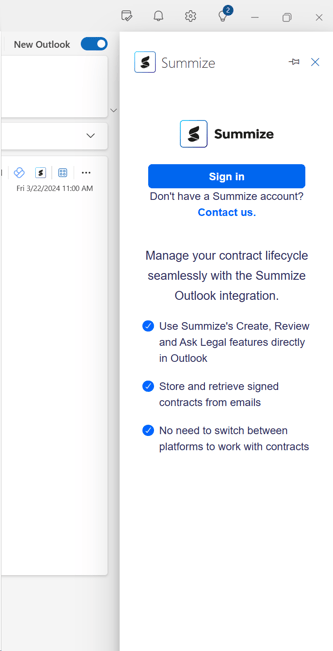
The Assistant will then open on the right hand side of the screen:
To launch the Assistant from an email draft, either click the Summize logo in the Add-ins section of the ribbon (if it is visible to you):
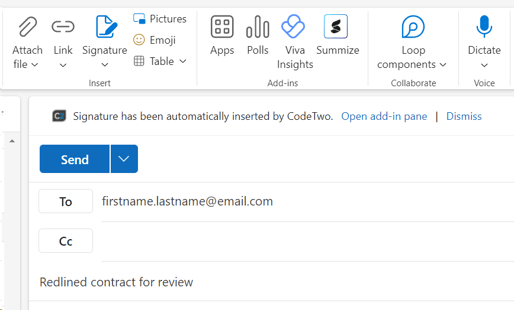
Or, click the 'Apps' icon, and select Summize:
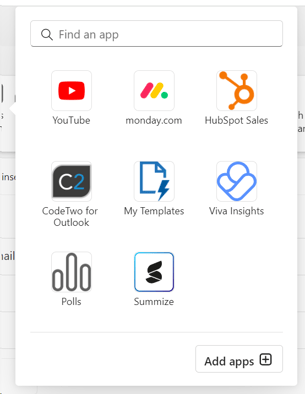
The Assistant will then open on the right hand side of the screen:
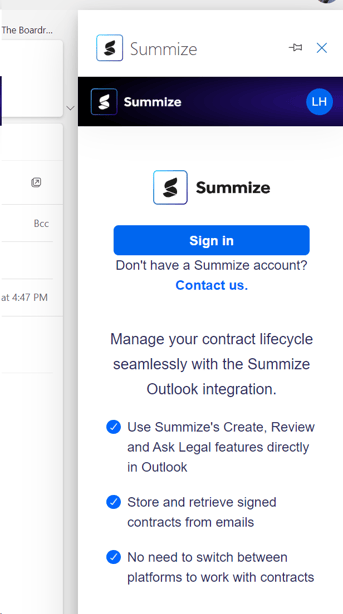
How to login to the Outlook Assistant
To login to the Outlook Assistant, click the 'Sign in' button from the right hand panel:
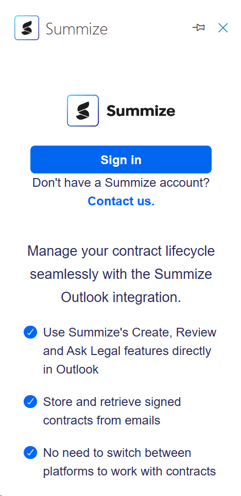
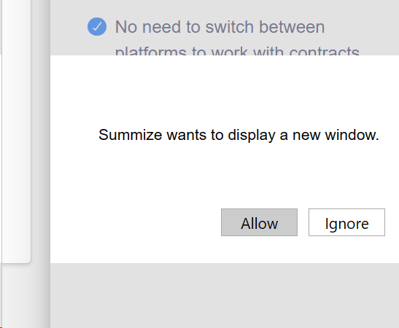
You may be asked to allow Summize to display a new window:
This will launch a pop-up:
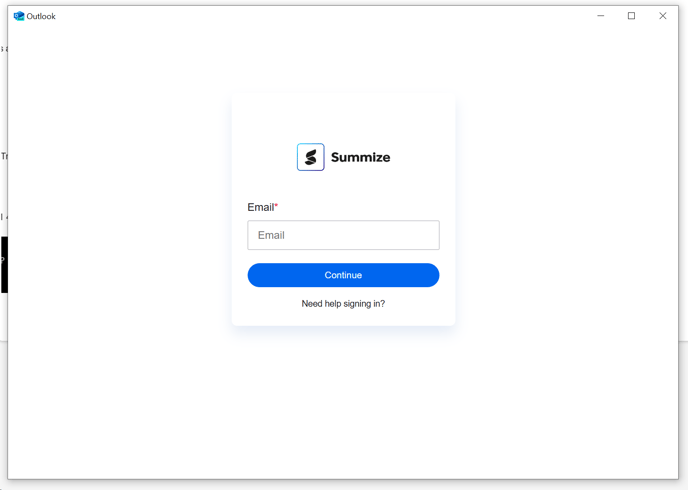
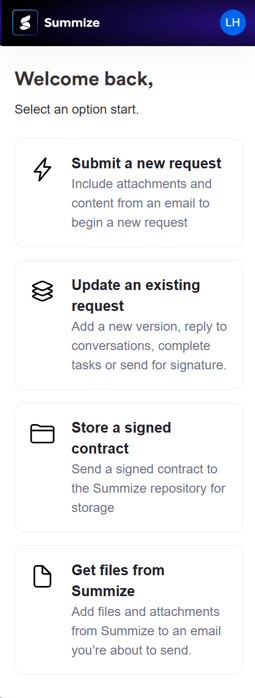
From here, enter your Summize credentials. The pop-up will automatically close once you have been authenticated. You will now be able to see the Outlook Assistant menu:
How to submit a new Request
To submit a new request, select the first option from the menu:
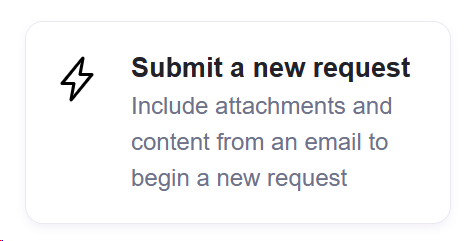
Next select the type of request you'd like to submit:
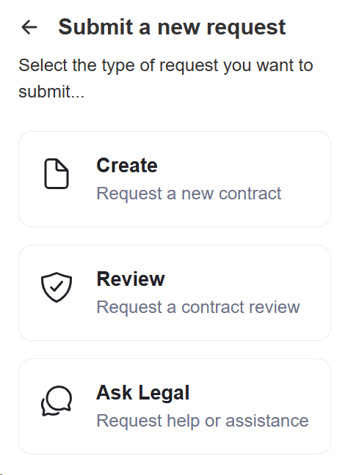
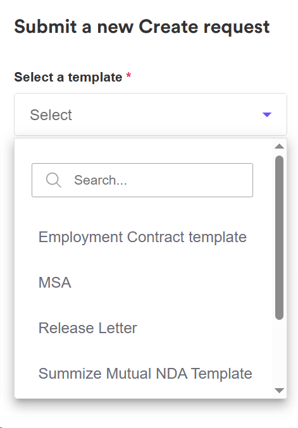
Create Request:
Select which template you'd like to use:
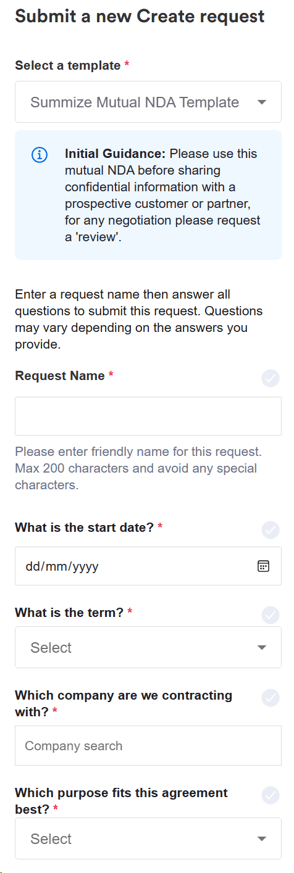
Give the request a name, and complete the template questions:
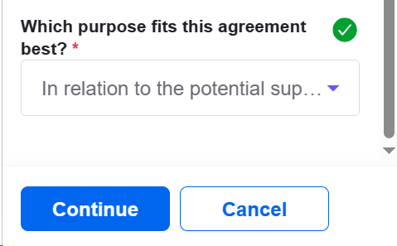
Once all questions have been completed, the 'Continue' button will no longer be greyed out. Click 'Continue':
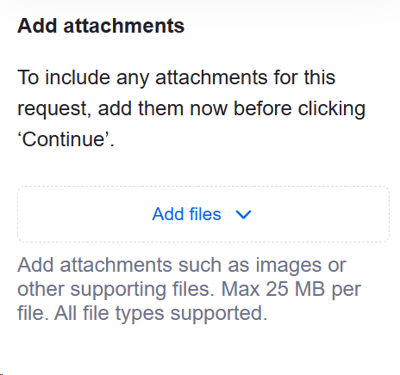
On the next screen, add any necessary attachments and click 'Continue', or go straight to 'Continue':
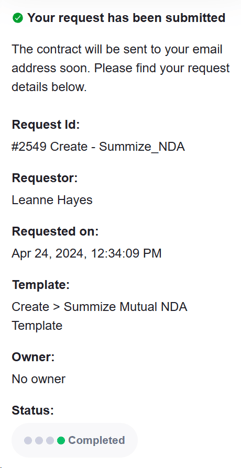
You will then be presented with confirmation of your submission:
From here, you can either 'Finish' and go back to the menu, or view the request in Summize:
Review Request:
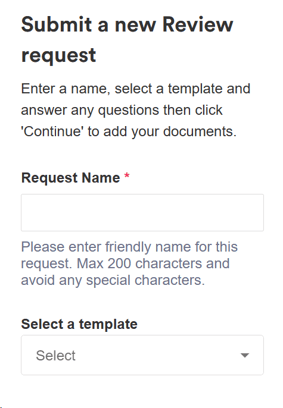
Name the request and select which template you'd like to use:
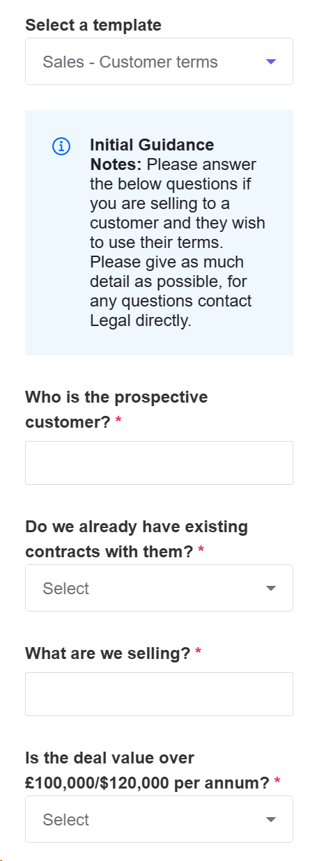
Complete the template questions and click 'Continue':
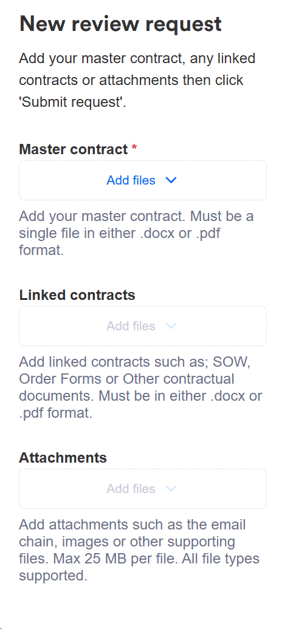
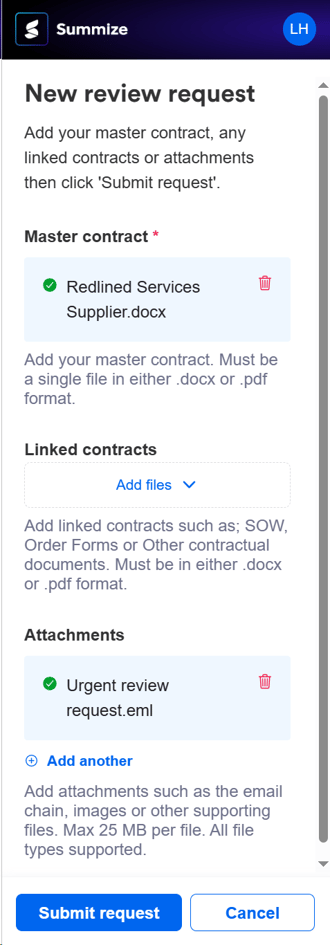
Attach any necessary files to the request:
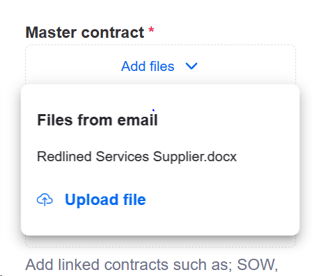
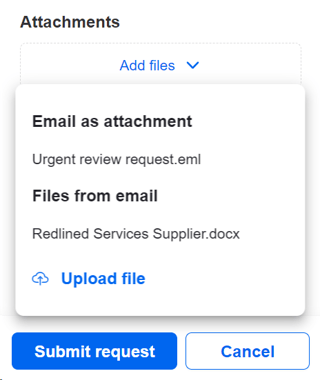
When adding files, if the file is attached to the email that is open, they will appear in the drop down. If the file you want to add is not attached to the email, you can search for your local files by selecting 'Upload file':
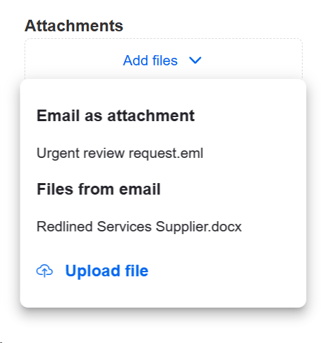
If you would like to add the email chain as an attachment, to give Legal added context to the request, this is a default option when clicking 'Add file' under the attachment section:
Once ready, click 'Submit request':
You will then be presented with confirmation of your submission:
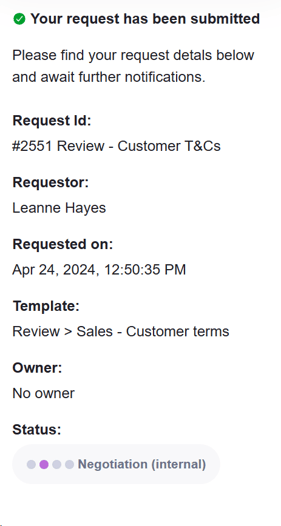
From here, you can either 'Finish' and go back to the menu, or view the request in Summize:
Ask Legal Request:
Name the request and select which template you'd like to use:
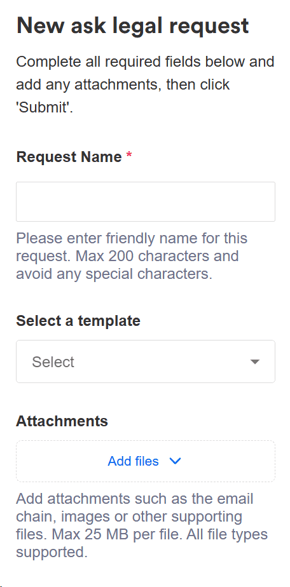
Complete the template questions and upload any attachments. Again, if you would like to attach a document that is attached to the email you have open, or attach the email chain, they will appear in the dropdown:
Click 'Submit request' when ready. You will then be presented with confirmation of your submission:
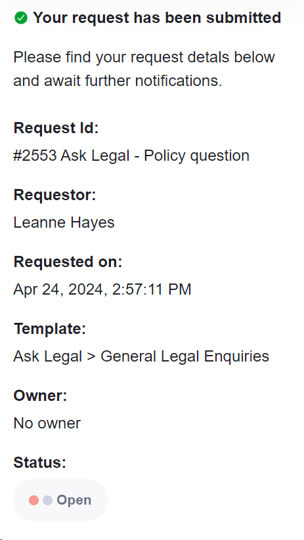
From here, you can either 'Finish' and go back to the menu, or view the request in Summize:
How to update a Request
To submit a new request, select the second option from the menu:
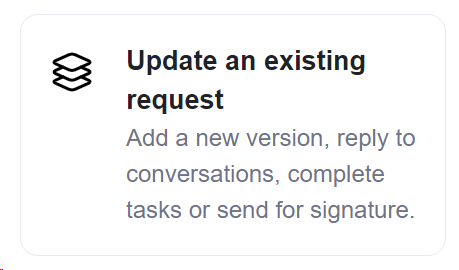
You will be presented with a list of the Requests you have access to:
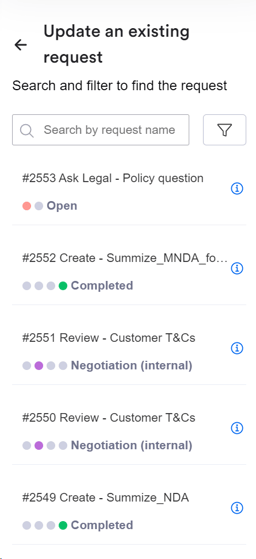
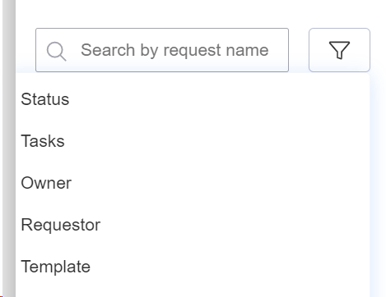
If you can't see the request in the list, you can use the search or filter functions at the top of the screen:
You can also see more information about the request by clicking on the 'i' icon, to verify you've selected the correct request:

Once you have found the request you want to update, click on the request name and this will open the request in a new window:

Here you have access to all the same functionality as viewing the request via the web app, such as tasks, conversations, summary, etc.
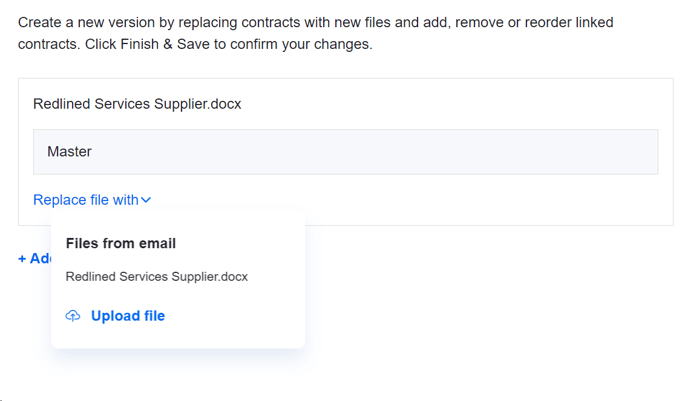
If you have received a new version from the counterparty and wish to upload this to the request, simply click the 'New version' button at the top of the pop-up, and either select the name of the document that's attached to the email, or upload a file:
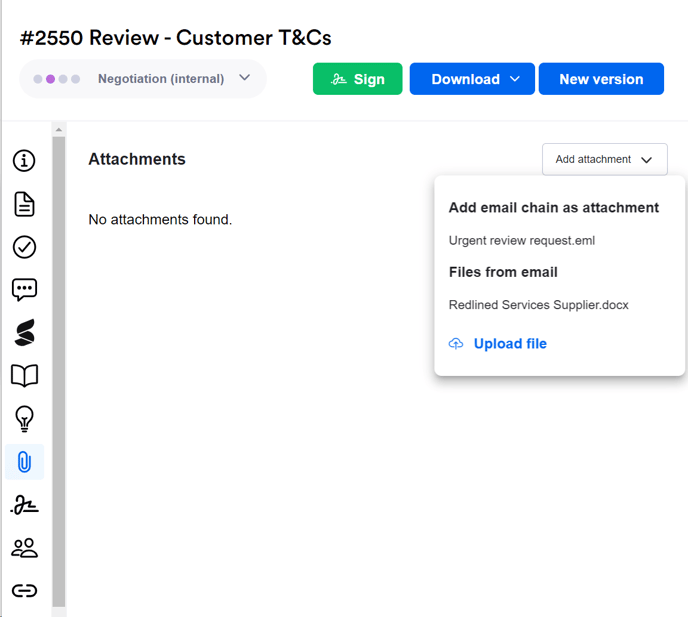
If you have received an email from a counterparty and wish to upload either the email itself or an attached file to add more context to the request for the Legal team, navigate to the attachment section in the tool panel, click 'Add attachment', and select the file you'd like to upload:
How to store a contract in the Repository
To store a file in the repository that you have received via email, select the third option from the menu:

Select the folder and contract type (mandatory) and the status and owner (optional) of the document you wish to store:

Note: if the user has restricted visibility, they will only be able to see the folders that they have access to in the dropdown list.
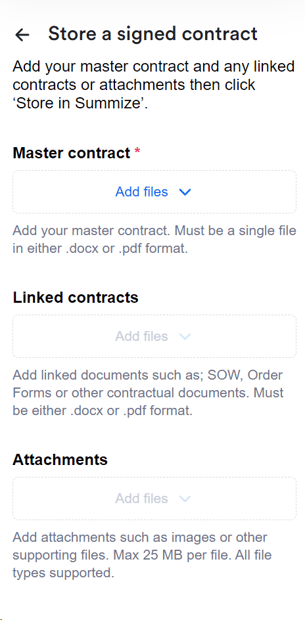
Add the master contract, any linked documents and attachments:
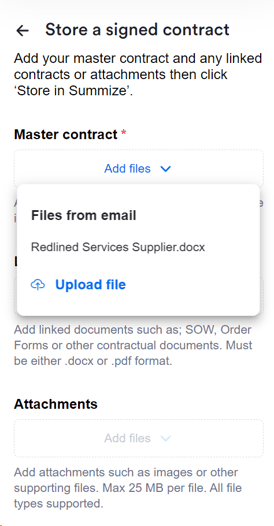
Any documents attached to the email will be selectable in the dropdown:
And the email chain can be easily added as an attachment:

Once ready, click 'Store in Summize':
You will then be presented with confirmation of your upload:
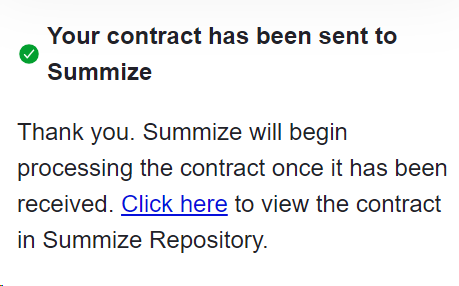
You can click the above link to view the contract in Summize, alongside its extracted data, or click 'Finish' to return to the menu:

How to get files from Requests and Repository
To find files in Summize to attach to an email, select the fourth option from the menu:
Select whether the file you're looking to attach is in Requests (pre-signature) or Repository (post-signature):
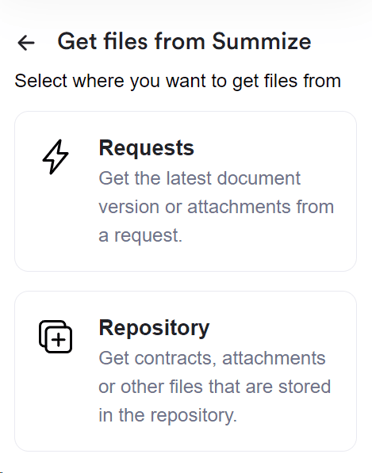
Get files from Requests
If stored in Requests, browse for the request in the list, search by name, or filter:

Once found, click the request name, and select which version's master contract you'd like to attach, along with any attachments already added to the request:
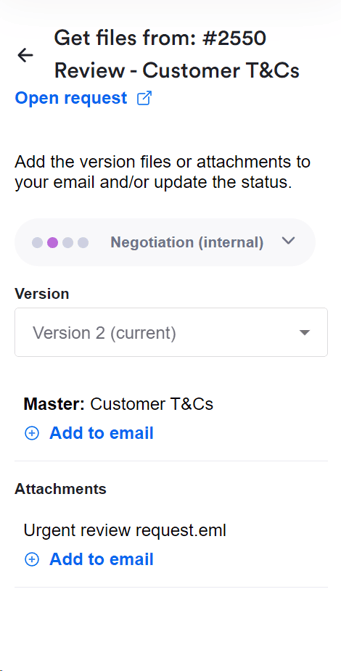
Click 'Add to email', and the document is added to your email draft:
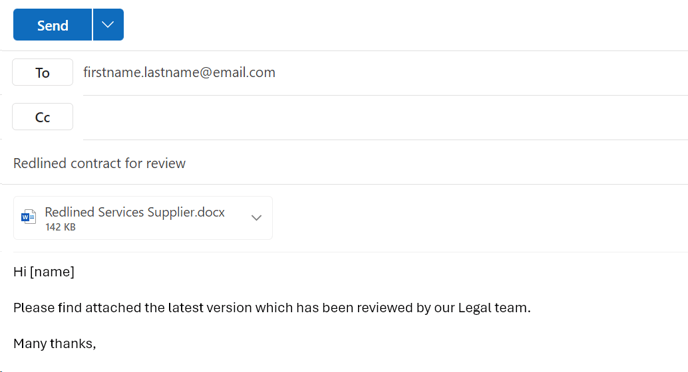
Get files from Repository:
If stored in Repository, browse for the contract in the list, search by name, or filter:
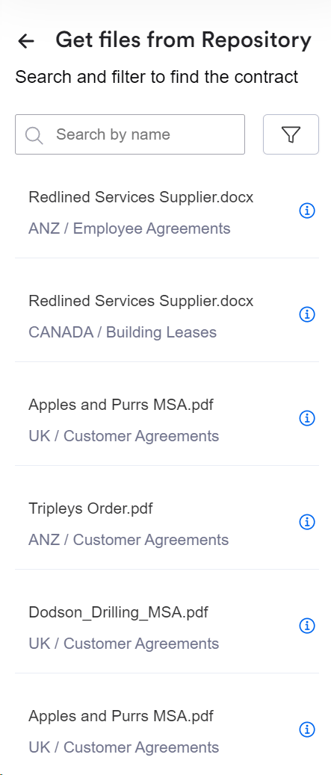
You can also see more information about the contract by clicking on the 'i' icon, to verify you've selected the correct document:
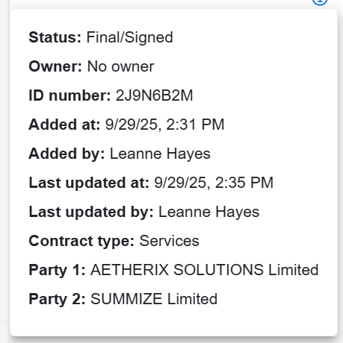
Once found, click the contract name, and select which version's master contract you'd like to attach, along with any attachments already added to the repository contract:
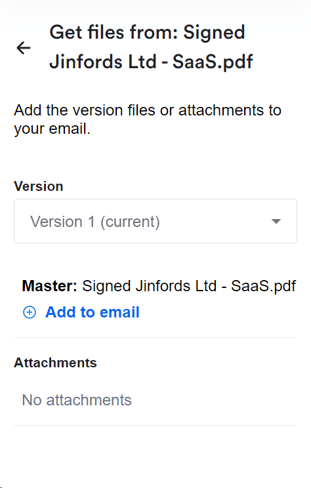
Click 'Add to email', and the document is added to your email draft: