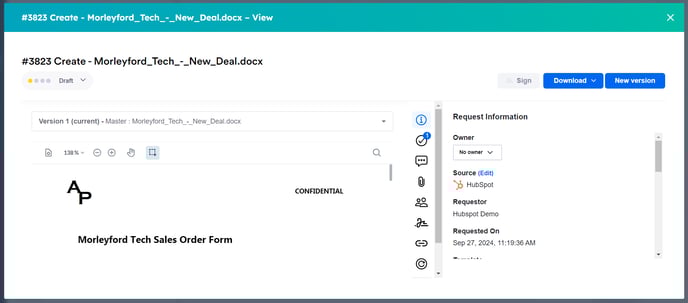
With the Summize embeddable Legal Front Door in HubSpot, you can seamlessly submit and update Create, Review and Ask Legal requests directly in your existing HubSpot account, without having to switch applications.
Skip to:
Introduction
Submitting a Create Request
Submitting a Review Request
Submitting an Ask Legal Request
Updating a Request
Introduction
This video shows how our HubSpot integration works to allow users seamlessly use Summize within their HubSpot environment.
How the Summize HubSpot integration works:
With Summize, your commercial users can stay in HubSpot for contracting tasks, making the process fast and easy for all stakeholders.
- A commercial user clicks on either “Create”, “Review” or “Ask Legal” directly within HubSpot and follows the prompts to complete the process, without needing to leave the CRM.
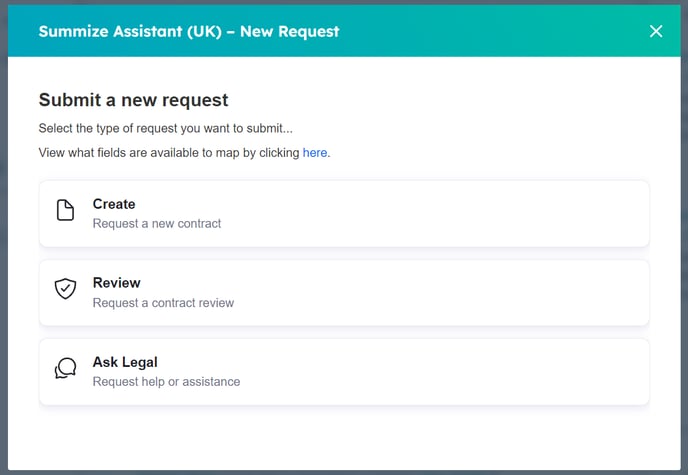
- Clicking “Create” requests a new contract, “Review” requests a contract review from Legal and “Ask Legal” requests for non-contractual legal help or assistance.
- The submitted request is automatically sent to Summize, where the Legal team manage intake and tasks.
- The legal team approves or completes a first pass review and redlines within Summize.
- Commercial users can see all information associated with the requested contract directly within HubSpot, including pending and completed tasks, conversations, summaries and more.
Submitting a Create Request
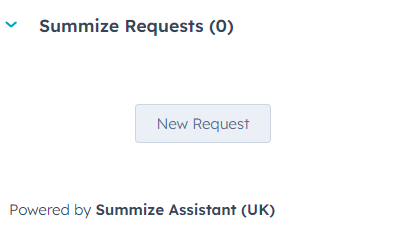
Navigate to the object your Summize widget has been configured to be used on (Deal, Company or Contact), and click 'New Request' at the bottom of the widget:
In the pop-up, select 'Create':
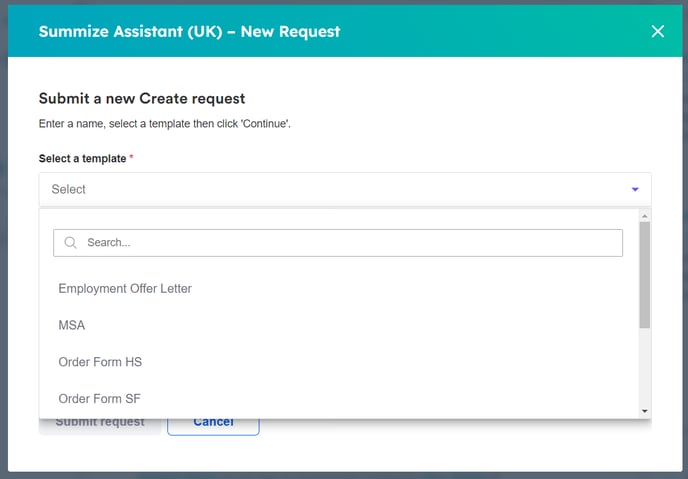
Select the applicable template:
Summize will populate the Request name with the name of the Deal/Company, as well as any pre-mapped fields:
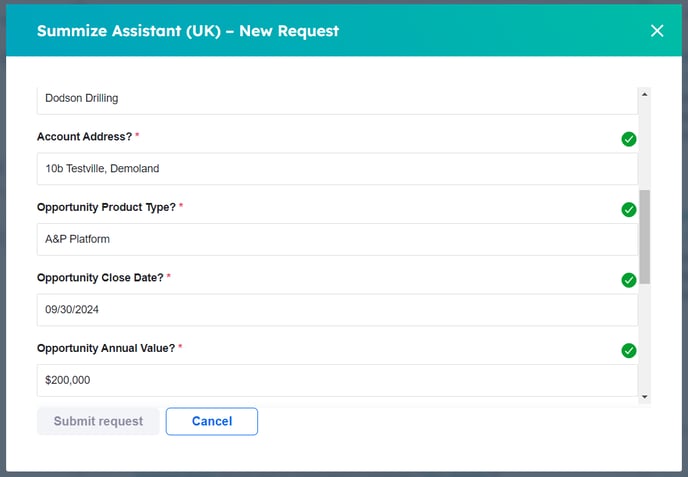
Once all questions have been responded to, and all fields have a green tick, the Submit Request button will turn blue and can be clicked:

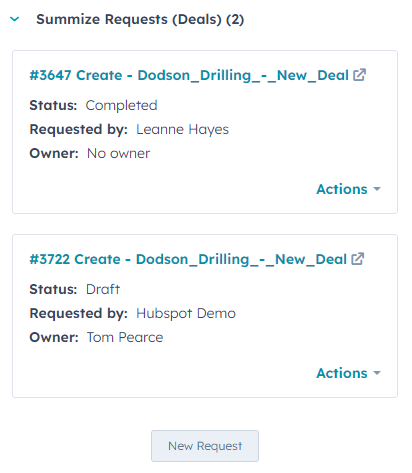
Once submitted, the request will be visible in the widget, alongside its status, who submitted it and the Request owner:
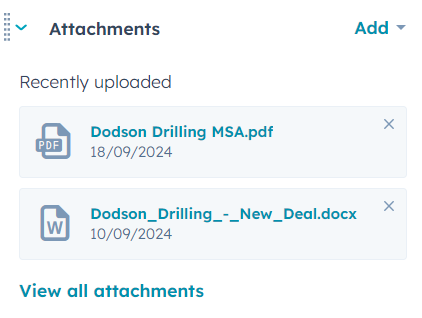
The generated contract, once approved and completed, will also appear in the attachments on the Deal:
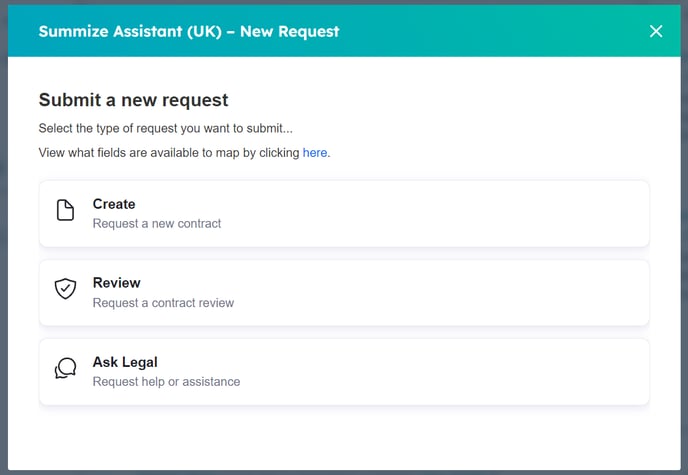
Submitting a Review Request
Navigate to the object your Summize widget has been configured to be used on (Deal, Company or Contact), and click 'New Request' at the bottom of the widget:
In the pop-up, select 'Review':
Summize will populate the Request name with the name of the Deal/Company. Select the applicable template:
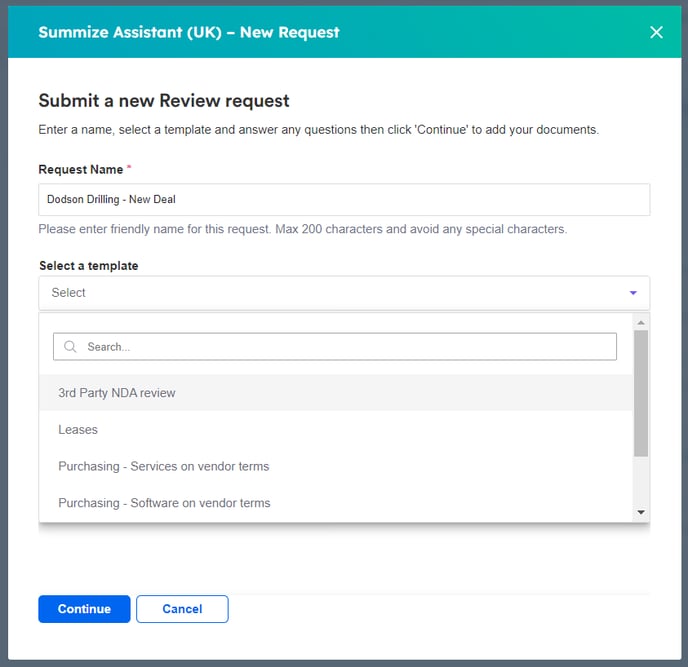
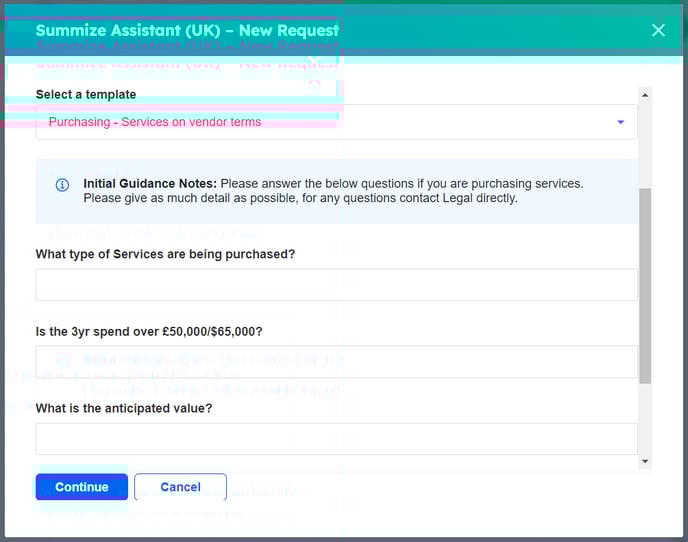
Summize will populate any pre-mapped fields, and once all questions have been responded to, click 'Continue':
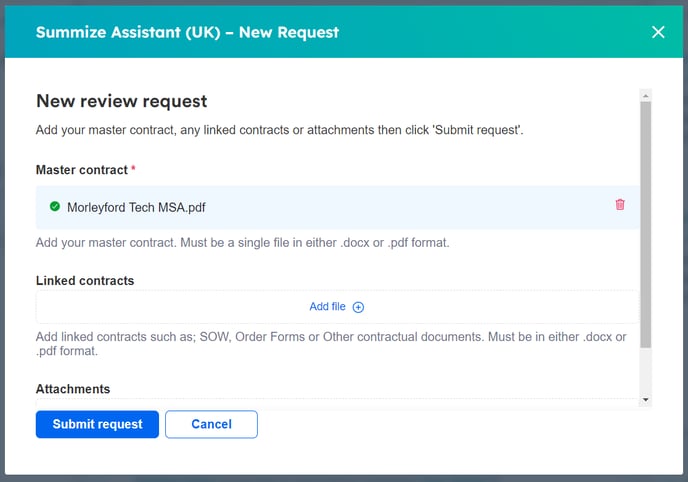
Upload the master contract (compulsory) as well as any linked contracts and attachments (optional):
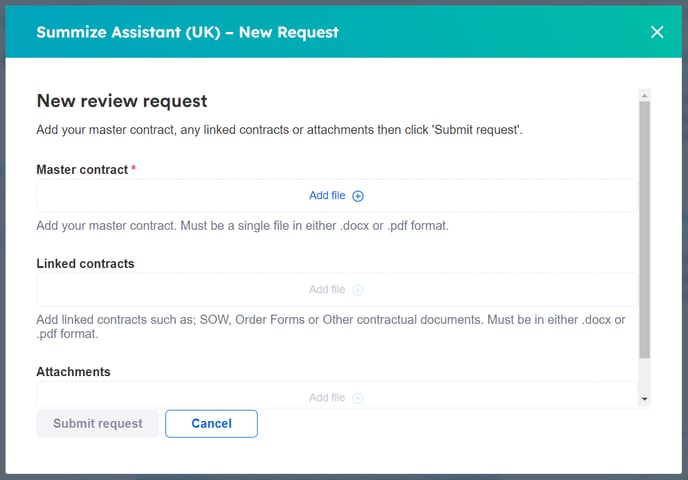
If the Deal/Company has any attachments already uploaded, they will be available in the 'Files from HubSpot' section, otherwise you can upload a file from your device.
Once uploaded, click 'Submit Request':
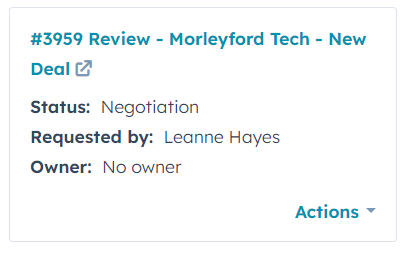
Once submitted, the request will be visible in the widget, alongside its status, who submitted it and the Request owner:
Submitting an Ask Legal Request
Navigate to the object your Summize widget has been configured to be used on (Deal, Company or Contact), and click 'New Request' at the bottom of the widget:
In the pop-up, select 'Ask Legal':
Summize will populate the Request name with the name of the Deal/Company. Select the applicable template:
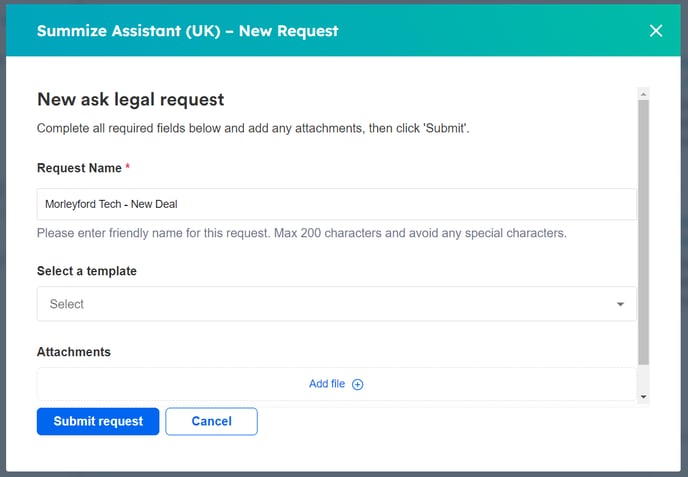
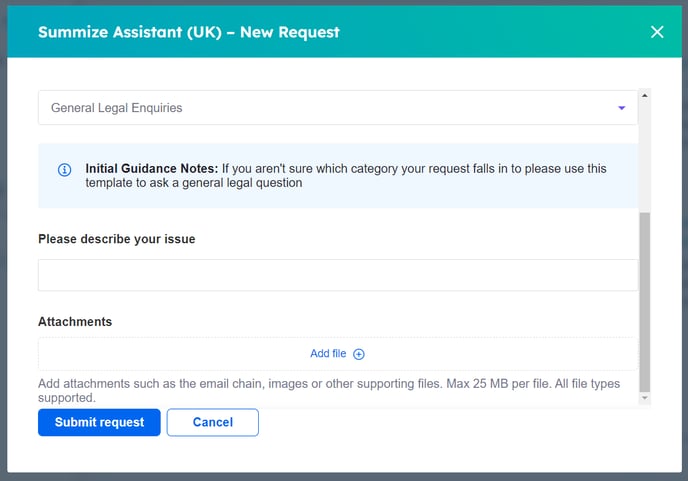
Summize will populate any pre-mapped fields, and once all questions have been responded to, as well as any attachments uploaded (optional), click 'Submit Request':
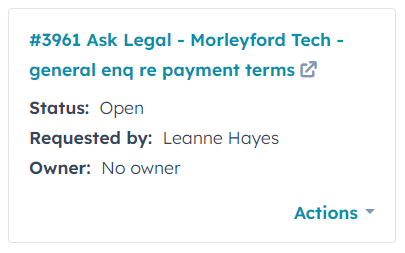
Once submitted, the request will be visible in the widget, alongside its status, who submitted it and the Request owner:
Updating a Request
Through the HubSpot Summize widget, users can update an existing Request, for example to upload a new version to a Create/Review Request, to update the Request's status, to start or respond to conversations, to complete tasks, etc.
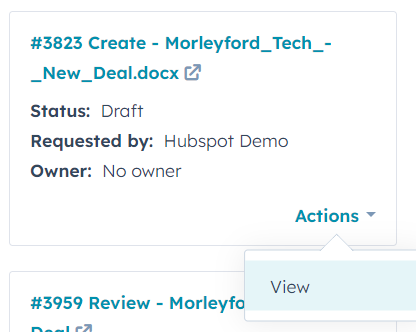
To update a Request, navigate to the Deal or Company that the Request was originally submitted. From here, you can either click on the Request name, which will open the Request in Summize in a new tab, or you can click Actions > View, to open the Request in a pop-up:
Through the pop-up, users have access to all the same functionality as the Summize web app. Use the tool panel on the left hand side to navigate the different features, and use the buttons at the top of the pop-up to update the status, download the contract, upload a new version and to send the document for e-signature: