
Learn how to query your uploaded knowledge in seconds with Ask SIA Custom Agents
Skip to:
Introduction
How to access your Custom Agents
How to ask a question
How the Agent generates its Response
Understanding the response
Providing feedback
Introduction
Custom Agents let you build your own SIA agents, powered by the knowledge you upload. Instead of working only with signed contracts or requests, your agents can securely query any document set - from policies and playbooks to insurance documents and regulations - and deliver speedy, trusted answers.
Here are some examples Ask SIA Custom Agents can help with:
-
“What’s our policy on remote working allowances?”
-
“What does the FCA say about data retention?”
-
“Which insurance policy covers professional indemnity?”
-
“What’s the process for onboarding new suppliers?”
You can design agents just for the Legal team, or make them available across the business to answer FAQs and reduce repetitive questions.
To learn how to create your own Custom Agents, read this article.
How to access your Custom Agents
Ask SIA can be accessed via:
- The Summize web application
- Outlook & Gmail integrations
- Teams & Slack integrations
Summize web application:
Click the Ask SIA button in the top right of the screen:

Outlook & Gmail:
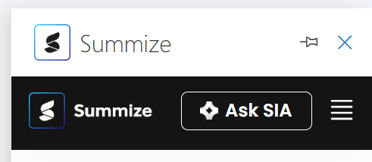
Click the Ask SIA button in the top of the add-in:
Teams & Slack:
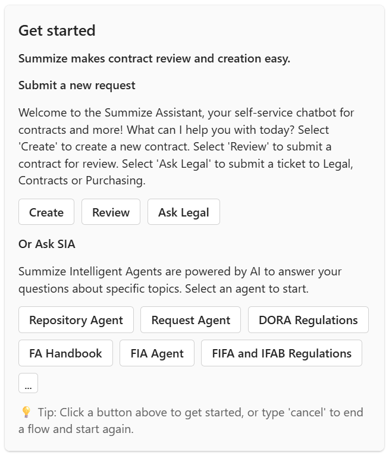
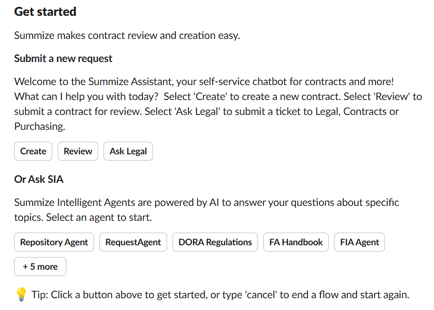
When opening the Teams or Slack chat bots, you will see a section for Ask SIA at the bottom of the 'Get started' message.
In Teams:
In Slack:
How to ask a question
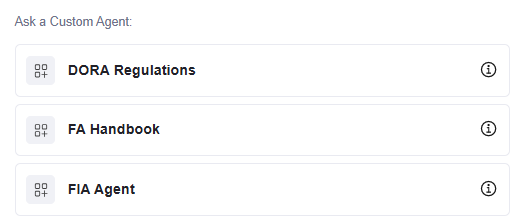
Once you have accessed Ask SIA, you will see the list of Custom Agents made available to you under the title 'Ask a Custom Agent':
Select the appropriate Agent and type your question:

Based on your question, the Agent will scan all the documents that have been uploaded as knowledge sources to find an appropriate response.
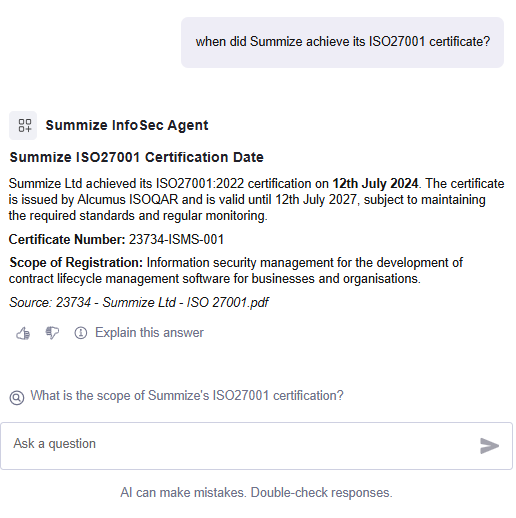
You can continue asking questions about the same topic in this thread, or switch to a different topic relating to the same Custom Agent at any time. To start a conversation about another topic, either enter your new question within the same chat window or click the "New chat" button at the top of the page.

Note: Starting a new chat will remove the previous conversation history.
As well as interacting directly with a Custom Agent, you can also use your Custom Agents whilst in a thread with a Summize Agent.
For example, if you’re reviewing a data protection clause in a signed contract using the Repository Agent, you could bring your InfoSec Agent into the same thread to check whether that clause aligns with your company’s data protection policy.
To do this, ask a question to the Repository Agent:
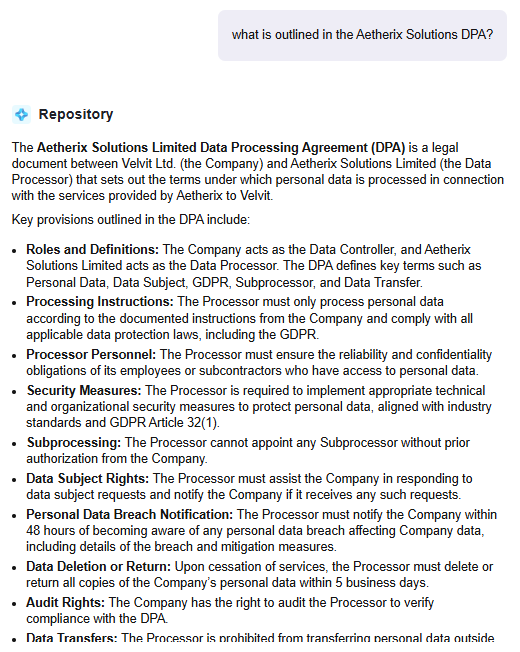
Then, in response, type '@' to bring up the available Custom Agents, and select the appropriate option:
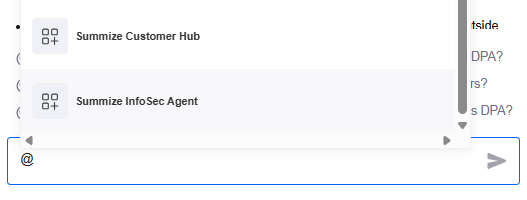
And then direct a question to your Custom Agent:

And your Custom Agent will respond in your thread, using the knowledge available to it alongside the context it can see in the messages above:
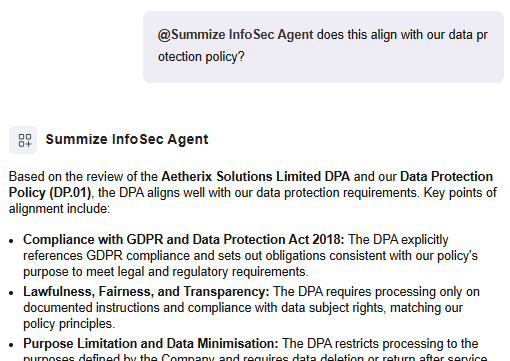
You can now continue messaging your Summize Repository Agent. If you have further questions for the Custom Agent, ensure you @ message them at the start of the question, otherwise the Summize Agent will assume you're messaging them.
Note: only Custom Agents can be brought into a Summize Agent thread. You cannot bring a Custom Agent into a thread with another Custom Agent, and you cannot bring a Summize Agent into a thread with a Custom Agent.
How the Agent generates its response
When knowledge documents are uploaded to the Custom Agent, Summize splits those files into individual blocks of data. When a question is asked, the Agent scans all of those blocks of data, orders them into relevancy order and bases its response using the most relevant information. The number of blocks it refers to when generating that response depends on this setting when building the Agent:
Increasing this number helps the agent consider more context, while lowering it keeps answers more focused.
Understanding the response
Beneath each response your Agent provides, you will see 'Explain this asnwer':

You can click this to understand why your Agent has provided a certain response. A panel will open which outlines the Agent's reasoning:
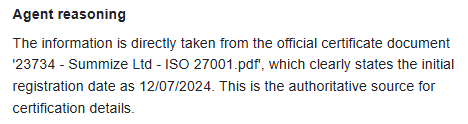
It will also list all of its information sources, listed in relevancy order:
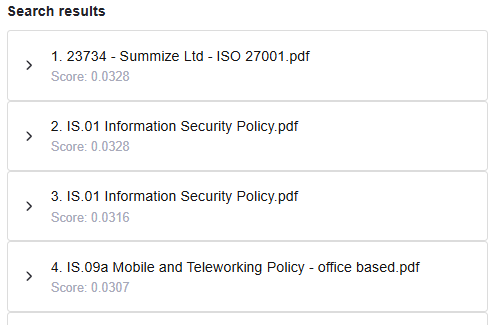
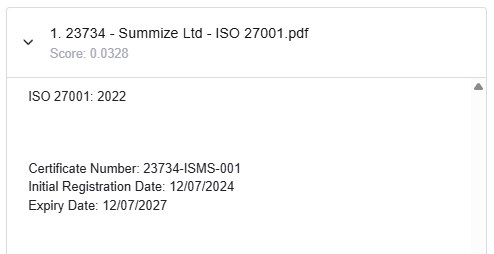
Those sources can be expanded to view the blocks of text that were used to generate the response:
Providing feedback
Beside 'Explain this answer', you will also see thumbs up/down icons:

Clicking either option will present an open text box where you can provide more context:
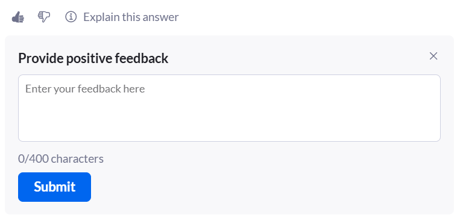
This feedback can be viewed by both your account's Power users, to help understand how useful the wider business are finding the responses, and by Summize, so we can use your feedback to assess and continually improve the Agent's reasoning.
Note: Your data is never used to train or retrain the Agent or any underlying AI models. Summize may review feedback trends (e.g., frequency of thumbs up versus down) to identify areas for improvement, but all analysis is done within our secure environment and does not involve sharing or reusing your contract data outside your tenant.