
How to setup and use Contract Relationships to link a pre-signature Request to another Request, or to a signed agreement in the Repository
Available to Power level and Collaborator level users
Use this feature if you'd like to represent relationships between two requests, for example if you have two requests with the same counterparty, or between a request and a signed agreement, allowing you to look back at the pre-signature history.
You can also initiate relationships from Repository contracts. Read more about that here!
Skip to:
Navigating Request Relationships
Creating Relationships with Repository contracts
Creating Relationships with Rother Requests
Navigating Request Relationships
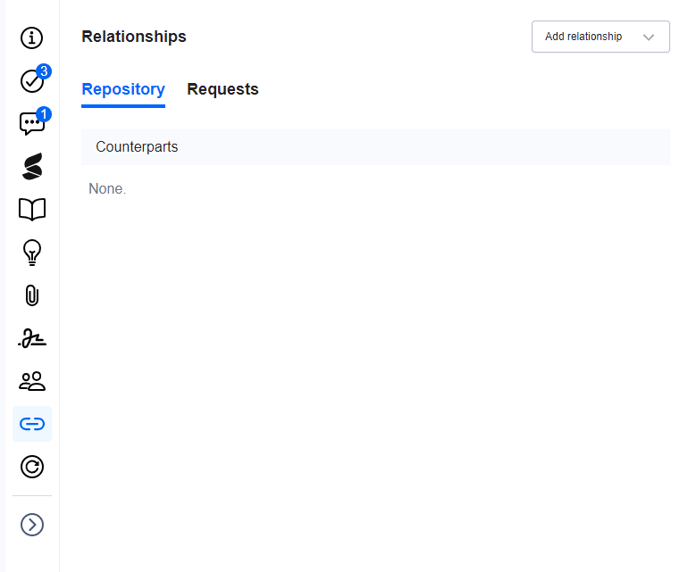
To navigate to Contract Relationships in Requests, open the request you'd like to start with, and click on the below icon in the tool bar:
Here, you'll see a tab for Repository and Requests:
Creating Relationships with Repository contracts
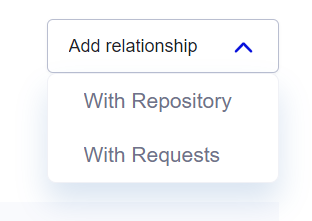
Click 'Add relationship', and select 'With Repository'.
You will be presented with the below screen, showing the name of the request at the top, and a filterable table below:
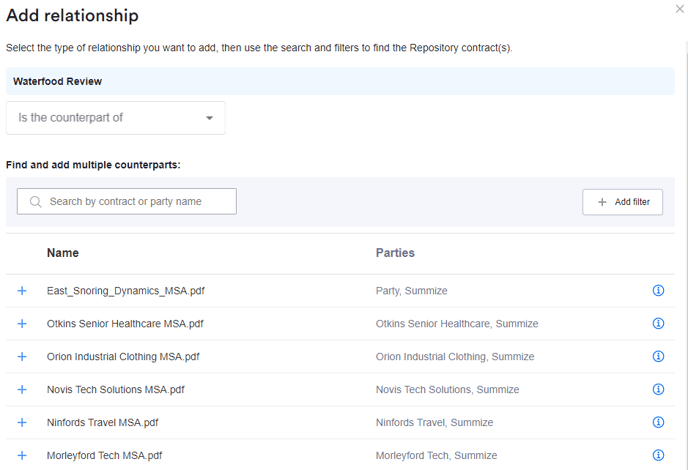
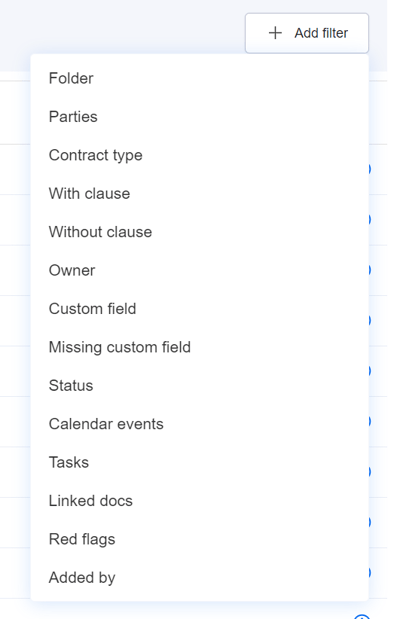
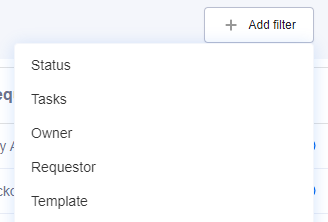
You can select the contract or multiple contracts that you'd like to relate. If the contract isn't already visible in the table, use the filtering or the search bar to narrow down your search:
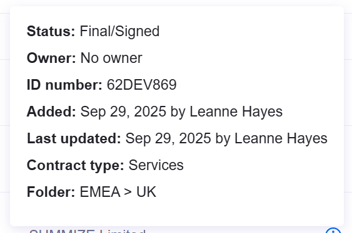
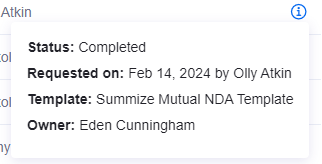
You can click on the 'i' to the right of the contract name if you need to see additional information to verify you've selected the correct contract:
You can select one or multiple, using the + icon next to the document name:
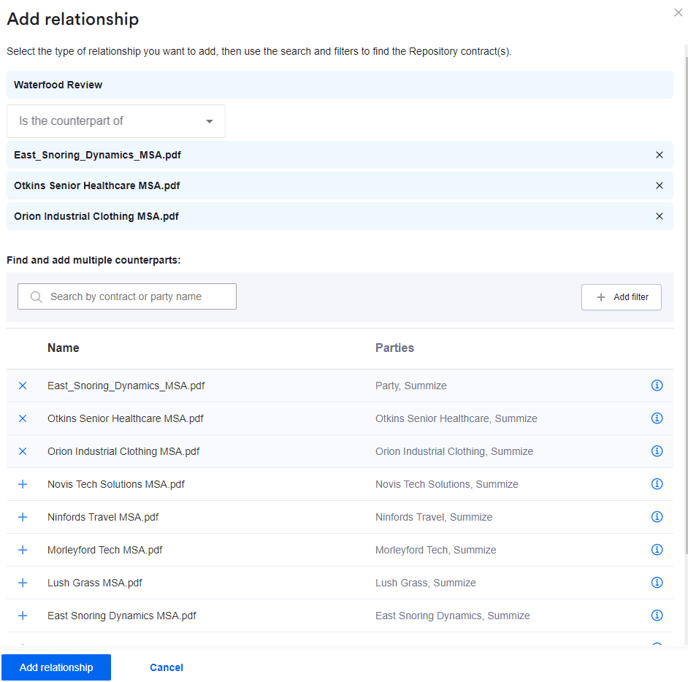
Once selected, the contract names appear above the table. You can use the X to the right of the contract name if you selected any by mistake.
Click 'Add relationship':
Once your relationships have been configured, your contract view should look something like the below:
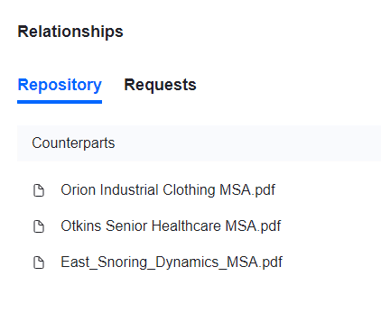
From here, you can click on any of the contracts listed as a counterpart to open that contract in its own window.
Note, if you have configured Repository folder visibility restrictions in Users & Permissions, a user with restricted visibility will be able to see the full family tree above (i.e. all the document names), but if they click on a restricted contract, they will not be able to access it.
Creating Relationships with other Requests
Click 'Add relationship', and select 'With Repository'.
You will be presented with the below screen, showing the name of the request at the top, and a filterable table of requests below:
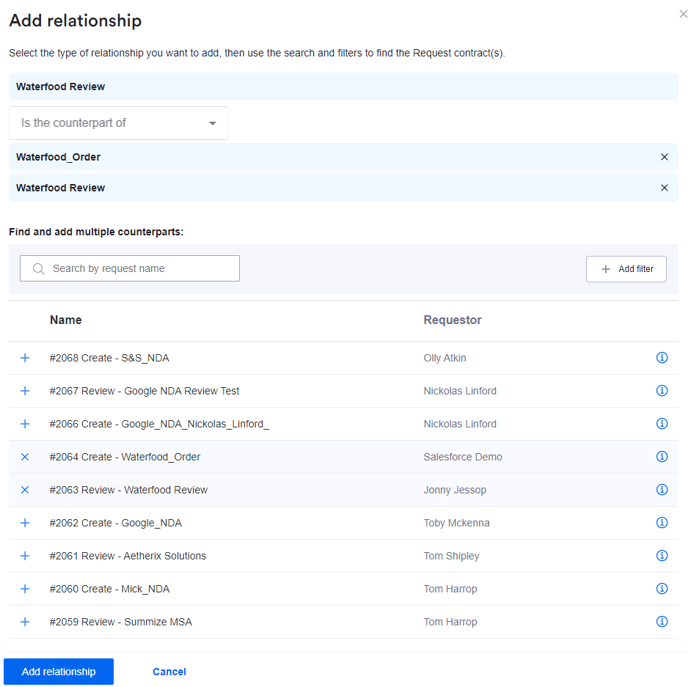
Filter/search the list of requests to select the contract that you'd like to relate using the + icon next to the document name:
You can click on the 'i' to the right of the request name if you need to see additional information to verify you've selected the correct request:
Click 'Add relationship':
Once your relationships have been configured, your contract view should look something like the below:
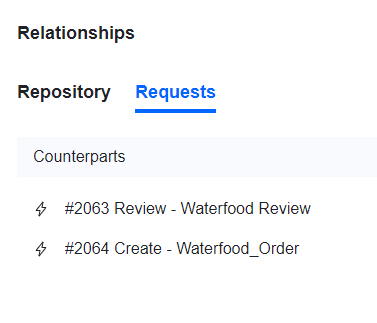
You can click on any of the other requests listed as a counterpart to open that request in its own window (if the user has access to that specific request).