
Clause Manager 101!
Setup available to Power and Power Pro users only
The Summize Customer Success Team regularly runs in-depth training sessions on how to use Clause Manager. To attend an upcoming session, or to watch a recorded session, check out the HERO Academy here.
Skip to:
Adding a Clause
Add and Existing Clause
Creating a New Clause
Step 1: Find Related Paragraphs
Primary & Secondary Keywords Best Practice
Testing your Keyword Configuration
Step 2: Configure the Clause Summary
Saving and Processing your Summary
Editing or Deleting a Clause
Adding a Clause
To add a clause, first click on the relevant Contract Type and then click the ‘Create clause’ button, on the top right corner of Clause Manager.

You have the option to add an existing clause from another contract type, in order to duplicate the clause, or you can make a clause from scratch.
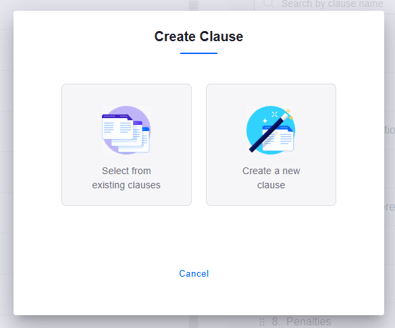
Adding an Existing Clause
When you choose to add an existing clause, you will be able to select which contract type you wish to duplicate from. You can do as many as you like at one time, i.e. you may wish to add the Indemnities clause and Liability Cap clause from one contract to the type you are working on currently.
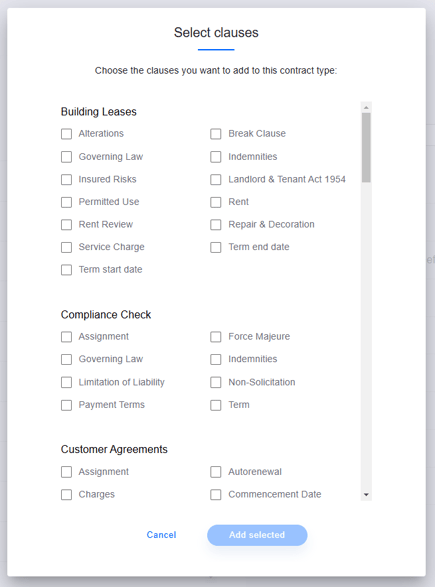
When duplicating clauses, the current set up will remain, so you can duplicate it, edit it if needs be, and it will not affect the other clause.
This treats the clauses as two individual clauses. It will maintain the keywords, name and AI prompt as the previous, unless it is independently changed.
Creating a New Clause
When you wish to create a brand new clause, you'll first be prompted to name your clause - this is how it will be presented in your clause summaries on your repository and in your review requests.
For this example, let’s say I want to create an ‘Effective Date’ clause in the 'Services' contract type.
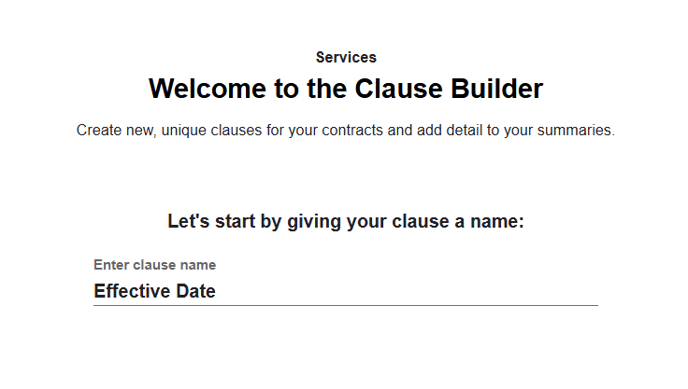
Step 1: Find Related Paragraphs
In this step, you will be guided to input keywords that will help extract and summarise the information you need. There are five types of keywords available, and their combinations will produce a score. The more keywords identified in the contract being summarised, the higher the score achieved. This score will influence the order and quantity of ‘related paragraphs’ that are retrieved, ultimately determining which paragraphs will be included in the contract summary.
Primary Keywords
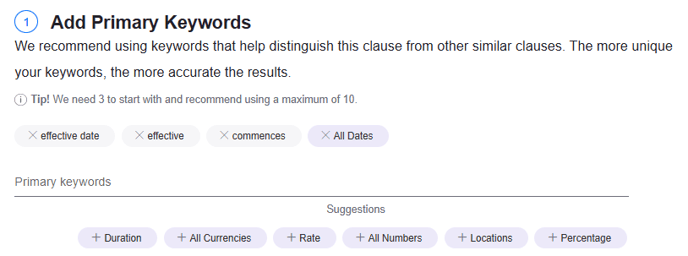
Primary keywords are worth 10 points, therefore they are the strongest keywords that can be included; i.e, in this example, we would want to include words like ‘effective date’ ‘effective’ ‘commences’ etc
Running out of ideas for keywords? Select a relevant contract on the right of your screen in the 'Configure' tab, highlight relevant text in the document, click the ‘Suggest Primary Keyword’ button, and it will give you a few keywords to add in to help increase your score!
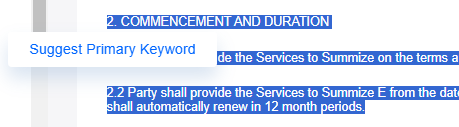
Grouped Keywords
You will notice some keywords that are below ‘Primary’ that are shaded in a slightly different colour. These are All dates, Currencies, Locations, Rates, Numbers and Percentages, also known as Group Keywords.
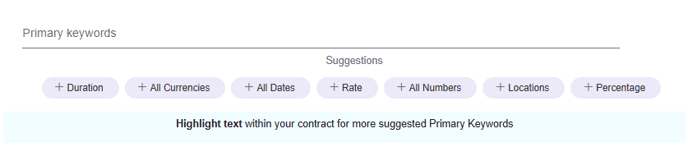
Group Keywords are useful to capture a range of specific information. A good example of using this, would be looking at locations for a Governing Law Clause. The Location keyword will look for all locations within the text.
In our Effective Date example, we would benefit from using the ‘All Dates’ grouped keyword, as we are looking for a date.
Secondary Keywords
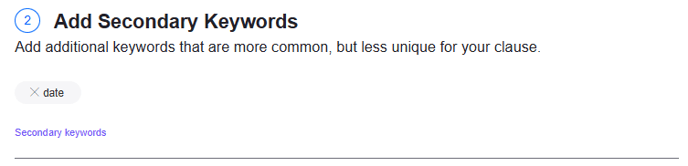
Secondary Keywords are worth 5 points, therefore these are the weakest keywords that you can use but are useful when the word is less unique to that particular clause; i.e in this example, ‘date’.
Negative Keywords
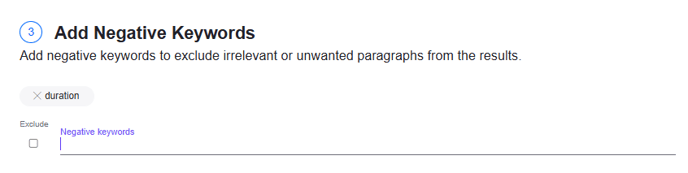
Negative Keywords are worth minus 10 points, which means they lower the score of certain keywords and help prevent irrelevant terms from being included in your search results. By using Negative Keywords, you can effectively filter out unwanted paragraphs from your clause summary, ensuring that only the most relevant content is captured.
For example, if you are finding that a clause such as Duration is showing as your top result because it also contains your primary and secondary keywords, it might be worth using negative keywords to reduce their score.
Exclusionary Keywords
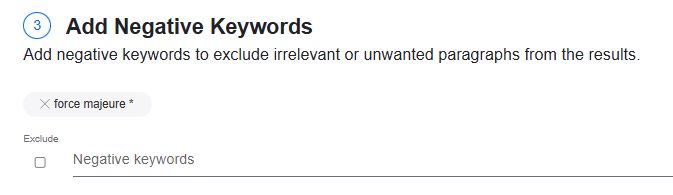
If you type a word and tick the checkbox below 'Exclude' before hitting enter, any paragraphs containing that word will be completely removed from the list of results. An example of this may be to prevent Force Majeure provisions from being captured in a Termination for Convenience clause.
You have successfully removed the word from being found if it appears with an asterisk next to it; i.e; ‘force majeure*’
Primary & Secondary Keywords Best Practice
What kind of words should I be using for Primary and Secondary keywords?
Primary:
Primary keywords are worth 10 points, so these should be keywords that relate to the clause specifically, as they carry more weight within the contract and will help the score to increase.
For example, an Effective Date clause may have keywords such as ‘effective date’ ‘effective’ ‘agreement made on’ and the ‘all dates’ grouped field. If all of these keywords are found, the score will be 40.
However, we would normally recommend up to 10-12 keywords, because the more you add, the higher the stakes become and it is actually harder for related and relevant paragraphs to be picked up, as it has become too generic.
Remember, you’re looking to find the golden and niche keywords that are uniquely related to that particular clause.
Secondary:
Secondary keywords are worth 5 points, so these have a slightly lower impact on the scoring system. This is why the distinction of keywords is so important. These keywords should be less unique and more broad (i.e. they could apply to a variety of clauses).
For example, an Effective Date clause may require secondary keywords such as ‘dated’ ‘date’ ‘agreement’. These words are highly likely to be present in an Effective Date clause, but could also be present elsewhere in the contract.
The idea is that Secondary keywords provide a small opportunity to add to the scoring system, to get the score as high as possible to ensure the correct information is found.
Testing your Keyword Configuration
Once you have entered your keywords, you will notice that to the right-hand side of your screen, there is a box. Along the top, you will have the words ‘Configure’ and ‘Compare’.
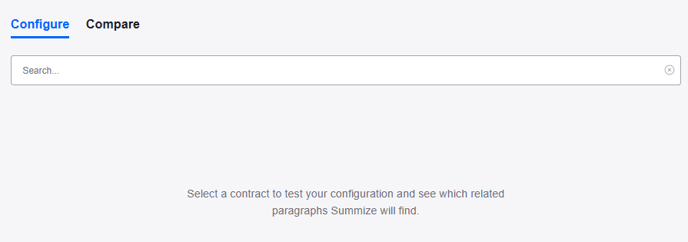
Let’s go through these and how they work:
Configure:
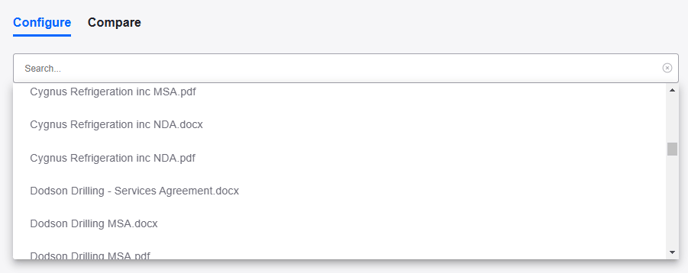
It is important to have some of your contracts already imported into Summize to allow you to test your configuration as you go. Clicking in the Search bar will show you a list of all the contracts uploaded against this contract type. You can also use the search function to find a specific document:
This is where Related Paragraphs comes in. Up to 30 paragraphs can be found using the keywords, all following the scoring system previously mentioned. By using the Configure function, you can click between all the imported contracts within that contract type to see how well the keywords are working, and if they are pulling the appropriate paragraphs.
Within a contract, you can scroll through the different related paragraphs that have been scored to check the information Clause Manager has deemed most appropriate based on the keyword configuration:
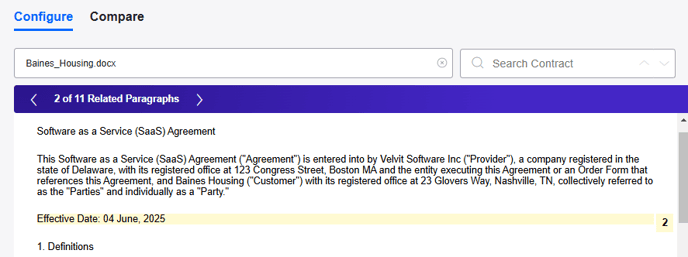
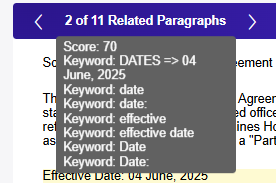
By hovering over the 'x of x Related Paragraphs' text, you can see exactly what score that paragraph has and why, i.e. which of your keywords have found a match:
Compare:
The compare function allows you to select up to five (to start with, then as many as you would like) imported contracts and it quickly summarises the related paragraphs it has found in each of them, so you can ensure your keywords have worked consistently across each of the contracts, and the correct clause has been found.
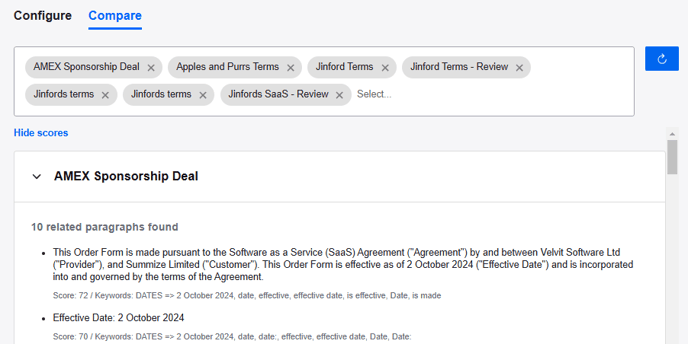
You can tweak your keyword configuration and refresh the comparison whilst you're perfecting your setup.
Define Search Area
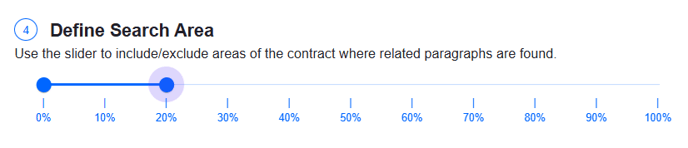
"But I only want the first 20% of the document to be considered for my clause"
If, for example, the information you're looking for is typically found on the first couple of pages of a document, and you're struggling to hone in on the correct paragraph using keywords, you can use the search area to define this. Scroll down on the left-hand side of the page, and edit the ‘search area’ lever to only search for a certain percentage of the contracts. For example, setting the slider from 0-100% will search the full document, whereas moving the slider from 50-100% will only search the second half of the document. (Please note, it must be considered that this is relative to the size of the contract, the ratio will vary for each if the contracts are significantly different in length).
Set Sensitivity Score
"Too much information is being found, and I want to make it less sensitive"
Simply scroll down to the ‘Sensitivity Score’ at the bottom of the page on the left hand side and change it to ‘Low’ or higher if required. (We recommend leaving it on ‘always’ unless the information is super specified, as we rely on the AI to answer the question at hand in the next step).

When you have completed your keywords, and you are happy that it is finding the related paragraphs, click ‘Next’.

Step 2: Configure the Clause Summary
In Step 1 you found the related paragraphs. Step 2 is used to determine what you want to do with this information and how you want it to be displayed.
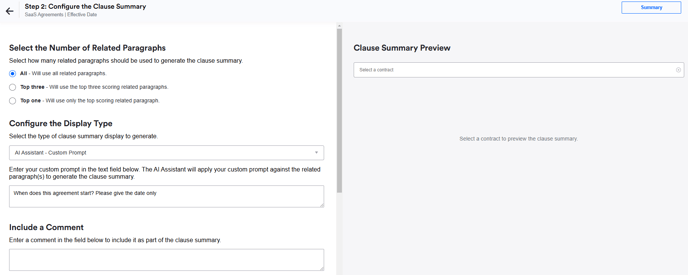
The layout of Step 2 is similar to Step 1, with the configure grey box on the right-hand side to allow you to preview your answers, which will show what the response will look like in your clause summary.
Select the Number of Related Paragraphs
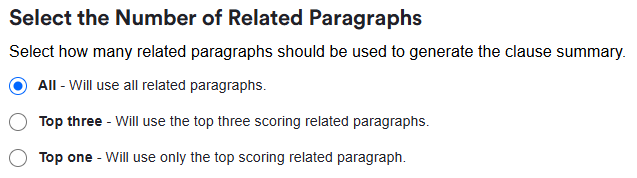
On the left side of the screen, you will see it asks you to choose how many related paragraphs you would like the algorithm to consider. In most circumstances, the ‘all’ option may be preferable, unless you are sure that the top one, or three related paragraphs are the only applicable.
Configure the Display Type
You then need to choose the display type. There are four options available:
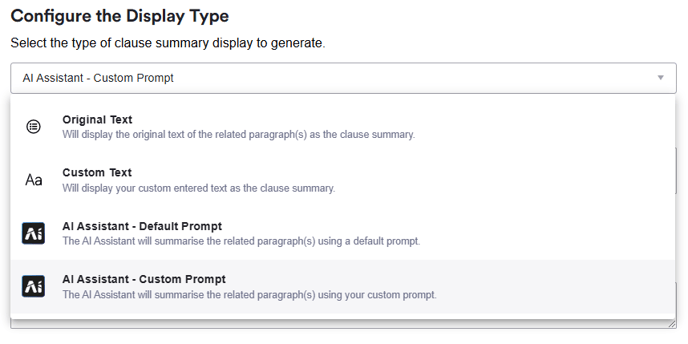
Original Text: This will display the original text of the related paragraph(s) as the clause summary. Therefore if you selected 'top one' in the previous step, you will only see one paragraph in your summary for this clause. If you selected 'all' then you would see all related paragraphs in your summary (up to 30). The is useful if you want to see the exact clause wording in your summary, e.g. for a definition, and you don't need it to be processed by AI.
Custom Text: An example of custom text you might want to use is if you would like your Governing Law clause to be summarised as "The Governing Law is [x]', rather than displaying the whole paragraph. You can insert any keywords or special keywords (e.g. to insert the found location) into the custom text by clicking the pills below.
Note: This is a legacy feature, the same result could be achieved by using a custom AI prompt.
AI Assistant - Default Prompt: This is an AI summary of the related text - it takes all of the text found in the related paragraphs and refines it into a single response.
AI Assistant - Custom Prompt: This is an AI summary of the related text found, but you will be provided with a comment box, asking you to enter a customised prompt. This allows you to provide instructions to the AI. To learn how to use custom AI prompts in clause manager, read the full article here!
Clause Summary Preview
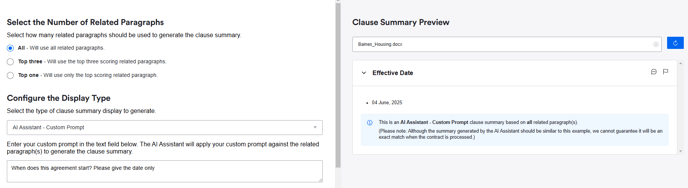
To preview your chosen display type, whether you've chosen original text or to use AI, use the right hand side of the screen to select a contract to base the preview on. Similar to step 1, you can refresh the preview as you make changes to see how the summary updates:
Include a Comment
"Can I add static comments to specific clauses?"
Yes – underneath the prompt creation box, you also have the option to include a comment which appears statically to each of those clauses when viewing the summary. This may be useful if ‘Sarah from Legal’ is to review a certain clause each time.

Show a Red Flag
"Can I red flag information?"
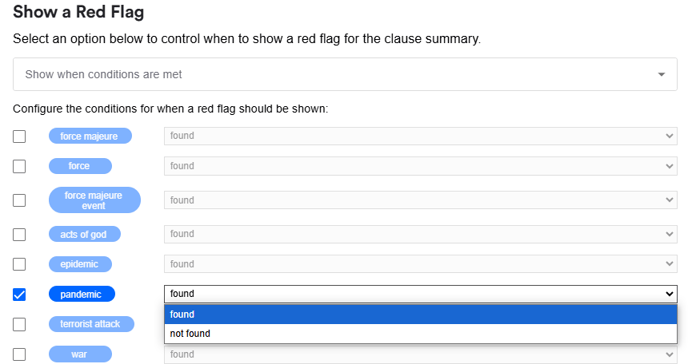
Yes – you can also add a red flag to certain conditions. On Step 2, you will see a ‘red flag’ function, which allows you to turn the red flag icon if paragraphs are found, are not found, or if a certain keyword is located. This is useful as you can filter in the repository by red flag, and it appears as a red flag in exports.
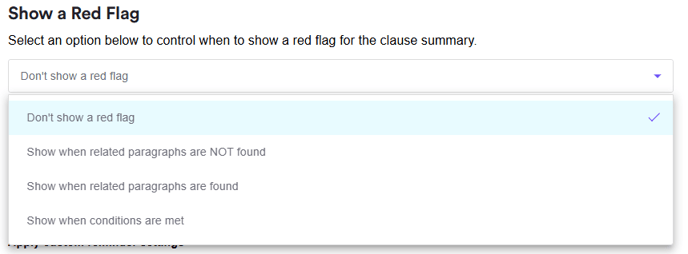
For example, if you want to red flag a force majeure clause that does/doesn't include the word pandemic, you can do so by ticking that keyword and selecting found/not found in the dropdown:
Add Calendar Events
"What about adding dates to the calendar?"
As long as the grouped keyword ‘All Dates’ is included in step 1, you can add dates to your Summize calendar. On Step 2, at the bottom of the screen, you will see the calendar addition option.
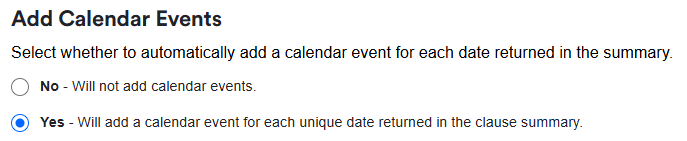
This means that, regardless of whether you have selected to output original text, custom text, or AI prompted summaries (default or custom), all dates found in the summary will be added to the calendar when the 'Add date to calendar' option is selected. Therefore, if the date is not explicitly mentioned in the contract text, but you have used an AI prompt to calculate the date (e.g. using an effective date and duration to calculate a termination date), as long as this date is in the resulting summary as shown in the preview, it will be added to the calendar.
Your Summize calendar can also be integrated into what you would normally use to calendarize.
To learn how to configure custom reminders for these calendar events, read this article.
Saving, Processing and Re-Processing your Clause Summary
Once you have finished the Step 2 process, click 'Finish' at the bottom of the screen.

You've now configured your clause!
If you've just added a new clause, Summize will now process this clause and generate a clause summary against all documents relating to this contract type. The time this takes will depend on the number of contracts. Don't be concerned if your summaries are not updated straight away - Summize is working away in the background!
If you've updated the configuration of an existing clause, for example if you've edited the keywords or the AI prompt, Summize will re-process your clause summary in the same way. All you need to do is click 'Finish', as above, and the existing summaries will start to re-process as per the new configuration.
If you have manually edited the clause summary against any documents in the Repository, note that these summaries will not re-process. Summize assumes that any edited clause summaries should remain manually edited. If this is not the case, and you do want to overwrite all changes, get in touch with your Summize contact or email support@summize.com and we can overwrite this for you.
Editing or Deleting a Clause
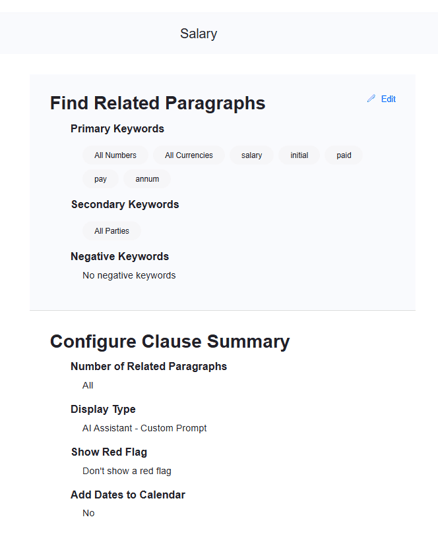
To edit an clause that you have already configured, locate the clause in the menu screen, hover over the name and click the pen icon:

You will then see an overview of the configuration of Step 1 and 2, and you can click edit to amend either step:
Similarly, to delete a clause, hover over the name on the menu screen and click the delete icon.