
How to setup and use Contract Relationships to build a family tree of your agreements
Available to Power level and Collaborator level users
Use this feature if you'd like to represent relationships between contracts, but you'd still like them to appear as separate items in your Repository with their own contract summaries, calendar events, attachments, etc. For example, a Master Services Agreement as a parent of Order Forms and SOWs. You can also use this feature to create a link between a signed contract and its pre-signature Request.
Contract relationships can also be initiated from the Request. Read more about that here!
Skip to:
Repository Contract Relationships
Counterpart Relationships
Parent Relationships
Child Relationships
Deleting or Disconnecting Relationships
Navigating Relationships in Repository
Request Contract Relationships
Navigating Request Relationships in Repository
Repository Contract Relationships
To navigate to Contract Relationships in Repository contracts, open the document you'd like to start with, and click on the below icon in the tool bar:
Here, you'll see a tab for Repository and Requests:
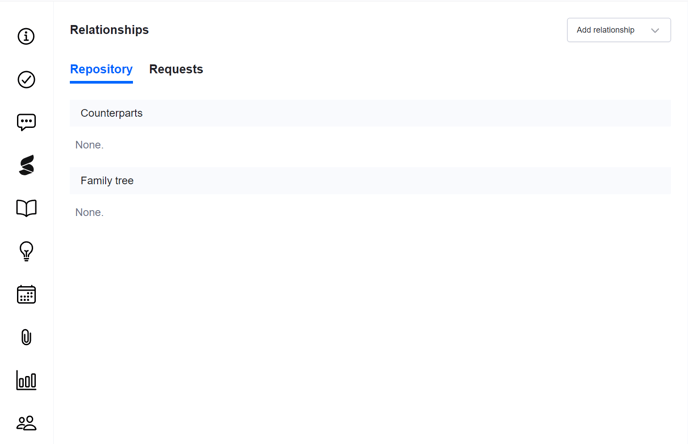
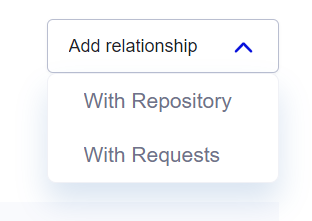
Click 'Add relationship', and select 'With Repository'.
You will be presented with the below screen, showing the name of the contract at the top, and a filterable table below:
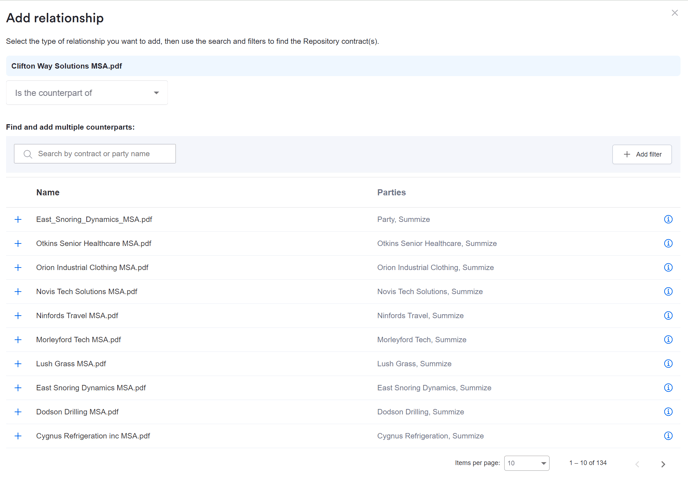
Using the dropdown under the contract name, select the type of relationship you want to create:
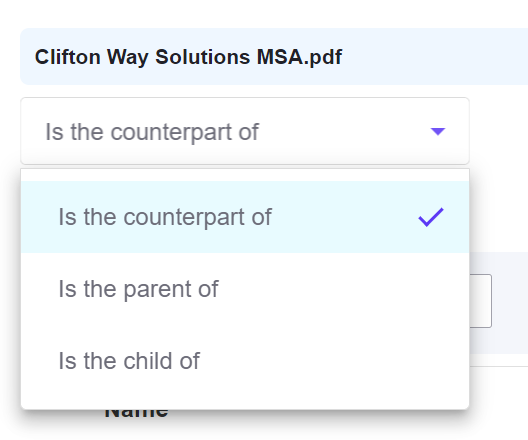
Counterpart Relationships
Select 'Is the counterpart of' if you want to create an equal relationship between two contracts, for example an NDA and a DPA, where there isn't a hierarchy.
After selecting 'Is the counterpart of', you can then select the contract or multiple contracts that you'd like to relate. If the contract isn't already visible in the table, use the filtering or the search bar to narrow down your search. 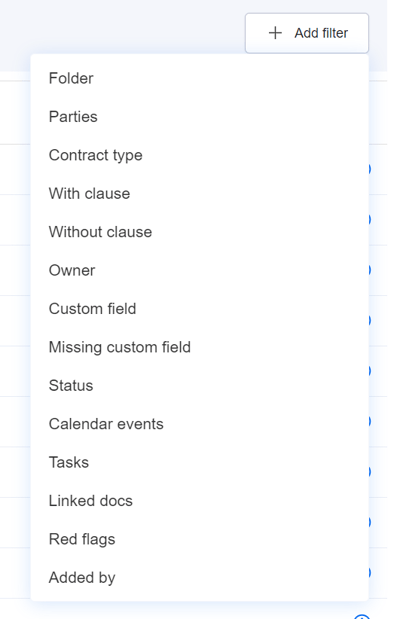
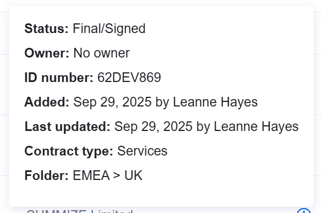
You can click on the 'i' to the right of the contract name if you need to see additional information to verify you've selected the correct contract:
You can select one or multiple, using the + icon next to the document name:
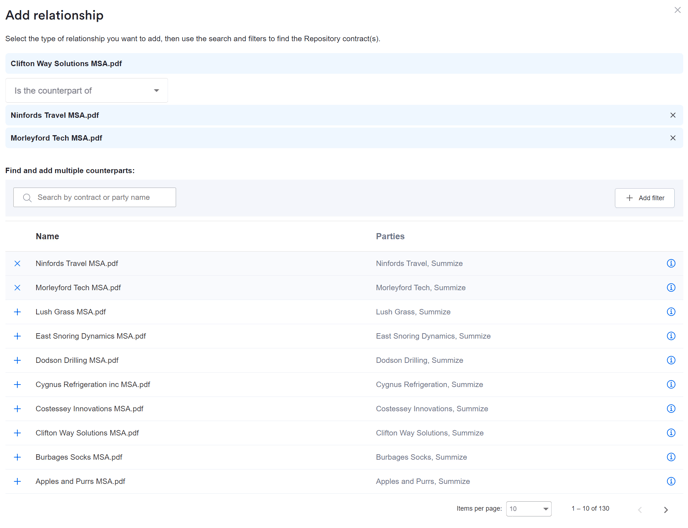
Once selected, the contract names appear above the table. You can use the X to the right of the contract name if you selected any by mistake.
Click 'Add relationship':
Parent Relationships
Select 'Is the parent of' if you want the current contract you are looking at to sit above other contracts in your repository, such as a Master Services Agreement above a multiple Order Forms and SOWs.
After selecting 'Is the parent of', filter/search the list of contracts to select the contract or multiple contracts that you'd like to relate using the + icon next to the document name:
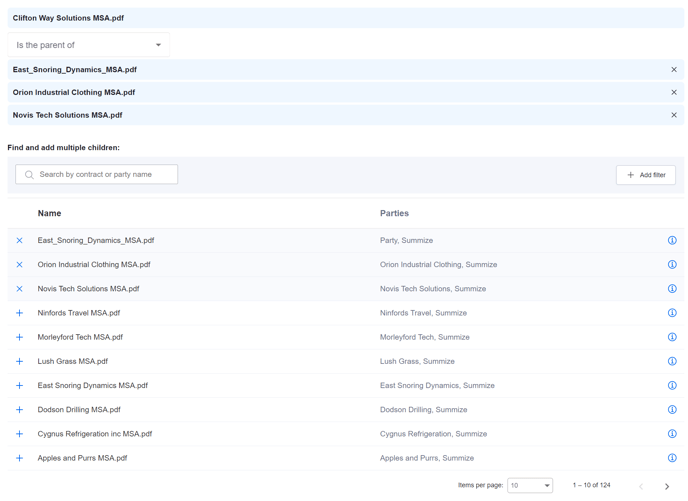
Once selected, the contract names appear above the table. You can use the X to the right of the contract name if you selected any by mistake.
Click 'Add relationship':
Child Relationships
Select 'Is the child of' if you want the current contract you are looking at to sit below another contract in your repository, for example if you want to select a Master Framework Agreement to be the parent of the SOW you're currently looking at.
After selecting 'Is the child of', filter/search the list of contracts to select the contract that you'd like to relate using the + icon next to the document name. Note, unlike counterpart and parent relationships, when using 'is the child of', you can only select one contract, as a child contract can only have one parent.
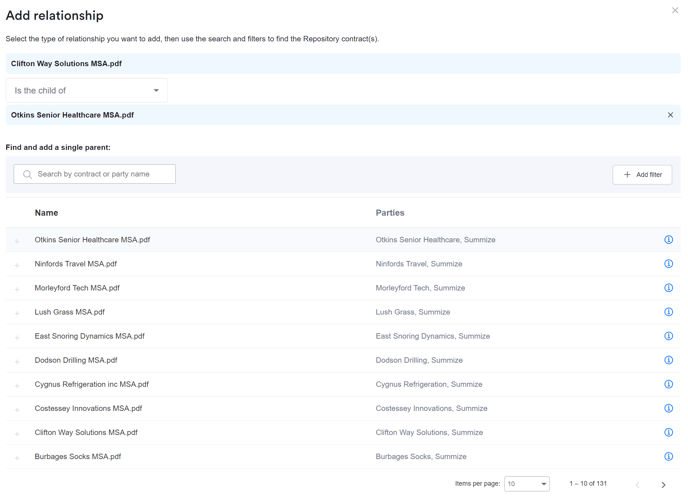
Once selected, the contract names appear above the table. You can use the X to the right of the contract name if you selected any by mistake.
Click 'Add relationship':
Deleting or Disconnecting Relationships
If you have made a relationship that you no longer need, or accidentally related the wrong contract, follow the steps below to rectify.
If your relationship is a child only:
Hover over the relationship and then simply click the 'x' to remove it from the tree.
If your relationship is both a child and a parent:
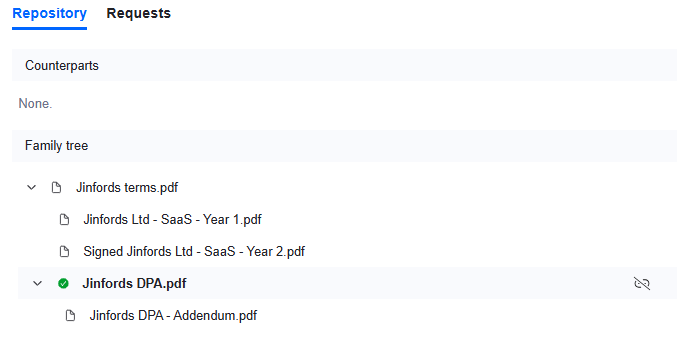
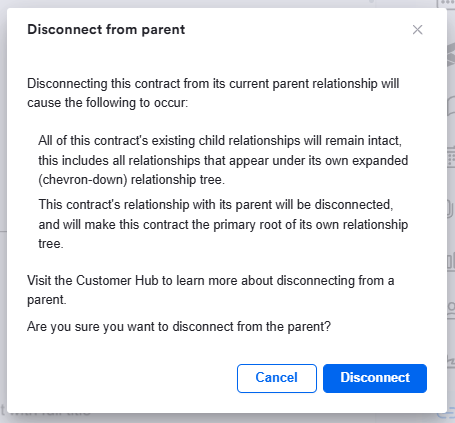
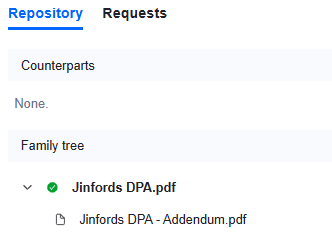
If you have a contract that has its own children, it's not possible to delete it from the family tree as it has dependencies. Instead, you can 'disconnect' the parent from the tree, which will remove any parent relationships the contract in question, but will keep its children.
To do this, ensure you've navigated to the contract in question. You will now see a 'disconnect' icon when hovering over the contract in the relationships panel, as shown below:
Click this icon, and the below pop-up will appear. Click 'Disconnect':
In this example, the contract's new tree looks like this (i.e. no longer has any parent relationships, but still has its child):
Navigating Relationships in Repository
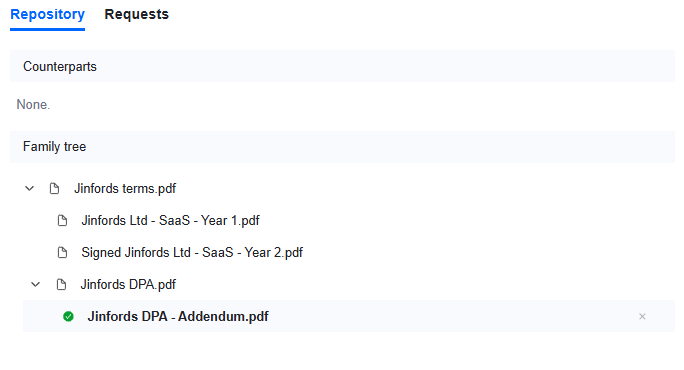
Once your relationships have been configured, your contract view should look something like the below:
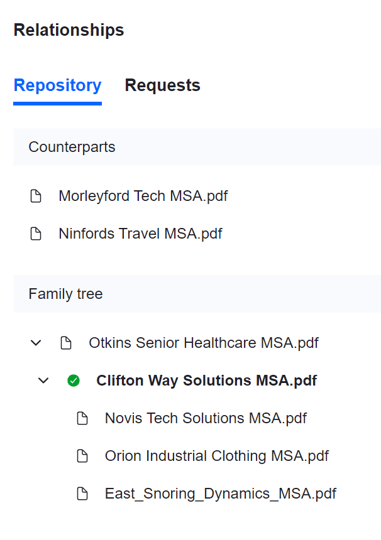
The contract you have open will be displayed in bold with a green tick. From here, you can click on any of the other contracts listed as a counterpart or in the family tree, to open that contract in its own window.
Note, if you have configured Repository folder visibility restrictions in Users & Permissions, a user with restricted visibility will be able to see the full family tree above (i.e. all the document names), but if they click on a restricted contract, they will not be able to access it.
Request Contract Relationships
To create a relationship between your Repository contract and its pre-signature Request, click 'Add relationship' and select 'With Requests' from the drop down menu:
You will be presented with the below screen, showing the name of the contract at the top, and a filterable table of requests below:
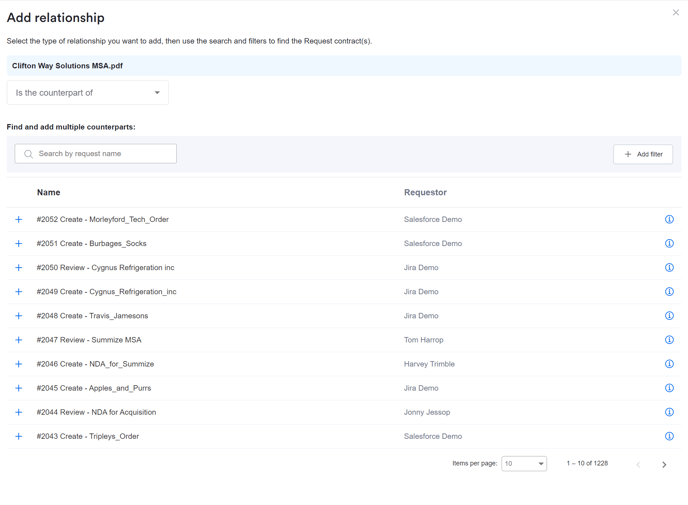
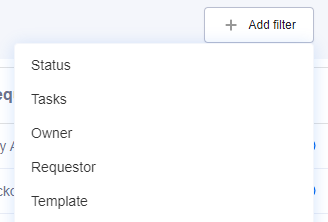
Counterpart relationships are only available between Repository contracts and Requests. Filter/search the list of requests to select the contract that you'd like to relate using the + icon next to the document name:
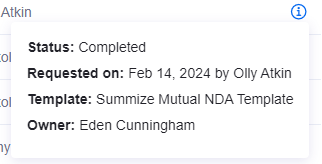
You can click on the 'i' to the right of the request name if you need to see additional information to verify you've selected the correct request:
Click 'Add relationship':
Navigating Request Relationships in Repository
Once your relationships have been configured, your contract view should look something like the below:
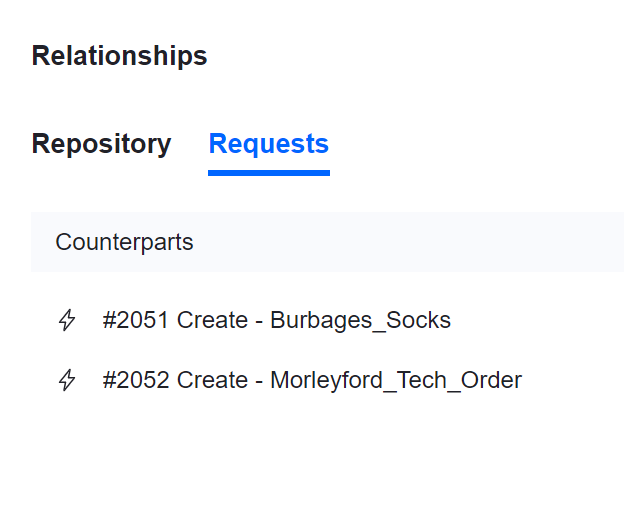
You can click on any of the requests listed as a counterpart to open that request in its own window (if the user has access to that specific request), thus allowing users to look back at the pre-signature activity that preceded the signed agreement.
Note, if the request was sent to e-signature via a Summize integration, this relationship will be automatically generated.