
Learn how to automate internal approvals using Tasks and Task Sequences in Create, Review and Ask Legal Request templates
Request template setup available to Power and Power Pro users only
Skip to:
What are Tasks?
Standalone Tasks
Task Sequences
How Conditional Logic Works
Tips & FAQs
What Are Tasks in Summize?
Tasks help automate your internal approval or review process when a user submits a request using a template. When configured, tasks are automatically generated and assigned based on your templated settings.
There are two types of tasks that can be setup at a template level:
-
Standalone Tasks: Triggered all at once when a request is submitted
-
Task Sequences: Triggered one at a time in a specific order, where each task generates only after the previous one is completed
(Additionally, tasks can be created on an ad-hoc basis after a request has been submitted; however, this topic is not covered in this article.)
You can use tasks to assign reviews, approvals, or actions to specific users or teams. Tasks can also be conditional - only triggered only when specific conditions are met, based on responses to request questions.
Standalone Tasks
Standalone tasks are ideal when tasks can be completed independently of each other. These tasks are triggered simultaneously when a request is submitted, provided any conditions are met.
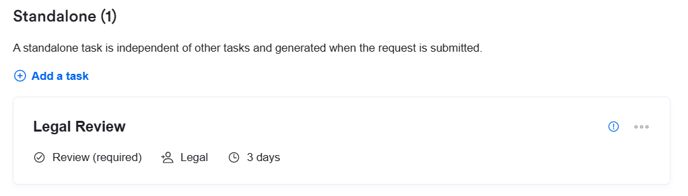
Setting Up a Standalone Task
-
Go to Tasks > Standalone in your template
-
Click + Add a task
-
Choose the task type and add a title and optional description
-
Configure the following:
-
Due date (optional): Choose a due date from 1–9 days post-submission
-
Assignment (optional): Assign to a specific user, group, the requestor, or leave unassigned
-
Required (Create only): If checked, the request remains in Draft status until the task is completed
-
Conditions (optional): Use Template Questions to make task generation dependent on answers (e.g., "Is contract value over $50,000?")
-
For Create requests, if no required tasks exist, the request status will automatically move to Completed and the generated document will be returned.
Task Sequences
Task sequences introduce a step-by-step, linear workflow. Only one task is visible at a time, and each new task is generated only when the previous one is completed.
When to Use Task Sequences:
-
You need a structured, multi-step review or approval process
-
Tasks must be completed in a specific order
-
Each step depends on previous steps being completed (e.g., Legal review after Finance approval)
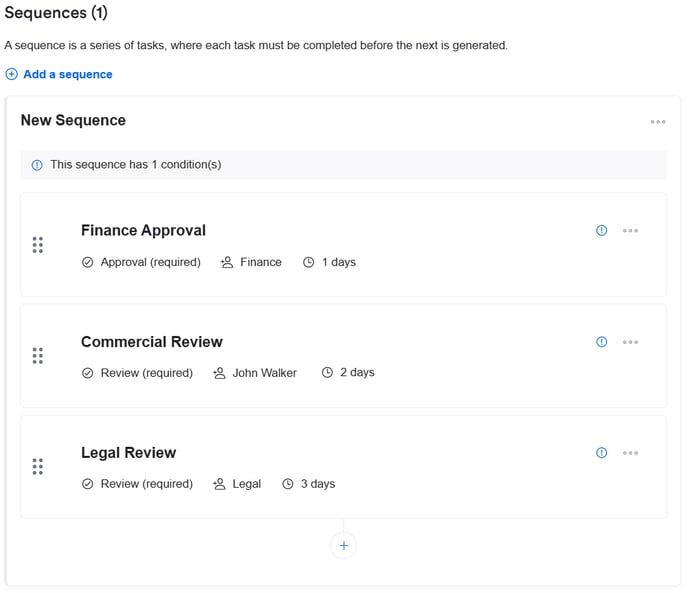
Setting Up a Task Sequence
-
In your template, go to Tasks > Sequences
-
Click + Add a sequence
-
Enter a name for the sequence (visible only in template settings)
-
Configure the sequence:
-
Required (Create only): Holds the request in Draft until all sequence tasks are complete (along with any required standalone tasks)
-
Conditional: Sequence is generated only if specified Template Question conditions are met
-
-
Click Add sequence
-
Add tasks to the sequence using + Add a task. Each task has the same setup options as standalone tasks:
-
Title, type, description, due date, assignee (due dates are based on when each task is generated, not when the request was submitted)
-
Note: Individual tasks within a sequence cannot have their own required or condition settings. All logic is applied at the sequence level.
-
In the example below, there is both a sequential task and a standalone task:
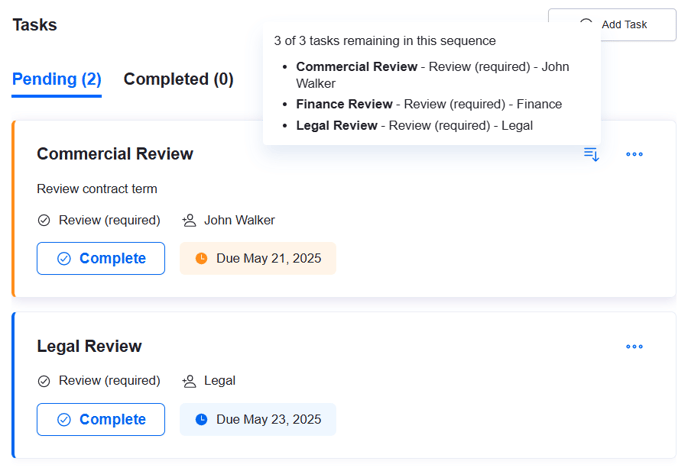
When hovering over the icon in the top right, you can see what other tasks remain in the sequence, along with who they are assigned to.
How Conditional Logic Works
Conditional tasks allow you to build intelligent workflows that generate tasks based on answers provided during the request submission process.
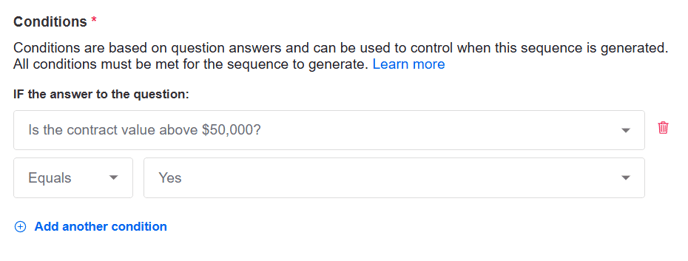
Here's a closer look at how it works:
For Standalone Tasks:
-
Conditions are defined per task.
-
If all conditions are met, the task is generated immediately when the request is submitted.
-
Multiple standalone tasks can be triggered in parallel if their individual conditions are met.
For Task Sequences:
-
Conditions are applied at the sequence level, not to individual tasks.
-
If the condition, or multiple conditions are met, the entire sequence is generated.
-
Tasks within the sequence are generated one at a time, based on completion of the previous task.
Setting Up Conditions
-
When creating or editing a task (for standalone), or a sequence (for sequences), go to the Task Conditions section and click Add condition.
-
Select a question to base the logic on. You can use:
-
Template Questions (available for all request types)
-
Contract Questions (available for Create templates only)
-
-
Choose a comparison type (e.g., contains, does not contain, equals, starts with, ends with).
-
Enter the value to compare against.
-
Click Add another condition to expand your logic. All conditions must be true for the task or sequence to be triggered.
This ensures that tasks and deliverables are sent to the relevant people or departments at the right time, based on input from users.
For more detailed setup guides, visit the below articles:
Tips and FAQs
- You can have a combination of standalone tasks and sequential tasks on a request template.
- There is no limit to the number of sequences, or tasks within a sequence.
- All task conditions must be met for the standalone task or task sequence to be generated.
- If the configuration of a template is updated, the changes will not affect requests that have already been submitted and have tasks and task sequences in progress - the changes will only affect new requests submitted.
- Once the task sequence has been generated on a request, if a user tries to delete a task that is part of a sequence, they will be asked if they want to delete that one task, or all remaining tasks in the sequence. If they choose to delete that one task, the next task in the sequence is generated.