
AI Redlining streamlines the contract review and redlining process, allowing legal teams to review and negotiate contracts with greater speed and ease.
This feature requires a Pro licence. If you do not yet have access to AI Redlining and are interested in using this feature, please get in touch with your Summize contact.
Skip to:
Introduction to AI Redlining
How to Setup your Rulebook
Prompt context
Rules
Example NDA Rulebook
How to use Rulebooks in the Word Add-in
Reviewing Rules
Reviewing Redlines
Providing Feedback
Introduction to AI Redlining
AI Redlining is designed to significantly reduce the time and effort required for manual reviewing and redlining of your lower value Legal work, freeing you and your team up to work on more strategic tasks.
The Summize Word add-in will review your entire document based on your specified rules, marking each rule as either compliant or needing review, and provides specific redlines for any that need correction. Instead of replacing an entire paragraph that fails, it will only redline specific words or phrases that need amending.
See it in action here!
How to Setup your Rulebook
Setup requires a Power Pro licence.
The first step in setting up AI Redlining is to determine your Rulebooks.
Identify the types of agreements you frequently encounter (e.g., NDAs, service contracts, partnership agreements) and create a rulebook for each. Considering the key clauses that you typically redline, what are your non-negotiables? List these out for your most common, low value contract types, and let the AI Assistant do the heavy lifting for you.
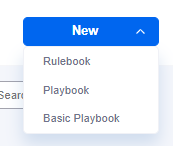
To create a new Rulebook, navigate to Playbooks in the web app, and in the top left corner, click New > Rulebook:
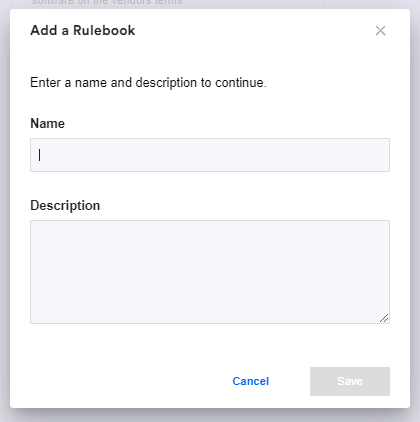
Next, give the Rulebook a name and description. This will be visible to end users when viewing the list of Rulebooks in the Word add-in.
You will then be taken to a new screen, where you can start building out your Rulebook:
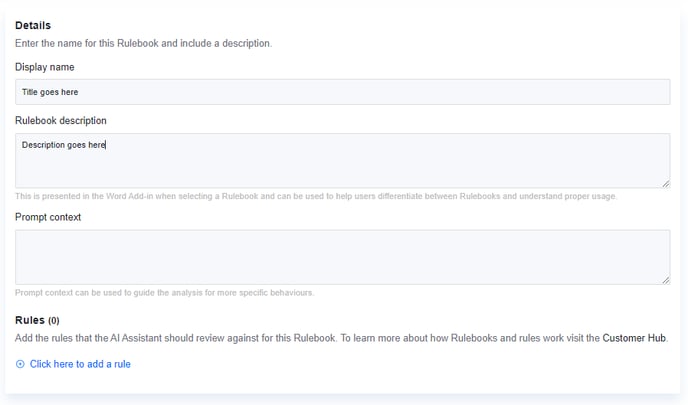
Prompt context:
Summize AI already knows how to review the document against the set of rules, and will perform well without any additional context, but this field is used to provide Summize AI with extra context to help guide its review of your documents.
Imagine you are asking ChatGPT to review a document, what information would you provide to help get the best output? This is exactly how the context field is designed to be used.
Some examples that you could include:
- The nature of the documents your reviewing (e.g. This rulebook is for contracts for the supply of services to our company.)
- Your stance to risk (e.g. These contracts are low risk to us, when reviewing, keep redline suggestions to a minimum and as non-invasive as possible to comply with the rule.)
- Language requirements if you're reviewing multi-language documents against the same Rulebook (e.g. Please take note of the language of the contract, if you are suggesting redlines or clauses make sure you suggest them in the correct language, but keep all Ai reasoning in English.)
It is worth coming back to the prompt context after running a few test documents through to keep refining it, in case there is anything consistently not as you would expect in the results.
Rules:
Rules are designed to be clear and concise, and not open to interpretation. Imagine you were giving your headline non-negotiables to a new Paralegal on your team ahead of their first contract review, how would you describe them to ensure they weren't ambiguous?
Here are tips for crafting rules:
✅ Use Clear and Specific Language
Frame your rules using precise language to ensure the AI understands them correctly.
Example: Instead of "Confidential information must be protected," use "Confidential information should be defined in the text and must not be disclosed to third parties."
✅ Incorporate Keywords
Identify and include relevant keywords that are likely to be present in the contract clauses.
Example: Use terms like "penalty," "indemnity," "confidentiality," "exclusive," etc., to help the AI recognise the clauses that need attention.
✅ Define Parameters and Thresholds
Clearly define any numerical limits or thresholds within your rules.
Example: "The agreement term must not exceed 3 years.“
✅ Use Conditional Statements where necessary
Structure your rules using conditional statements to provide context and clarity.
Example: "If the contract mentions penalties, ensure there are no financial penalties."
✅ Avoid Ambiguity
Eliminate any ambiguous language that could lead to multiple interpretations.
Example: Avoid terms like "reasonable" or "appropriate," unless they are clearly defined within the rule.
If you are finding that reviews are performing inconsistently, it might be that the language of the rules or the prompt context could need looking at to tighten up and make as un-ambiguous as possible. We recommend running a few tests whilst you're crafting your Rulebook until you're happy with the performance.
Example NDA Rulebook:
Using the tips above, here is an example of a set of rules for NDA contract reviews:
- If the contract mentions penalties, ensure there are no financial penalties.
- The receiving party must be able to share information with affiliates, including group companies.
- Confidential information should be defined in the text and must not be disclosed to third parties.
- There should be no indemnities mentioned in the text.
- The agreement initial term must be stated in the text 2 years or less.
- The agreement must not be exclusive.
- There must be no non-solicitation conditions in the text.
- The governing law must be England and Wales.
How to use Rulebooks in the Word Add-in
Requires a Power Pro or Collaborator Pro licence
Open the Summize Word add-in - either in the Desktop application, or when editing a Request in Word for the Web - and login as usual.
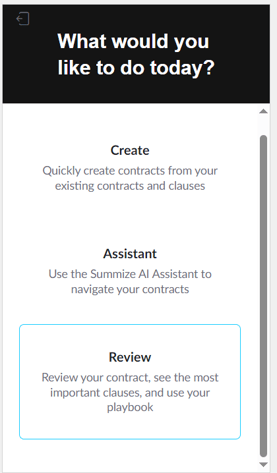
Select Review from the menu:
In Review, click on the Playbook tab and your Rulebooks will appear at the top of the list. Here, you will see the names and descriptions of any Rulebooks you have saved:
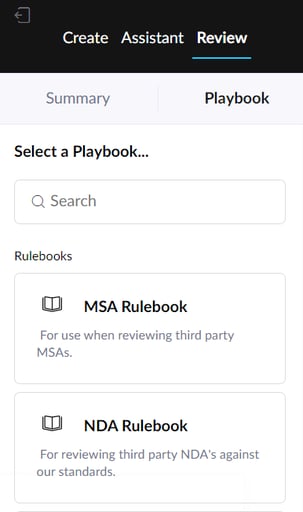
Select the Rulebook appropriate for the contract you are reviewing. Once selected, you will see the list of rules associated with the Rulebook:
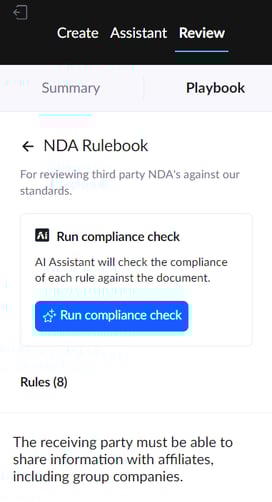
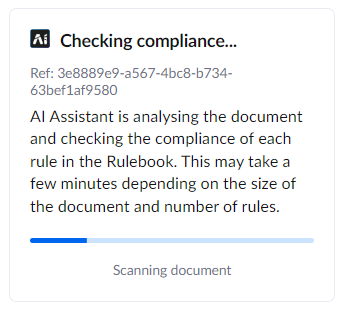
Click 'Run compliance check'. This will start the review process, and will scan the full document against the set of Rules. The time it takes to process will vary depending on the length of the document, the number of rules, and any other AI related activity happening at the same time in your account (e.g. if you're uploading documents or re-processing clause summaries).
Reviewing Rules
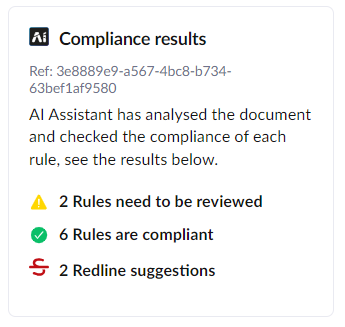
Once complete, you will see a summary of what it has found. In the below example, two of the eight rules need to be reviewed, six are compliant, and based on the rules that need to be reviewed, two redline suggestions have been made:
Scroll down to see which rules need reviewing or are compliant:
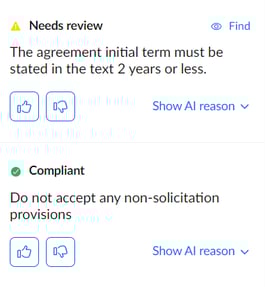
If the rule relates to a specific paragraph in the document, clicking 'Find' will take you to that part of the text.
Clicking 'Show AI reason' will show the reasoning for the categorisation of that rule:
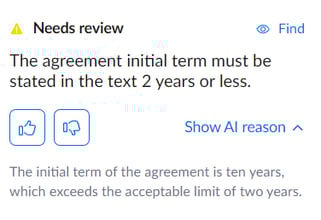
Reviewing Redlines
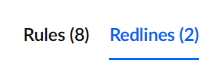
To see the suggested redlines, click the Redlines tab:
Here, you will see a list of suggested edits, and above each one, you will see which Rule(s) it applies to:
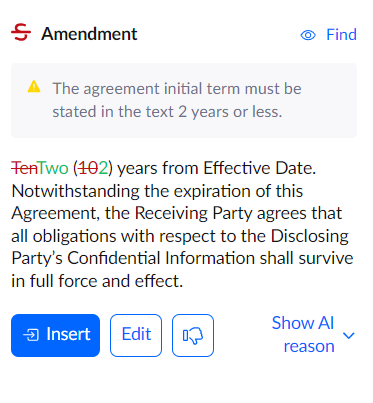
- Red strikethrough = what AI suggests removing
- Green = what AI suggests adding
Similar to the previous tab, you can click 'Find' to find where the original paragraph is in the document, and you can click 'Show AI reason' to see an explanation for this change.
If you are happy with the suggested change, you can click 'Insert', which inserts the redlines into the text, and redlines only the areas that have been amended (as opposed to replacing the full paragraph).
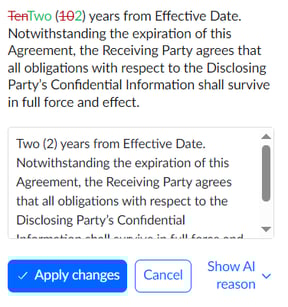
If you are happy with the suggested change, but would like to tweak the language before inserting, click 'Edit'. Here you will be able to edit the text, and once ready, click 'Apply changes' to insert.
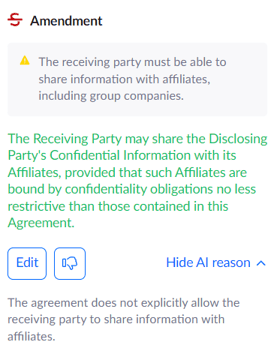
In some instances, AI may suggest adding a new clause/paragraph that does not exist in the original document (see example below). As it does not exist in the document, there will be no 'Find' or 'Insert' button, but instead you will be able to copy the text and manually paste it where you think is most appropriate. You will have the same edit option if you would like the amend the wording before copying.
Providing Feedback
In both the Rule and Redline tab, you will see the option to provide feedback. Providing both positive and negative feedback will give the AI good and bad examples of reviews and redlines compared to your expectations.
This information is not used to train the AI model, but rather helps build out the prompt used to run the review with these examples. The more you feed back, the more detailed the prompt becomes. Using the feedback method for this is a quicker and easier way for you to provide those examples, instead of having to manually build these into the Rulebook.
Feeding back against Rules:
Use the thumbs up and thumbs down icons to provide positive or negative feedback:

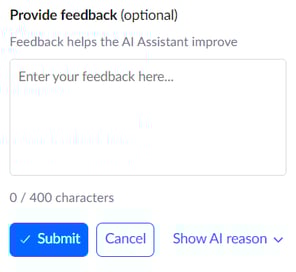
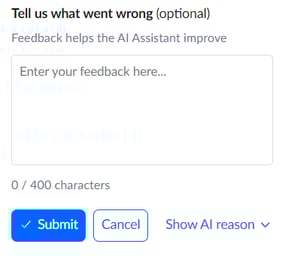
After you have made your selection, you will be presented with a text box to offer a short explanation as to why. This is optional, but will add more context to the prompt to help AI repeat/prevent this behaviour for the next review:
Feeding back against Redlines:
Feeding back against redline suggestions works slightly differently. Here, you have the same method of providing negative feedback (thumbs down plus optional description):
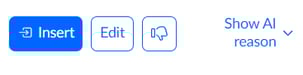
But for positive feedback, we treat the act of accepting and inserting the suggestion as positive, and we store that as a good example of suggested redlines. If you edit the wording before inserting, we store that version, so the AI can use that as an example to use again in the next review.