
Use this guide to learn how to add a new Review template, enabling users to submit Review requests either through the web application or via integrations
Template setup available to Power and Power Pro users only
Skip to:
Creating a New Review Template
General Settings
Template Questions
Tasks
User Permissions
Enabling your Template
Creating a New Review Template
To add a Review template, follow these simple steps:
- Navigate to Requests and click the ‘Templates’ button located in the page header (top-right). You will be taken to the Templates UI, this is where you can view and manage all of your Summize templates.
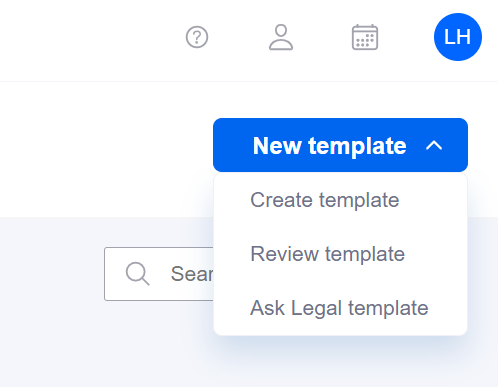
- Click the ‘New template’ button located in the page header (top-right).
- A menu with some options will appear. Select the ‘Review template’ option. You will be taken to the template settings UI, where you can configure the settings for your new template.
General Settings
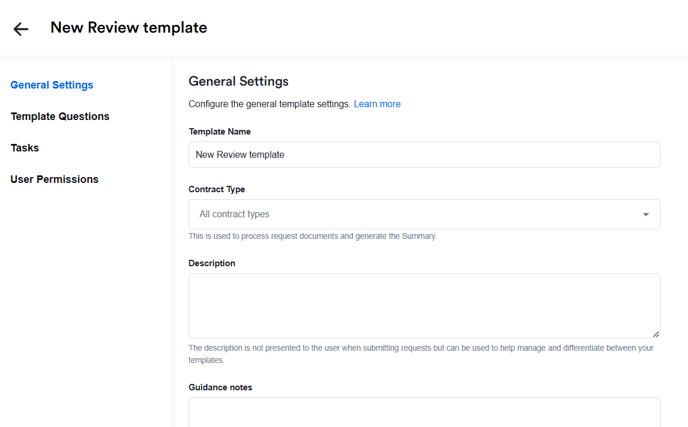
Here you can add the following settings:
Template name - The name of this template will appear to your users when they are asked to select an available template during a new request submission.
Contract Type - If you would like the summary to default to a specific contract type, you can select one from the drop down. Otherwise, your Review request summaries will default to 'Recommended', meaning it will show the clauses it thinks are most relevant for the document.
Description - This is visible in the tile navigation view (when you first click Requests > Templates) and can be used to make notes of anything relevant that you do not want the end user to see, e.g. version control notes. This is only viewed when navigating templates in the web app, and not seen by the end user when submitting a Request.
Guidance Note - Guidance notes will appear to end users during a new request submission and can be used to inform the requestor of any key information they need to know before continuing to submit their request.
Request Owner - This will automatically assign that user as owner when the request is submitted. This is useful if you tend to have the same people in the team reviewing the same types of contracts. This can be left as 'No Owner' if not applicable.
Send Notifications To - When a new request is submitted using this template you can configure notifications to be sent to users, groups, teams channels, slack channels and/or integrated email addresses. Use the dropdown to select where to send notification - or leave the selection empty if you don’t want to send notifications.
Template Questions
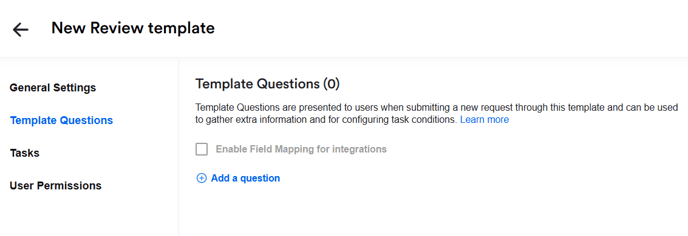
Click the ‘Add question’ button to add the questions you want requestors to complete during the intake process - add questions to collect the information you need to know upfront to handle the request.
Enter the question text and select the question type from the drop down list, and click 'Add question':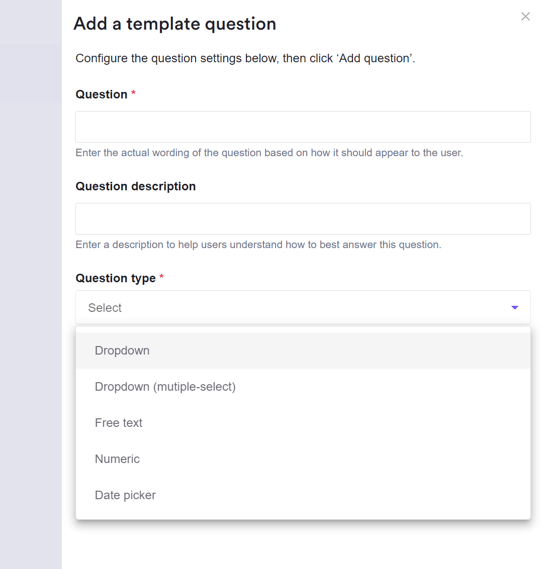
Repeat this process until you have added all the questions you'd like to include in the template.
You can re-order questions by clicking and dragging the questions up and down the list, using the icon on the left:

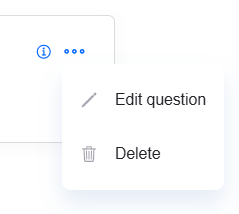
To edit or delete a question, click the ellipses menu on the top right of the question:
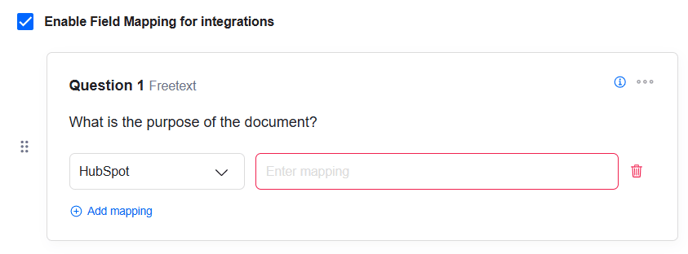
If you would like to enable field mapping for integrations such as Jira, HubSpot or Salesforce, tick the option below. This will present the additional 'Add mapping' button against each question:
Tasks
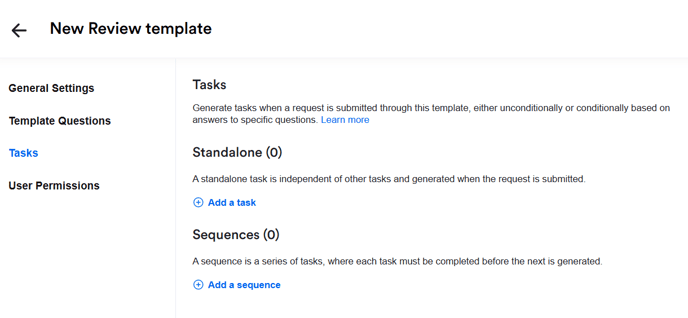
When tasks are added to a template, they are automatically generated when a template is submitted (as opposed to manually created tasks, which are covered in this article here).
Tasks can be used to build out your approval process, for example if an MSA always needs to be reviewed by x user and/or y team, this can be configured on the template.
Tasks can either be always generated, or only generated when task conditions are met (e.g. if answer to 'Is the contract value above $50,000?' is Yes, create task for Finance approval).
Tasks can either be 'Standalone' tasks or task 'Sequences'.
Standalone Tasks
Standalone tasks are all generated simultaneously when a request is submitted (if the tasks have conditions, then they will only be generated if the condition(s) are met).
Standalone tasks are best suited for situations where the task can be performed independently at any stage of the approval process, without relying on the completion of other tasks.
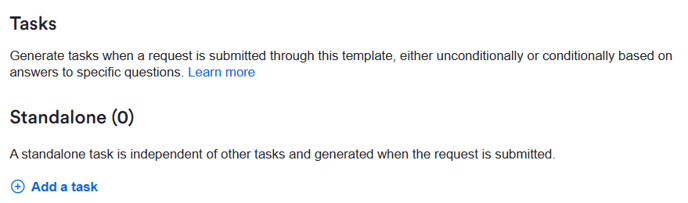
- Under the Tasks > Standalone section, click the ‘+ Add a task’ button
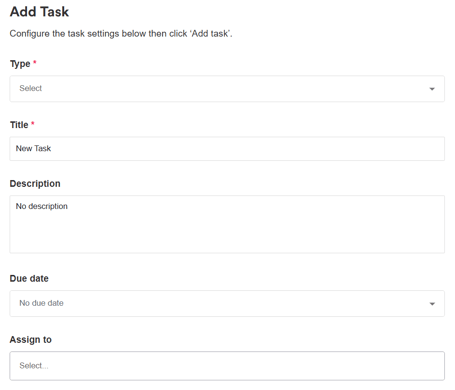
- Select the task type and give the task a title and description (optional)

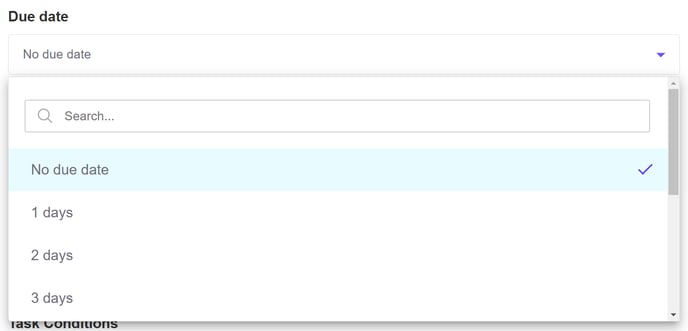
- Due date: The task can either have no due date, or can have a due date between 1-9 days after the request is submitted.
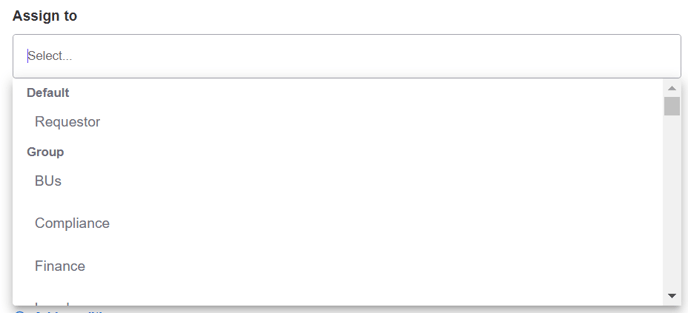
- Assign to: The task can either be unassigned by default, or can be assigned back to the requestor who submitted the request, to an individual user or a user group
- Task conditions: Task conditions can be based on responses to Template Questions. To learn how to create conditions for your tasks, so they are only generated based on pre-determined conditions, read this article.
Note: Template questions must be saved before can be used as task conditions.
Task Sequences (Coming soon!)
Task sequences allow you to configure a structured, step-by-step approval process. Upon submission of a Review request, the first task in the sequence is generated. Following this, each subsequent task in the sequence will be generated only after the previous task has been completed.
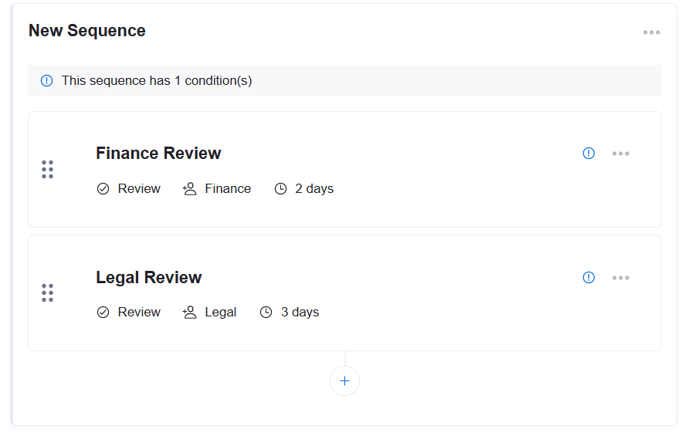
Therefore, task sequences are ideal if you have a linear approval process, whereby certain tasks are only relevant if the request has passed other stages of the process first (for example, purchases over a certain value must be reviewed by the Finance team before the contract is reviewed by Legal).
To add a task sequence:
- Go to Tasks > Sequences and click '+ Add a sequence'
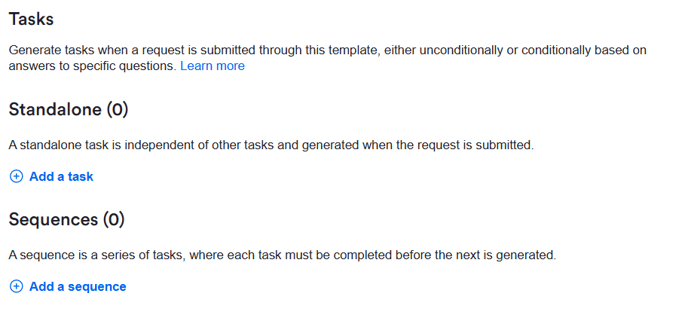
- Name the sequence. This is only shown in the template settings page:
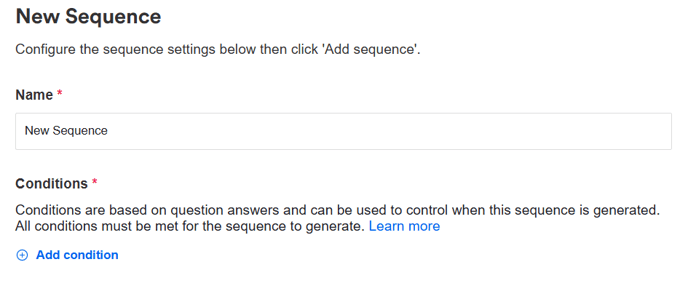
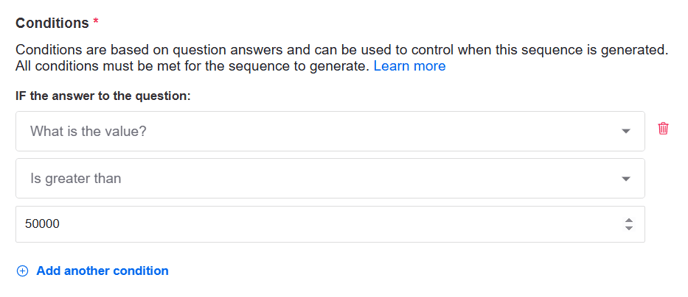
- Determine whether the sequence requires conditionality. If the conditions are met, the sequence is generated (individual tasks in the sequence cannot have their own conditions). If conditions are required, click '+Add condition' and configure the relevant settings (you can find out more information about task conditions in this article)
- Once ready, click 'Add sequence':

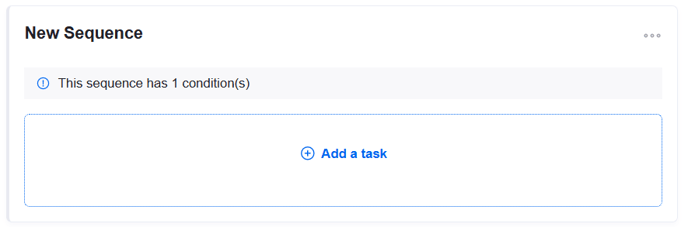
- You can now begin adding tasks to the sequence by clicking '+ Add a task' and following the same process as standalone tasks outlined in the section above:
Note: The due date for each task is based on when that specific task is generated, and not when the request or the overall sequence is created. For example, if a task midway through a sequence has a due date of "2 days," it will be due two days from the moment that task is generated, not two days from the original request submission. - Continue this process until you have added all the relevant tasks to the sequence.
Things to note:
- Tasks within a sequence can be reordered by clicking on the icon on the left of the task's card and dragging up or down.
- You can edit or delete individual tasks by clicking on the ellipses icon on the right of the task's card.
- You can edit (rename or amend conditions) or delete full sequences by clicking on the ellipses icon to the right of the sequence's title.
- There is no limit to the number of sequences, or tasks within a sequence.
- If the configuration of a task sequence is updated, the changes will not affect requests that have already been submitted and have sequences in progress.
- Once the task sequence has been generated on a request, if a user tries to delete a task that is part of a sequence, they will be asked if they want to delete that one task, or all remaining tasks in the sequence. If they choose to delete that one task, the next task in the sequence is generated.
User Permissions
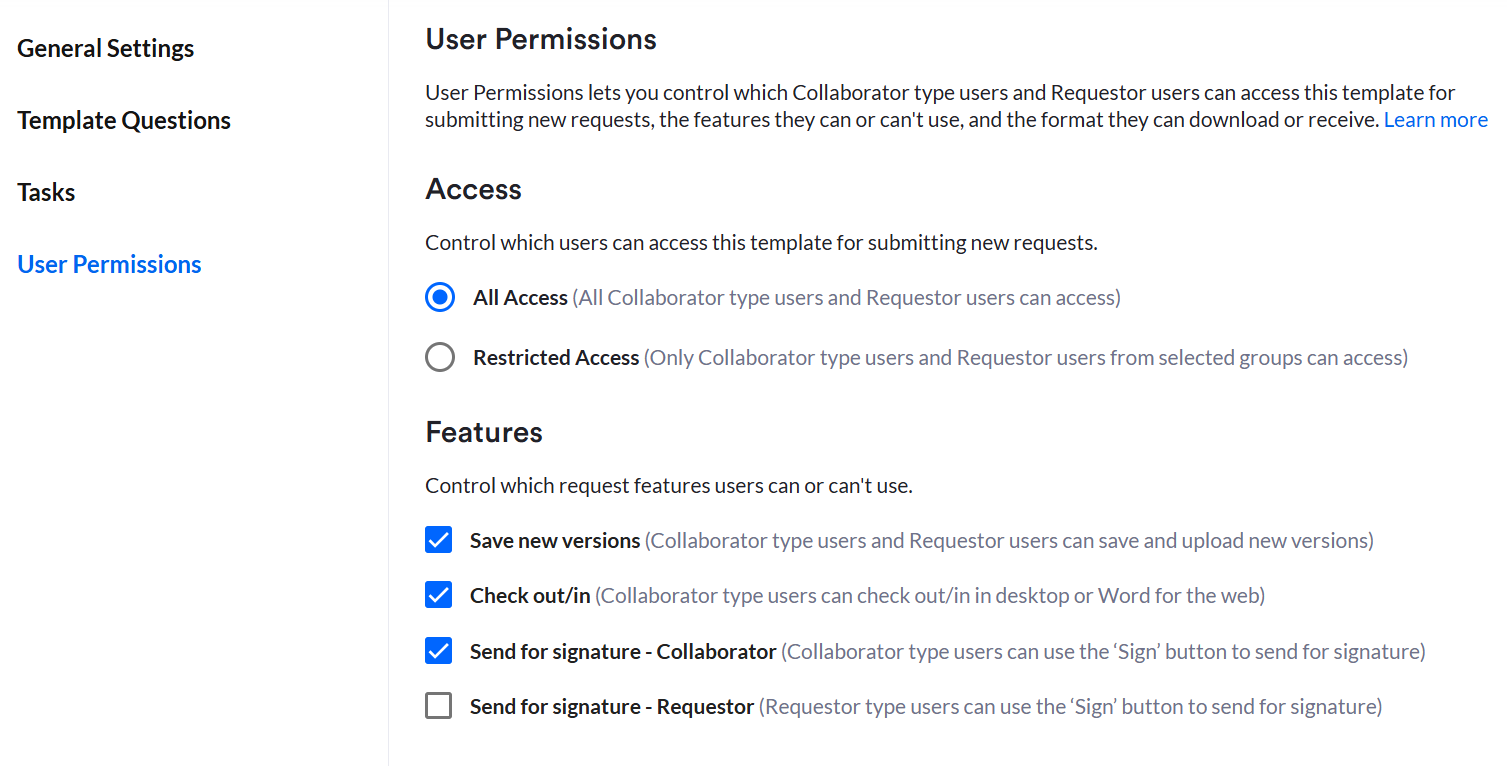
Access
Under the ‘User Permissions’ section, use the radio button and selection to configure which Collaborator level users and Requestor users can select the template as an intake option. To restrict the template to a specific group or groups use the dropdown to select which groups should have access.
Note: Collaborator level/Requestor Users who don't belong to any of the selected groups will not be able to use this template when submitting a request.
Features
Use the checkboxes to determine which additional features Collaborator level users and Requestor users can access:
- Save new versions - check this box if you would like Collaborator level users/Requestor users to be able to upload a new version manually (i.e. uploading a file)
- Check out/in - check this box if you would like Collaborator level users to be able to use Word for the Web to edit the document and upload as a new version (Note - not relevant for Requestor Users who do not have access to this feature)
- Send for signature - Collaborator - check this box if you would like Collaborator level Users to be able to send a document to your chosen E-Signature tool.
- Send for signature - Requestor - check this box if you would like Requestor Users to be able to send a document to your chosen E-Signature tool.
Enabling your Template
Use the toggle located in the top-right to either enable/disable the template before you save.
Note: Once enabled a template will be accessible to all users with the Power or Power Pro permission level as well as any collaborator level/Requestor users depending on the configuration of the ‘Access’ section in User Permissions.
Click the ‘Save’ button located in the top-right to save the template. Your new Review template will be saved and the settings configured will be applied.