Use this guide to learn how to build a Review Pro Template, enabling AI-powered contract reviews directly in Word
Note: Setup available to Power Pro users only
Skip to:
Creating a New Template
Clauses
Review Pro Template Context
Description
Playbook Content
Saving and Enabling Templates
Managing your Templates
Creating a New Template
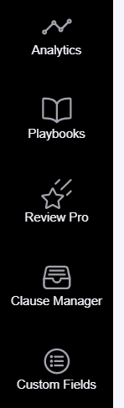
To access Review Pro in the web app to build your template(s), go to Review Pro on the main navigation menu:
Here, you can view existing Review Pro templates and use the top navigation bar to search, filter, or sort them. Click 'New Template' to create a new one:

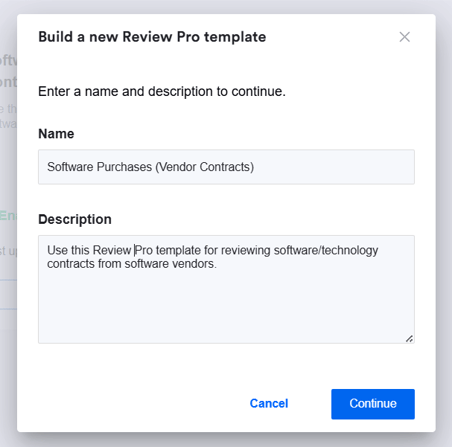
A pop-up will appear, allowing you to give your template a name and description. The description is for user guidance, and appears in the tile view in the web app (shown above), as well as when selecting a Review Pro template in Word:
Each Review Pro template should be for a specific contracting scenario, for example:
- Negotiating on a customers terms when selling your services/products
- Purchasing software on a vendors terms
- Negotiating redlines on your NDA agreement
It's best to be specific when creating templates so you can tailor the guidance to a specific scenario. For example, if you want to create an NDA Review Pro template, and what you're willing to accept on your paper versus third party paper differs, create one for each scenario. That way you can ensure the guidance is tailored for each, meaning the review will be much more relevant.
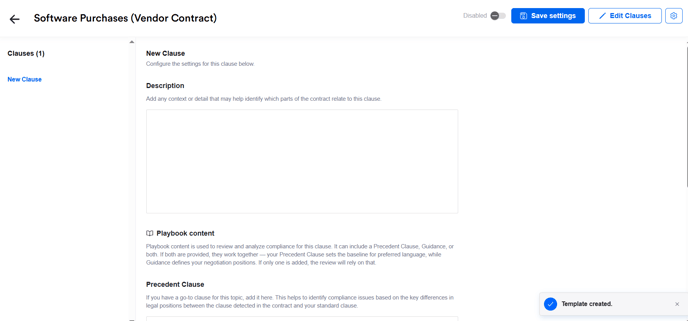
After clicking 'Continue', you'll then be presented with the below configuration page, where you can start building your content:
Clauses
The first thing you will want to do is list all of the clauses you want Review Pro to look for and analyse when performing a contract review in Word.
Click 'Edit Clauses' in the top right of the screen:

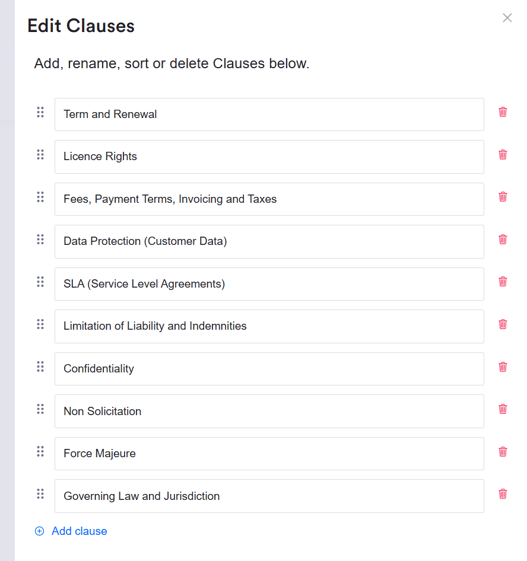
Replace 'New Clause' with the name of your first clause, and continue to add until you've listed everything that you would typically focus on when manually reviewing this contract type:

When adding clauses focus on those with the greatest Legal/Commercial impact in your chosen scenario. Review Pro is designed to find inconsistencies and issues so only include subjects you would normally mark up (otherwise you could get a very long list!).
However, Review Pro is also designed to pinpoint clauses you haven't asked it to look for, along with any potential risks outside of your guidance, so if you haven't included a topic it will still be shown in your Other Clauses list - this will alert you to its presence without flagging it as needing remediating.
You can use the icon to the left of the clause names to click and drag to re-order, and you can delete clauses that are no longer needed by clicking the trash icon:
When finished, click 'Apply changes':
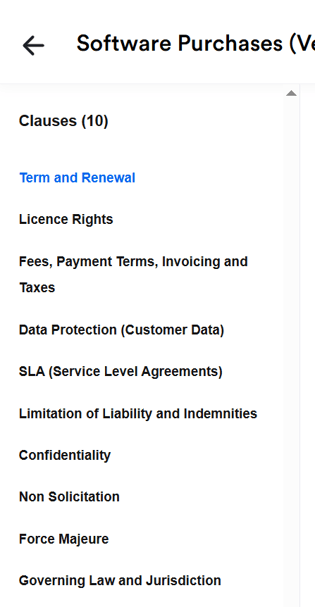
You will now see those clauses listed on the configuration page:
Review Pro Template Context
Next, you will want to give Review Pro the appropriate context in order to perform a contract review. Review Pro already knows how to review a contract, so think of this as the guidance you would give a new starter in the team before they perform their first manual contract review to help them understand points like:
- Who are we?
- What type of contract is being reviewed?
- What's our negotiating position?
- How stringent do we need to be when reviewing?
An example would be:
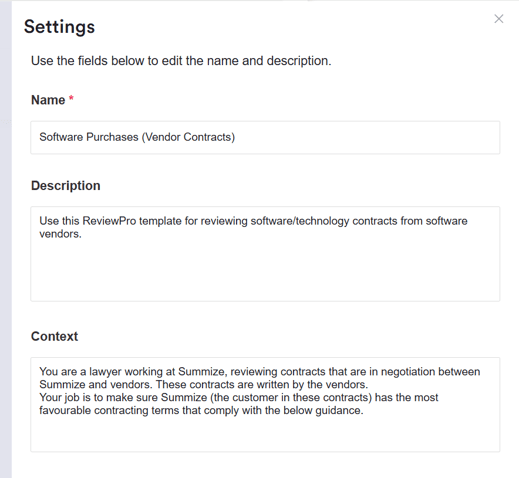
You are a lawyer working at Summize, reviewing contracts relating to the purchase of software that are in negotiation between Summize and vendors. These contracts are written by the vendors.
Your job is to make sure Summize (the customer in these contracts) has the most favourable contracting terms that comply with the below guidance.
It is worth coming back to the prompt context after running a few test documents through to keep refining it, in case there is anything consistently not as you would expect in the results.
If you need help with your context statement please contact your customer success manager.
To insert the context, click the cog icon in the top right of the screen to access settings:
Enter the context and click 'Apply changes':
Description
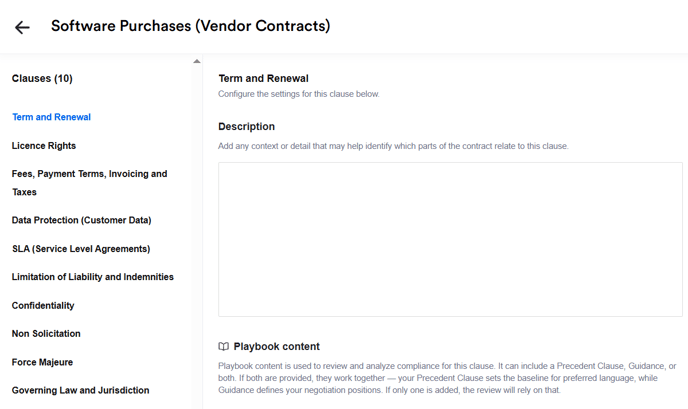
In some cases, you may want to add extra context in the Description field to help Review Pro locate and assess the most relevant information. This is especially useful for clauses that may be worded in various ways or spread across different sections of a contract. For straightforward clauses like Term and Renewal, additional guidance is often unnecessary, as these are typically easy to identify.
However, if you notice that Review Pro isn’t surfacing the expected content or is suggesting redlines on clauses that should remain untouched, it's worth reviewing and updating the Description to ensure it's focusing on the most relevant areas. Think of this field as the kind of instruction you’d give to a new team member unfamiliar with your documents—highlighting where certain topics are usually found or what nuances to watch for.
For example, with a Force Majeure clause, you might add:
“Please assess all Force Majeure provisions, including definitions. If not explicitly labelled, also consider performance-related clauses that may be impacted by unforeseen events.”
Review Pro is designed to identify and review a wide range of relevant content. But for highly specific or complex use cases, or clauses that may be deeply embedded or less standardised, a bit of additional context can go a long way in improving the precision of the review.
Playbook Content
You can now start to populate content into each clause, to give Review Pro the information it needs to analyse whether a contract's content is compliant or needs review.
Playbook content for each clause is made up of Precedent language and Guidance. A clause can contain either one or both of these pieces of information. If both are provided, they work together - your Precedent Clause sets the baseline for preferred language, while Guidance defines your negotiation positions. If only one is added, the review will rely on that.
Precedent Clause:
If you have go-to gold standard language for this clause based on your own template agreements, insert it here. This helps to identify compliance issues based on the key differences in legal positions between the clause detected in the contract and your standard clause.
Guidance:
This is where you can be explicit about your negotiating positions and what you will or will not accept. This helps to identify compliance issues based on clear standards and legal positions.
Some examples include:
NDA - Term
The initial term of the agreement must be equal to or less than 2 years
Confidentiality after termination can survive for equal to or less than 10 years.
NDA - Confidential Information Definition
The Confidential information definition must include technical information, pricing, and trade secrets.
NDA - Exceptions to Confidential Information
Exceptions to confidential information must include information that was known by the Recipient prior to disclosure, is lawfully obtained from a third party, is independently developed by the Recipient, is publicly available, or is authorized for disclosure by the Discloser through written consent.
Software Purchases - Term and Renewal
Term should be a maximum of 12 months
Remove any auto renewal
Software Purchases - Limitation of Liability and Indemnities
The liability cap should be a minimum of £250,000 (or equivalent currency), but this should not include any breach of data protection or intellectual property provisions - which should be unlimited or not included in the capped liability clause.
We should have an indemnity provision from the supplier for any breach of data protection provisions or data protection laws. In addition, the indemnity should include any costs, losses or damages from any infringement of intellectual property rights by the supplier.
Software Purchases - Non-solicitation
The contract must contain a Non-Solicitation clause which stops the vendor from employing our soliciting employment from our staff for the duration of the agreement and for 6 months after termination.
Saving and Enabling Templates
Once you have populated all of your playbook content, remember to save! Click 'Save settings' at the top of the page:

New templates are disabled by default, to allow you to configure them without other users accessing them too early. To enable, click the 'Disabled' toggle.
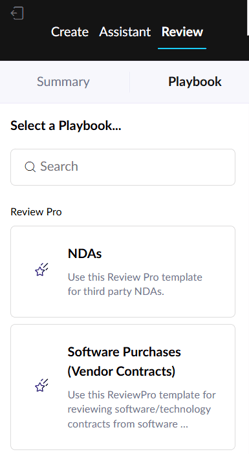
Once enabled, you Review Pro template will be available in the Word Add-in for all Power Pro and Collaborator Pro users!
Managing your Templates
From the tile view, you can both delete and clone templates by clicking the ellipses in the top right:
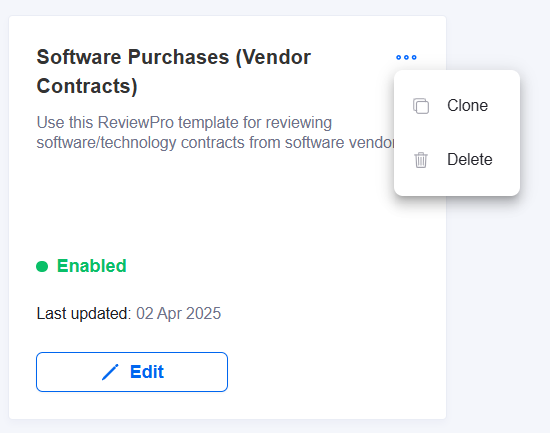
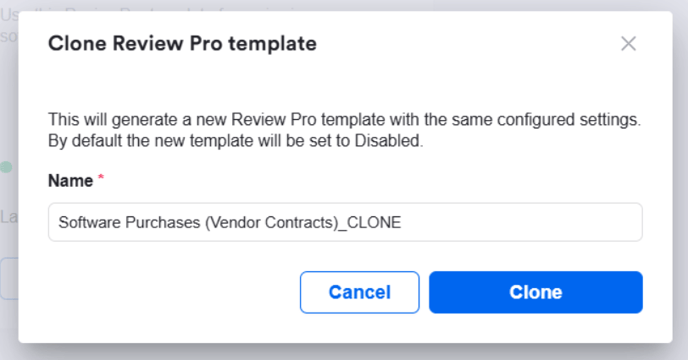
Cloning a template will duplicate all settings from the original, which is particularly useful if you want to create two versions of a Review Pro template, using the same clauses but with tweaked guidance (e.g. one for when you're the buyer versus vendor in the negotiation, or if you have differing guidance depending on specific scenarios, such as contract value). The name will auto-populate with the original name and the suffix '_CLONE', and will be disabled by default.