Adobe Sign or Docusign accounts can become de-authenticated, which can cause issues with sending for signature. Here's how to re-authenticate.
When a user connects an e-signature account to Summize — whether it is an individual or shared account — the account is authenticated using the current user credentials at that time.
As a result, the e-signature account may become de-authenticated if:
- The password for the e-signature provider is changed
-
Summize access is revoked by a user in the e-signature provider
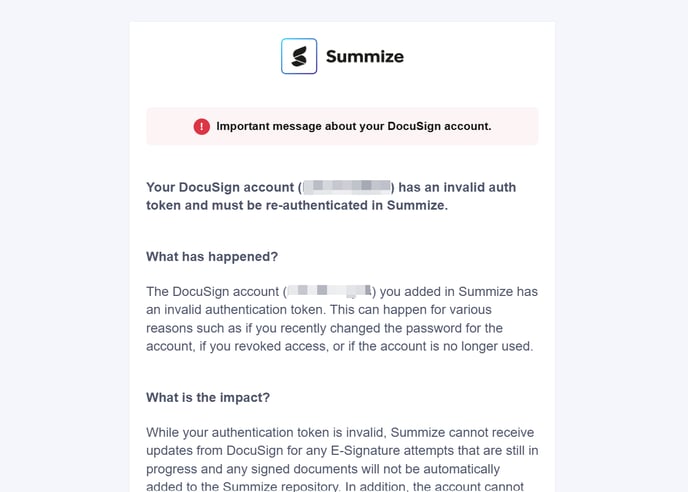
Whilst the e-signature account's authentication token is invalid, Summize cannot receive updates for any e-Signature attempts that are still in progress and any signed documents will not be automatically added to the Summize repository. In addition, the account cannot be used to send documents for signature until the account is re-authenticated.
In such cases, we promptly notify the affected user(s) and provide detailed instructions to resolve the issue and re-authenticate their account, as outlined below.
Shared Docusign Accounts
When a shared Docusign accont becomes de-authenticated, we notify all Power Users with Admin access, as only Admin users can access the Settings page to re-authenticate.
Those users will recieve an email to notify them:
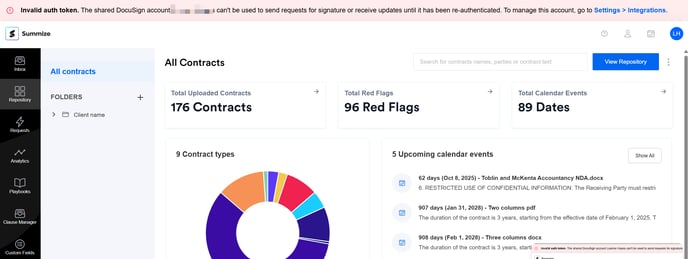
When an Admin user logs into the Summize web app, they will see a banner at the top of the page alerting them to the issue, with a link to take them to the relevant area of the integration settings page:
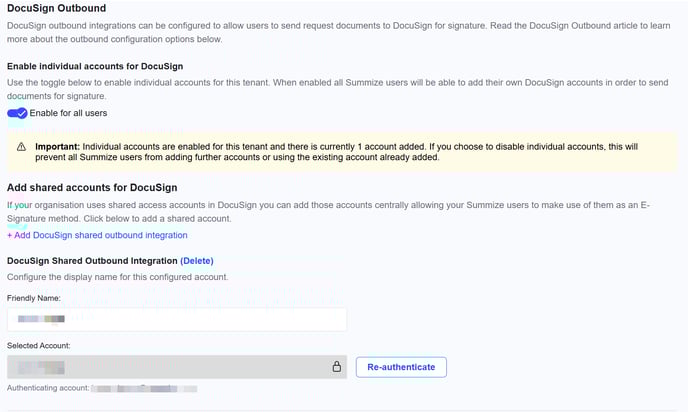
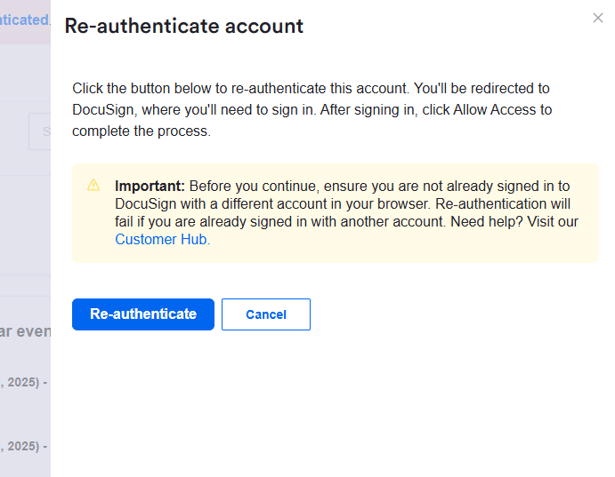
One of those users, who has login credentials to the Docusign account, can then click the Re-authenticate button to reconnect the account:
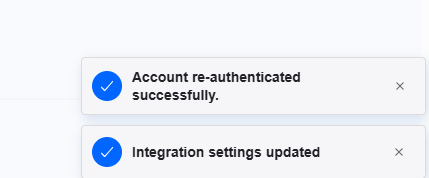
The account will then become re-connected, and the banner will be removed from the top of the screen:
Individual Adobe Sign or Docusign Accounts
When an individual e-signature account becomes de-authenticated, the individual user associated with that account will receive an email to notify them.
The banner the individual user sees when they log into the Summize web app will look like the below, depending on whether it's an Adobe Sign or Docusign account:

Within the banner, there is a link to either re-authenticate the account (i.e. the user intends to continue using it) or delete the account (i.e. the user no longer needs to use it).
To re-authenticate, simply click 'Re-authticate' in the panel and the user will be redirected to Adobe Sign/Docusign to grant access:
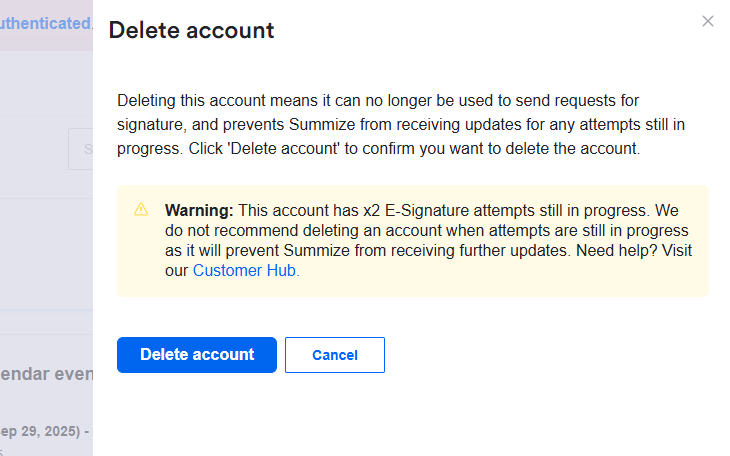
To delete, the user is first warned of any e-signature attempts that are still in progress (if relevant). The user can then proceed by clicking 'Delete account':