
Use this guide to learn how to map fields from your Salesforce Accounts or Opportunities into Request Templates, so that template questions are pre-populated with information already found in Salesforce
Setup available to Power and Power Pro users only
Skip to:
Mapping Fields
Technical Guide: Understanding the FetchRelatedObjects Apex Class
Advanced Mapping
Mapping Fields
In Salesforce, navigate to the object that you have installed the Summize add-in (Opportunity or Account):
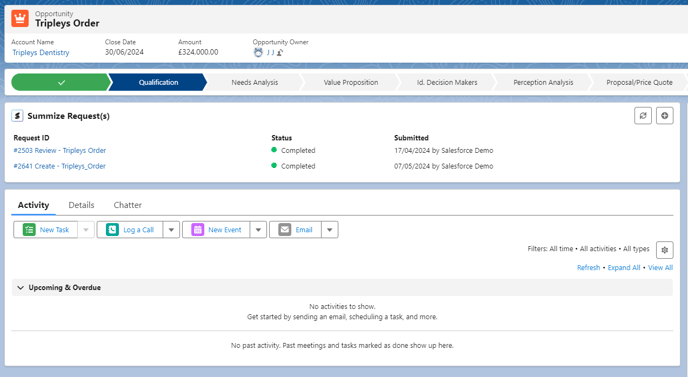
Click the + icon in the Summize add-in:

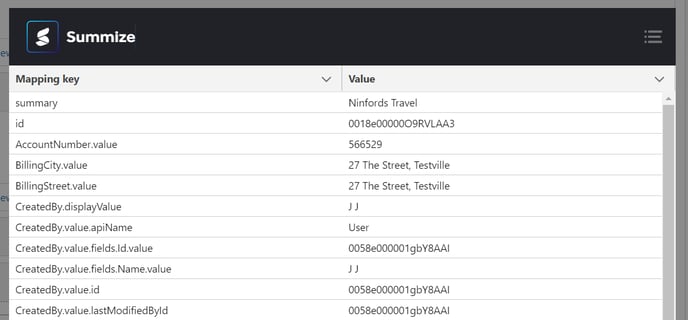
Click the menu icon in the top right of the pop-up, and you will be presented with all the possible fields that you could map:
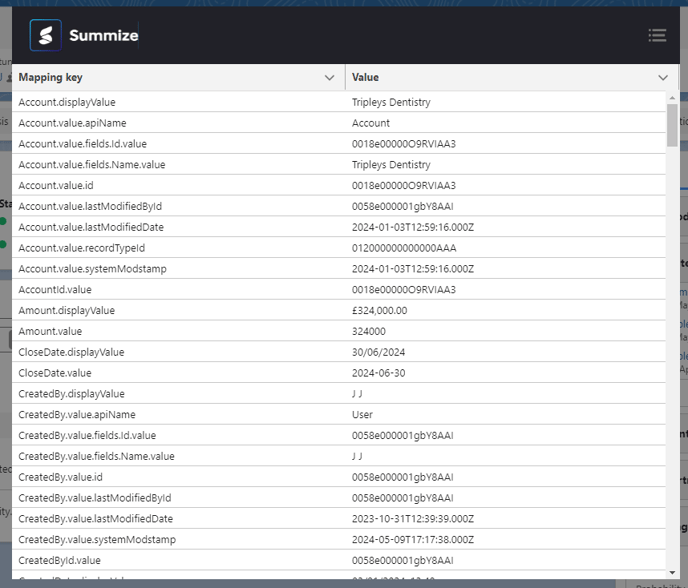
From here, copy the name of the field you'd like to map as it appears in the 'Mapping Key' column.
Note: The list will only show fields that are relevant to the Opportunity/Account you launched Summize from. If you can't see a property you'd like to map, try navigating to an Opportunity/Account where that field has a value populated.
Once you have copied the field you'd like to map, open a new tab in your browser and navigate to the Summize web app. Go to Requests > Templates, and select the template that you'd like to add field mapping to:
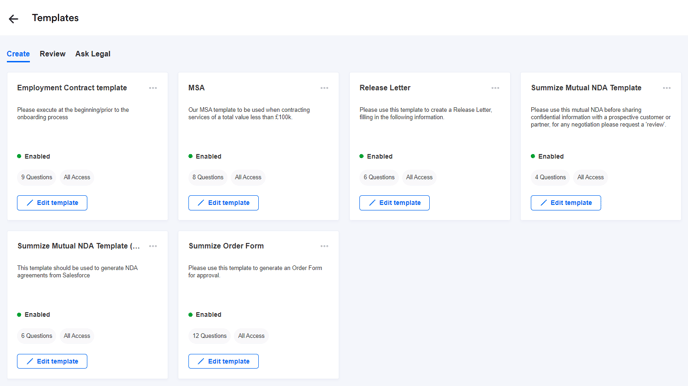
Note that mapping can be applied to any type of Request - Create, Review or Ask Legal.
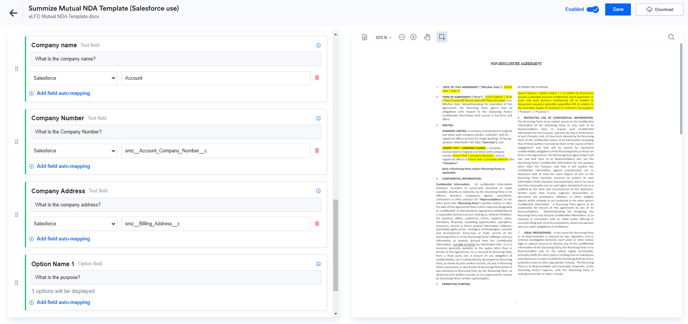
Find the question in the template you'd like to add mapping to, and click 'Add field auto-mapping':

Select Salesforce from the dropdown, and then paste the name of the field that you have copied from Salesforce:
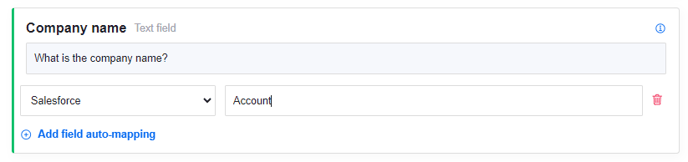
Continue this process until you've mapped all the necessary fields, and click 'Save' in the top right of the screen:
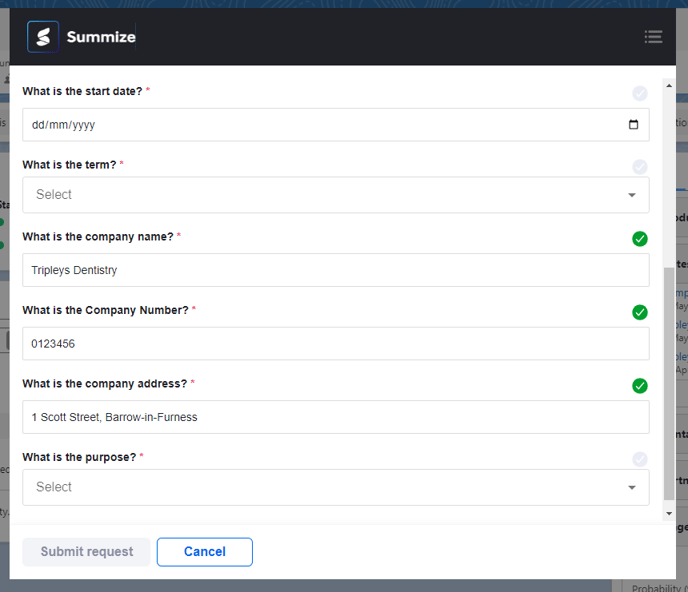
Now, when you start a Request in Salesforce, the fields that are mapped which have values in the Opportunity will now be prepopulated, meaning the user only needs to fill out any empty fields:
Field Mapping: A technical guide
Understanding the FetchRelatedObjects Apex Class
The Summize Salesforce integration uses the FetchRelatedObjects Apex class to help gather information related to a specific Salesforce Opportunity or Account. It's useful for displaying related data in Salesforce Lightning components or integrating with other systems. This guide explains how Summize uses this Apex class to allow users to map to key fields within an account or opportunity, to speed up the process of submitting Create / Review / Ask Legal requests.
Purpose
The main purpose of FetchRelatedObjects is to retrieve related records (both parent and child relationships) for a given Salesforce record identified by its unique ID (recordId). This is particularly useful for viewing all relevant details associated with that record in one place.
Components of the Class
- FetchRelatedObjectsResult Class:
- This class holds the results of the data retrieval process.
- relatedObjectsMap: This is where related records are stored. It's structured as a map where each key represents a category of related records (like "Parent Account" or "Contacts"), and each value is a list of actual records (SObject).
- errors: This list captures any issues or errors encountered during the data retrieval process.
- GetAllRelatedObjects Method:
- This method is the entry point for retrieving related records. It takes two parameters:
- recordId: The unique ID of the Salesforce record for which related data is being fetched.
- entityName: A string representing the type of Salesforce object (like "Opportunity", "Account", etc.) to fetch related records for.
- Depending on the entityName, the method fetches:
- Parent Account for an Opportunity.
- Child Relationships (like related Contacts) for other types of records.
- It handles exceptions gracefully by adding any errors encountered to the errors list in the result.
- This method is the entry point for retrieving related records. It takes two parameters:
- Helper Methods:
- fetchParentAccount Method:
- Specifically fetches the parent Account related to an Opportunity.
- If the Opportunity is associated with an Account, it fetches details about that Account and also includes its Parent Account, if available.
- fetchChildRelationships Method:
- Dynamically retrieves all child relationships (like Contacts associated with an Account).
- Uses Salesforce's dynamic query capabilities (Database.query) to fetch related records based on the defined relationships.
- Specifically, it includes handling for Contacts associated with other Salesforce records, ensuring that details for each Contact are fetched and included in the relatedObjectsMap.
- fetchParentAccount Method:
- Utility Methods:
- getFieldNames Method:
- Helps in constructing queries by dynamically getting accessible field names for a given Salesforce object type.
- getSObjectTypeFromString Method:
- Converts a string representing an object's API name (like "Opportunity") into its corresponding Salesforce schema object type (SObjectType).
- getFieldNames Method:
How It Includes Contacts
One notable feature of the FetchRelatedObjects class is its ability to include Contacts related to other Salesforce objects. For instance, if you're looking at an Account or Opportunity, the class can retrieve and display all associated Contacts. It achieves this by querying Salesforce for Contact details based on the relationships defined in Salesforce schema (ChildRelationships).
Advanced Mapping
Field mapping supports scripting. We would only advise using advanced mapping if you have experience working with javascript.
Template scripting examples
Note: Scripted mapping must start with the character !, this character will be stripped from the output
Any fields that appear in the field list mentioned at the top of this article can be incorporated into the advanced mapping examples shown below.
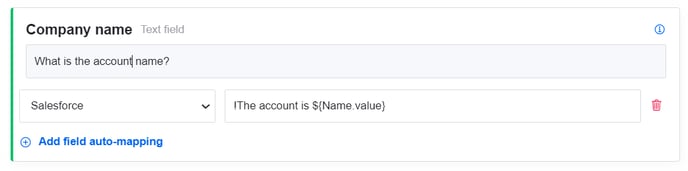
If using advanced mapping, simply enter the mapping script into the field mapping text box in the request template:
Example – to combine text & field properties from a record related to the one you launched the Summize App from:
!The account this request is for is ${Account.displayValue}
Example – to combine text & field properties from the record you launched the Summize App from:
!The account is ${Name.value}
Example – to display two or more values
!${Account.displayValue} (${Account.value.apiName})
Example – to convert value to all uppercase
!${Account.displayValue.toUpperCase())
Example – to conditionally change output based on value
!${Probability.value > 9 ? 'Good chance' : 'No Chance'}
Example – If a field contains value x, display y otherwise display z
!${Account.displayValue.includes(‘x’) ? Account.Quantity : z }
When using a property that is part of an array, such as AccountPartner for example, the mapping must use the array-based accessor as below.
Example – Display the first account partner role
Given the mapping key is AccountPartner.0.Role the correct use would be - !${AccountPartner[0]. Role}