Use this guide to learn how to map properties from your HubSpot Deals or Companies into Request Templates, so that template questions are pre-populated with information already found in HubSpot
Setup available to Power and Power Pro users only
Mapping Fields
In HubSpot, navigate to the object that you have installed the Summize add-in (Deal or Company).
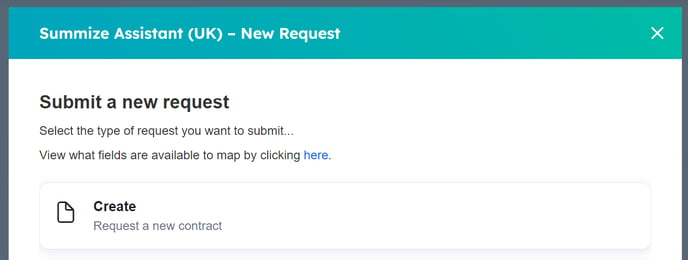
Click the 'New Request' in the Summize add-in:

Click the link at the top of the pop-up
You will be presented with all the possible fields that you could map:
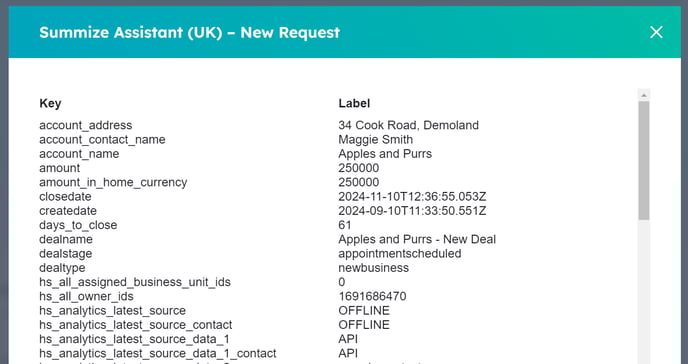
From here, copy the name of the field you'd like to map as it appears in the 'Key' column.
Note: The list will only show fields that are relevant to the Deal/Company you launched Summize from. If you can't see a property you'd like to map, try navigating to an Opportunity/Account where that field has a value populated.
Once you have copied the field you'd like to map, open a new tab in your browser and navigate to the Summize web app. Go to Requests > Templates, and select the template that you'd like to add field mapping to:
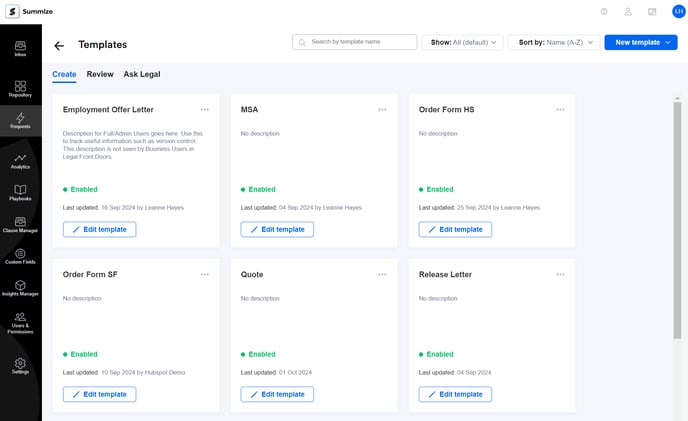
Note that mapping can be applied to any type of Request - Create, Review or Ask Legal.
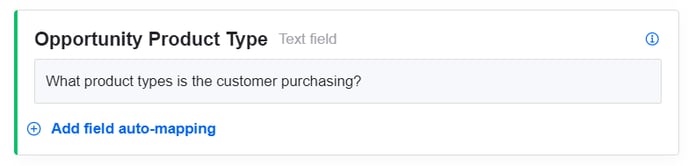
Find the question in the template you'd like to add mapping to, and click 'Add field auto-mapping':
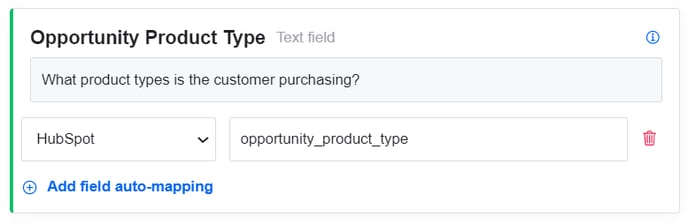
Select HubSpot from the dropdown, and then paste the name of the field that you have copied from HubSpot:
Continue this process until you've mapped all the necessary fields, and click 'Save' in the top right of the screen:
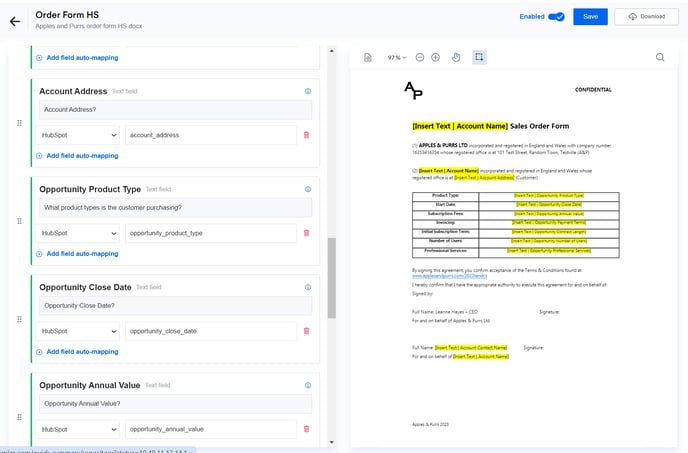
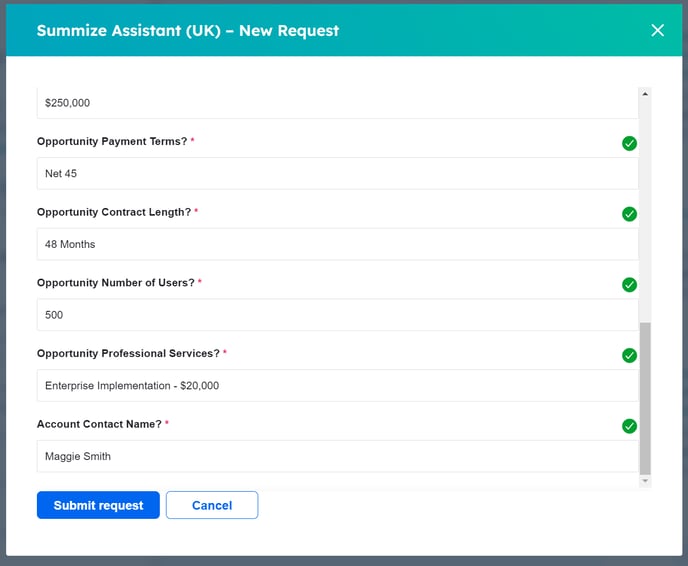
Now, when you start a Request in HubSpot, the fields that are mapped which have values in the Deal/Company will now be prepopulated, meaning the user only needs to fill out any empty fields: