
Follow these steps to install the Summize Assistant for Gmail on either Google Chrome or Microsoft Edge
Google Chrome Users
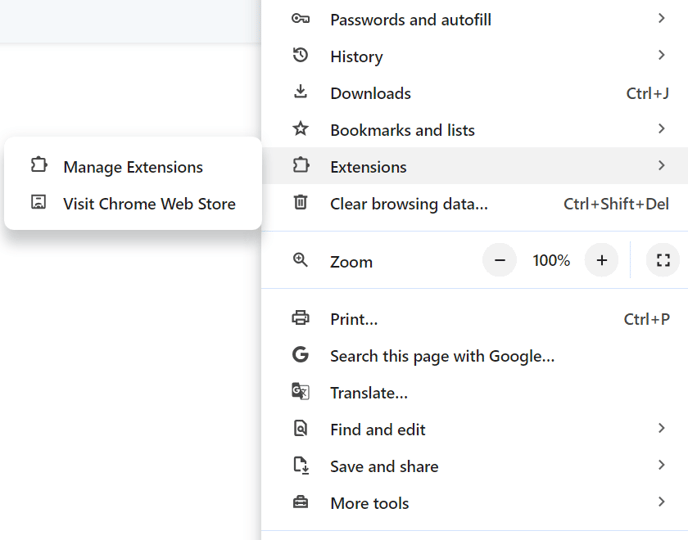
In Chrome, click the ellipsis icon in the top right of the screen, click 'Extensions', and click 'Visit Chrome Web Store':
In the search bar, type 'Summize':

Select the appropriate add-in for your organisation:
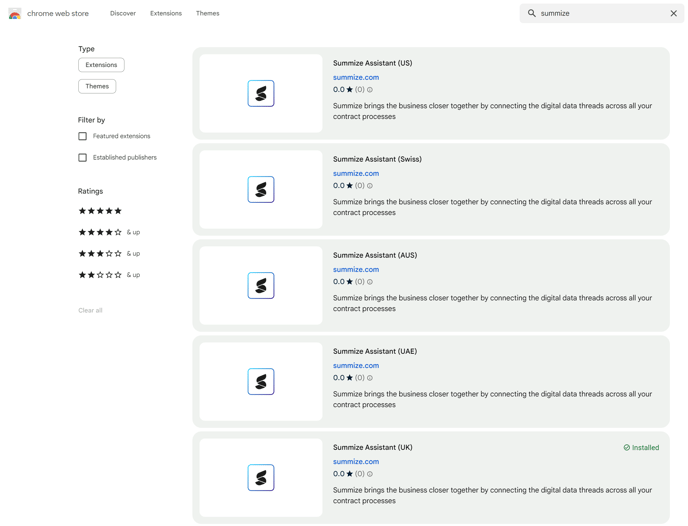
Note: if you're not sure which to select, check the URL you use to access Summize:
| URL | Add-In |
| app.summize.com | Summize Assistant (UK) |
| app-us.summize.com | Summize Assistant (US) |
| app-aus.summize.com | Summize Assistant (AUS) |
| app-ch.summize.com | Summize Assistant (Swiss) |
| app-uae.summize.com | Summize Assistant (UAE) |
(or feel free to check with your Summize contact!)
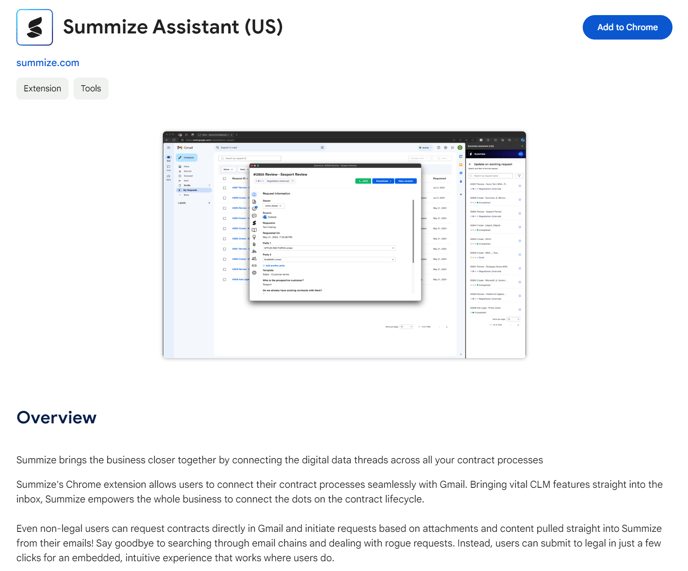
On the next page, click 'Add to Chrome':
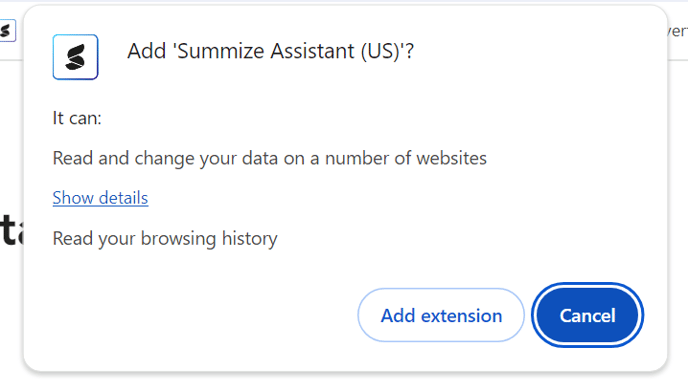
Click 'Add extension' on the pop-up:
To pin the extension to the top bar, click the extension icon:

And click the pin next to the extension name:

Your Summize Inbox Assistant is now ready to use!
Note: the Summize Assistant is only functional on a Gmail tab
Microsoft Edge Users
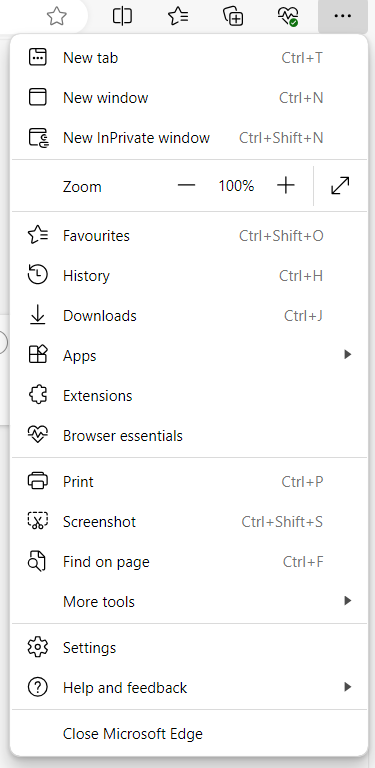
Microsoft Edge allows users to install Chrome extensions, too. Click the ellipsis icon in the top right of the screen, and click 'Extensions':
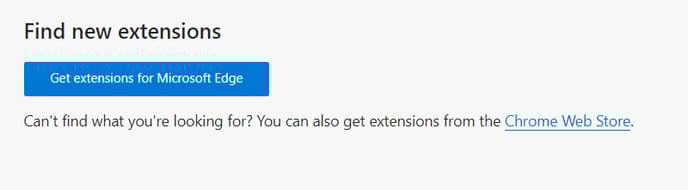
Click the link to go to the Chrome Web Store:
Search for Summize in the search bar and select the appropriate extension:
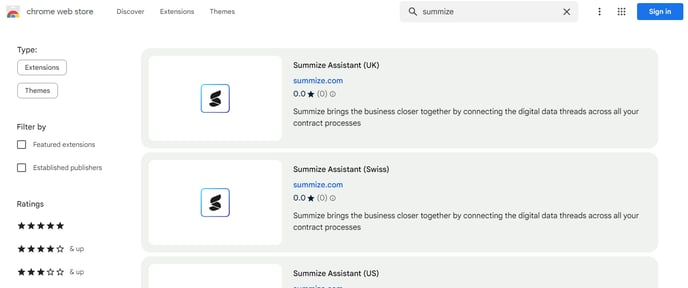
Note: if you're not sure which to select, check the URL you use to access Summize:
| URL | Add-In |
| app.summize.com | Summize Assistant (UK) |
| app-us.summize.com | Summize Assistant (US) |
| app-aus.summize.com | Summize Assistant (AUS) |
| app-ch.summize.com | Summize Assistant (Swiss) |
| app-uae.summize.com | Summize Assistant (UAE) |
(or feel free to check with your Summize contact!)
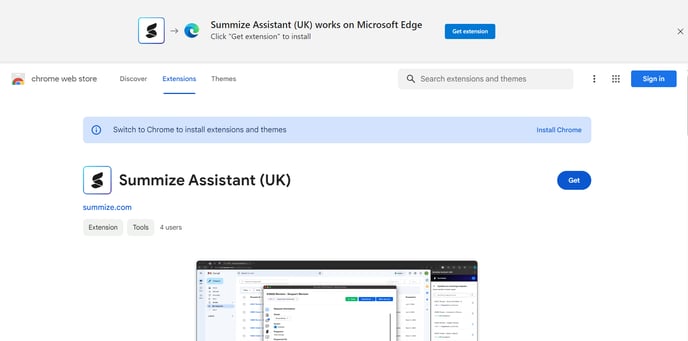
Click 'Get extension' at the top of the screen:
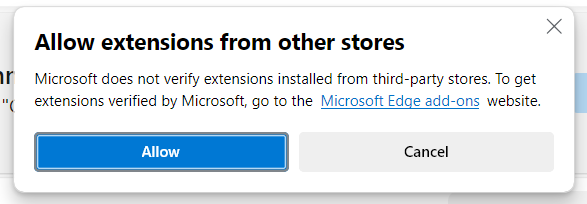
Click 'Allow':
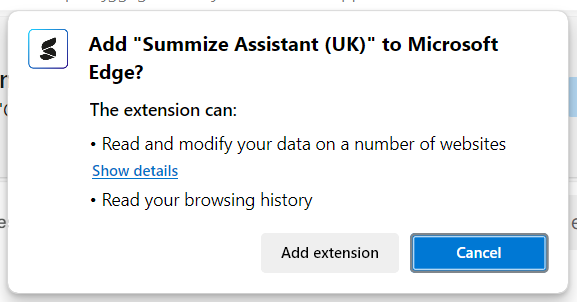
Click 'Add extension':
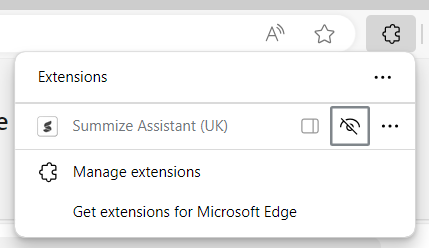
To pin the extension to the top bar, click the extension icon:

And click the eye icon next to the extension name:
Your Summize Inbox Assistant is now ready to use!
Note: the Summize Assistant is only functional on a Gmail tab