
How to build conditional tasks on Summize
Conditional tasks can be built into Create, Review and Ask Legal request templates to further enhance your workflows, and to ensure the appropriate requests are assigned to the appropriate person, based on responses given during the request process.
Click "Requests" on the left hand menu and then click "Templates" in the top right corner.
-png.png?width=601&height=761&name=Screenshot%20(383)-png.png)
Clicking "Templates" will open up this page with a list of all your Create, Review and Ask Legal templates.
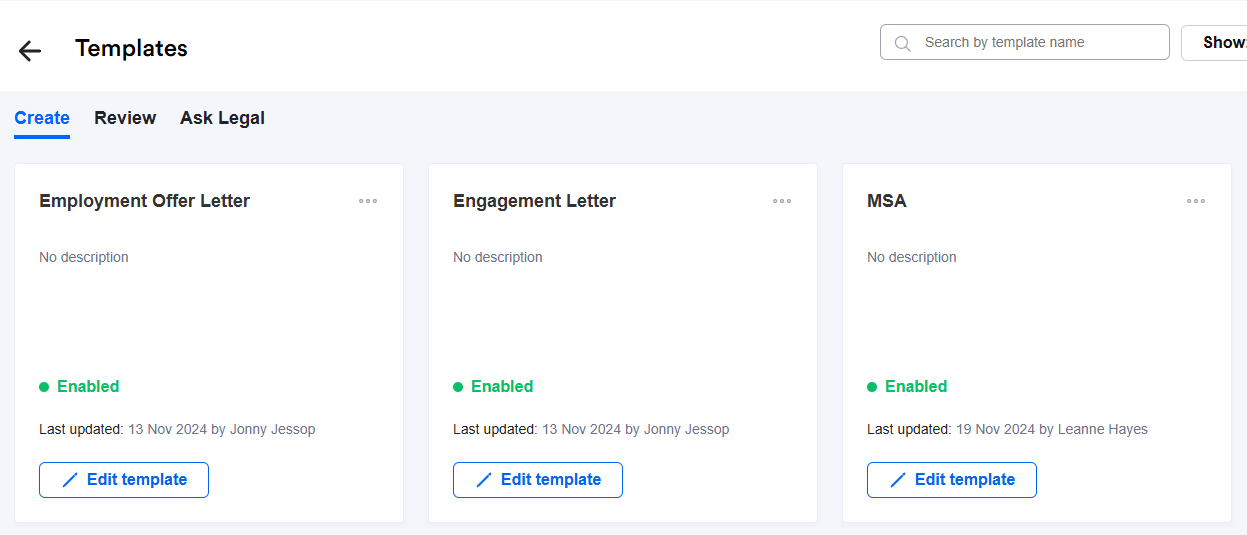
Click on either Create, Review or Ask Legal and then click "Edit template" on the template you'll like to add conditional tasks to.
Select Tasks on the left hand sub-menu and click the ellipsis sign (...) to edit current tasks, or add a new task by clicking "Add a task".
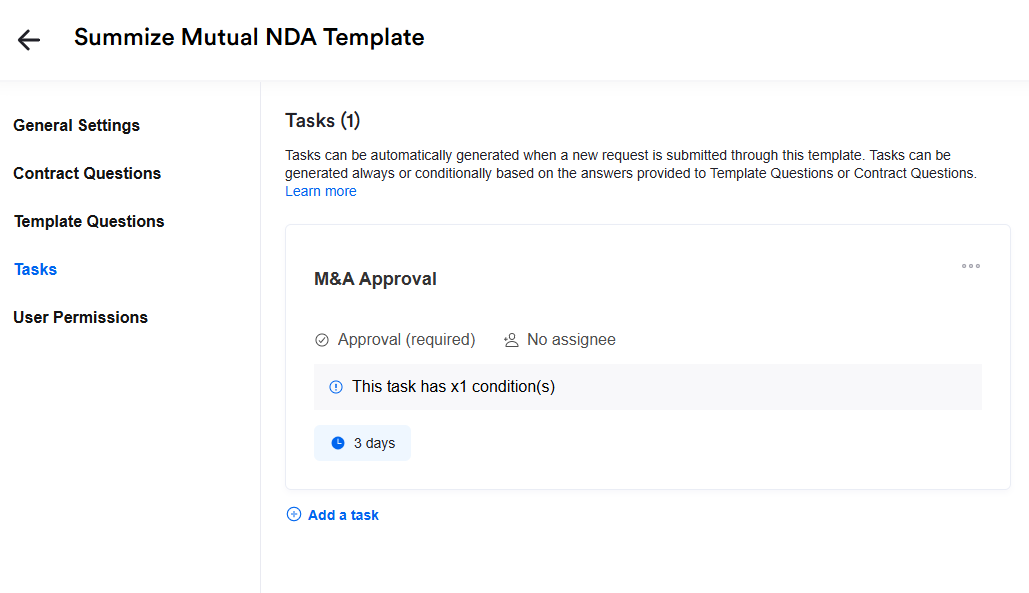
Editing or adding a new task will show this screen below with "Task Conditions" at the bottom.
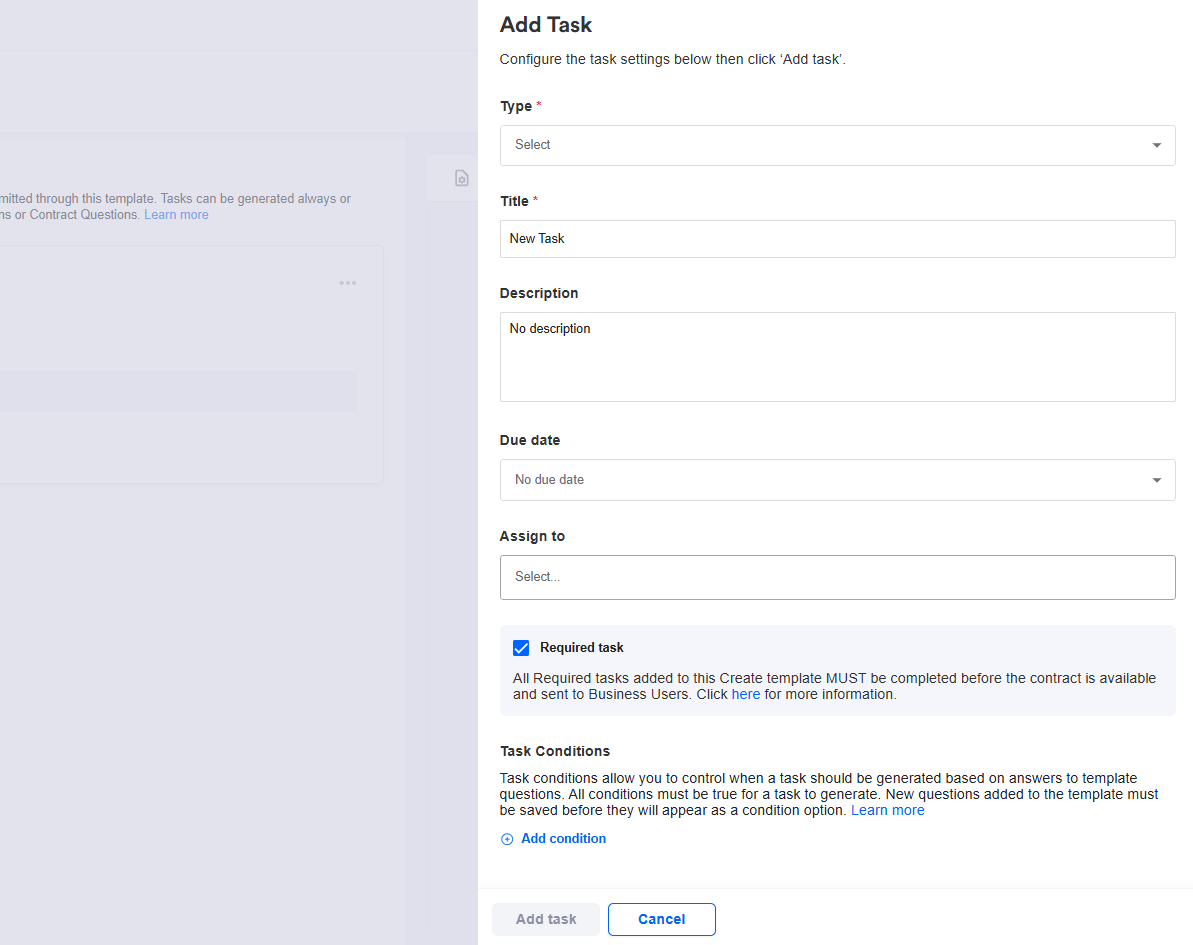
This functionality allows you to control when a task should be generated based on the answers to questions in your request templates. For Create requests, conditional questions can be based on both template questions and contract questions.
Note: For conditional tasks to be automatically generated, all conditions must be true.
As seen in the image below, the "Add condition" and "Add another condition" buttons allow you to add diverse types of conditions that assign automated tasks to individual users or user groups whenever contracts are generated.
Depending on the type of question that you would like to link a conditional task to, you will be presented with a range of options (e.g. for free text questions, you will be able to specify whether the response contains, does not contain, starts with, ends with, etc).
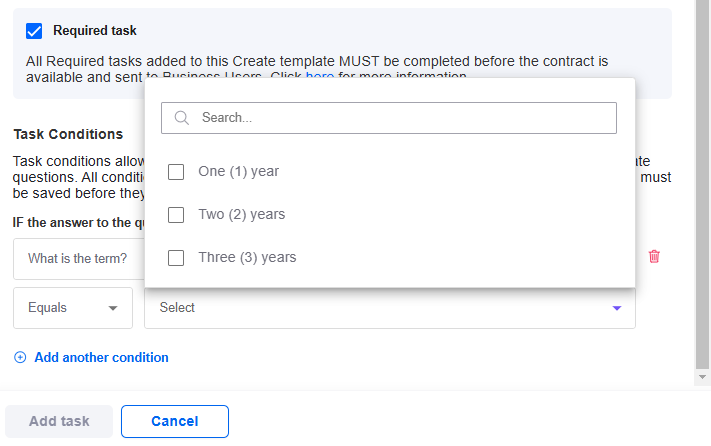
This ensures that tasks and deliverables are sent to the relevant people or departments for approval, freeing up more time for Legal to focus on high-value tasks.