
The Summize Playbook empowers Legal teams to maintain consistency in contract negotiations by providing a centralised resource for standardised redlining rules and positions.
Setup available to Power and Power Pro users
Skip to:
Introduction
Playbooks
Adding a new Playbook
Configuring your Playbook's structure
Adding content to your Playbook
Basic Playbooks
Introduction
Summize has two types of Playbooks available:
- Playbooks: our primary Playbook functionality which offers flexibility in Playbook structure and content.
- Basic Playbooks: a legacy feature. For optimal results, we strongly recommend utilising the primary Playbook functionality rather than the legacy Basic Playbooks.
Playbooks
There is no limit to the amount of Playbooks you can create, or the amount of content you can add to a single Playbook. Therefore, some customers choose to either have one master Playbook that can be used against any contract type, multiple Playbooks that are organised into high level themes (e.g. 'Commercial Contracts', 'Supplier Contracts', etc) or multiple playbooks that are organised into specific contract types (e.g. MSA Playbook, NDA Playbook, DPA Playbook, etc).
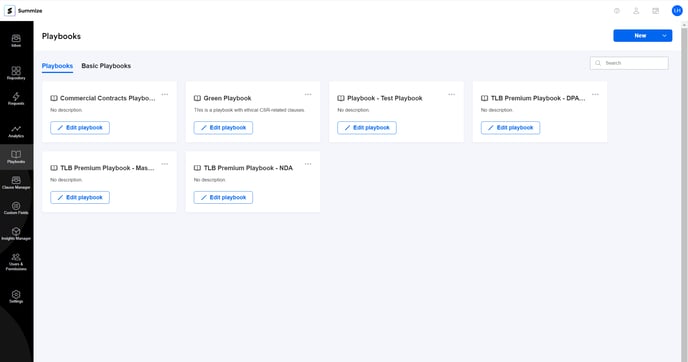
Adding a new Playbook
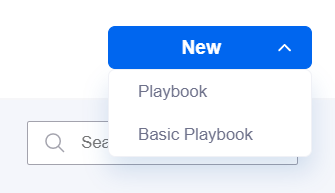
To add a new Playbook, click 'New' in the top right of the screen and select 'Playbook':
Give the Playbook a name and description:
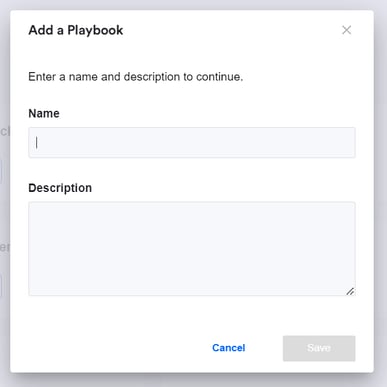
The name is visible to end users when viewing Playbooks whilst in a Request, and the name and description is visible when viewing Playbooks in the Word add-in.
Configuring your Playbook's structure
Once created, the Playbook by default has one section and three columns:
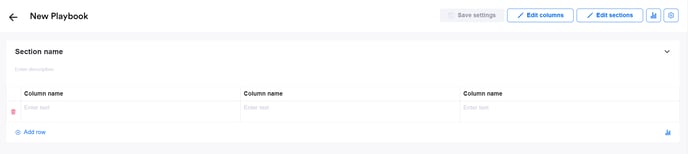
Columns:
To make adjustments to the column structure of your Playbook, click 'Edit columns':
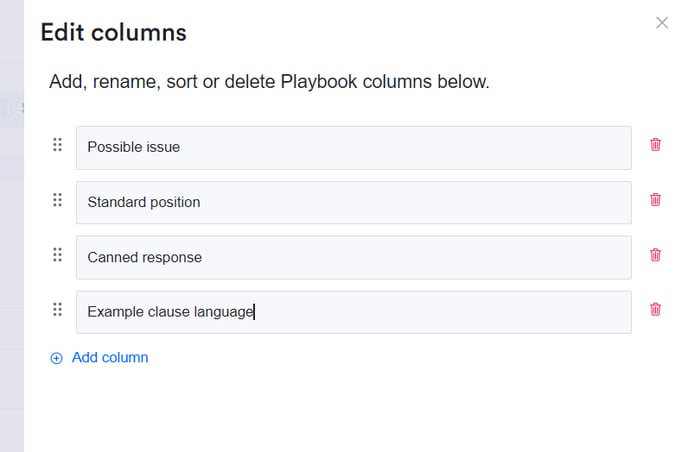
From the slide panel, you can add, rename, sort or delete Playbook columns:
Once finished, click 'Apply changes':

If you're creating a Playbook from scratch and don't already use one within your team, here's a suggested structure that works well for our other customers:
- Issue: [What scenario has occurred]
- Issue Detail: [Explain the scenario in more detail]
- Standard Position: [What is our standard contracting position in this scenario]
Canned Response: [Give a response we can give to the other party in a comment or email] - Example Clause Language: [Our preferred contractual language in this scenario to mark up with]
- Fallback Position: [What is our fallback if they do not accept]
- Fallback canned response: [What is our response in email or comment for this fallback]
Sections:
To make adjustments to the section structure of your Playbook, click 'Edit sections':

Typically, each clause within a Playbook will have its own section. From the slide panel, you can add, rename, sort or delete Playbook sections:
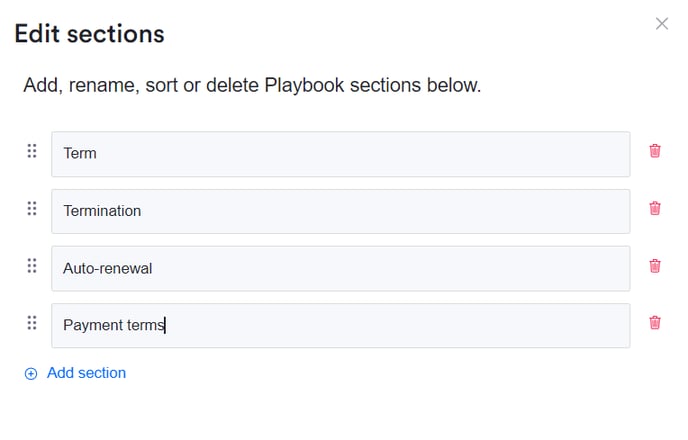
Once finished, click 'Apply changes':
Adding content to your Playbook
It's very simple to add and edit Playbook content. To add content to your Playbook, simply double click into the cell you want to populate:
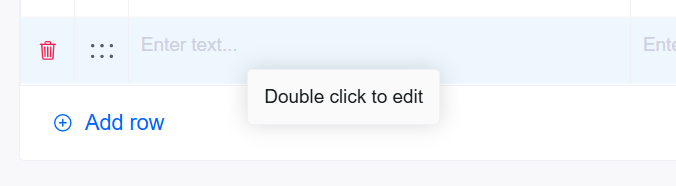
A pop-up will appear, where you can now type or paste text:
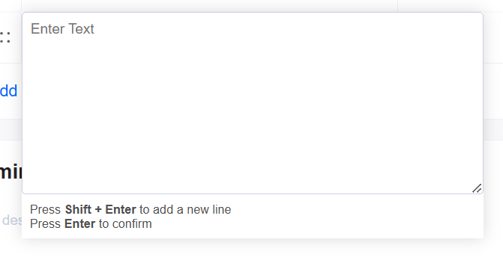
If you're adding or editing a lot of text you can click and drag the icon in the bottom right of the pop-up to increase its size:
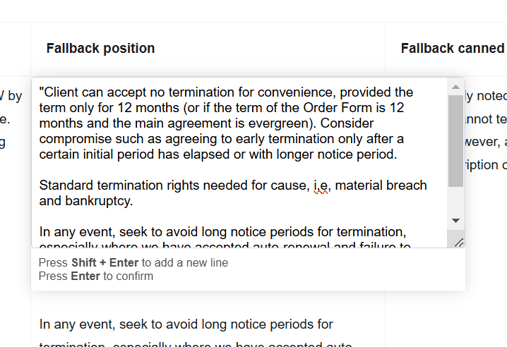
To add a new line within a Playbook cell, press shift+enter. To save your changes, either press enter, or click out of the pop-up.
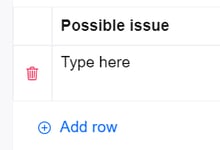
To add a new row to a section, click 'Add row':
To rearrange rows within a section, click the icon on the left hand side and click and drag to its new position:
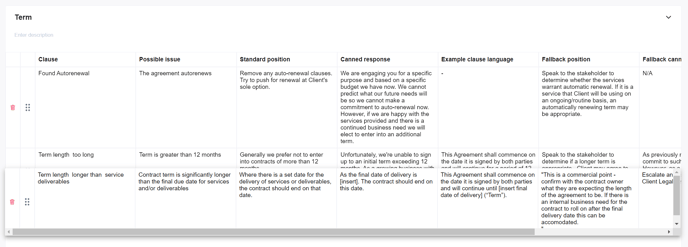
To delete a row, click the delete icon alongside the row you wish to delete.
Once you have finished making changes to your Playbook, remember to click 'Save' at the top of the screen:

Basic Playbooks (legacy)
Basic Playbooks have been superseded by Playbooks (outlined above). We do not recommend creating new Basic Playbooks.
Basic Playbooks are split into Playbook Only (standalone and manually created) and Contract Type (automatically created when a new contract type is added, with a row for each clause associated with the contract type).
To manage any existing Basic Playbooks, follow the steps below.
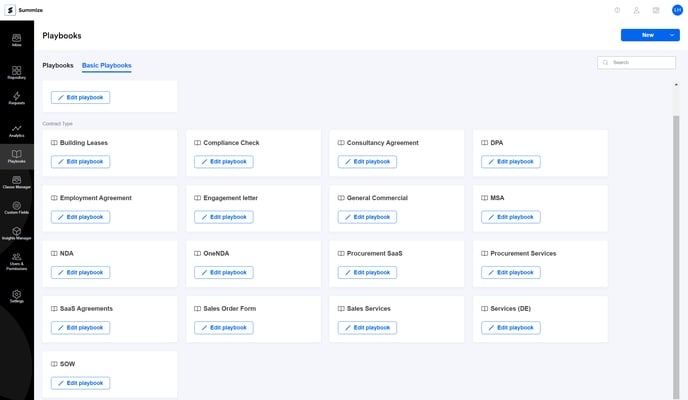
Click 'Edit playbook':
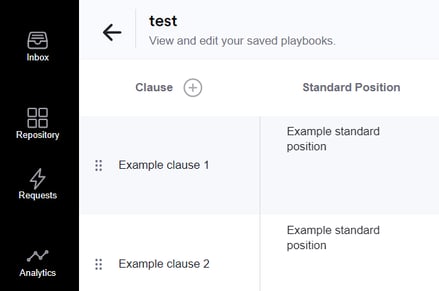
To add a new clause to the Basic Playbook, click the + icon:
Enter the Clause name and the positions that you want to populate. If you want to add more than the standard position and the first precedent clause, click 'Add Position' - this will add a new text box for subsequent positions:
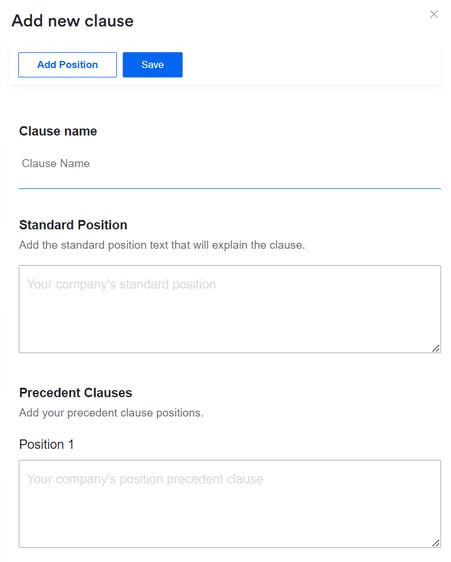
Once finished, click 'Save' to add the clause to your Basic Playbook.
To edit an existing clause, click anywhere on the row you want to edit to open the side panel. Here, you can make your changes and click 'Save' once finished.