
Configure a remote backup to Google Drive to back up your Repository and Request files
Note: Admin access required to enable integration
You can configure Summize to back up all of its files to an external storage solution such as Google Drive. Each file that is uploaded to Summize will be backed up to the external storage solution, along with any attachments.
- Navigate to Settings > Remote Backup
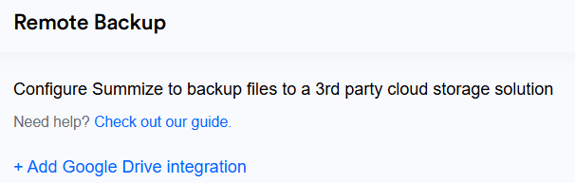
- The Google Drive account must be linked and authenticated. To begin the process of linking accounts, select '+ Add Google Drive integration'.
- A pop-up window will be presented to authenticate a Google user account.
- Please ensure access to Google Drive is granted by ticking the option when prompted.
- Once credentials are entered and the Google account is authorised with appropriate Google Drive access the window will close and the account will be linked with Summize.
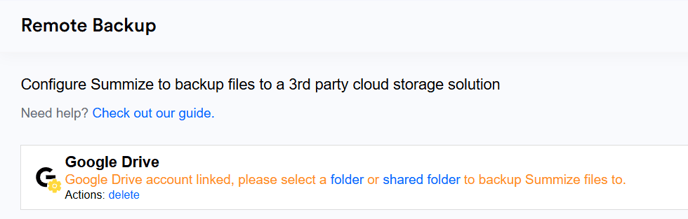
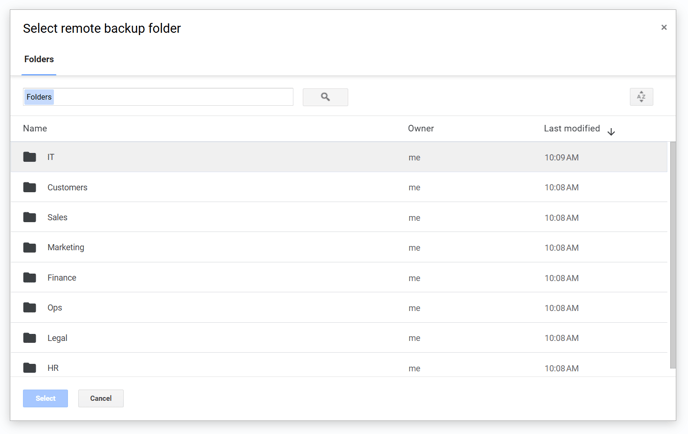
- Now a folder on Google Drive must be selected where the files will be backed up to, click 'folder' or 'shared folder' to choose the appropriate folder and then click Select.
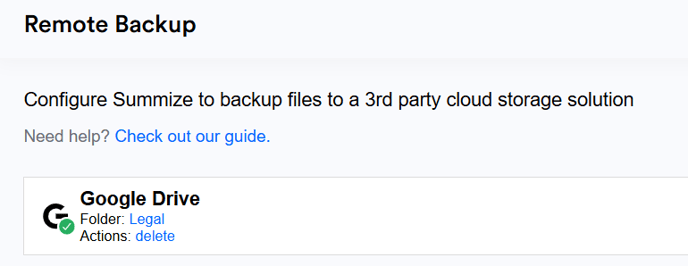
- The Google Drive integration is immediately saved and backup will begin in the background and the associated folder name and current authentication status (green tick).
Once backed up, the folder structure in your Google Drive account will look similar to this, depending on what is in your Summize account:
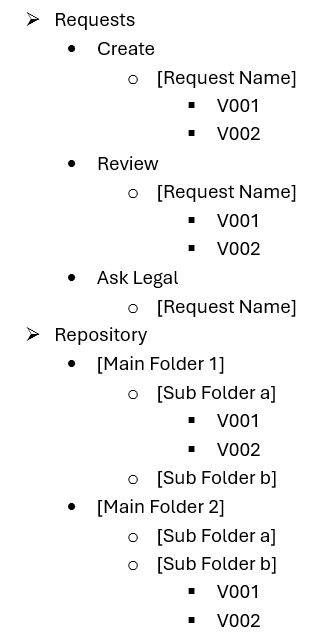
Top level, there will be a folder for Requests and Repository.
Within Requests, there will be a folder each for Create, Review and Ask Legal.
Within each of these folders, there will be a separate folder for each submitted request, and within each request folder, there will be a folder for each version. If any attachments exist, there will be a separate folder for those, too.
Within Repository, the folder structure will match the folder structure in Summize, so one for each main folder and subfolder.
Within each subfolder, there will be a folder for each master contract, and within each master contract folder, there will be a folder for each version. If any attachments exist, there will be a separate folder for those, too.
Additional Information:
- A green tick indicates that the account is linked and authenticated. In this case, any file uploaded to Summize will also be backed up to the folder in the linked account.
- A red exclamation mark indicates that the linked account is no longer authenticated. In this case the user must delete the outbound integration and re-authenticate
- Please note that any manual changes to the files directly in the external storage solution (such as file moves, renames or deletes) will not be reflected in Summize and will be overwritten.