
Single sign-on (SSO) is a session and user authentication service that permits a user to use one set of login credentials.
Note: Setup requires admin permissions for Google Cloud Platform Console, as well as Admin access to Summize
Summize supports OAuth 2.0 and OpenID Connect (OIDC) for Single Sign-On (SSO) authentication.
To set up Google SSO with Summize, you’d need to create an OAuth 2.0 project in your Google Cloud Platform to generate a client ID and client secret.
Creating Client ID and Client Secret
- Go to the Google Cloud Platform Console
- From the projects list, select a project or create a new one.
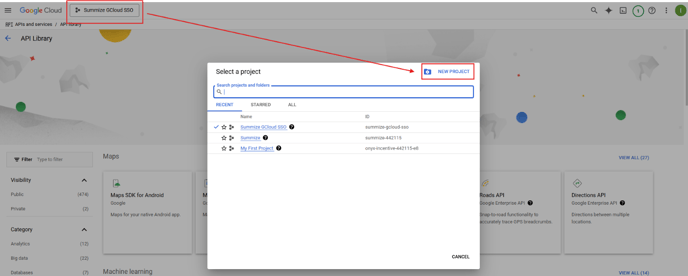
- If the APIs & Services page isn’t already open, open the console left side menu and select APIs & Services
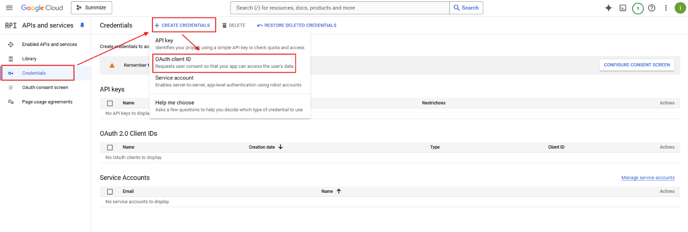
- Click Credentials on the left.
- Click Create Credentials, then select OAuth client ID.
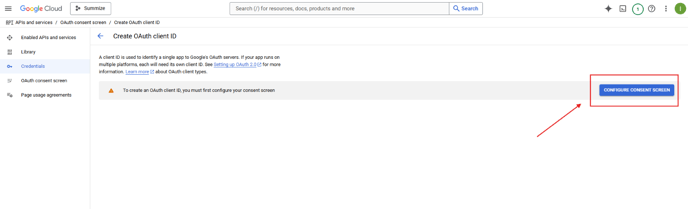
- If this is your first time creating a client ID, you’d have to configure your consent screen.
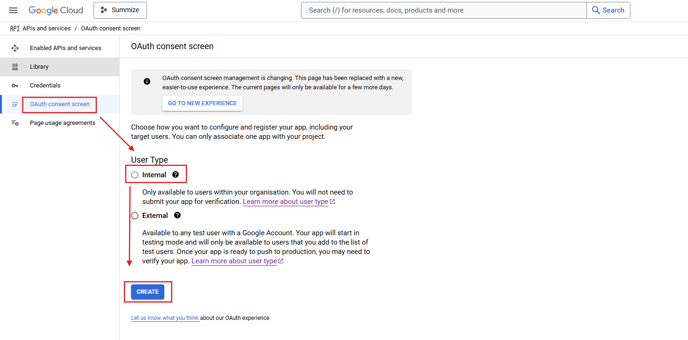
- Click OAuth consent screen, select Internal as your User Type and click Create.
- Add required information under App Information like application name, app logo and developer email address (support@summize.com).
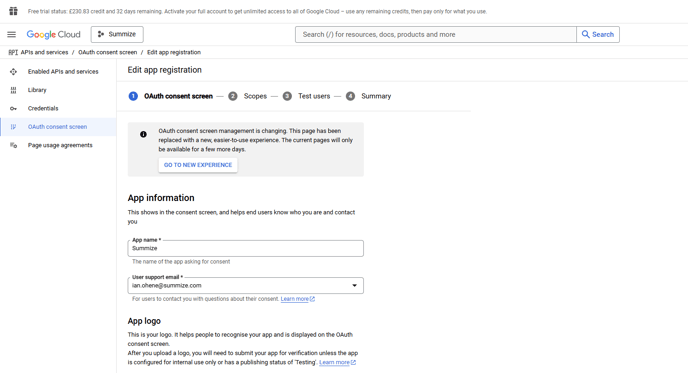
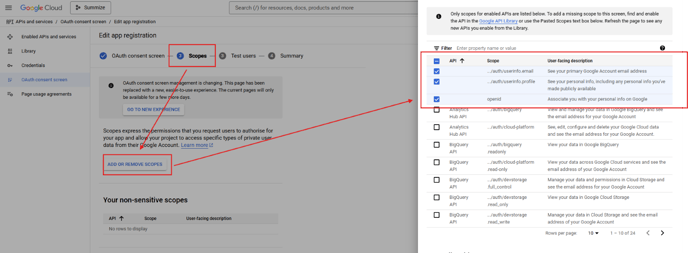
- Click Save and Continue and under Scopes, select the following: email, profile and openid
- Confirm the summary of your consent screen and click Back to Dashboard.
- Return to Credentials and repeat the steps to create a client ID.
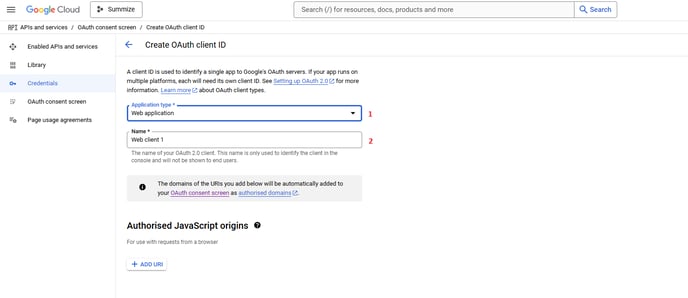
- Click Application type, select Web application and enter a friendly name for your OAuth 2.0 client (e.g. Summize SSO).
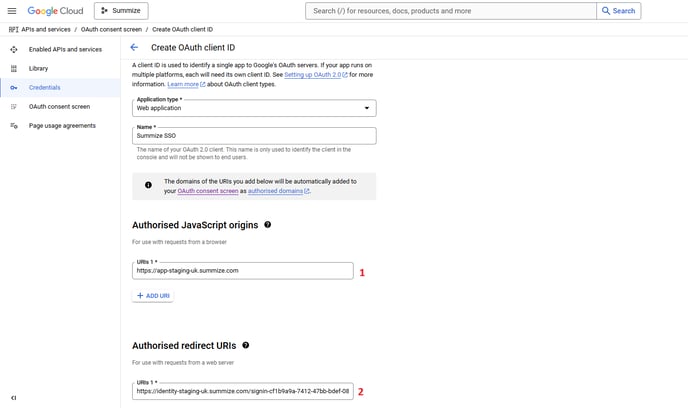
- Your Summize Contact will provide you with the Authorized redirect URIs. The Authorised JavaScript Origins is the URL you use to access Summize (e.g. https://app.summize.com for UK datacentre customers, https://app-us.summize.com for US datacentre customers, etc). Once inserted, click Create.
Your OAuth client is now created. Copy your Client ID and Client Secret and send it to your Summize contact to establish the SSO connection.