
Comparing two versions of a contract on Summize
Comparing two versions of a contract is simple in Summize. To begin the process, go to 'Requests' on the left hand menu of the Summize web app. Navigate to the contract you want to compare and click on the contract to open it.
Note: The contract you'd like to compare must have at least two versions (docx only) uploaded on Summize. If there is only one version of the contract available, the Compare button (at the top right corner of the screen) will display "Must have at least two .docx files to compare" as seen in the image below.
-png.png?width=658&height=313&name=Screenshot%20(412)-png.png)
To compare versions:
- Open up a contract that has more than one Microsoft Word (.docx files) version available.
- Click on the "Compare" button at the top right corner.
-png.png?width=688&height=325&name=Screenshot%20(406)-png.png)
- A pop-up will appear, allowing you to choose which of the versions you'll like to compare. In the first dropdown, select the primary document that you want to compare the second document to (e.g. original version and new version).
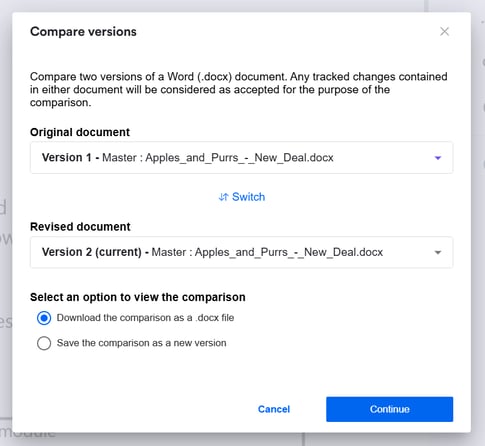
- You can either download the comparison as a docx file, or you can add the comparison document as a new version on the Request.
- Once you click "Download comparison", it will download the comparison which you can open in the native Word app.
-png.png?width=688&height=327&name=Screenshot%20(409)-png.png)
- The downloaded contract will automatically show you markups of the changes made in the different versions of the contract.
-png.png?width=601&height=924&name=Screenshot%20(410)-png.png)
This functionality was included in the Summize Create and Review workflows to help users to seamlessly mitigate risk and meet compliance standards.