Use this guide to understand how to setup and publish your own Ask SIA custom agents
Skip to:
Creating a New Agent
Configuring Settings
Uploading Knowledge
Testing your Agent
Usage and Feedback
Creating a New Agent
Navigate to ‘SIA Hub’ in your menu:
Click on the 'Custom Agents' tab:

Click ‘Create agent’ in the top right on the page:

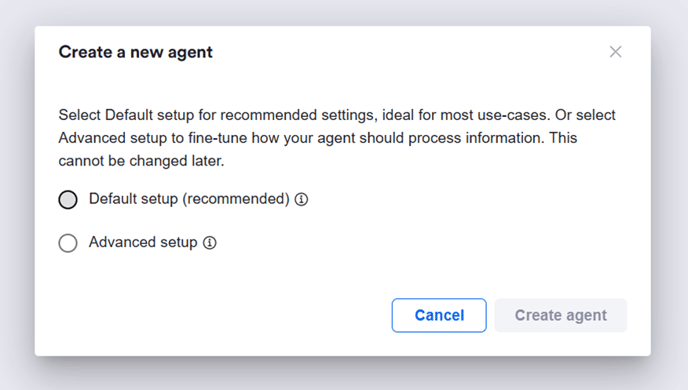
Select the setup required and click ‘Create agent’. For majority of use cases, we recommend the default setup. The advanced setup option allows customisation for chunk size and overlap settings – we only recommend using this option if these terms are familiar to you!
Should I use default or advanced setup?
Most users should choose default setup. It automatically uses recommended settings for chunk size and overlap - the values that determine how your documents are split into smaller pieces for the AI to read.
Only select advanced setup if you understand these terms or are testing highly specialised use cases.
What do “chunk size” and “overlap” mean in advanced setup?
When your files are processed, Summize divides them into small blocks of text (chunks).
-
Chunk size controls how long each block is.
-
Overlap determines how much each block overlaps with the next one to help preserve context. Larger chunk sizes can improve context for longer paragraphs, but smaller chunks help the agent pinpoint precise information.
If you’re unsure, stick with the defaults - they’re optimised for most business documents.
Configuring Settings
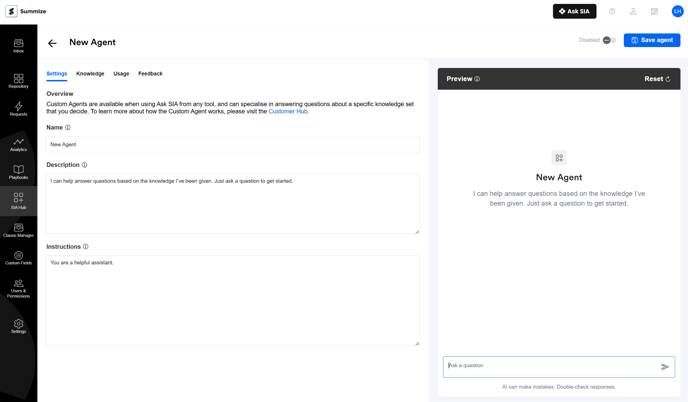
You can now customise your agent’s settings:
Name and description
The name of the agent will appear when Ask SIA is launched:
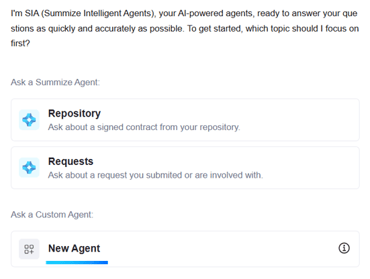
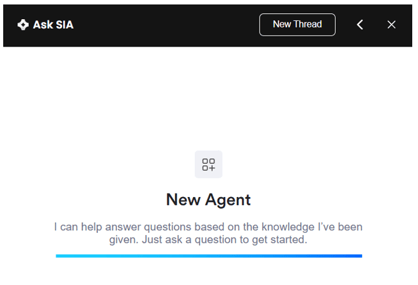
The description will appear when you hover over the (i) icon, and will appear when you select the agent:
Instructions
Give your agent specific instructions for how it should behave, such as tone, preferred sources, or focus areas.
The instructions won’t be visible to users.
For example: You are a helpful assistant with knowledge of a number of policies and whitepapers relating to information security for a SaaS vendor. For any questions, ensure you make reference to the relevant policy document that supports your answer.
Advanced capabilities - Restrict responses to knowledge

If you’d like to restrict the agent to only reference the information you’ve uploaded, toggle on the first option. If you would like it to have access to broader reasoning to answer queries, leave the toggle off.
Advanced capabilities - Max search results

Max search results controls how many blocks of text the agent retrieves to answer your question. The minimum is 1 and the maximum is 50.
What 'Max search results' means
When you upload documents to a Custom Agent, they’re broken into small pieces of text. When you ask the agent a question, it doesn’t read every single word of every file. Instead, it searches all those smaller pieces and picks the most relevant ones to base its answer on.
The Max search results setting tells the agent how many of those pieces it can look at when forming a response. Think of it like saying: "Only look at the top 5 most relevant paragraphs" or "Look at the top 50 paragraphs to get more context".
The default is 10, which usually gives a good balance between focused and well-informed answers.
Choosing a higher vs. lower number
|
Setting |
What it means |
Best for |
Pros |
Cons |
|
Lower number (e.g. 1–10) |
The agent only considers a few small pieces of text |
Short, specific topics or documents |
Faster and more focused answers Less chance of unrelated info |
May miss useful context if the topic spans multiple sections |
|
Higher number (e.g. 20–50) |
The agent looks at a lot more text before answering |
Complex or detailed documents where context is spread out |
Provides more complete, context-aware answers Good for nuanced topics |
Answers might be slower or less focused Can take into account irrelevant information |
Examples
- Use a lower number (e.g. 1–10) for:
- Policies, guides, or FAQs where each question has a clear, standalone answer
- Documents that are short or well-structured (like a privacy policy or playbook)
- Use a higher number (e.g. 20–50) for:
- Long or technical documents where information is spread across multiple sections (like detailed manuals or regulations)
- When you want broader context for an answer
Important note: similar or duplicate documents
Custom Agents work best when the content you upload is varied and distinct.
If you upload many nearly identical documents (like 50 versions of the same document with very similar wording), the chunks of text will also be almost identical. That means the agent won't have much to differentiate between them or organise their relevancy, so answers might feel repetitive or generic or may not be accurate.
Simple guidance for most users
- Leave the default (10) unless you have a specific reason to change it.
- Increase it if your answers seem too narrow or are missing context.
- Decrease it if your answers feel too long or slightly off-topic.
We recommend testing your setup before enabling the agent for other users, to ensure you’re seeing the expected results.
Access Control
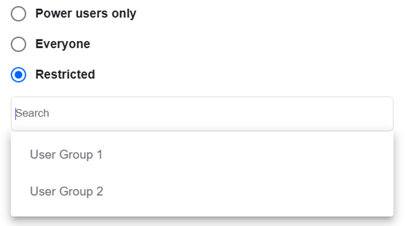
Select who should have access to the custom agent by selecting the most appropriate option – either all Power users, all users, or restricted to users within a specific user groups.
Uploading Knowledge
Once your settings are configured, navigate to the Knowledge tab to start uploading your files.
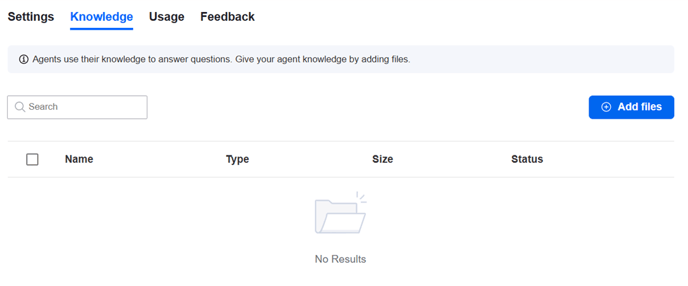
Click ‘Add files’ to start uploading your documents.
Custom agents supports the following file types: PDF, JSON, DOC, DOCX, TXT, CSV and HTML. Individual file sizes must be below 25MB.
Once uploaded, the documents will begin processing, and you will see the below message once they are ready to add:
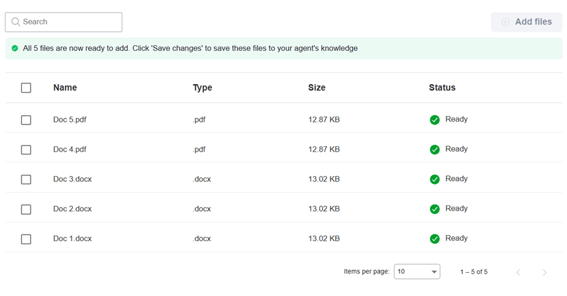
Click ‘Save agent’. You can continue to add more documents, or begin testing your agent.
Mixing topics vs. creating separate agents
When you build a Custom Agent, it helps to think of it like training a specialist, not a generalist. The more focused your content is, the better and more confidently the agent will answer.
If you upload documents that cover lots of different or unrelated topics (for example, HR policies, InfoSec policies, and company FAQs all in one), the agent may struggle to understand what kind of information you want.
That’s because when you ask a question, it searches across all the uploaded content, even if only one small section is relevant.
When it’s okay to mix topics
If your documents are closely related - for example, multiple policies that all support one area (like different parts of your Information Security framework) - then keeping them in one agent can make sense.
In that case:
- Keep the topics connected (e.g. everything related to InfoSec)
- Use clear naming for your agents so users know what to ask (e.g. "InfoSec Agent" vs. "HR Agent")
Quick rule of thumb: If you’d expect a different person or team to answer the question in real life, you probably need a different Custom Agent.
Testing your Agent
Once you’ve configured your settings and uploaded your knowledge, we recommend testing the agent before enabling for other users. This is where you can test that you’re seeing the expected results based on the instructions, capabilities and knowledge that you have given your agent.
You can do this by using the right hand preview on the page – simply ask a question and review the response.
If you want to experiment with different settings, make those changes and click save to test the new setup. The below message will appear to remind you to do so:

Once you’re happy with your setup, you can toggle the ‘Enabled’ option in the top right to make the agent visible to the users you specified in the access control settings:

Usage and Feedback
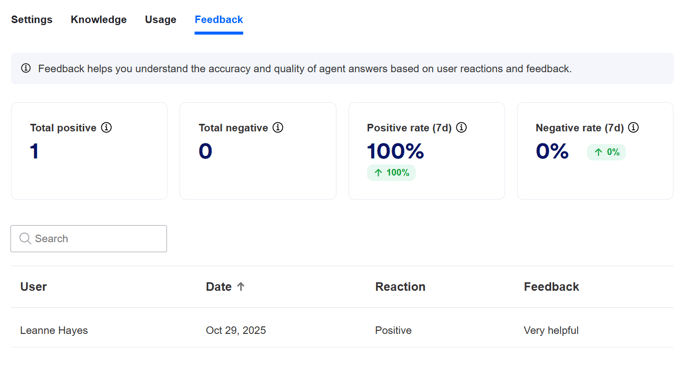
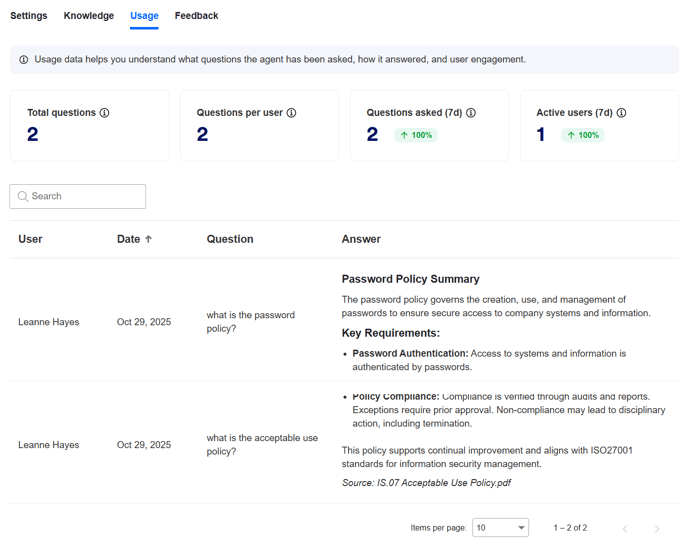
You can monitor usage and answer feedback of your custom agent using the ‘Usage’ tab and the ‘Feedback’ tab.
In ‘Usage’, you can see the questions that have been asked and the responses that the agent gave. You can also see some stats around volume of questions asked and number of users who have asked questions.
In ‘Feedback’, you can see any thumbs up/down responses that your users have given, alongside any reasoning they have provided. You can also see stats around overall positive versus negative responses. This data can be used to further refine your agent’s configuration.