
Share this guide with your Organization's Microsoft Admin to deploy the Summize Inbox Assistant to your users' Outlook environment, removing the need for individuals to install themselves
The Summize Inbox Assistant for Outlook can be automatically deployed to an organization’s users (either all users in an organization or a subset) through the Microsoft 365 Admin center.
If you would like to deploy the add-in to a subset of users, the first step is to setup a security group (under the Teams and Groups menu option in the Admin center). You can then add users to the group and each user will have the add-in automatically deployed to them.
Installing the add-in
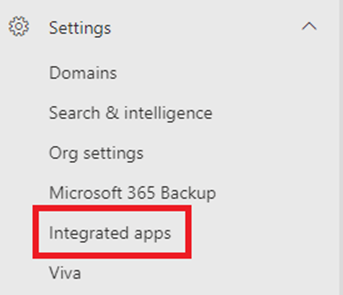
Go to Settings > Integrated Apps on the admin menu:
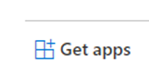
Click on ‘Get Apps’:
Search for ‘Summize Inbox’ and select the correct add-in for your organization, depending on the Summize datacentre that your tenant is located in. Click on the correct add-in:
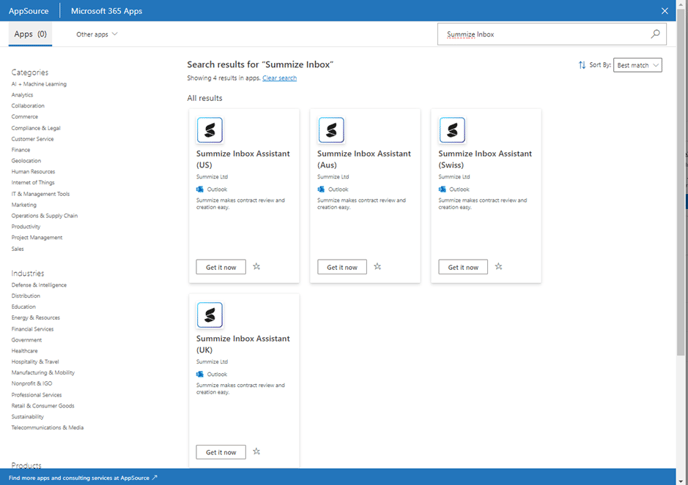
Note: if you're not sure which to select, check the URL you use to access Summize:
| URL | Add-In |
| app.summize.com | Summize |
| app-us.summize.com | Summize (US) |
| app-aus.summize.com | Summize (Aus) |
| app-ch.summize.com | Summize (Swiss) |
(or feel free to check with your Summize contact!)
You will be required to confirm that you’d like to continue, click ‘Get it now’:

On the screen, check one of the radio buttons depending on the users you need to deploy the add-in to, if you want to deploy to a group select the ‘Specific Users/Groups’ and select the users/groups to assign the add-in to:
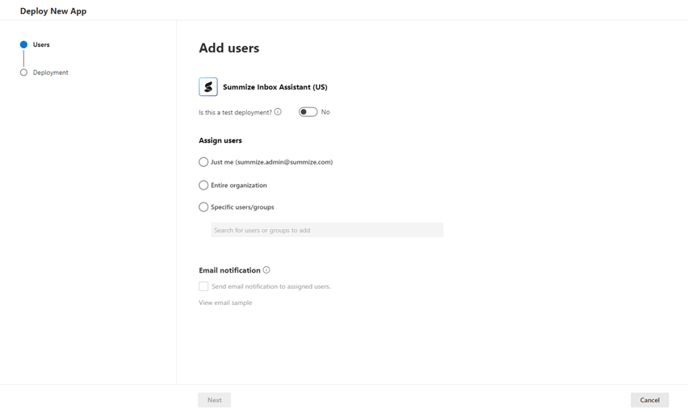
Click ‘Next’ to continue:
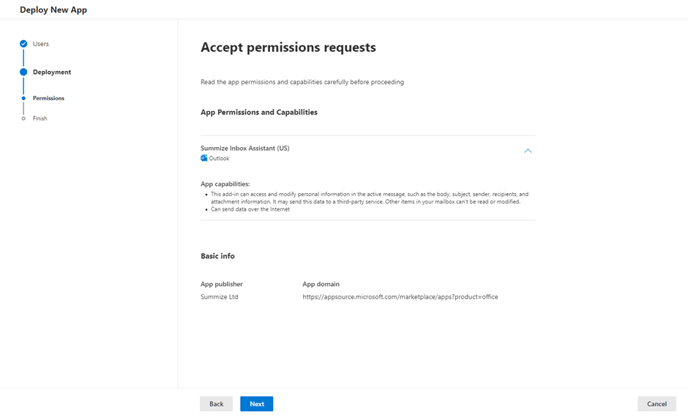
Confirm the installation by clicking ‘Finish Deployment’:
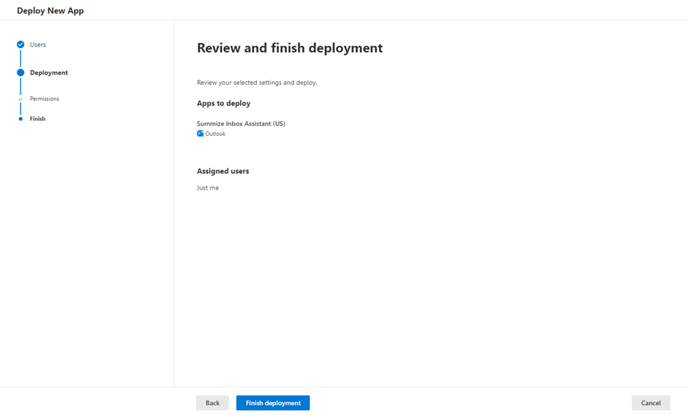
The add-in is then deployed to the selected users/groups or your entire organization. Users will need to restart their laptops for the add-in to be visible within Outlook.