
Setting the repository table column views
Skip to:
Overview
Customise the Repository Table columns
Saved views
Overview:
The Repository Table has a variety of different column options which can be customised, allowing you to to tailor the table based on the information you want to see. There are a variety of column types to be aware of:
Permanent column
The only permanent column displays the most recent contracts under Contract name. This permanent column is always displayed in the table and cannot be turned on/off via the column settings feature (as seen in the image below).
-1.png?width=688&height=342&name=Screenshot%20(183)-1.png)
Default Columns
To modify which default columns are visible in your Repository table, use the column settings to enable your preferred default columns.

You can toggle these columns on or off at any time through the column settings menu (as shown in the image below).
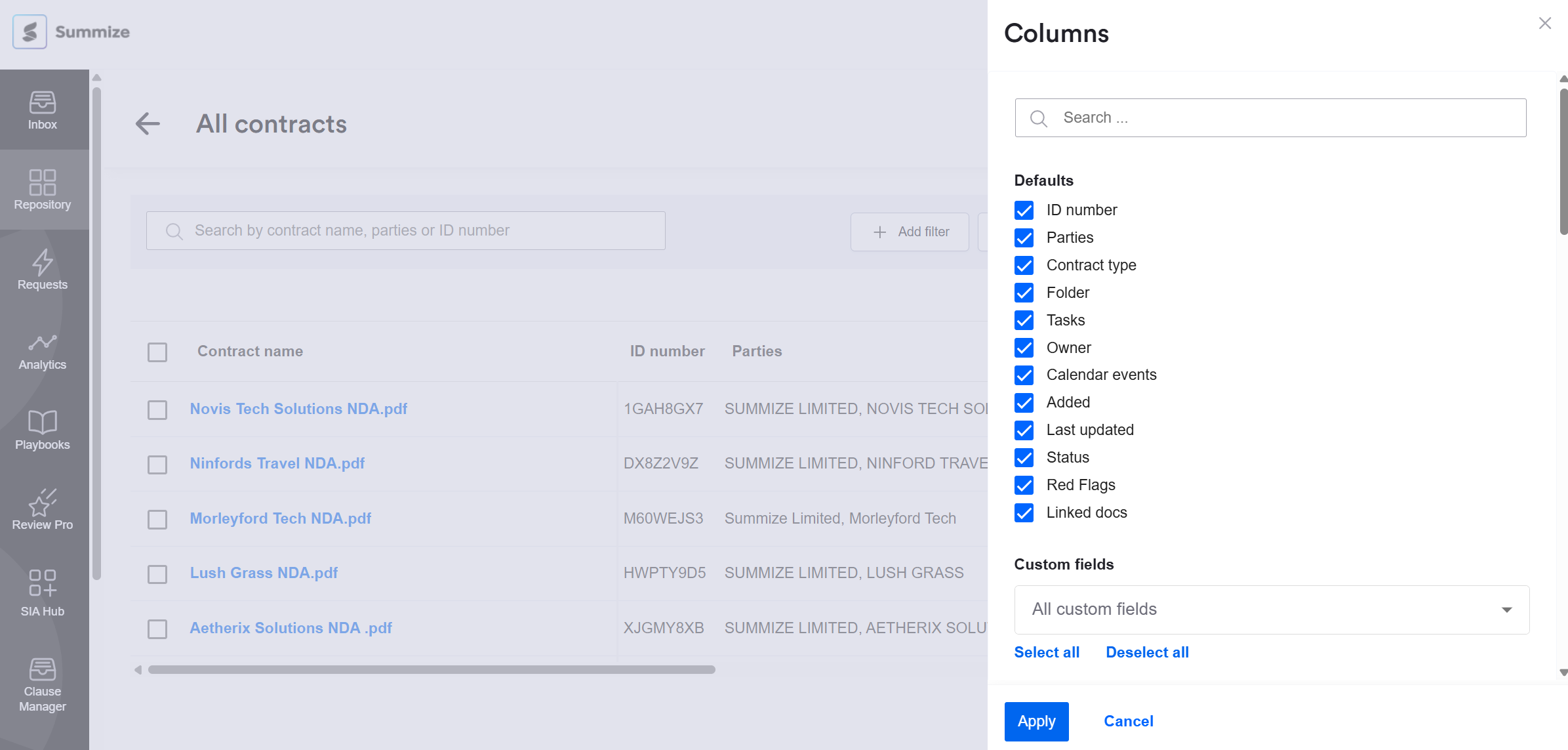
The default columns are:
- ID number: an automatically generated alpha-numeric ID, assigned to each master contract
- Parties: the party names that have been extracted from the document, or manually added by users
- Contract type: the contract type assigned to the document
- Folder: the main and subfolder that the document is stored in
- Tasks: the number of pending tasks
- Owner: the user assigned as owner
- Calendar events: the total number of events (past and present) associated with the document - either automatically extracted or manually added by users
- Added: the date the document was uploaded
- Last updated: the date the document was last updated
- Status: the status asssigned to the document
- Red Flags: the number of clauses that have been red flagged (either automatically via Clause Manager or manually by users)
- Linked docs: the number of linked documents uploaded against the master documet
For more information on Default columns and filters, click here.
Clause Columns
To see an overview of specific clauses on your Repository table, tab on the clauses you'd like to see and click "Apply" (as seen in the image below). Clauses can be found right under Default Columns shown in the previous image.
.png?width=688&height=343&name=Screenshot%20(181).png)
Customise the Repository Table columns
You can use the column settings feature to customise which columns are visible or hidden when viewing the Repository Table.
To customise the columns, follow these simple steps:
- Navigate to the Repository Table.
- Click the ‘Columns’ button located to the right above the table.
- A menu with some options will open.
- Use the toggle controls to turn columns on/off based on what you want to see.
- Click the ‘Apply’ button at the bottom of the menu once you have finished toggling on/off the columns you want to see.
- The Repository Table will refresh and the new column configuration will be applied.
Note: When a large number of columns are toggled on at the same time, any columns that do not fit onto the screen can be viewed by scrolling horizontally.
In the video below you will see the steps described above.
Saved Views
If you search for certain contracts often, you can now easily save those search views in Repository, rather than filtering to get to those views every time you log in.
To save a view, simply turn on all the filter and column tabs you'll like to see (as explained above) and click "Apply".
Once that's done, click the "Save View" button above the Repository table, add a preferred name for your Saved View and save.
To make a specific view your default Repository view, click "Make this my default view" and save.
By the top left side, clicking the arrow beside "All Contracts" shows you all your saved views.
Note: Each Summize User in your company can have their own saved views.
.png?width=688&height=341&name=Screenshot%20(179).png)