
We've brought the Tasks and Conversations collaboration tools that you're familiar with in the Summize web app into Word for the Web. No more tab switching while reviewing and redlining documents.
Note: Only available when using Word for the Web, launched from a Summize Request
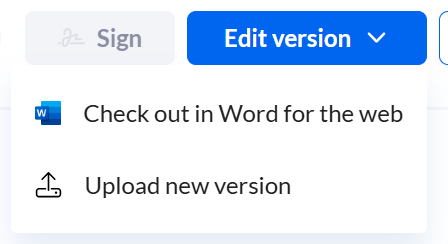
We've brought the Tasks and Conversations collaboration tools that you're familiar with in the Summize web app into Word for the Web. To collaborate within Word for the web, navigate to the Request, click 'Edit version', and click 'Check out in Word for the web':
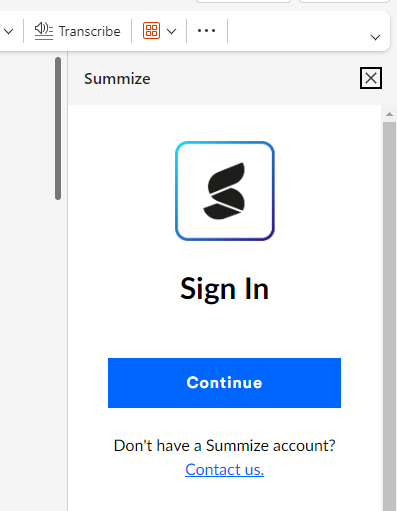
In the Word for the Web tab, sign into the Summize add-in (skip this step if you're already signed in!):
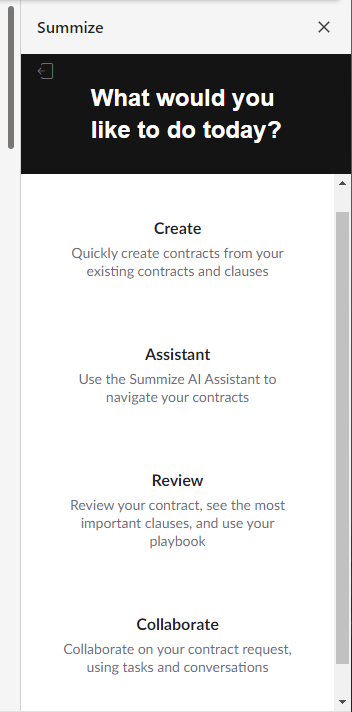
You'll now see a new option in the menu - 'Collaborate':
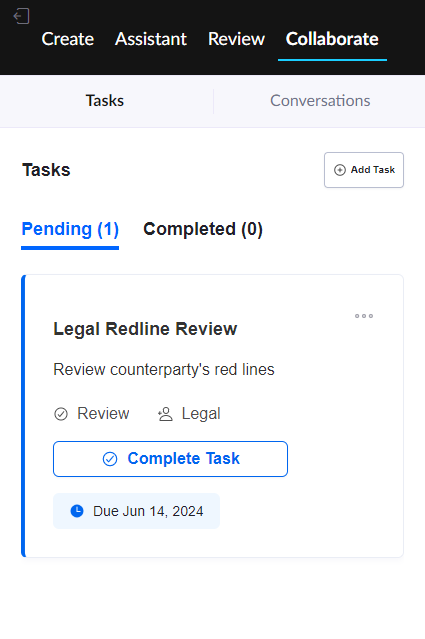
This is also accessible via the top menu. Here, you will see a sub menu for Tasks and Conversations:
Tasks:
If there are already tasks in this Requests, you'll see them here within the Word add-in:
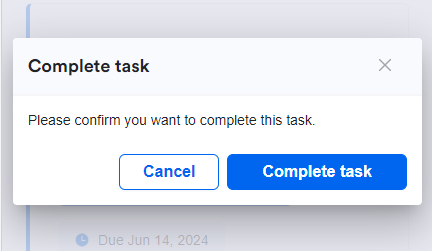
You can complete tasks whilst reviewing your document by clicking 'Complete Task' and confirming:
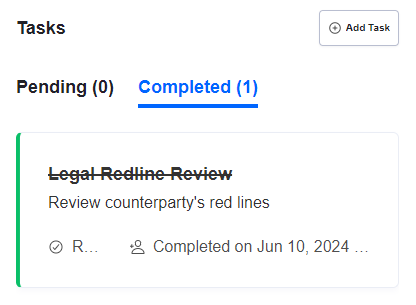
Tasks that are completed will move into the 'Completed' tab:
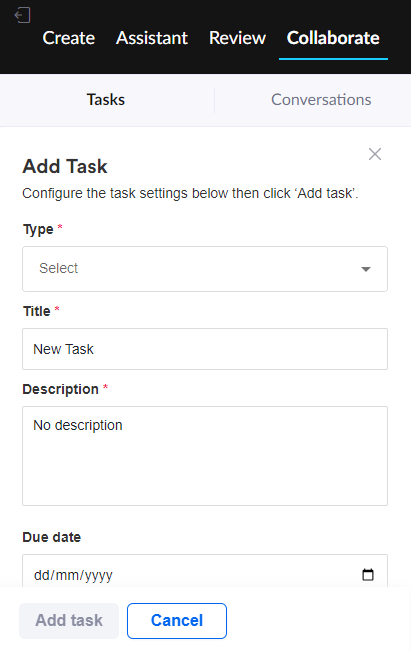
You can also create tasks within Word, by clicking 'Add Task' and completing the fields below:
Conversations:
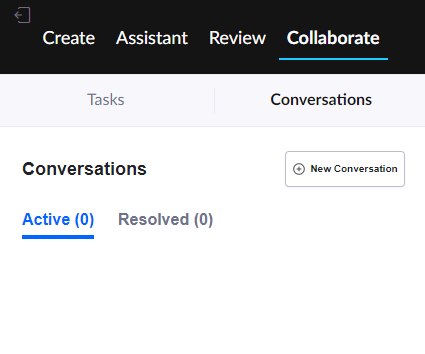
You can start or reply to conversations within the add-in, too. In the example below, there are no conversations associated with the Request:
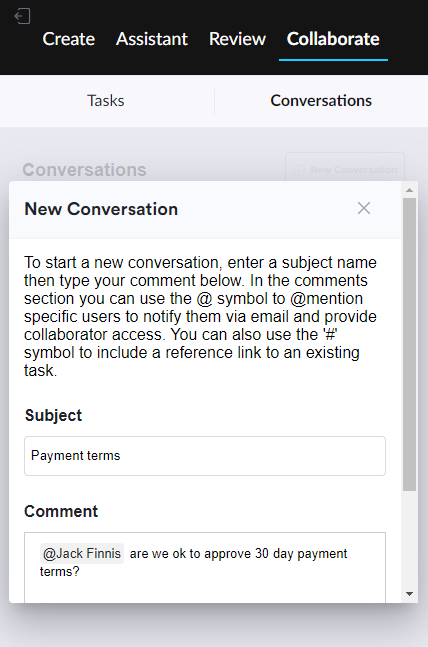
To start a conversation, click 'New conversation' and complete the subject and the comment, and click 'Start Conversation':
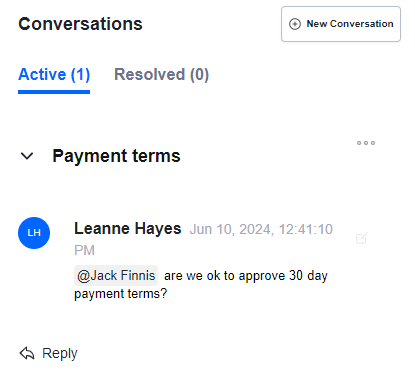
The conversation will then appear in the 'Active' tab:
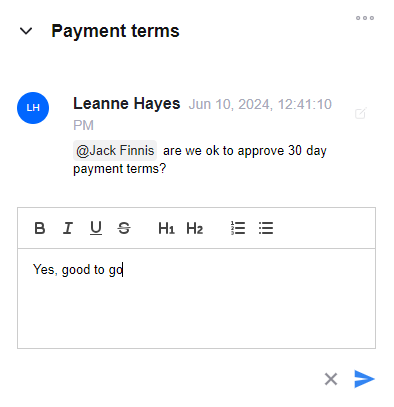
To reply to a conversation, click 'Reply' and type your reply in the box that appears below:
Any task or conversation activity completed within Word for the Web will update live in the Summize web app. This ensures everyone collaborating on the request stays in sync, no matter where they are working.