How to use the Summize Clause Summary for contracts
Skip to:
Overview
Clause summary
Summize AI generated summary
Red flags
Comments
Playbook and Conversations quick access
Overview
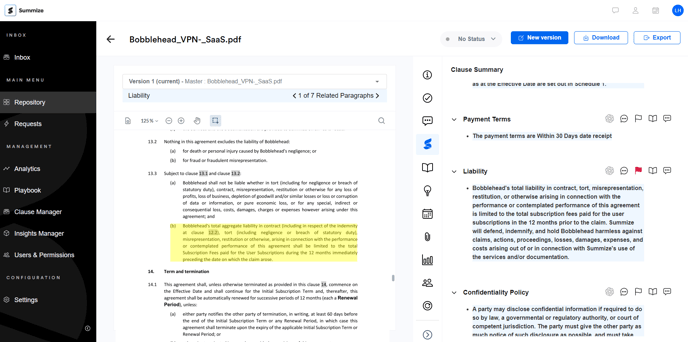
The Summary, indicated by the Summize logo, is where Summize all began. The purpose is to give you an at-a-glance summary of the key clauses included in the contract, with the ability to amend and enhance that summary as outlined in this article.
Clause summary
Prior to uploading contracts to your repository, you will have picked out your key clauses per contract type during your Implementation phase, and configured key words to educate the Summize AI engine to pick out those summaries. If you have not yet done this, please contact your Summize Implementation Manager, or refer to the Clause Manager guide on the Customer Hub.
The key clauses listed in the Clause summary panel are determined by the contract type you selected when the contract was uploaded.
Click on any bullet point to navigate to the text in the contract preview. If the Summize AI found multiple results that match your predetermined key words, you will be able to navigate through those results using the arrows on the related paragraphs section at the top of the preview.
Amending summaries:
If you would like to edit a clause summary, hover over the bullet point and click the pen icon. If you would like to delete a summary, click the trash can icon.
Adding to summaries:
If you would like to add additional paragraphs to the summary, follow these steps:
- Highlight the text in the contract you would like to add
- Click 'Add to clause' on the pop-up that appears
- Select the clause you'd like to add to
- Select the clause from the drop down
- Click 'Add' and the text will appear as an additional bullet point
Summize AI generated Summaries
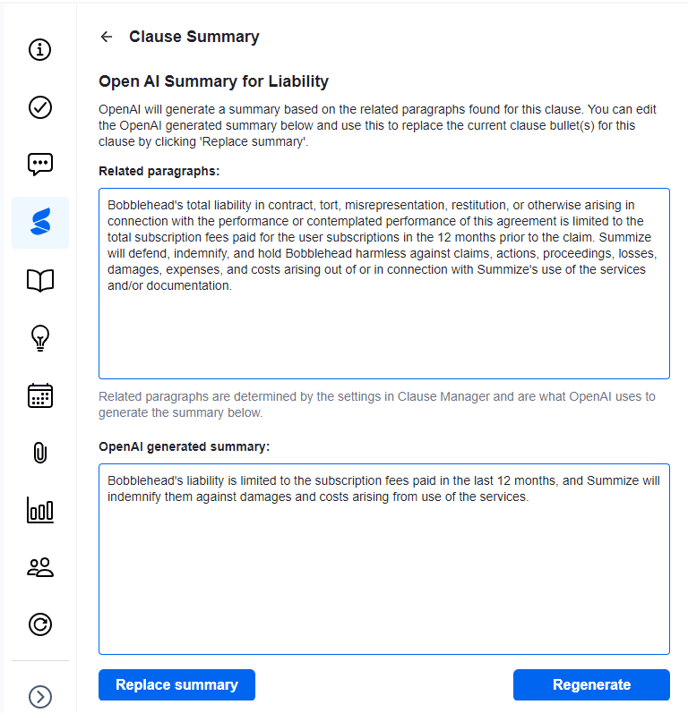
We have incorporated Summize AI to supercharge our clause summaries. This works by taking the clause(s) that Summize has already pulled from the contract using the Clause Manager configuration, and summarising that further and turning it into natural language.
If you/your Implementation Manager has already configured this per clause in Clause Manager, then the summaries shown will have already had the treatment, and you will see a summary of the clauses that the Summize AI has pulled out of the contract.
If the Summize AI summary has not been switched on for that clause already, then you can manually generate an AI summary by following the steps below:
- Click the AI logo above the extracted clause (the first icon that appears)
- Click that and wait a couple of seconds for the summary to generate. The summary will appear in the box below the original summary.
- Either click the back arrow to leave the summary as-is; click 'Regenerate' to try again and summarise further; or click 'Replace Summary' to keep the Summize AI summary.
Red flags
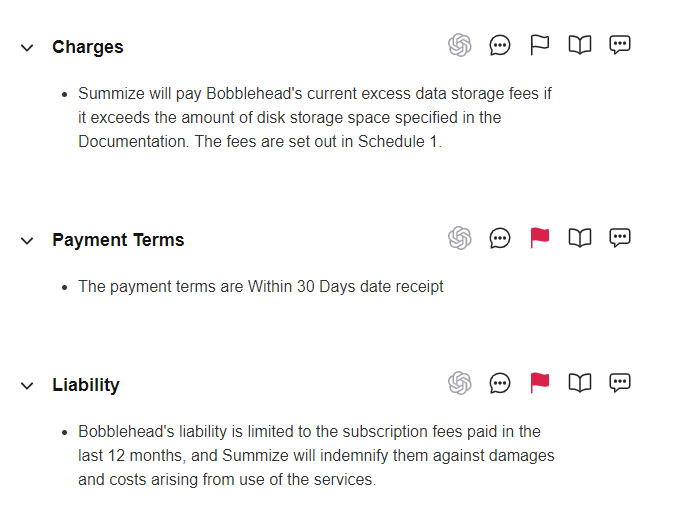
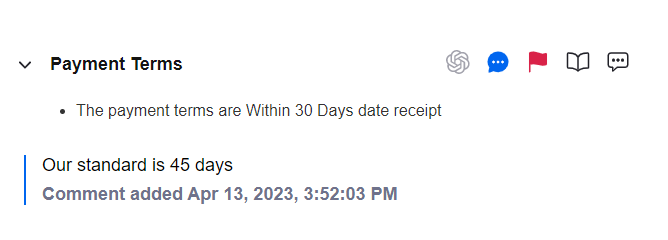
Red flags can be configured via Clause Manager to automatically detect any red flag clauses. You can also apply red flags manually by clicking on the flag icon above the necessary clause(s).
Comments
You can add a comment against a specific clause to make any general notes about clauses. To do this,
- Click the comment icon above the clause
- Type your comment and click the notepad icon
- You can either then leave your comment as-is, edit your comment or delete it.
Playbook and Conversations quick access
From the Clause Summary tab, you can quickly access your clause-related playbook information by clicking the playbook icon. This will take you directly to the playbook response linked to that clause (configured via Clause Manager).
You can also start a conversation related to a specific clause, using the conversation icon. This will automatically pre-populate the subject line with the clause title, ready for you to start your conversation.