
How to set and manage calendar events within your contracts
Skip to:
Overview
The difference between an event and a termination event
Manually add an event
Edit a calendar event
Delete a calendar event
Overview
For each contract you add to the Repository you can track key event dates and termination event dates using the calendar events feature. Calendar events for each contract will be added to the Summize Calendar and can be used to send reminder emails to specific users in your organisation.
You can manually add important calendar events to the Summize Calendar via the ‘Calendar Events’ feature using the instructions in this article.
Alternatively, calendar events can be extracted and added to the Summize Calendar automatically through your Clause Manager settings. See the Clause Manager section of Customer Hub for guidance.
The difference between an event and a termination event
Settings and functionality between an event and termination event is largely the same, the key difference is termination events have an extra settings for notice period and appear in red in the calendar for easier distinction.
Events are typically used for things like payment dates, or other post-signature obligations. Whereas termination events are typically used for contract termination or renewal dates.
Manually add an event
To manually add an event, follow these simple steps:
- Navigate to the Repository Table.
- Locate the contract you want to add an event for, and click it go to the Contract View.
- Navigate to the ‘Calendar event’ section in the tool panel and click the '+ Add event’ or '+ Add termination event' button located in the top-right of the panel. The event settings panel will open.
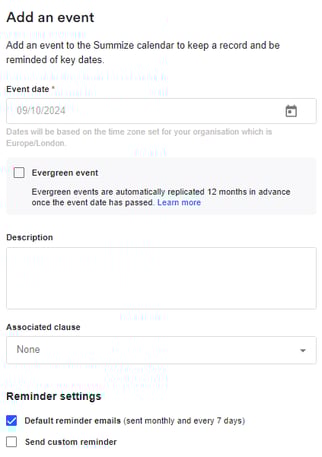
- Select the date the event occurs on from the first option called ‘Event date’.
- Select whether the event is 'Evergreen'. Evergreen events are automatically replicated on the same date the following year. Once the current event date has passed, the new event is automatically generated, with the same settings (description, clause, reminders) as the existing date.
- Termination events only: Enter a notice period (in days) in the second option called ‘Notice period’ if there is one, or leave as zero if there isn’t.
- Enter a description in the second option called ‘Description’.
- Select a clause from the third option called ‘Associated clause’ if you want to associate the event with a specific clause within the contract. Or leave this option set to ‘None’ if you don’t want to.
-
Use the ‘Default reminder’ checkbox to opt in/out of the default reminder service for this event.
Note: The default reminder service is an original feature of Summize that sends an email notification at the start of each month and every 7 days with a list of of all upcoming calendar events within the time period. This feature was enhanced by the ‘Custom Reminder’ service which can be used to send targeted email reminders instead. If you do not wish to receive any of the default reminder emails then you should leave this option de-selected for all calendar events added. - Select the ‘Custom reminder’ checkbox if you want to send custom reminder emails to specific users for this event.
- If the ‘Custom reminder’ option is selected some more options will appear below.
- Select the date you wish to send the reminder email on from the ‘Send on’ option.
Note: You can chose to add a second reminder date if, for example, you want to send a reminder 30 days before and 7 days before the event. To do this click the ‘+ Add second reminder’ and repeat this step. - Select who you want the reminder to be sent to from the ‘Send to’ option. Note: You can select single or multiple users or groups, or a combination of both.
- Click ‘Add Event’ to complete the action. The event will be listed in the ‘Calendar Events’ section of the tool panel, as well as to the Summize Calendar.
In the video below you will see the steps described above.
Edit a calendar event
To edit a calendar event, follow these simple steps:
- Navigate to the Repository Table.
- Locate the contract you want to add an event for, and click it go to the Contract View.
- Navigate to the ‘Calendar events’ section in the tool panel.
- Click the “ellipsis icon located to the right of the event or termination event you want to edit.
- A menu with some options will appear.
- Click the ‘Edit’ option.
- The settings panel for the event or termination event will open.
- Edit any of the settings and click ‘Save Changes’ to complete the action.
Your changes will be applied.
In the video below you will see the steps described above.
Delete a calendar event
To delete a calendar event, follow these simple steps:
- Navigate to the Repository Table.
- Locate the contract you want to add an event for, and click it go to the Contract View.
- Navigate to the ‘Calendar events’ section in the tool panel.
- Click the “ellipsis icon located to the right of the event or termination event you want to edit.
- A menu with some options will appear.
- Click the ‘Delete’ option.
- The event or termination event will be deleted from the Calendar Events section of the tool panel and the Summize Calendar.
In the video below you will see the steps described above.