
If you have purchased a Bulk Import as part of your Implementation Package, use this guide to understand how to use our recommended SFTP Client: FileZilla
Using FileZilla for SFTP (Secure File Transfer Protocol) ensures data integrity and security during file transfers and is our chosen method for importing large amounts of files into Summize. Unlike solutions like email or SharePoint for sharing files with us to import, which can expose data to potential breaches and unauthorized access, SFTP offers end-to-end encryption, which safeguards confidential information from interception. This article will guide you through the process of using FileZilla to import confidential files into Summize, ensuring your data remains protected throughout the transfer.
Step 1: Download and Install FileZilla
- Visit the FileZilla Website: Open your web browser and go to the FileZilla download page.
- Download FileZilla Client: Click on the download link for your operating system (Windows, macOS, or Linux).
- Install FileZilla: Run the downloaded installer and follow the on-screen instructions to complete the installation.
Step 2: Obtain SFTP Credentials
Before you can connect to an SFTP site, your Summize contact will need to provide you with the following connection information:
- Hostname
- Port
- Username
- Password
Step 3: Open FileZilla and Configure the Site Manager
- Launch FileZilla: Open FileZilla by double-clicking the shortcut on your desktop or searching for it in your applications.
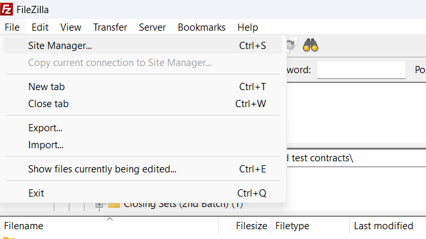
- Open Site Manager:
- Click on the "File" menu at the top-left corner of the window.
- Select "Site Manager" from the dropdown menu.
- Add a New Site:
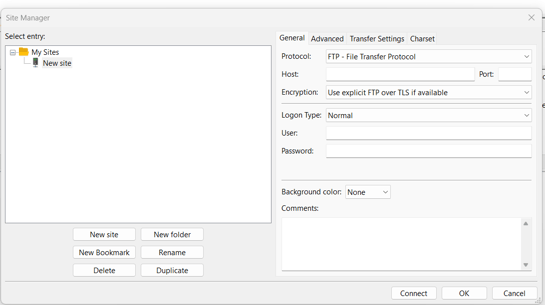
- In the Site Manager window, click on the "New Site" button.
- Enter a name for the new site (e.g., "Summize SFTP Site").
- In the "Host" field, enter the hostname of the SFTP server (e.g., sftp.example.com).
- In the "Port" field, enter the port number (default is 22).
- Click the "OK" button to save the site configuration.
- To connect immediately, click the "Connect" button.
- Accept Host Key (First Time Only): The first time you connect, you may be prompted to trust the host key. Check the key details and click "OK" to accept and save the key.
Step 4: Upload Files
- Navigate Local Files: In the left pane of FileZilla, navigate to the folder on your local computer containing the files you want to upload
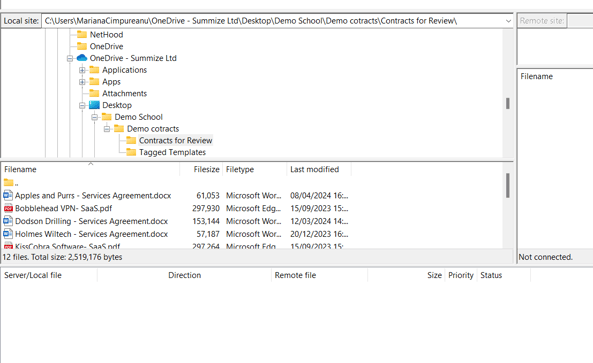
- Navigate Remote Directory: In the right pane, navigate to the directory on the SFTP server where you want to upload the files.
- Transfer Files:
- Select the files or folders you want to upload from the left pane.
- Drag and drop them into the desired directory in the right pane.
- Alternatively, you can right-click the selected files and choose "Upload" from the context menu.
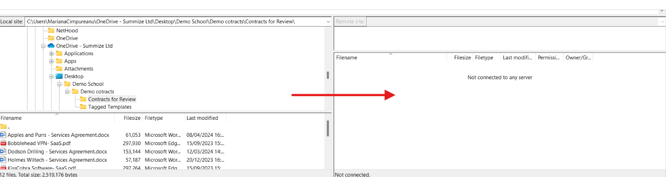
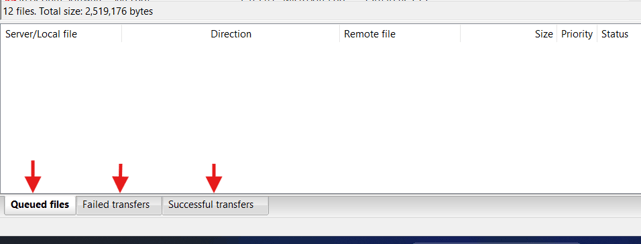
- Monitor Transfer: You can monitor the progress of the file transfer at the bottom of the FileZilla window under the "Queued files," "Failed transfers," and "Successful transfers" tabs.
Step 5: Verify Upload
- Check Remote Directory: Once the upload is complete, navigate through the remote directory to ensure the files have been uploaded successfully.
Step 6: Disconnect
- Close Connection: To disconnect from the SFTP site, click the "Server" menu at the top and select "Disconnect."
- Exit FileZilla: To close FileZilla, click the "File" menu and select "Exit."