How to Install and Use the Summize Assistant Bot in Teams
Skip to:
Overview
How to install the assistant bot in Teams
How to log into the Teams Assistant
Creating a contract using the Assistant
Submitting a contract for review using the Assistant
Submitting an Ask Legal request using the Assistant
Overview
Our Assistant Bot for Teams allows business users to self-serve in creating contracts from pre-determined templates and sending contracts in for review, putting that Legal Front Door between the Legal team and the rest of the business.
How to Install the Assistant Bot in Teams:
To install the Assistant Bot in Teams, follow these simple steps:
- Open Microsoft Teams
- Click on the ellipsis (…) in the toolbar on the bottom left-hand side of your screen
- Type ‘Summize Assistant’ into the search bar
- Add the appropriate ‘Summize Assistant’ Teams integration
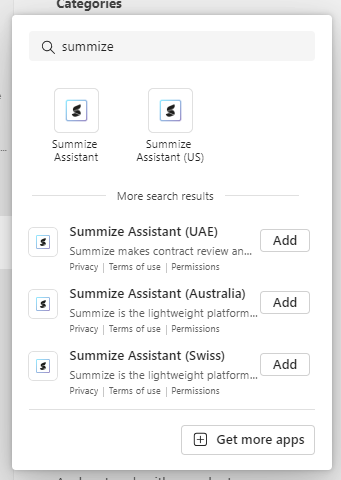
Note: if you're not sure which to select, check the URL you use to access Summize:
| URL | Add-In |
| app.summize.com | Summize |
| app-us.summize.com | Summize (US) |
| app-aus.summize.com | Summize (Australia) |
| app-ch.summize.com | Summize (Swiss) |
| app-uae.summize.com | Summize (UAE) |
How to Log into the Assistant Bot in Teams:
To log into the Assistant Bot in Teams, follow these simple steps:
- Once installed, the first thing you need to do is log in.
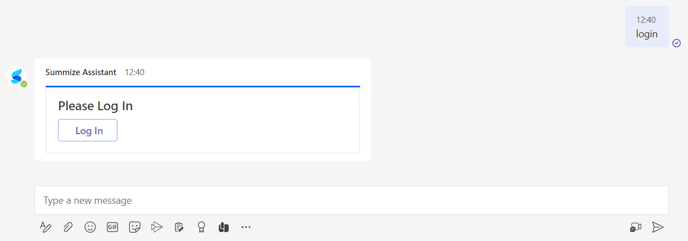
- To do this, type ‘log in’ into the text box and hit enter.
- Click on the ‘Log In’ button and fill out your login credentials.
Note: If you need to log out at any point, type ‘log out’ and hit enter. - Now, you’re ready to either create a contract (click the Create button, or type ‘create’ and hit enter), submit a contract to review (click the Review button, type ‘review’) or submit an Ask Legal query (click the Ask Legal button, type ‘ask legal’)
Creating a Contract Using the Assistant:
To create a contract using the Assistant Bot, follow these simple steps:
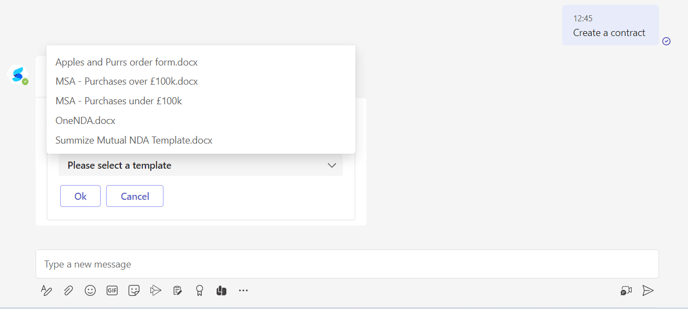
- Start by selecting the Create button, or typing ‘create’ and hit enter.
- Select which contract type you want to create from the drop down menu, and click ‘Ok’.
- From here, simply answer the questions that appear on screen, taking into account any guidance notes that appear.
- If you make a mistake you can type Cancel at any point to start again.
Note: You can also edit your answers once you've completed the full set of questions. - Once you have finished answering all of the questions and have reviewed and confirmed your submitted responses, depending on the settings your team have chosen, you’ll either see the finalised contract appear in the chat, or you’ll receive a copy later once it’s been approved by your Legal team.


Submitting a contract for review using the Assistant:
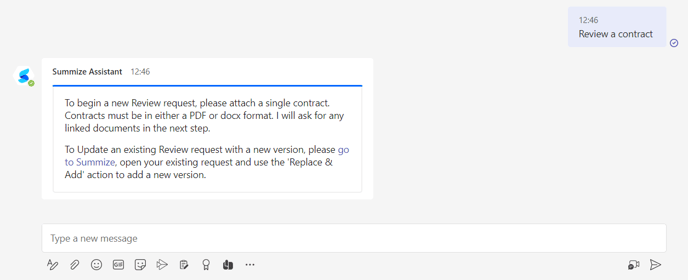
To submit a contract for review using the Assistant Bot, follow these simple steps:
- Start by selecting the Review button, or typing ‘review’ and hit enter. Drag and drop the contract you’d like to submit into the chat window. Note that it must be a PDF or docx file.
- If you have any linked documents that you would like to submit at the same time, you can do that next.
- Select the correct question set from the dropdown (this will most likely be based on contract type).
- From here, simply answer the questions that appear on screen, taking into account any guidance notes that appear.
- Once you have completed all of the questions and confirmed your responses, your contract will automatically be submitted for review.
- Whilst being reviewed by your Legal team, you may receive email notifications about changes in status and any additional questions your colleagues may have.
Submitting an Ask Legal request using the Assistant:
To submit an Ask Legal request using the Assistant Bot, follow these simple steps:
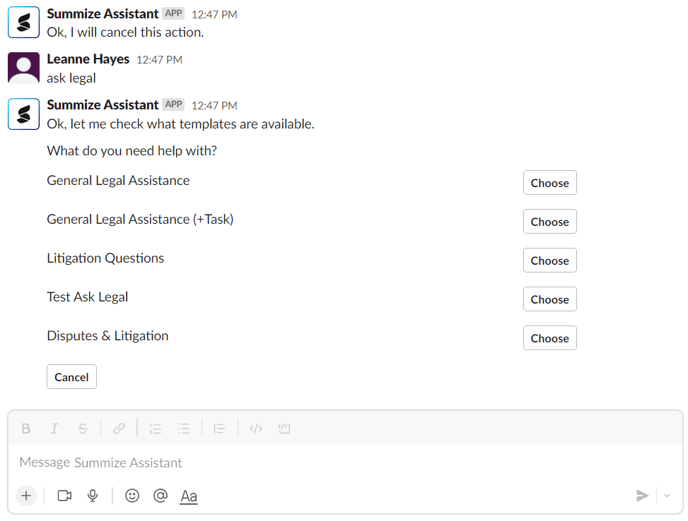
- Start by selecting Ask Legal, or typing ‘ask legal’ and hit enter.
- Select the appropriate question set from the dropdown
- From here, simply answer the questions that appear on screen, taking into account any guidance notes that appear.
- Once you have completed all of the questions and confirmed your responses, your request will be submitted to the Legal Team.
- Whilst being reviewed by your Legal team, you may receive email notifications about changes in status and any additional questions your colleagues may have.